
Worldpay: Surcharging using Fee Assist
Worldpay’s Fee Assist is a compliant surcharging program that helps businesses offset credit card processing costs by automatically applying an extra fee to credit card purchases. It ensures fees remain compliant with card network rules (such as Visa or Mastercard) by verifying cards and calculating surcharges automatically before processing.
This section describes how to enable your dealership to automatically add a compliant credit card surcharge using Worldpay Fee Assist. Topics in this section are:
Frequently Asked Questions
 Which transactions are typically eligible for a surcharge?
Surcharges generally apply only to credit card transactions. Debit cards, prepaid cards, and certain regulated payment types are excluded, even when processed as credit. Merchants should confirm eligibility requirements with WorldPay and their legal or compliance teams.
Are surcharges allowed everywhere?
No. Surcharging rules vary by country, state, province, and card brand. Some jurisdictions restrict or prohibit surcharging, while others require specific disclosures, caps, or registration. Merchants are responsible for ensuring their surcharge program complies with all applicable requirements.
What disclosures are required?
Merchants typically need to clearly disclose the surcharge before checkout and on the receipt. For in-person payments, signage may be required at the point of entry and point of sale. For online payments, the surcharge should be shown before the customer completes the purchase.
How much can a merchant surcharge?
The surcharge amount is usually limited to the merchant’s actual cost of acceptance and may also be subject to card brand or legal caps. Merchants should avoid applying a surcharge that exceeds permitted limits for their region.
How should surcharges appear on receipts?
Receipts should clearly identify the surcharge as a separate line item or otherwise clearly disclose the amount included. The total amount charged should match the amount authorized and captured for the transaction.
What should merchants do before enabling surcharging?
Before enabling surcharging, merchants should review local laws, card brand rules, customer disclosure requirements, and their WorldPay processing agreement. They should also test the checkout experience, receipt formatting, reporting, refunds, and reconciliation processes. Then create an account with WorldPay to enable surcharging for their MID.
Prerequisites
Before you begin:
-
Contact your Worldpay representative to confirm availability.
-
Create a surcharging account with Worldpay; without it, surcharging cannot be enabled.
-
Review these limitations:
Currently Connecticut, Massachusetts, Maine and Puerto Rico do not allow for credit card surcharging. Do not enable for these locations. Fee Assist does not prevent surcharging if you are in these states/territories.
Fee Assist does not charge tax on surcharges. If you require surcharge amounts to be taxed, do not use.
Surcharging is unavailable in these situations:
-
Using the Worldpay Device, Portal, Worldpay Portal on a return invoice (negative balance - returning money to the customer). To return surcharging fees you MUST use the Use Previous Invoicebutton. See Performing a Return Invoice.
-
Text-to-pay does not allow for surcharging.
Creating a Surcharge Part
IntelliDealer uses a part number to identify the surcharge on parts invoices and work orders. Therefore you must configure a part to be used for surcharging.
-
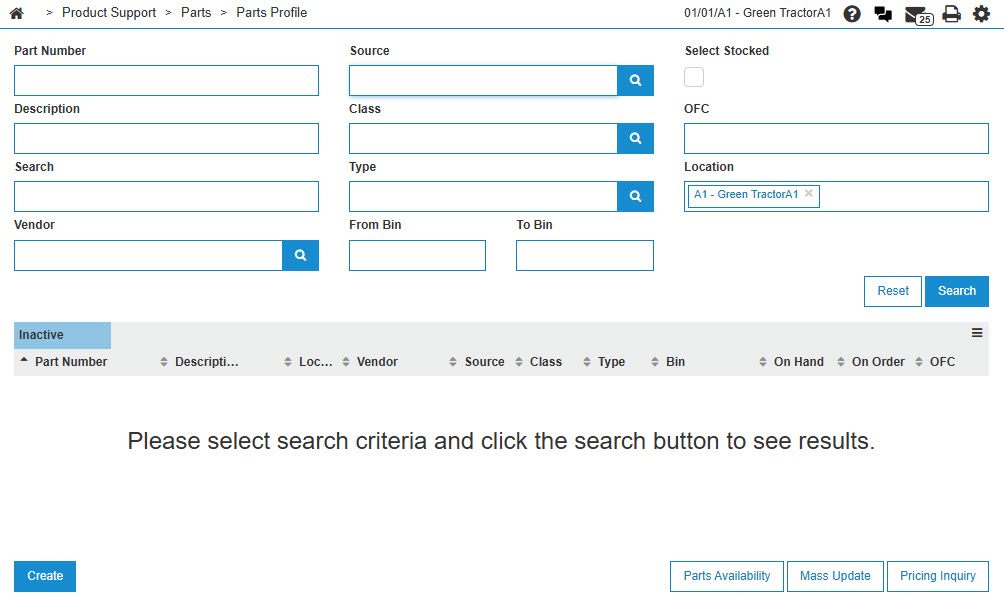
Navigate to Product Support > Parts > Parts Profile.
-
Click Create.
-
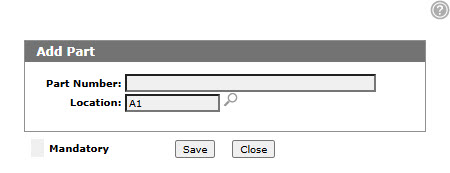
Enter a Part Number.
It is recommended to use SURCHARGE as the part number, so it can be clearly identified on the invoice.
-
Enter a Location - or - click the Search
 icon to select a Location from the Location Selection screen.
 -
Click Save.
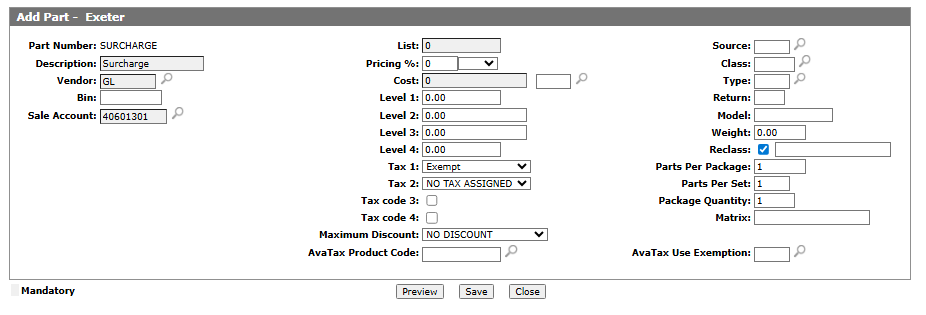
The Add Part screen refreshes, displaying additional fields.
-
Fill in the fields, referring to the Parts Profile: Add Part/Part Quick Add. Specifically, these settings are required for surcharging:
Field Required Setting Description Displayed on the invoice, use the description to clearly identify the charge for customers. Vendor Set this to GL. Sale Account A general ledger account into which all surcharging accounts will be recorded. Tax 1 and Tax 2 A tax code that matches the code for tax exempt. Tax 3 and Tax 4 Leave unselected. AvaTax Product Code If using AvaTax, set to NT, or another code for tax exempt. -
Click Save.
Creating a Miscellaneous Charge
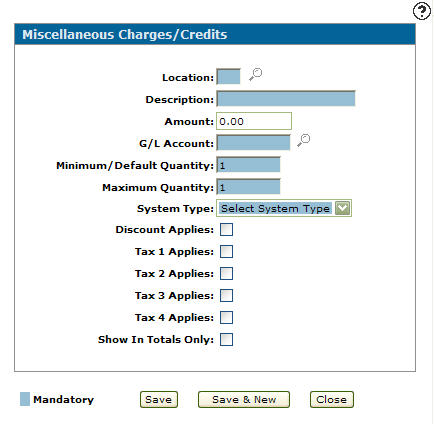
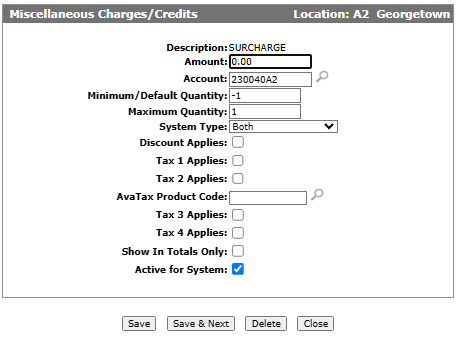
You must create a Miscellaneous Charges/Credits to apply the surcharge fee to invoices.
-
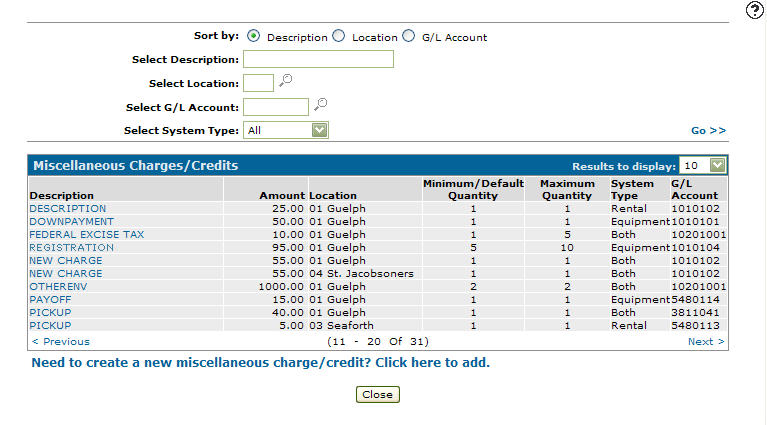
Navigate to Configuration > Equipment > General > Miscellaneous Charges Credit.
-
Click Need to create a new miscellaneous charge/credit? Click here to add.
-
Fill in the fields on the screen referring to Miscellaneous Charges/Credits. Specifically, these settings are required for surcharging:
Field Required Setting Location Should be the same location as the surcharge part. Description Should clearly identify that this is a surcharge fee. Amount Must be 0. Minimum Must be -1. Maximum Must be 1. System Type Both. Discounts and Taxes All should be unselected. AvaTax Product Code If using AvaTax, set to NT, or another code for tax exempt. -
Click Save.
Enabling Surcharging by Location
You enable surcharging for stored token (cardless transactions) and Worldpay Portal, by location, through the configuration of the Worldpay cash code for that location.
To enable surcharging on credit card devices, see Enabling Surcharging on a Device.
-
Navigate to Configuration > General Ledger > Accounts Receivable > Cash Codes.
The Accounts Receivable - Cash Codes screen opens.
-
Search for your Worldpay cash code for the location you wish to enable, and open it for edit.
The Worldpay cash code module opens.
-
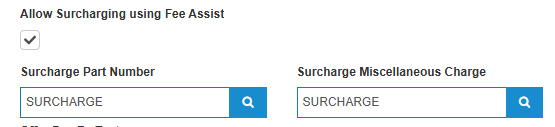
Scroll down until you find Allow Surcharging using Fee Assist and select it.
-
Enter the Surcharge Part Number and Surcharge Miscellaneous Charge you created earlier.
-
Click Save.
Enabling Surcharging on a Device
Prerequisites: a registered device; see Worldpay: Register Credit Card Devices and surcharging enabled for the location the device is located at.
To use surcharging with a registered device (transactions that use a credit card):
-
Navigate to Configuration > Interfaces > IntelliDealer > Point-of-Sale Devices.
The Point-of-Sale Devices screen opens.
-
Click the edit
 icon next to the device to enable for surcharging to open it for edit.
 -
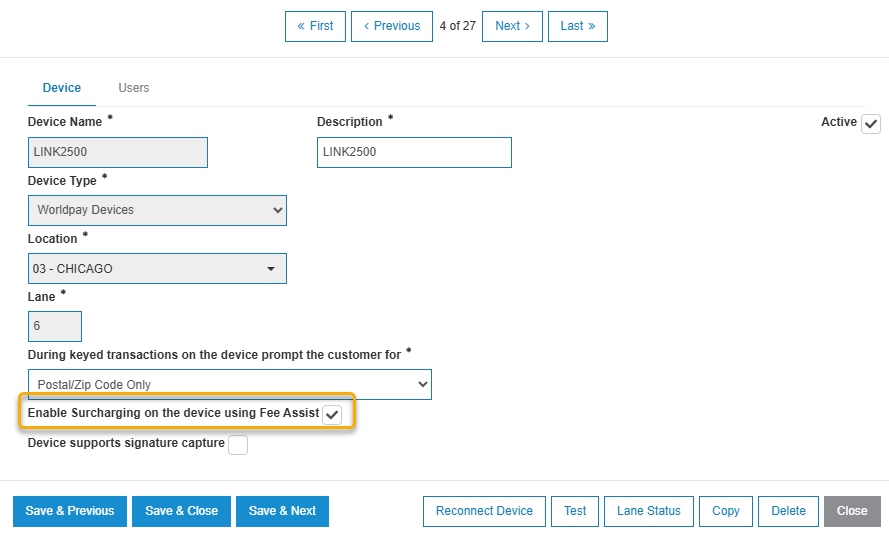
If surcharging has been enabled for the location the device is associated with, you will see the checkbox Enable Surcharging on the device using Fee Assist.
-
Select it.
-
Click Save & Close.
After the device reboots a few times it is ready to process surcharges.
Surcharge Daily Usage
Processing an invoice that includes surcharging is no different then usual Daily Usage, except you will be asked to confirm both the amount of the invoice and the amount of the surcharge. If performing a cardless transaction, the confirmation screen is shown by IntelliDealer. If the transaction uses a point-of-sale device, the confirmation is shown to the customer on the device. If the customer accepts the surcharge, Worldpay automatically adds the surcharge to the invoice total.
The surcharge is added to the invoice in different locations, depending on the type:
-
Work orders and Parts invoices have a part added for the surcharge amount.
-
Equipment and rental invoices have a miscellaneous charge added to the invoice.
-
General invoices have two entries added: one for the credit card and one for the surcharge general ledger account used by the part surcharge.
Troubleshooting Surcharging
If a surcharge did not apply, applied incorrectly, cannot be refunded, or is unavailable for a payment, check that these settings are correct:
-
Is the dealership’s WorldPay MID enabled for surcharging by WorldPay?
-
Is surcharging enabled for the cash code?
-
If using a device, is surcharging also enabled on the specific point-of-sale device?
-
Is the card actually an eligible credit card rather than debit, prepaid, or another excluded payment type?
Most issues are caused by one of these things: WorldPay account not enabled for surcharging, location or device setup not completed, unsupported transaction flow, or an ineligible card type.