
User
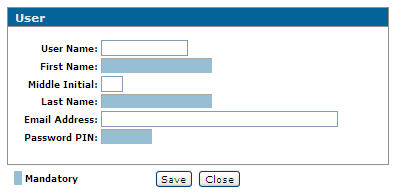
The User screen can be used to create a new IntelliDealer user profile.
To open the User screen, click the Need to create a new user profile? Click here to add link on the User Profiles screen.
Topics in this section are:
Adding a New User to the IntelliDealer System
-
Navigate to Administration > Settings > User Profiles.
-
Click the Need to create a new user profile? Click here to add link.
The User screen appears. -
Fill in the fields referring to the Screen Description.
-
Click Save.
The new user is saved and you are returned to the User Profiles screen where you can edit additional user profile information.
 The User Profiles screen appears.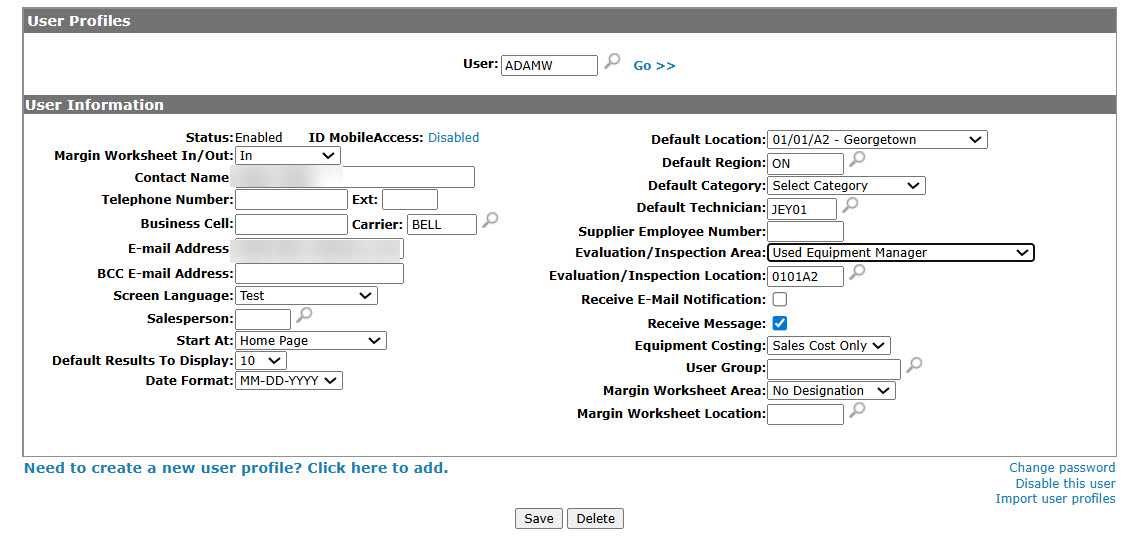
Disabling/Enabling a User Profile
By disabling a User Profile you can remove a user's access to IntelliDealer without deleting the User Profile itself. The same process can be used to activate a previously disabled User Profile.
-
Navigate to Administration > Settings > User Profiles.
-
Enter a user ID in the User field or click the Search
 icon to search for a user on the User Selection screen.
 -
On the User Profile, click the Disable/Enable this user link.
-
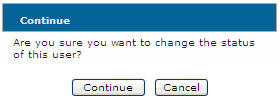
Click Continue to change the user status.
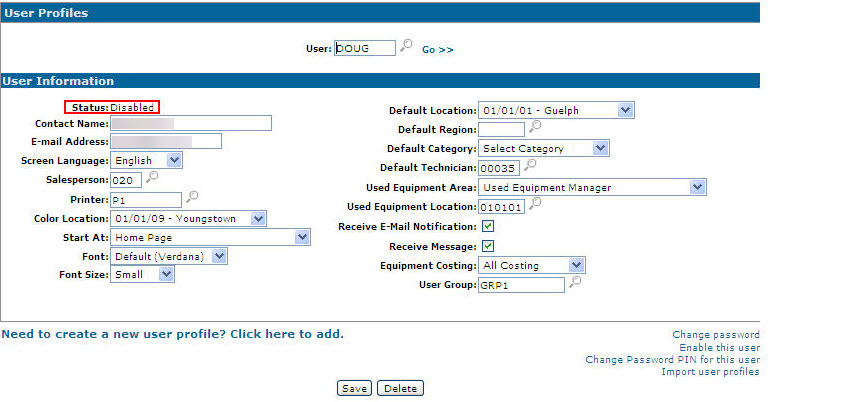
The User Profiles screen appears with a change to the user's status.
Screen Description
The fields on the Userscreen are:
| Field | Description |
|---|---|
| User Name |
Enter a user name for logging into IntelliDealer. If the Generate Username On Add checkbox is selected on the Administration > Settings > IntelliDealer Settings page, then this field is hidden and the system automatically creates a User Name populated with a combination of letters from the First Name and Middle Initial fields, plus the first few letters of the Last Name field, followed by a unique two digit number. (e.g. JSMITH11). Note: If you are an ASP customer and you plan on adding a user profile for an employee who's name begins with "Q", the system automatically omits the "Q" from the user ID that is created. For example, when creating a profile for user "Quincy Jones", the system would normally create a user ID such as "QJONES11". But because the starting character "Q" is reserved for special IBM user profiles, the resulting ID would most likely be simply "JONES11". |
| First Name | The first name of the user. |
| Middle Initial | The middle initial of the user. |
| Last Name | The last name of the user. |
| Email Address | The email address to be associated with this user. |
Use these buttons to complete your work on the User screen:
| Button | Function |
|---|---|
| Save | Saves changes made to the User screen. |
| Close | Closes this window without adding the user information. |
Security: 994 - WebAdmin, Access Maintain User Profiles
Revision: 2024.01