
Configuration: Tax 1 Listing
Use the Tax 1 screen to search for, edit and add tax 1 codes. The Tax 1 screen also shows the existing configuration of all previously defined Tax 1 codes.
Tax 1 codes added to the system appear as valid options in the Tax 1 field dropdown throughout the system.
To open the Tax 1 screen, navigate to Configuration > CRM > Taxes Discounts > Tax 1.
Topics in this section are:
Adding a Tax 1 Code
-
Navigate to Configuration > CRM > Taxes Discounts > Tax.
-
Click Need to create a new tax code? Click here to add .
-
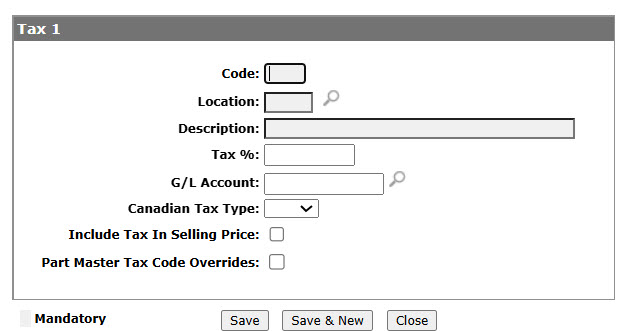
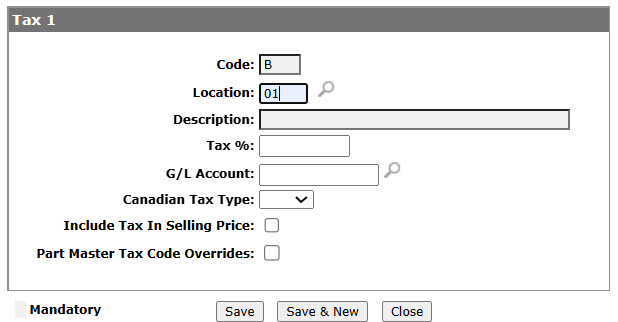
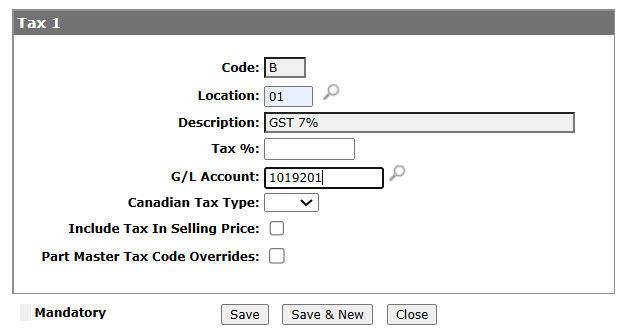
Enter a 1 digit alpha or numeric tax Code, enter a Location or click the Search
 icon to open the Location Selection. Select a Location to return to the Tax 1 screen with the Location populated.
Enter a tax 1 code Description, Tax %.The Tax % field value must be 0 for alpha tax 1 codes.
-
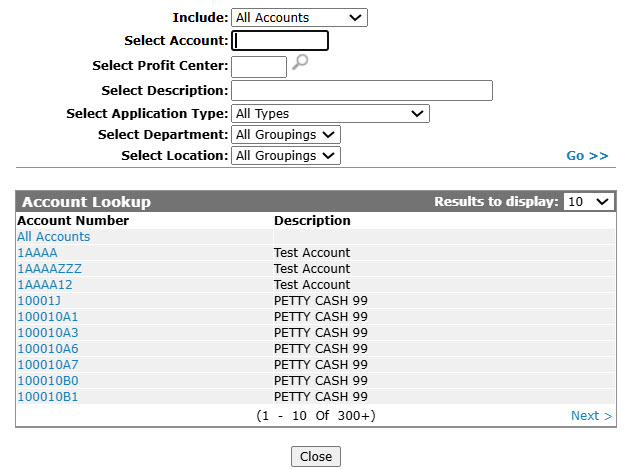
Enter G/L Account number or click on Search
icon. -
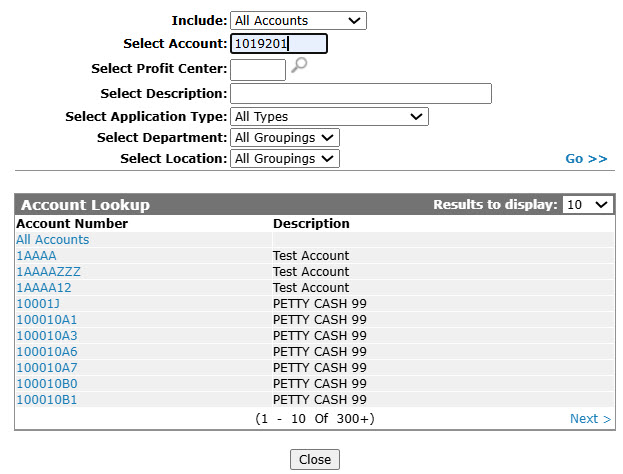
On the Account Lookup screen, fill out the appropriate fields and click Go >> .
-
Click Account Number.
-
(OPTIONAL) If the Canadian dealership, (CA in the Country Company Located In field of the COTAB1 table), select the Canadian Tax Type to associate with the tax code: GST, PST, HST, or QST.
This information records on applicable credit card transactions and is sent to the credit card company when submitted through the Authorization Maintenance screen. -
On the Tax 1 screen, select Include Tax in Selling Price checkbox to include the tax 1 code amount within the sales price.
-
Select the Part Master Tax Code Overrides to use the part tax 1 code from Part Master (PARTMAST) instead of the customer tax 1 code.
-
Click Save button to save the new tax 1 code and return to the Tax 1 screen.
- or -
Click the Save & Newto save and refresh the screen for adding another tax code.
 The Tax 1 screen appears.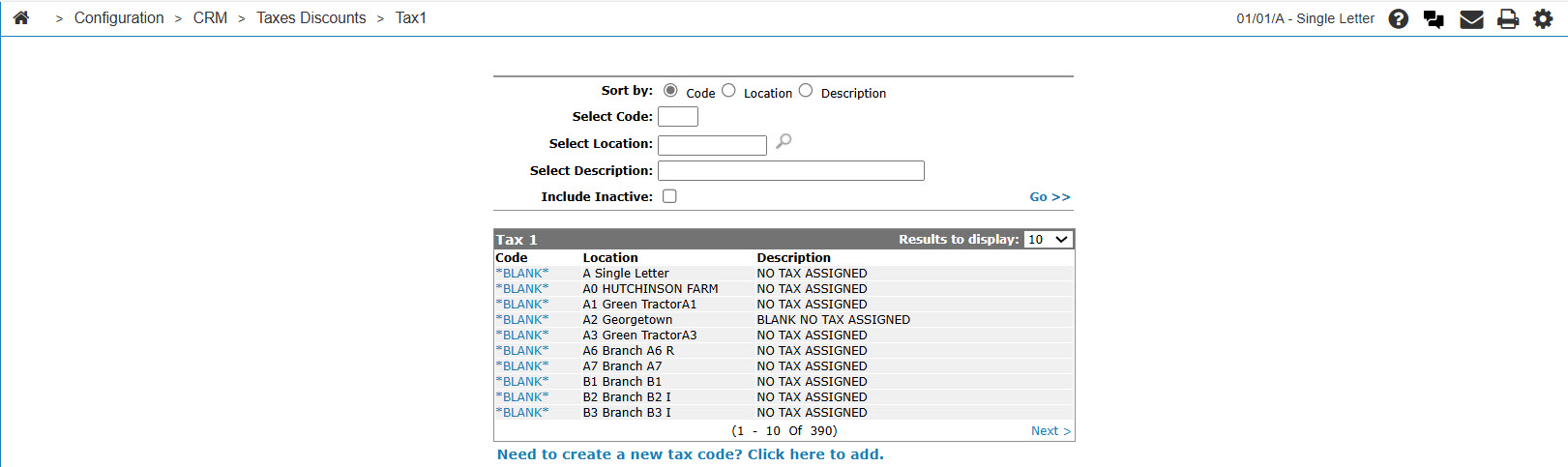
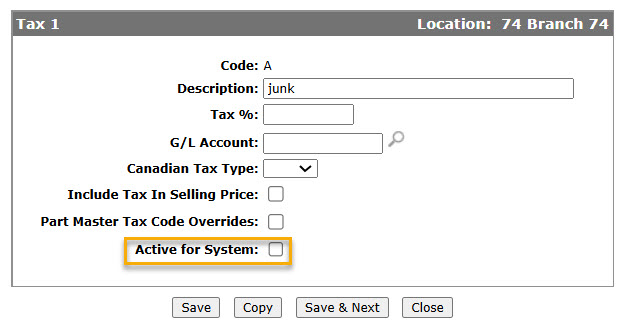
Deactivating a Tax 1 Code
-
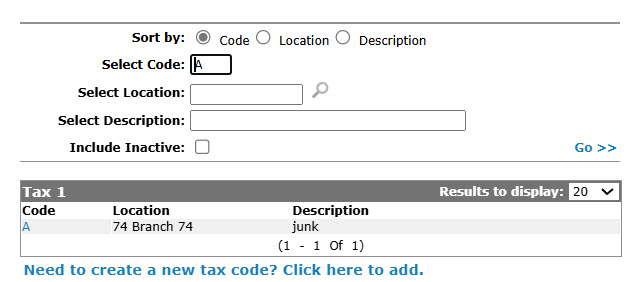
On the Tax 1 screen, fill out the required fields and click the Go >> links to refresh the screen and display the search .
-
Click Code.
-
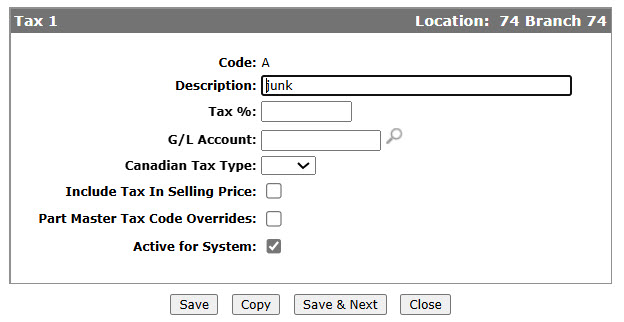
Select the Active for System checkbox, removing the checkmark.
-
Click the Save button to deactivate the tax 1 code within the system.
Screen Description
The sorting options on the Tax 1screen are:
| Sort by | |
|---|---|
| Field | Description |
| Code | Sort the search results by tax code. |
| Location | Sort the search results by location. |
| Description | Sort the search results by tax code description. |
The search fields on the Tax 1 screen are:
| Field | Description |
|---|---|
| Select Code | Search for tax 1 code by entering a tax 1 code. |
| Select Location | Search for a tax 1 code by entering a branch location. |
| Select Description | Search for a tax 1 code by entering a tax 1 code description. |
| Include Inactive | If selected, includes inactive tax 1 codes within the search results. |
The fields on the Tax 1 screen are:
| Field | Description |
|---|---|
| Code | The tax 1 code. |
| Location | The location the tax 1 code will appear as a valid tax 1 code. |
| Description | A brief description of the tax 1 code. |