
Configuration: Master Price Files
Use the Master Price Files screen to set up the appropriate vendor code and sale account on the master price file. The system will use the vendor code and sale account as defaults when adding parts. This screen works in conjunction with the parts vendor master price files.
To open the Master Price Files screen, navigate to Configuration > Parts > Profile > Master Price Files .
Topics in this section
Setting Up a Master Price File Configuration
-
Navigate toConfiguration > Parts > Profile > Master Price Files.
-
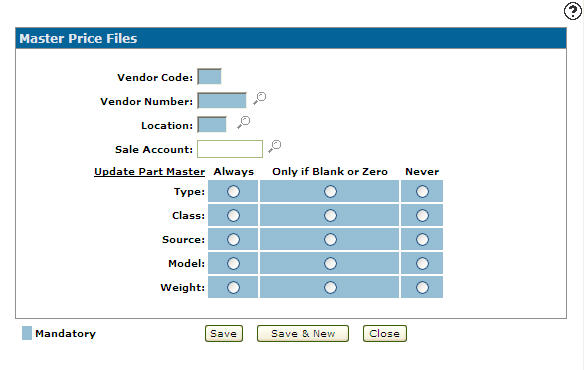
Click Need to create a new master price file? Click here to add .
-
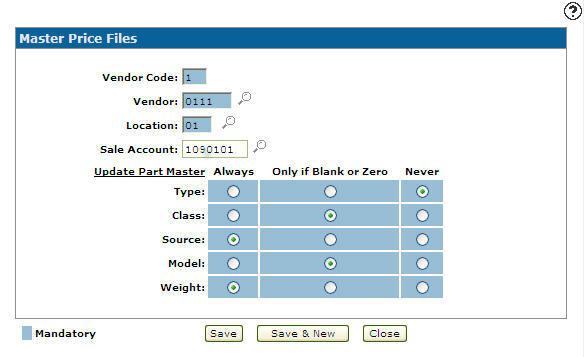
Enter a one character alphanumeric Vendor Code that is assigned to a vendor during the initial master price load.
-
Enter the Vendor Number the return code is associated with.
- or -
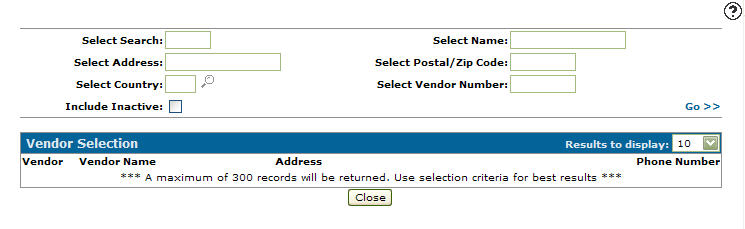
Click on the Search icon and search for a vendor number from the Vendor Selection screen.
 -
Enter a Location.
- or -
Click on the Search icon and select a Location from the Location Selection screen.
 -
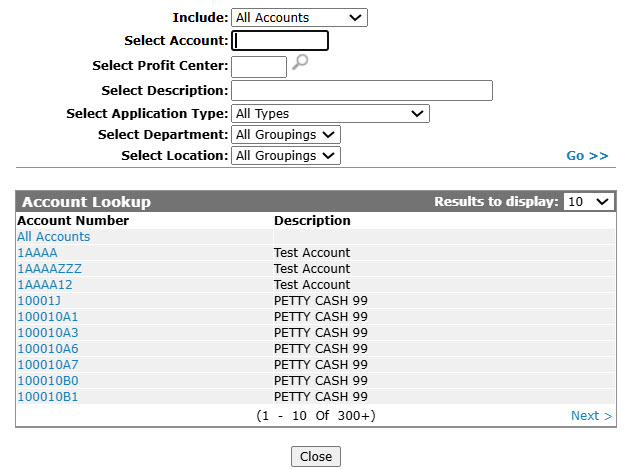
Enter a Sale Accountto set it as the default when a part is added from the master price file for the associated vendor to the Parts Profile tab, or click the Search
icon to find a sale account on the Account Lookup screen. - On the Update Part Master field, selected whether the corresponding code is updated:
- Always: Always updates the corresponding field, overwriting any existing information.
- Only if blank or Zero: New values will be supplied by the vendor.
- Never: Never updates the corresponding field.
-
On the Master Price Files screen, click the Save button to save the new master price files configuration and return to the Master Price Files screen.
- or -
Click the Save & New button to save the new master price files configuration.
The Master Price Files screen screen refreshes, allowing you to add another master price file configuration without closing the screen.
 The Master Price Files screen appears.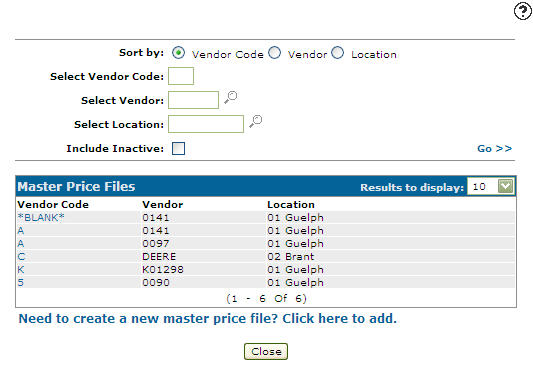
Copying a Master Price File Configuration
-
Navigate to Configuration > Parts > Profile > Master Price Files.
-
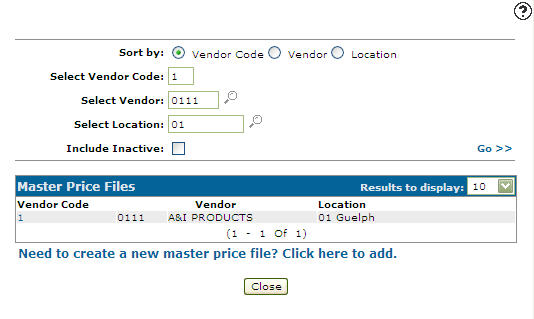
Fill out the appropriate field and click the Go >> link.
-
Click Vendor Code.
-
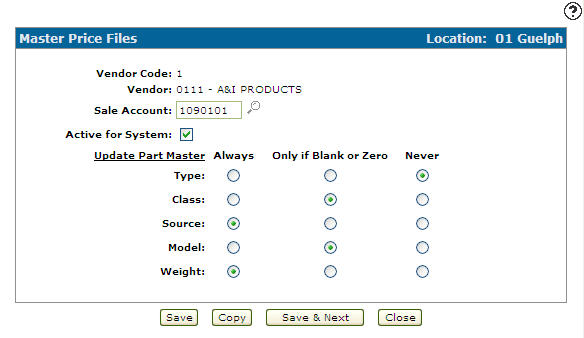
Click Copy button.
-
Once you have fill out all the desired fields click on the Save button to create a copy of the master price file configuration.
Deactivating a Master Price File Configuration
-
From any IntelliDealer screen, navigate to Configuration > Parts > Profile > Master Price Files.
-
Fill out the appropriate field and click the Go >> .
-
Click on the Vendor Code.
-
Select the Active for System checkbox, removing the checkmark.
-
Click on the Save button in order to deactivate the master price file configuration within the system.
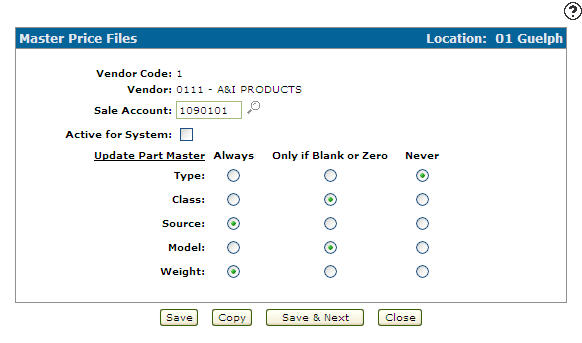
Screen Description
The sorting options on the Master Price Files screen are:
| Sort by | |
|---|---|
| Field | Description |
| Vendor Code | Sort the search results by vendor code. |
| Vendor Number | Sort the search results by vendor number. |
| Location | Sort the search results by branch location. |
The search fields on the Master Price Files screen are:
| Field | Description |
|---|---|
| Select Vendor Code | Search for master price files by entering a vendor code. |
| Select Vendor Number | Search for master price files by entering a vendor number. |
| Select Location | Search for master price files by entering a branch location. |
| Include Inactive | If selected, includes inactive master price files within the search results. |
The fields on the Master Price files screen are:
| Field | Description |
|---|---|
| Vendor Code |
A one character alphanumeric code assigned to a vendor during the initial master price load. If there is no price tape for a particular vendor, the system will use the vendor code and sale account loaded on the CASHTAB table when parts are added to the Parts Profile tab. |
| Vendor Number | The master price file will apply the vendor number entered. |
| Location | Indicates which branch location the vendor master price files configuration is set up for. |
| Sale Account | The parts sale account that corresponds to the current vendor code. Used as the default sale account when a part is added from the master price file for the associated vendor to the Parts Profile tab. |