
Create and Edit News
Use the News screen to create and maintain current articles, promotions and customer service messages for your dealership employees and customers. News articles created using this screen appear on the IntelliDealer Home screen in the News section and on the News screens of the ID MobileAccess and MyDealer applications.
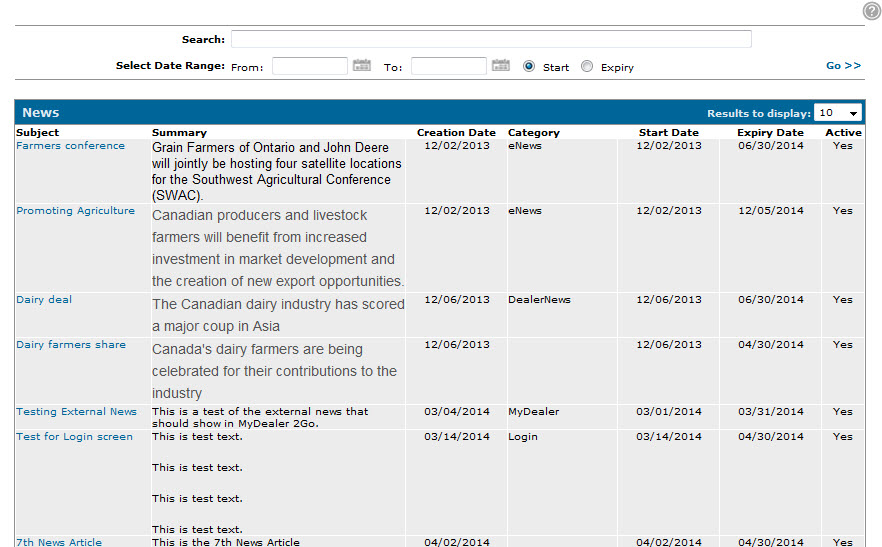
To access the screen, navigate to Administration > Settings > Utilities, click Maintain News to open the News screen, then click a Subject or the Need to create a news item? Click here to add link.
Topics in this section are:
Creating a News Article
-
From anywhere within IntelliDealer, navigate to Administration > Settings > Utilities.
-
Click the Maintain News link. The News screen appears.
-
Click the Need to create a news item? Click here to add link. The News screen appears.
-
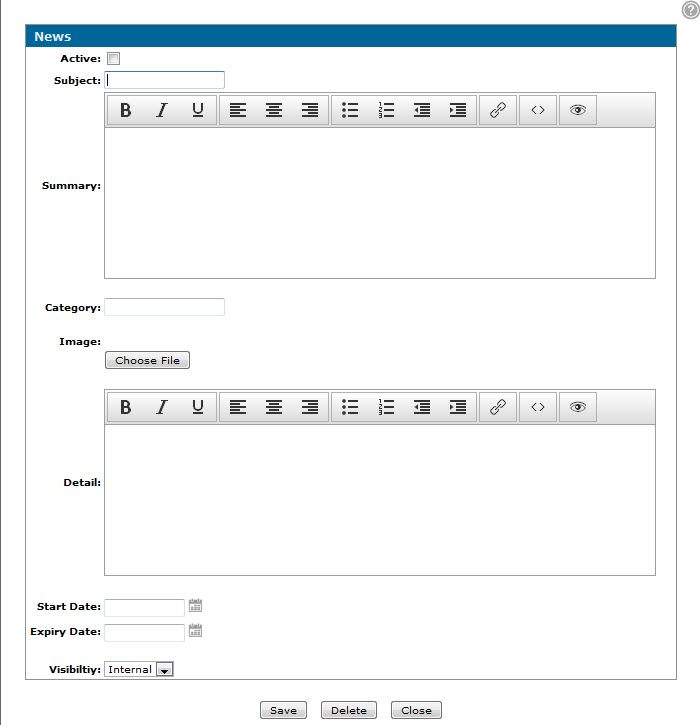
Fill in the fields as listed in the table in the Screen Description.
-
Click Save. The system returns to the News screen.
 The
The 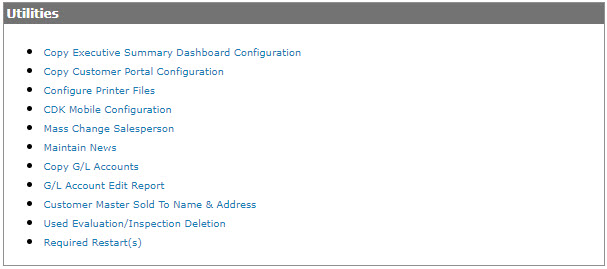
Screen Description
Fields on the News screen are:
| Field | Description |
|---|---|
| Active |
Denotes whether the selected article is active for the system. Even if the selected article is active, it is only displayed to users if the current date is within the date range specified by the Start Date and Expiry Date fields. |
| Subject | The headline of the news article. |
| Summary | A brief summary of the information contained in the full article. |
| Category |
The category associated to the article. This field is for informational purposes only. |
| Image |
(Optional) The image associated to the article. Click the Choose File button to upload a new image for the article. Required image sizes, in pixels, are:
|
| Detail | The body of the article. |
| Start Date | The date on which the article is first made available for users. |
| Expiry Date | The date on which the article is no longer available for users. |
| Visibility |
Determines who can see the article. Options are:
|
Click Save to save your changes on the News screen.
Click Delete to delete the selected news article.
Click Close to complete your work on the News screen without saving any changes.