
Note on current releases:
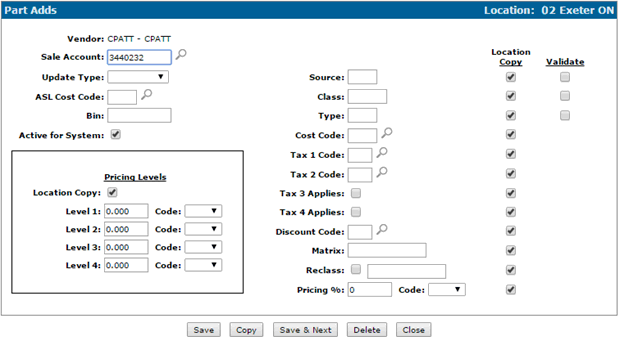
- PartAdds table is under Configuration/Parts/Profile/Part Ads
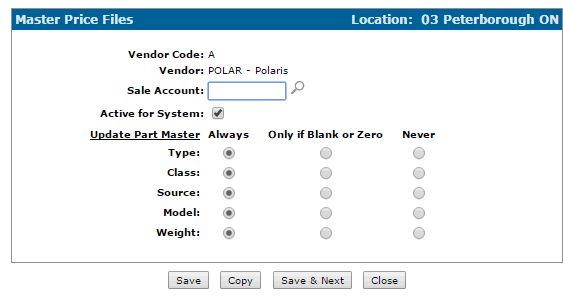
- PARTPRC table is under Configuration/Parts/Profile/Master Price Files
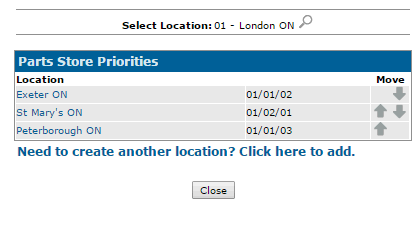
- Store priority information Configuration/Parts/General/Parts Store Priorities
- As of 4.0, if there is a Price Matrix record for the part being added, the price increase percent and the price increase code is loaded from the Matrix overriding any other default values or manually keyed values
| Step | Table | File | Fields Updated |
|---|---|---|---|
|
1. Check if the part number being added is found in another location and use the PARTSP table to determine the lookup priority. Go to step 2. |
PARTSP | ||
| 2. If the part number is found in another location, update the fields listed in the "Fields Updated" column with values found on that PARTMAST record. Go to step 3. If the part number is not found in another location, go to step 4. ** if vendor JD was keyed and the part found in another location was DEERE, we retain the JD vendor. | PARTMAST |
Description PMDES Model PMMOD List Price PMPRC Cost PMNET Cost Code PMNETC Price Increase Percent PMPIP Price Increase Code PMPIC Source of Supply PMSOS Class PMCLS Return Indicator PMRET Weight PMWT Vendor Number PMVEN Package Quantity PMPKQ Parts_Per_Package PMPPK Pieces_In_Set PMPST Tax Code 1 PMTAX1 Tax Code 2 PMTAX2 Tax 3 Applicable Y/N PMT3A Tax 4 Applicable Y/N PMT4A Discount Code PMDIS OFC Reclass Control Field PMRCL Stocking Type PMTYP OFC Auto Reclass PMOAR Pricing Matrix Control Field PMMTX Pricing Level_1 PMPRC1 Pricing Level 2 PMPRC2 Pricing Level 3 PMPRC3 Pricing Level 4 PMPRC4 Machine PMMAC |
|
| 3. If a matching vendor is found in the PartAdds table, blank or zero out the fields if the "Branch Copy" switch for the corresponding field in the PartAdds table is 'N'. The fields are listed in the "Fields Updated" column. Go to step 4. If a matching vendor number is not found in the PartAdds table, go to step 4. ** If the vendor used when checking PartAdds was not found and vendor started with "JD", then an attempt to read for vendor "DEERE" will be done. | PartAdds |
Source of Supply PMSOS Class PMCLS Stocking Type PMTYP Cost Code PMNETC Price Increase Percent PMPIP Price Increase Code PMPIC Pricing Level_1 PMPRC1 Pricing Level 2 PMPRC2 Pricing Level 3 PMPRC3 Pricing Level 4 PMPRC4 Tax Code 1 PMTAX1 Tax Code 2 PMTAX2 Tax 3 Applicable Y/N PMT3A Tax 4 Applicable Y/N PMT4A Discount Code PMDIS OFC Reclass Control Field PMRCL Pricing Matrix Control Field PMMTX |
|
| 4. If the part number is found in the PARTPRC file then: update the vendor number field with vendor number found for that part in PARTPRC UNLESS part was found in another location for JD* AND the PARTPRC vendor was "DEERE" update cost code from corresponding field in the PartAdds table ** If the vendor used when checking PartAdds was not found and vendor started with "JD", then an attempt to read for vendor "DEERE" will be done. update the fields listed in the "Fields Updated" column with values from the corresponding fields from the PARTPRC file if the part was not found in another location Go to step 5. If the part number is not found in the PARTPRC file go to step 5. | PARTPRC |
Vendor Code PRVCD Cost Code PMNETC Description PRDES Cost Price PRNET List Price PRPRC Price Increase Percent PRPIP Price Increase Code PRPIC Weight PRWT Source of Supply PRSOS Class PRCLS Type PRTYP Return Indicator PMRET Package Quantity PMPKQ |
|
| 5. If a matching vendor number is found in the PARTPRC table, update the sale account and sale cost center with the sales account and cost center from the PARTPRC table. Go to step 6. If there is no matching vendor number found in the PARTPRC table, go to step 6. | PARTPRC |
Sale Cost Center PMGSC Sale Account PMGSA |
|
| 6. If the vendor assigned to the part number is found in the in the PartAdds table, update any of the fields listed in the "Fields Updated" column that are blank or zero with the corresponding values from the PartAdds table. Go to step 9. If the vendor number assigned to the part number is not found in the PartAdds table go to step 7. ** If the vendor used when checking PartAdds was not found and vendor started with "JD", then an attempt to read for vendor "DEERE" will be done. | PartAdds |
Sale Account PMGSA Sale Cost Center PMGSC Source of Supply PMSOS Class PMCLS Stocking Type PMTYP Cost Code PMNETC Price Increase Percent PMPIP Price Increase Code PMPIC Pricing Level_1 PMPRC1 Pricing Level 2 PMPRC2 Pricing Level 3 PMPRC3 Pricing Level 4 PMPRC4 Bin Location PMBIN Tax Code 1 PMTAX1 Tax Code 2 PMTAX2 Tax 3 Applicable Y/N PMT3A Tax 4 Applicable Y/N PMT4A Discount Code PMDIS OFC Auto Reclass PMOAR OFC Reclass Control Field PMRCL Pricing Matrix Control Field PMMTX |
|
|
For steps 6 and 7: Note: If the Price Increase Code/Percent switch on the PartAdds table is set to Branch Copy, then even if the Pricing Percent on the branch being copied is zero, the zero will be retained and not defaulted from PartAdd. |
|||
| 7. If the vendor number *ALL is found in the PartAdds table, update any of the fields listed in the "Fields Updated" column that are blank or zero with the corresponding values from the PartAdds table. Go to step 9. If the vendor number *ALL is not found in the PartAdds table go to step 8. | PartAdds |
Sale Account PMGSA Sale Cost Center PMGSC Source of Supply PMSOS Class PMCLS Stocking Type PMTYP Cost Code PMNETC Price Increase Percent PMPIP Price Increase Code PMPIC Pricing Level_1 PMPRC1 Pricing Level 2 PMPRC2 Pricing Level 3 PMPRC3 Pricing Level 4 PMPRC4 Bin Location PMBIN Tax Code 1 PMTAX1 Tax Code 2 PMTAX2 Tax 3 Applicable Y/N PMT3A Tax 4 Applicable Y/N PMT4A Discount Code PMDIS OFC Auto Reclass PMOAR OFC Reclass Control Field PMRCL Pricing Matrix Control Field PMMTX |
|
| 8. If the vendor number is not blank and was not found in the PartAdds table, the program assigns the field values listed in the "Fields Updated" column. Go to step 10. If the vendor number is blank, go to step 9. |
Tax 3 Applicable Y/N PMT3A = 'Y' Tax 4 Applicable Y/N PMT4A = 'Y' OFC Auto Reclass PMOAR = 'Y' |
||
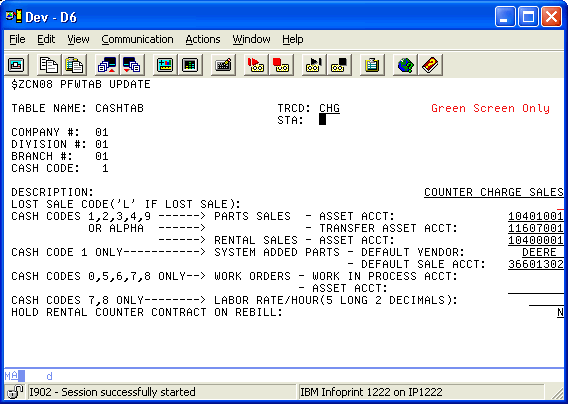
| 9. If the vendor number is blank, assign the vendor number loaded in the "SYSTEM ADDED PARTS - DEFAULT VENDOR:" field in the CASHTAB table for cash code "1". Go to step 6. If the vendor number is not blank go to step 10. | CASHTAB | Vendor Number PMVEN | |
| 10. If the sale account is blank and the vendor is not blank, assign the sale account loaded in the "SYSTEM ADDED PARTS - DEFAULT SALE ACCT:" field in the CASHTAB table for cash code "1". | CASHTAB |
Sale Account PMGSA Sale Cost Center PMGSC |
|
| 11. If the user manually overrides the vendor number, the program will refresh the screen with the field values for that vendor in the PartAdds table as described in step 6. If the vendor is changed but NOT going from DEERE to JD, then step 11 remains the same. If the vendor IS changed from DEERE to JD, the process goes back to step 1 but the JD vendor they keyed is retained and used through out the various steps. | PartAdds | ||
| 12. If the system is configured to use the Price Matrix, then the pricing increase percent and pricing increase code will be loaded accordingly. These will override any previous values defaulted or manually keyed. See more details below. | PARTPF |
Price Increase Percent PMPIP Price Increase Code PMPIC |
|
Copying A Part Number
If the part being copied is found in another location and the keyed vendor begins with "JD" and the PARTPRC vendor (if one exists) is "DEERE", the "JD" vendor will be retained otherwise the PARTPRC vendor will be used.
PARTSP Table
Menu CNFI01 --> 19. Additional Control Files --> 11. Parts Store Priorities
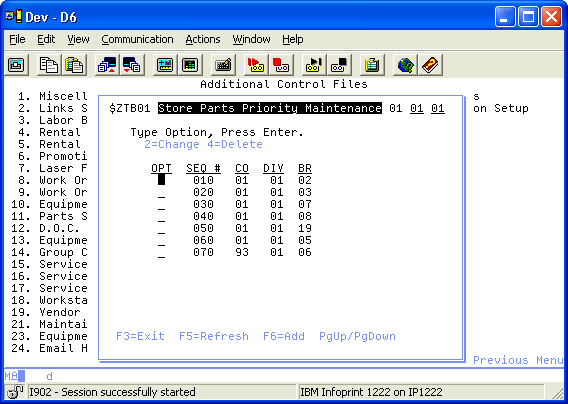
In IntelliDealer store priorities are under Configuration/Parts/General
PartAdds Table
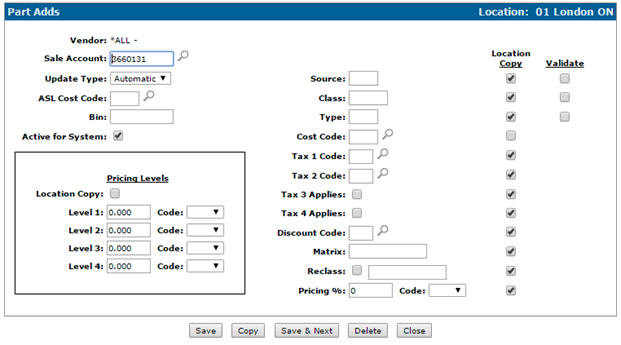
Also new on R6V07 is the ability to have a *ALL vendor as a catch all - this will account for a part that is not found anywhere else in the system
PARTPRC Table
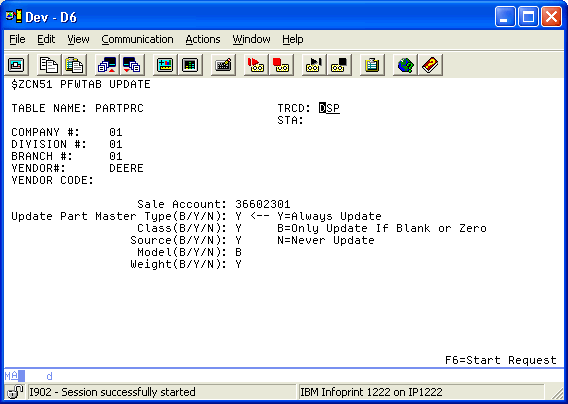
In IntelliDealer go to Configuration/Parts/Profile/Master Price Files
CASHTAB Table
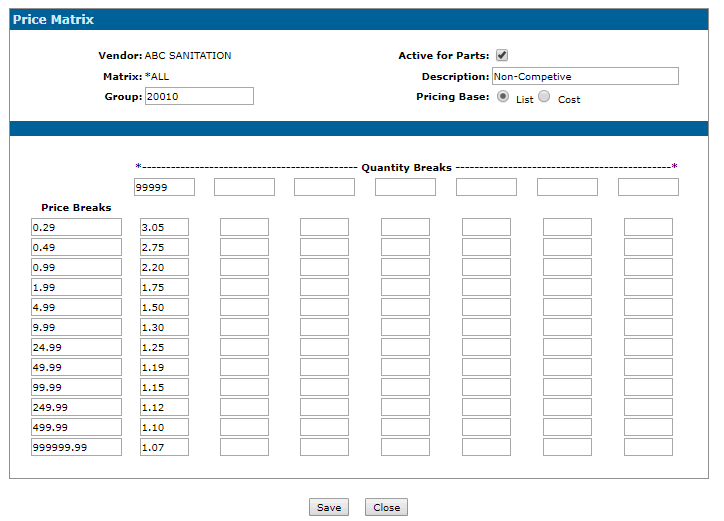
Price Matrix (Product Support -> Parts -> Price Matrix)
NOTES:
You should start loading all default sale accounts through the PartAdds table & blank out any current default sale accounts loaded in your PARTPRC table. If you follow these steps the only table you will have to maintain for future changes is the PartAdds table. The PARTPRC table is only used to control how updates should be done on certain fields during a price update.
The only time you would need to maintain default sale accounts through the PARTPRC table is if you have 2 different vendor codes for the same vendor.
If using Level 1-4 and basing the PartAdds off of Cost, keep in mind that the factor will be calculated off of List after the part has been added into the system.
As of release 4.0, a "Preview" button will load defaults, read the Price Matrix file if applicable and update the pricing increase percent and code to the screen and perform any edit checks. It will do everything except actually add the record to the PARTMAST. Previously,
without Preview capability, there were some values that could have been defaulted to a certain value on screen initially, but changed after further processing when it came to saving the actual record to PARTMAST.
Price Matrix:
If the CMBR1 record value Apply Matrix Rules To Part Adds flag is a Y, then the Matrix file (PARTPF) will be used to default the price increase percentage and the price increase code
Sample Matrix
Price Break Increase Factor
0.50 1.50
1.25 1.40
3.75 1.30
5.00 1.25
7.00 1.20
12.00 1.13
9999.99 1.02
Depending on the Price Base found on the Matrix screen, Preview or Save will take either the List or Cost price and do a look-up in the Price Matrix
The value used in the look up is fist divided by the Parts Per Package field.
Using the sample Matrix table above, if the value (List or Cost / PPP) is 1.50, the program will use the Increase Factor of 1.3, multiply that value by 100 and subtract 100 to get the pricing increase percent for the part. The pricing increase will increase the value by 30% whereas the factor will multiply by a factor of 1.3. The end result is the same value.
The Pricing Base field from the Matrix is loaded to the Pricing Increase Code on the part.
What can happen is that the increase percent and code can be found in another branch or defaulted from PartAdds table and show on screen. The user could then override those fields, but if a Matrix record is found, the system will override with those other values. This is a scenario where the Preview can be useful.
The Matrix field/code itself can be defaulted from another location, the PartAdds table or manually keyed.
The Matrix file is read by Company, Division, Vendor, Matrix Code.
If a Matrix record is not found using the Code (blanks is a valid value), then a read with *ALL as the Matrix code is performed
Another way of looking at the numbers:
Price Break Increase Factor
100.00 1.00
200.00 2.00
9999999.00 3.00
- 1.00 factor means no price change. Using $105.00 list/cost, the system will select 2.00 which means a 100% increase so "100 List" will be loaded on screen
- Changing the 1.00 to 1.01 will result in "1 List" (or Cost)
- A value in the factor column less than 1.00 will give negative % increase .
- 1.01 -> 1.99 will give a 1-99 % increase.
- 2.00 and up will give a 100 + % increase.