
Machine Configured Prices
Use the Machine Configured Prices screen to configure the Machine Configured Prices interface, which imports Machine Configured Prices from Komatsu into the base and options data for Komatsu equipment stored in IntelliDealer.
To access the Machine Configured Prices screen, navigate to Configuration > Interfaces > Komatsu > Machine Configured Prices.
Topics in this section include:
Komatsu Tab
Use the Komatsu tab to specify the pricing import and how IntelliDealer prices Komatsu products.
 The Komatsu tab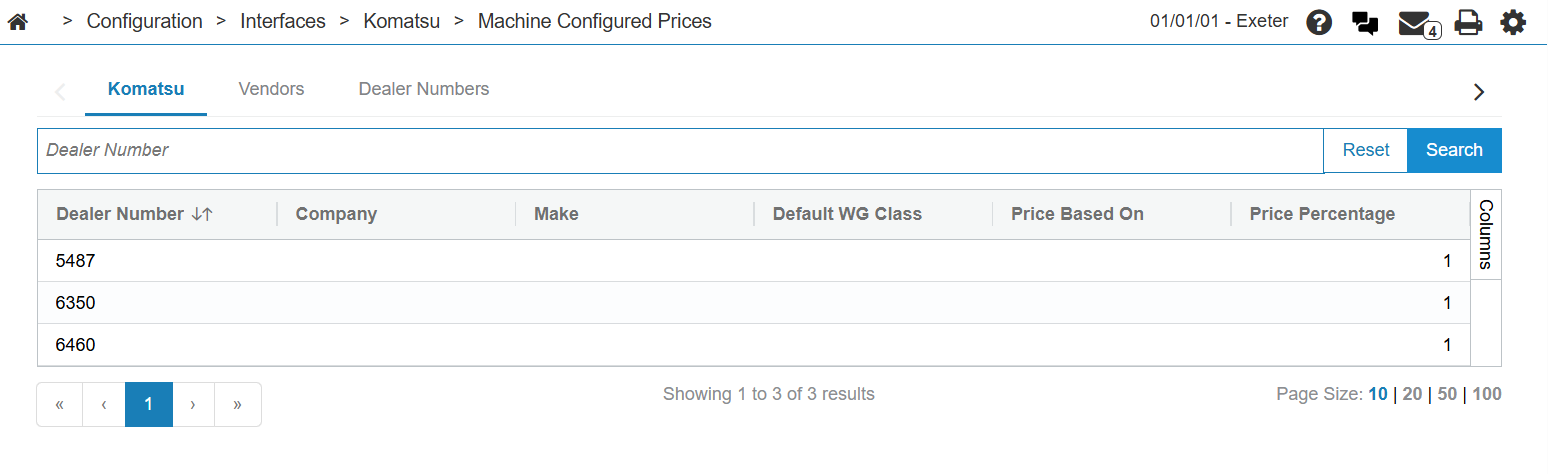
The fields on the Komatsu tab are:
| Field | Description |
|---|---|
| Dealer Number | The dealer's identification number. |
| Company | The company code IntelliDealer uses when updating base and options data using the Machine Configured Prices interface. |
| Make | The make code IntelliDealer uses when updating base and options data using the Machine Configured Prices interface. |
| Class | The class code IntelliDealer uses when updating base and options data using the Machine Configured Prices interface. |
| Price |
The calculation to use when determining Komatsu base and options pricing. Options are:
Where Price and Discount Percentage are values found in the Machine Configured Price files sent from Komatsu. |
| Percent | The factor that the Dealer Net Cost or Suggested Retail Price calculations will use to determine Komatsu base and options pricing. |
Vendors Tab
The Vendors tab shows a list of vendors with the Komatsu manufacturer code. If no vendors appear in the list, use the Assign Manufacturer button to set the manufacturer code on at least one Vendor.
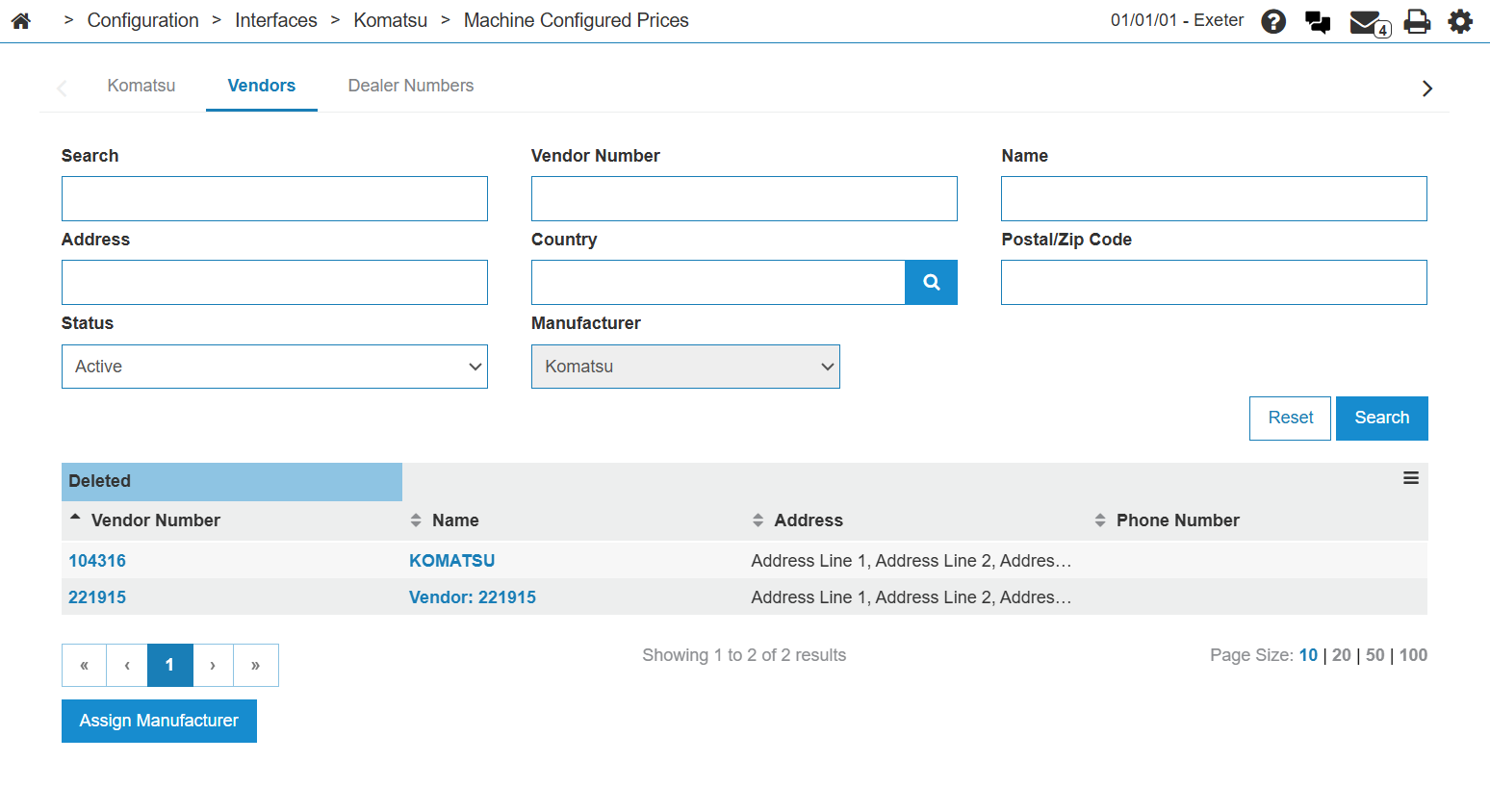
The fields on the Vendors tab are:
| Field | Description |
|---|---|
| Vendor Number | The vendor's registered vendor number. Click the link to open the Vendor Profile for edit. |
| Name | The vendor's company name. Click the link to open the Vendor Profile Info screen. |
| Address | The vendor's address. |
| Phone Number | The vendor's business phone number. |
Dealer Numbers Tab
Each location you wish to import Machine Configured Prices from Komatsu for must have a dealer number. You should assign a single dealer number for each location as the Location Primary Dealer, as Komatsu requires a dealer number for the file name for each location. If no Location Primary Dealer is set, the first dealer number in the database is chosen for the location to import data for.
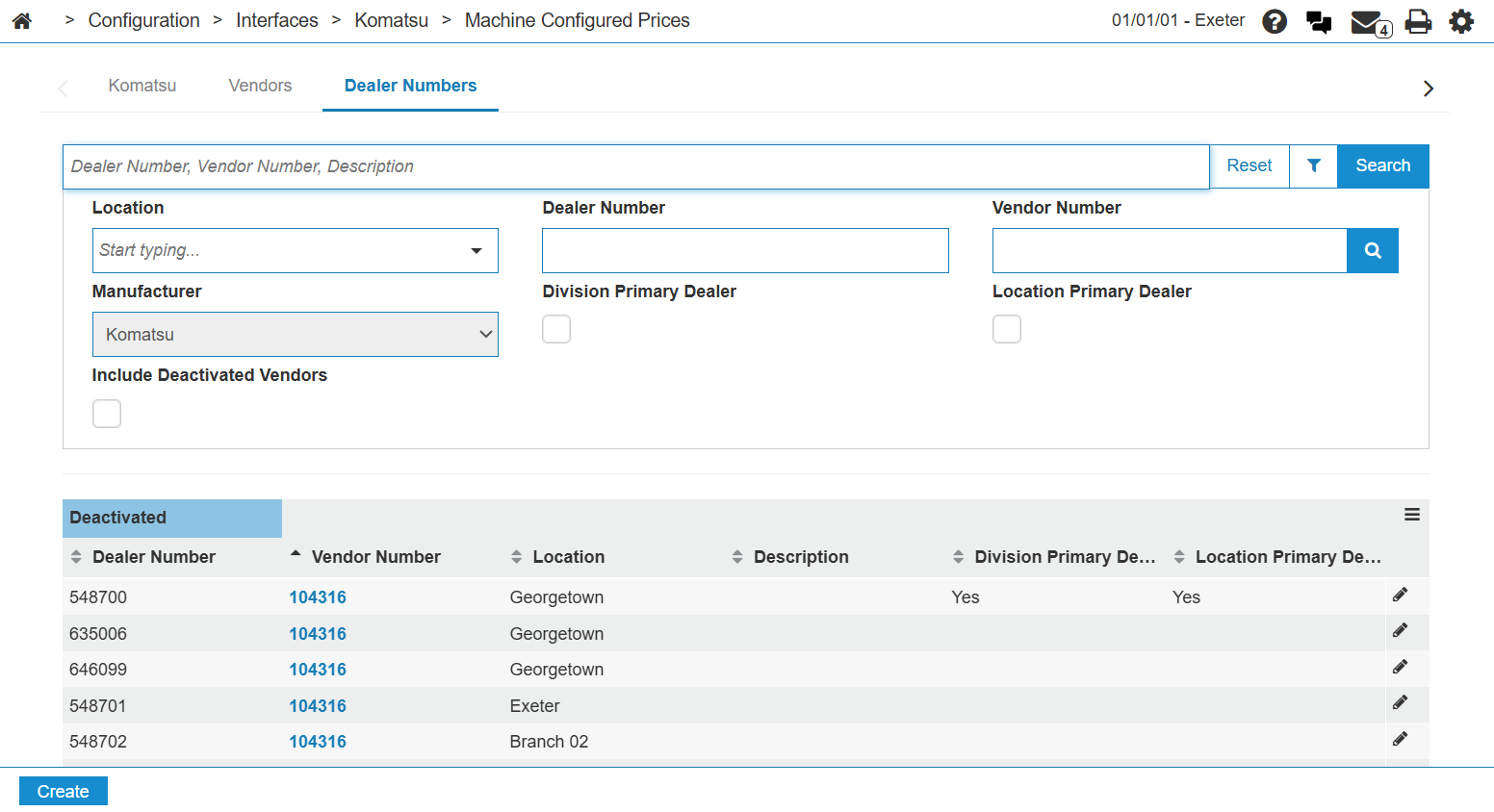
The search fields on the Dealer Numbers tab are:
| Field | Description |
|---|---|
| Location | Search for dealer numbers by location. |
| Dealer Number | Search for a specific dealer number |
| Vendor Number | Search for dealers by Vendor number. |
| Manufacturer | Defaults to Komatsu. |
|
Division Primary Dealer Location Primary Dealer |
Click the checkbox to search for only primary dealers for divisions or locations. |
| Include Deactivated Vendors | Click the checkbox to include deactivated vendors in the search. Deactivated vendors are indicated in the search results by a blue highlight. |
The fields on the Dealer Numbers tab are:
| Field | Description |
|---|---|
| Dealer Number | The dealer's identification number. |
| Vendor Number | The vendor's number. |
| Location | The dealer's location. |
| Description | An optional description for the dealer. |
|
Division Primary Dealer Location Primary Dealer |
If this is a primary division or location, Yes appears in this column. |