
VitalEngage Text: Add Message Template
Use the Add Message Template screen to create a reusable message template for VitalEngage Text. After you save a template, users can insert it into a conversation from the message compose area in the VitalEngage Text window.
To open the Add Message Template screen, navigate to Configuration > Interfaces > VitalEngage Text > Templates and click Add Message Template. See VitalEngage Text: Templates.
 The Add Message Template modal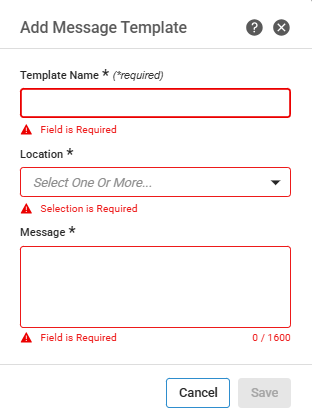
All fields on the Add Message Template screen are required. Save is unavailable until you complete each field.
The fields on the Add Message Template screen are:
| Field | Description |
|---|---|
| Template Name | The name that appears when users search for and select a template. Maximum 100 characters. |
| Location | The location or locations where the template is available. Select one or more locations from the drop-down list. Users see only templates assigned to their working location. |
| Message | The static text inserted into the message body when a user selects the template. Maximum 1600 characters. A character counter displays below the field. |
The buttons on the Add Message Template screen are:
| Button | Description |
|---|---|
| Cancel | Closes the screen without saving the template. |
| Save | Saves the template and returns to the Templates listing. New templates are active by default. |