
Adding a Custom Screen Field
-
Navigate to Administration > Settings > Custom Screens.
The Custom Screen Fields tab will appear.
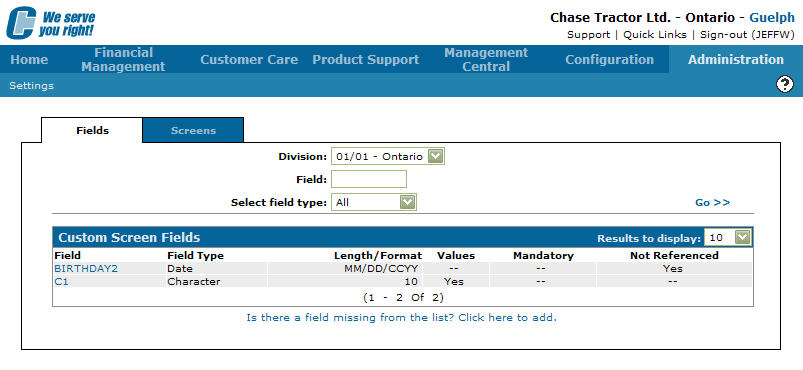
Custom Screen Fields tab
-
On the Custom Screen Fields tab, click on the Is there a field missing from the list? Click here link.
The Custom Screen Field Edit screen will appear.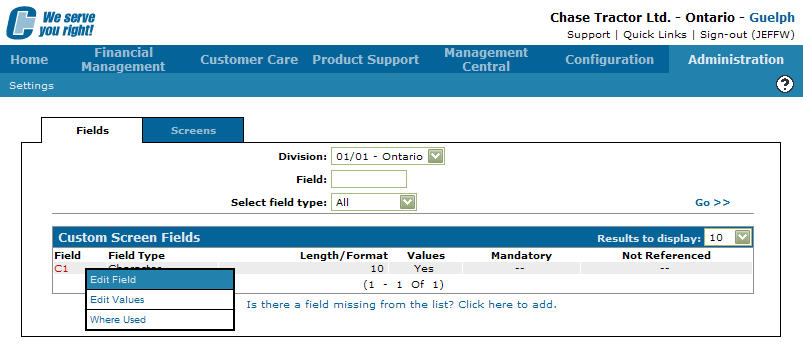
Custom Screen Field Edit screen
-
Type in a Field name.
-
Select a Field Type from the drop down list.
Note:
Field types represent the type of field you will create e.g. character, numeric, date or checkbox. -
Type in a Length/Format size.
Note:
The Length/Format field will only appear if you are using a character or numeric Field Type. -
Type in the amount of Decimal places that the field will allow.
Note:
The Decimal field is used for numeric field types only. -
Click the Mandatory checkbox if you want the field to be a mandatory field within IntelliDealer.
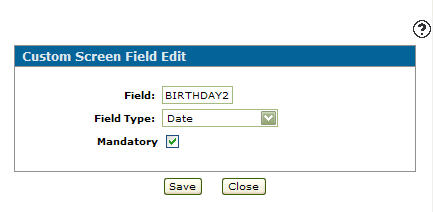
Updated Custom Screen Field Edit screen
-
Click the Save button.
The Custom Screen Field tab will appear with the listing the newly added field.