
Copying a Used Equipment Evaluation Section
-
From any IntelliDealer screen, click on the Configuration tab.
The Configuration Quick Links screen will appear.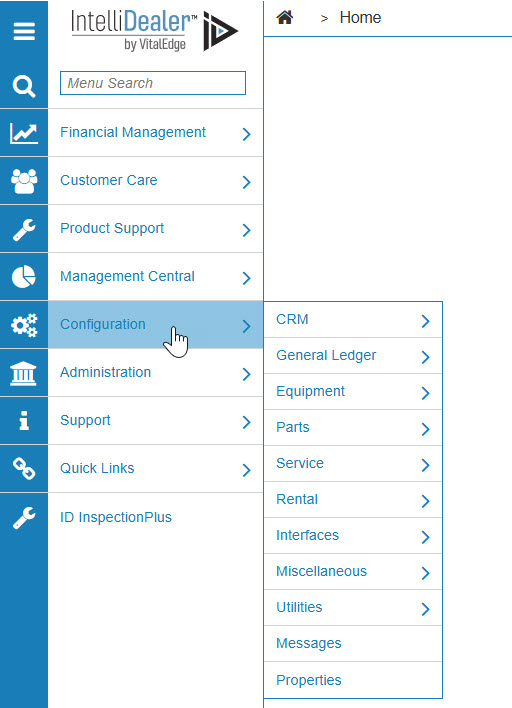
Configuration Quick Links screen
-
From the Equipment list, click the General link and select Used Evaluations from the drop down list.
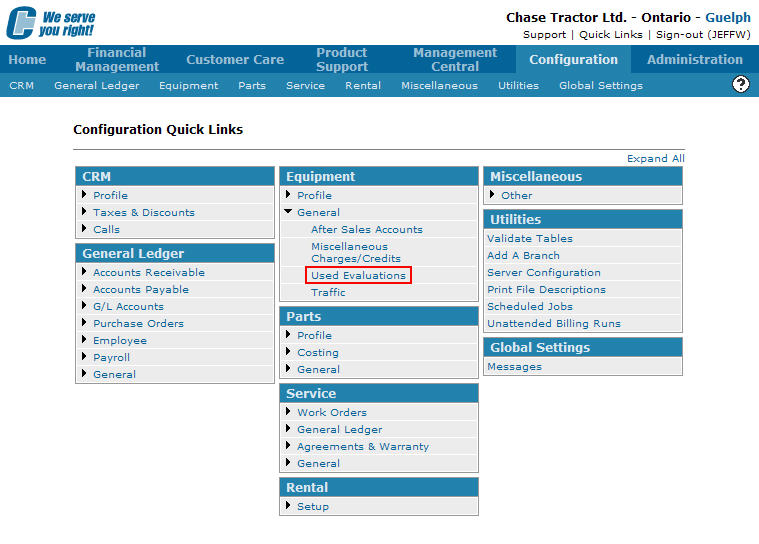
Configuration Quick Links screen
-
The Used Equipment Group Codes screen will appear.
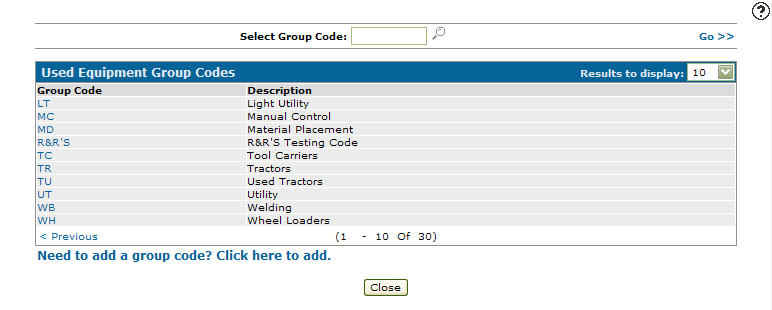
Used Equipment Group Codes screen
-
On the Used Equipment Group Codes screen, fill out the appropriate fields and click the Go >> link.
The Used Equipment Group Codes screen will refresh listing the generated search results.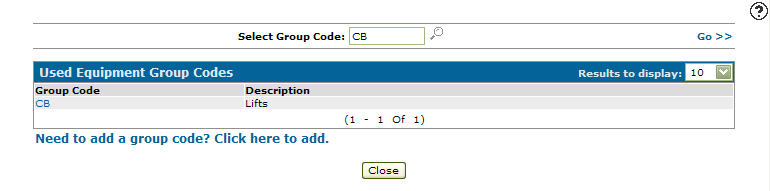
Used Equipment Group Codes screen
-
Click on the Group Code.
The Sections screen will appear.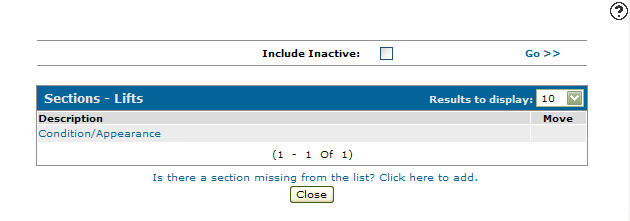
Sections screen
-
On the Sections screen, move the cursor over a Description and select Copy from the pop-up menu.
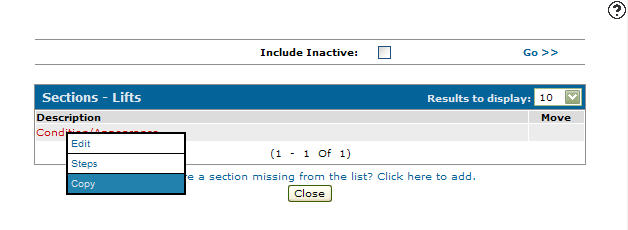
Sections screen
-
The Copy Section screen will appear.
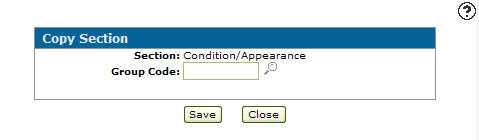
Copy Section screen
-
On the Copy Section screen, enter the Group Code.
- or -
Click on the Search icon and select a group code from the Group Selection screen.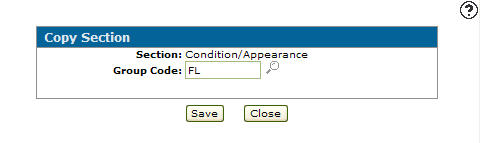
Copy Section screen
-
Click the Save button, the section will be copied to the selected group code.