
AGDealer
The AGDealer page provides a central interface to configure the integration between your local business system and the AGDealer marketplace, ensuring your equipment listings are accurately identified and exported.
To open the AGDealer screen, navigate to Configuration > Interfaces > Equipment > AGDealer
Topics in this section are:
AGDealer - Main
Use the AGDealer - Main tab to set general configuration details for the AGDealer interface.
To open the AGDealer - Main tab, navigate to Configuration > Interfaces > Equipment > AGDealer.
 The Main tab screen appears.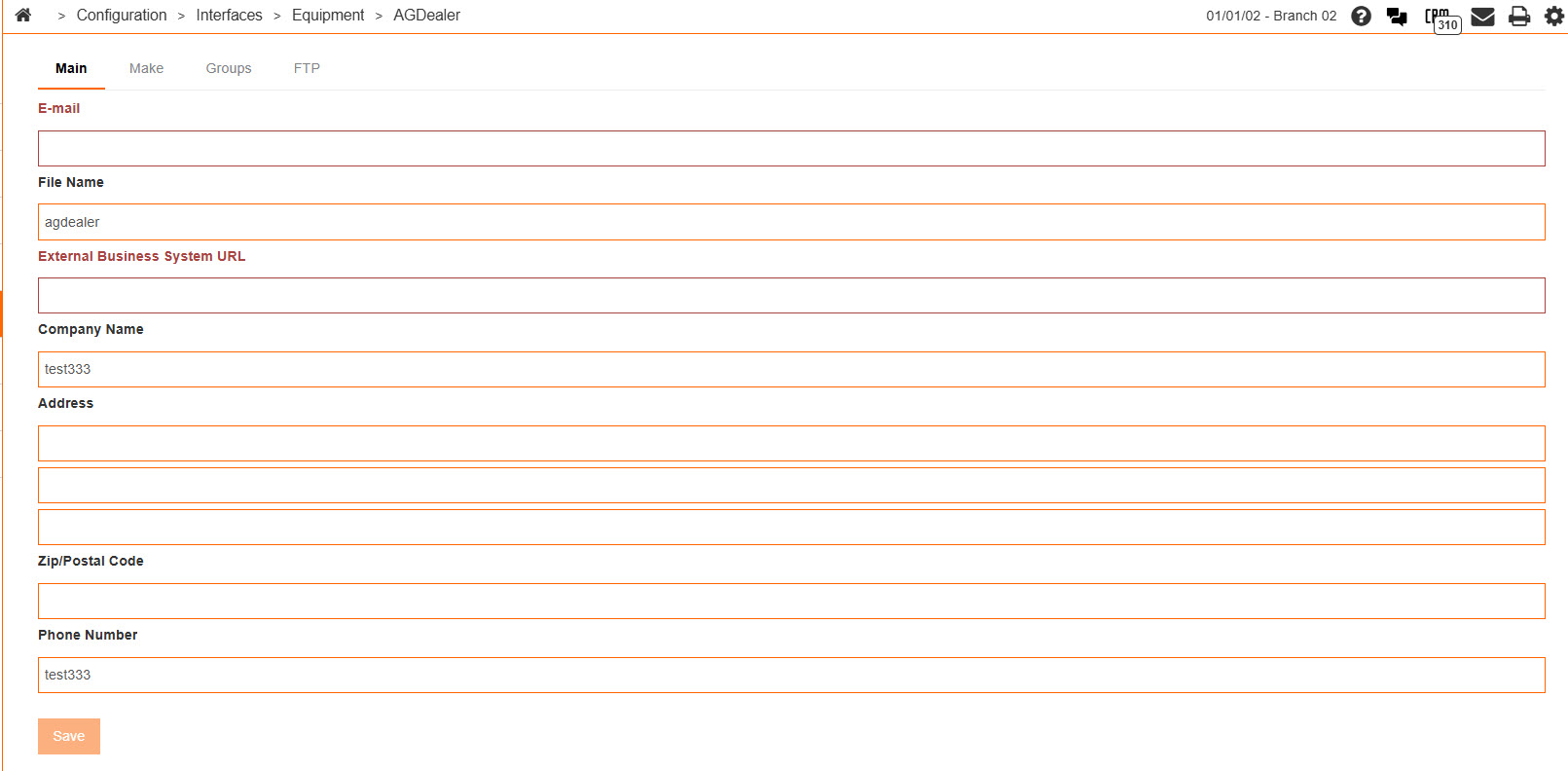
The fields on this tab are:
| Field | Description |
|---|---|
| The email address that the vendor can use to send confirmation emails regarding the equipment listing. | |
| File Name | The name of the file being sent from the vendor to the email address specified in the Email field. |
| External Business System URL | The dealership website that the vendor can use to access and display equipment multimedia files. |
| Company Name | The dealership's name. |
| Address | The dealership's address. |
| Zip/ Postal Code | The dealership's zip code or postal code. |
| Phone Number | The dealership's phone number. |
Click Save to save your settings.
AGDealer - Make
Use the Make tab to map the make codes stored within IntelliDealer to the make codes stored within the selected equipment listing system.
To open the AGDealer - Make tab, navigate to Configuration > Interfaces > Equipment > AGDealer, then click the Make tab.
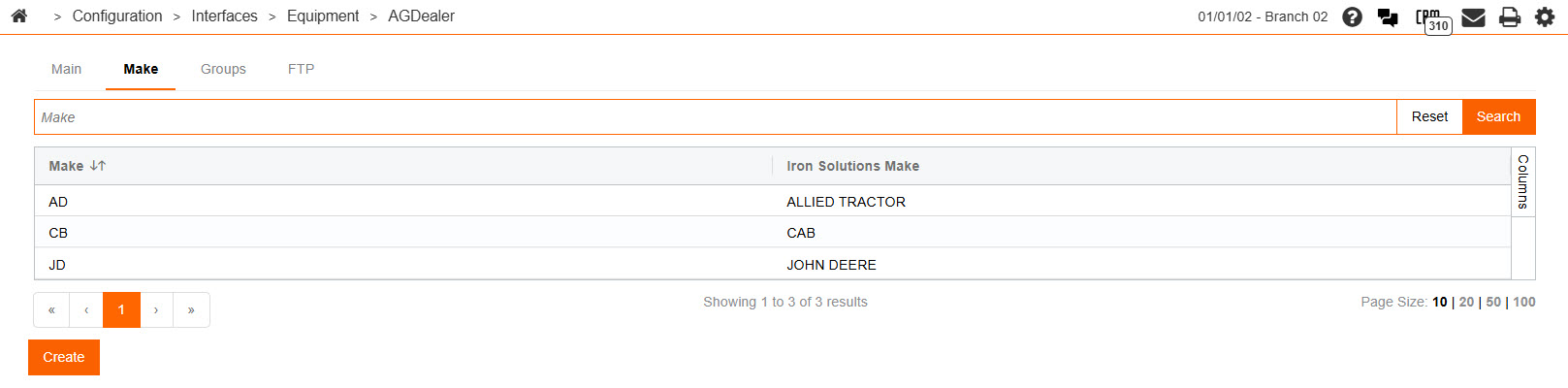
The fields on the Make tab are:
| Field | Description |
|---|---|
| Make | The make code as it appears in IntelliDealer. |
| Iron Solutions Make | The make code as designated by the vendor. |
Click Create to add a new make code.
AGDealer - Groups
Use the Groups tab to map the group codes stored within IntelliDealer to the group codes stored within the selected equipment listing system.
To open the AGDealer - Groups tab, navigate to Configuration > Interfaces > Equipment > AGDealer , then click the Groups tab.
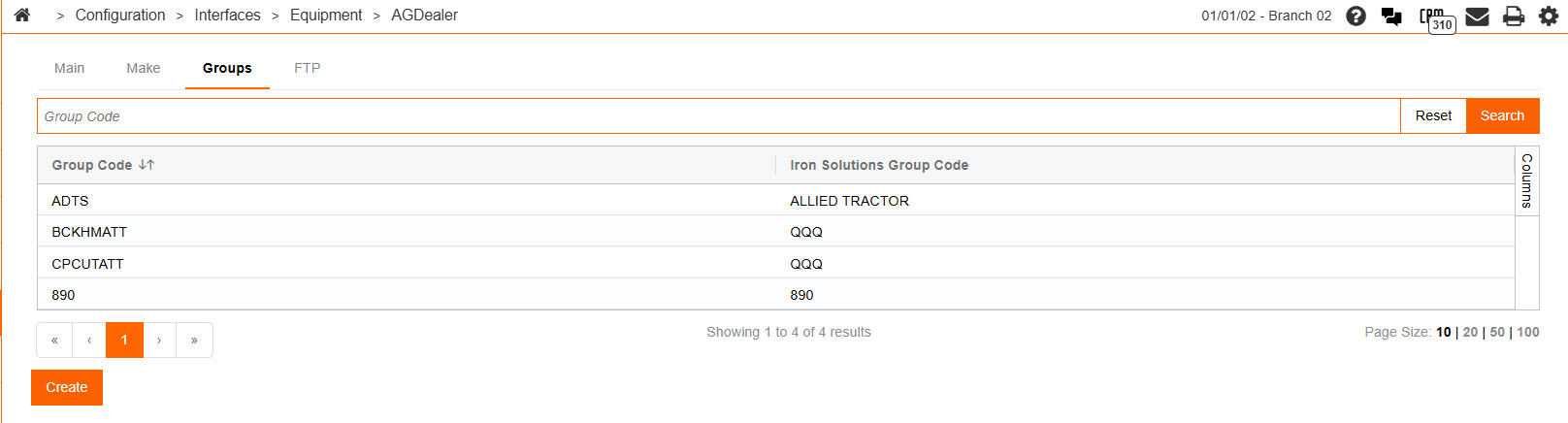
The fields on theGroups tab are:
| Field | Description |
|---|---|
| Group Code | The group code as it appears in IntelliDealer. |
| Equipment Listing System Group Code | The group code as it appears in the selected equipment listing system. |
AGDealer - FTP
Use the FTP tab to configure the FTP server that the interface will use to transmit data.
To open the AGDealer - FTP tab, navigate to Configuration > Interfaces > Equipment > AGDealer , then click the FTPtab.
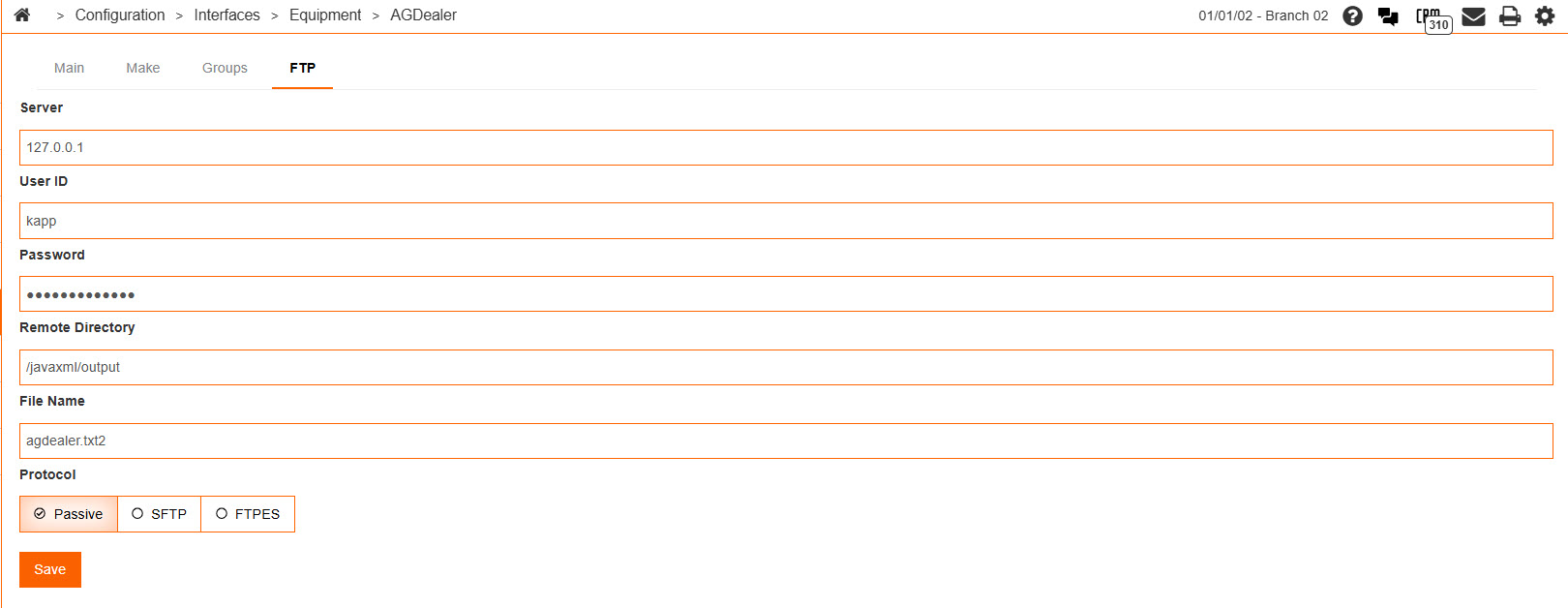
The fields on the FTP tab are:
| Field | Description |
|---|---|
| Server | The name of the FTP server that the interface will use. |
| User Id | The user ID that the interface will use to access the FTP server. |
| Password | The password that the interface will use to access the FTP server. |
| Remote Directory | The directory on the FTP server that files from the dealership will be sent to. |
| File Name | The name of the file being sent to the FTP server. |
| Protocol | The protocol to use when the accessing the FTP server. |
Click the Save button to save your changes.