
Configuration: Equipment Inventory Transmit
This feature is currently in beta.
You can use the Equipment Inventory Transmit function to make your dealership's equipment inventory available for purchase at third-party websites. The interface provides a standardized process to transmit inventory details daily to third-party vendors. Use the tabs to configure the specific transfer protocols, file formatting, and value selection and transformation required by the dealer-vendor combination.
To open the Equipment Inventory Transmit screen, navigate to Configuration > Interfaces > Equipment > Equipment Inventory Transmit, then select the desired tab.
Topics in this section are:
Configuration Process Overview
You can define up to 10 feed connections on the Main tab. Each connection has its own FTP settings, field layout, filters, and mappings. After you create a connection on the Main tab, click Load on that row to enable the other tabs for that connection. Configuration tabs stay disabled until a connection is loaded.
When you create a connection, you can optionally choose a Template to copy FTP and mapping settings from an existing template. After a connection is configured, use Save as New Template on the connection window to store its settings as a reusable template for future connections.
Connections with Nightly File Transmit enabled on the Validation & Transmission tab are included in the nightly batch job Equipment Inventory Transmit Nightly Transmit, which runs in the evening (approximately 9:00 PM). You can review job results on the Administration > Settings > Batch Jobs screen. For a complete list of batch jobs, see IntelliDealer Batch Jobs.
Main Tab
Data Source: CMASCON
The Main tab lists your equipment inventory feed connections. Use this tab to create, edit, delete, and load connections.
 The Equipment Inventory Transmit connection list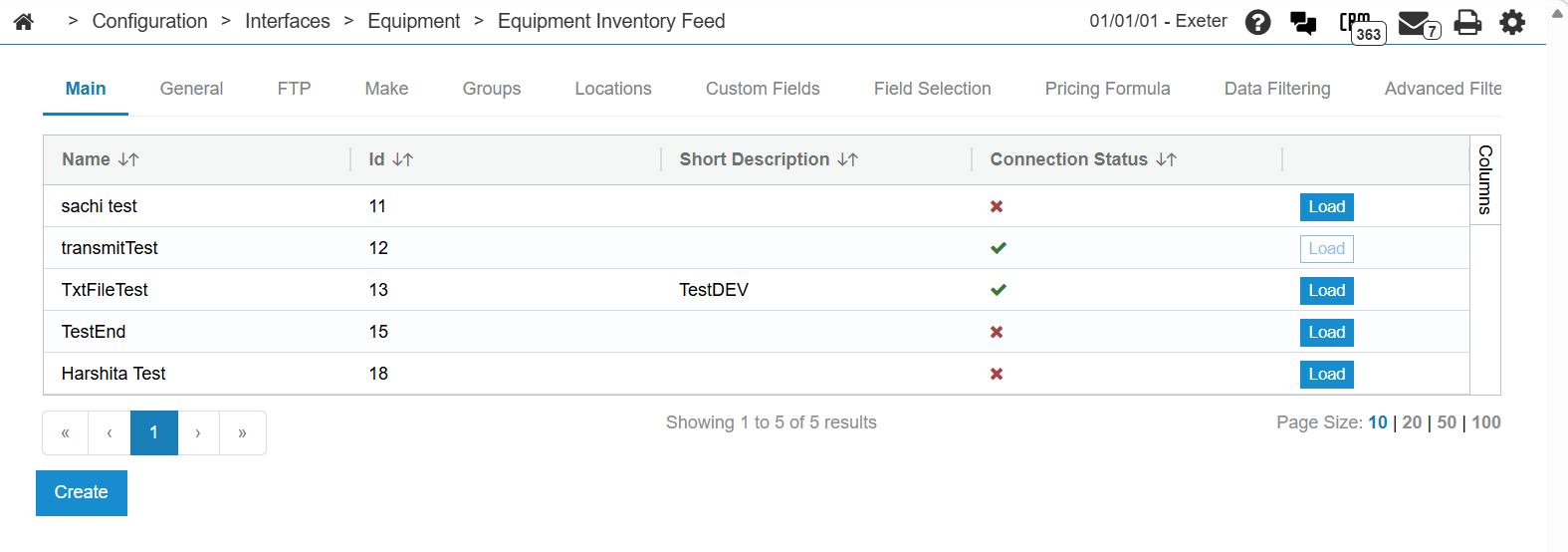
The columns on the connection list are:
| Field | Description |
|---|---|
| Name | A descriptive name for the connection (for example, the third-party site or vendor name). |
| Id | The system-assigned identifier for the connection. |
| Short Description | Optional additional text to distinguish the connection. |
| Connection Status |
Indicates whether Nightly File Transmit is enabled for the connection on the Validation & Transmission tab. A check mark means nightly transmission is enabled. An X means it is not enabled. |
| Load | Opens the connection for configuration on the other tabs. After you load a connection, the button is disabled until you load a different connection. |
Click Create to add a new connection (when fewer than 10 connections exist). Click a row to open the connection for edit.
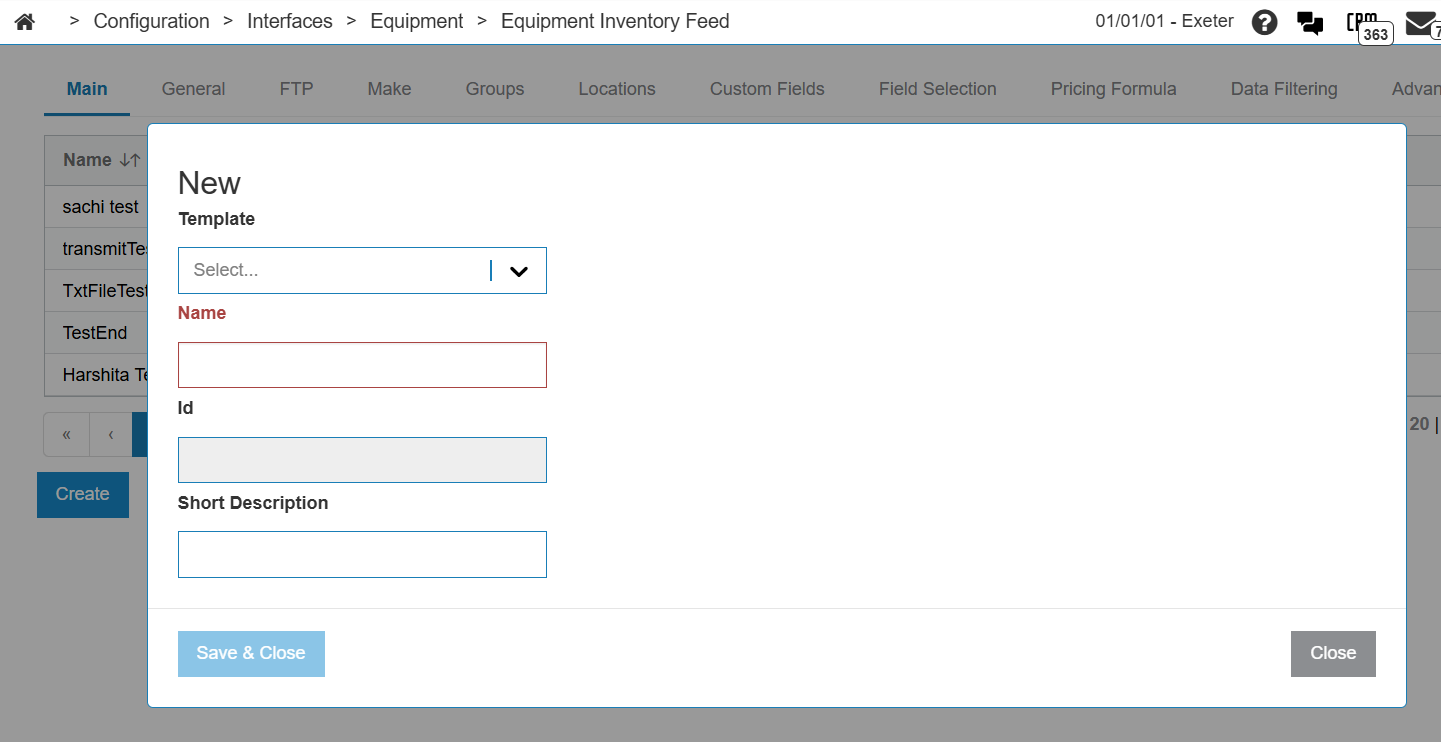
The fields in the create or edit connection window are:
| Field | Description |
|---|---|
| Template |
Available when you Create a connection. Select an existing template to copy FTP and related settings into the new connection. Leave blank to start with empty settings. |
| Name | Required. The display name for the connection. |
| Id | The system-assigned connection identifier (read-only). |
| Short Description | Optional text describing the connection. |
When editing an existing connection, click Save as New Template to save the current connection settings (including mappings, fields, and filters) as a new template for use when creating future connections.
General Tab
Data Source: CMASCON
The General tab stores dealer and contact information that third-party listing sites may require in the feed file. Load a connection on the Main tab before using this tab.
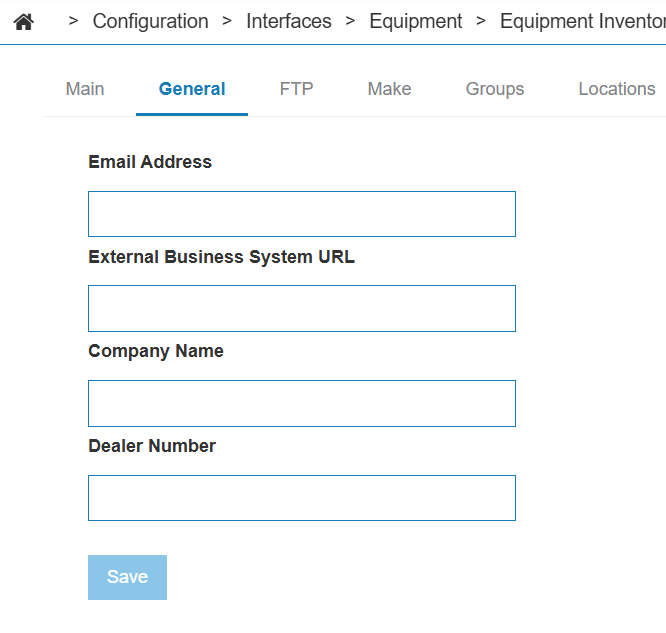
The fields on this tab are:
| Field | Description |
|---|---|
| Email Address | Contact email address associated with the feed or dealership for the listing site. |
| External Business System URL | The dealership website URL that the listing site can use to link to equipment detail or multimedia content. |
| Company Name | The dealership or company name to include in the feed. |
| Dealer Number | The dealer identifier required by the third-party listing site. |
Click Save to save your settings.
FTP Tab
Data Source: CMASCON
The FTP tab allows you to configure the FTP server and file settings used to transmit the inventory feed for the loaded connection.
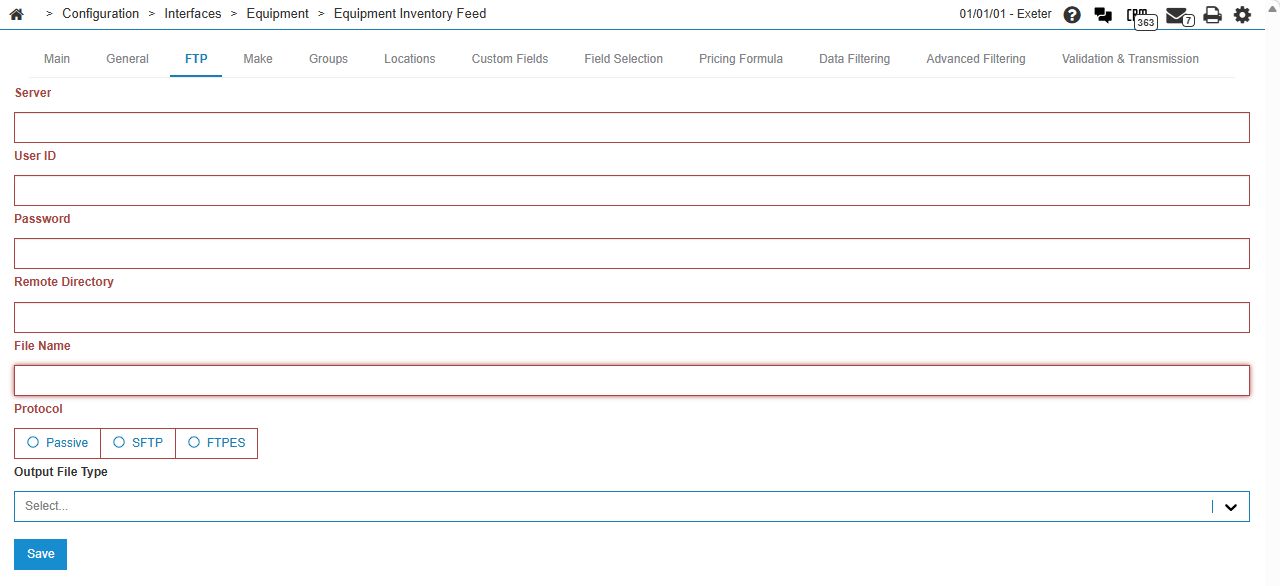
The fields on the FTP tab are:
| Field | Description |
|---|---|
| Server | The name of the FTP server that the interface will use. |
| User Id | The user ID that the interface will use to access the FTP server. |
| Password | The password that the interface will use to access the FTP server. |
| Remote Directory | The directory on the FTP server that files from the dealership will be sent to. |
| File Name | The name of the file being sent to the FTP server. |
| Protocol | The protocol to use when the accessing the FTP server. |
Click Save to save your changes.
The FTP tab also includes Output File Type, which controls the format of the generated feed file. The output types available from the drop down are:
| Value | Description |
|---|---|
| TXT | Plain text feed file. |
| CSV (Comma Separated) | Comma-separated values file. |
| CSV (Pipe Separated) | Pipe-delimited values file. |
Make Tab
Data Source: CBMAK, MAPDATA
The Make tab allows you to map the make codes stored within IntelliDealer to the make codes required by the third-party listing site.
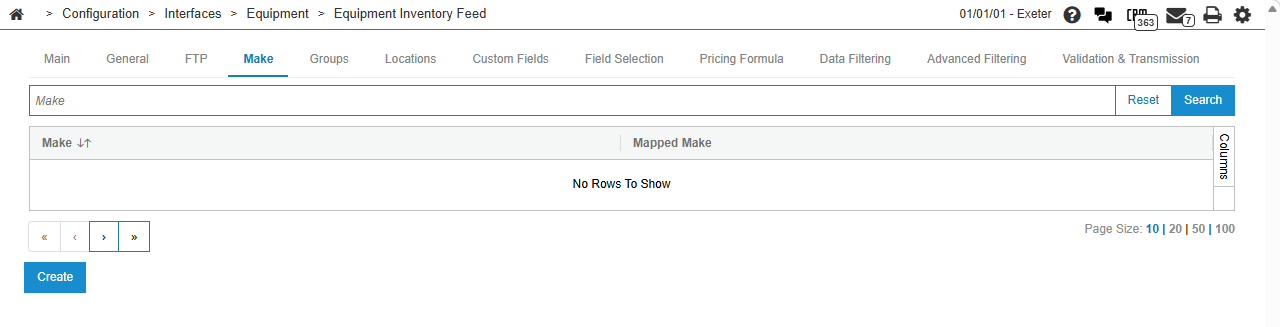
The fields on the Make tab are:
| Field | Description |
|---|---|
| Make | The make code as it appears in IntelliDealer. |
| Mapped Make | The make code as designated by the vendor. |
Click Create to add a new make code.
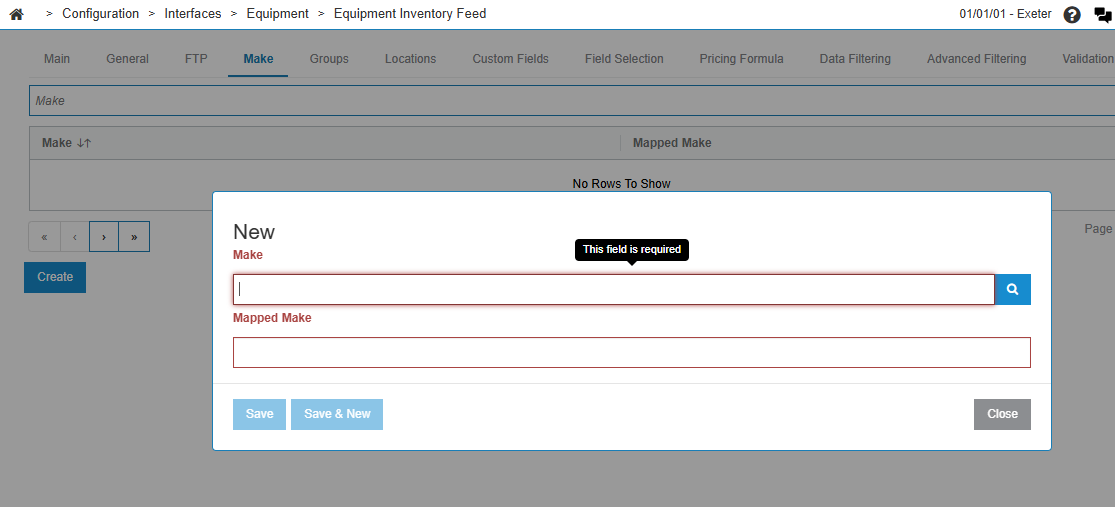
Click Create to add a mapping, or click a row to edit an existing mapping. Enter the IntelliDealer make and the value required by the listing site in the mapped make field, then save.
Groups Tab
Data Source: CBGRP, MAPDATA
The Groups tab allows you to map the group codes stored within IntelliDealer to the group codes required by the third-party listing site.
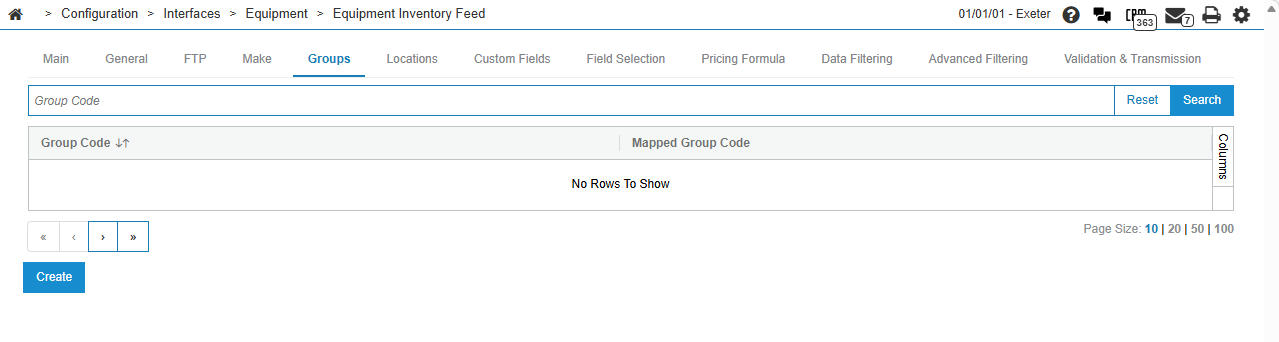
The fields on the Groups tab are:
| Field | Description |
|---|---|
| Group Code | The group code as it appears in IntelliDealer. |
| Mapped Group Code | The group code value required by the third-party listing site. |
Click Create to add a new group code mapping.
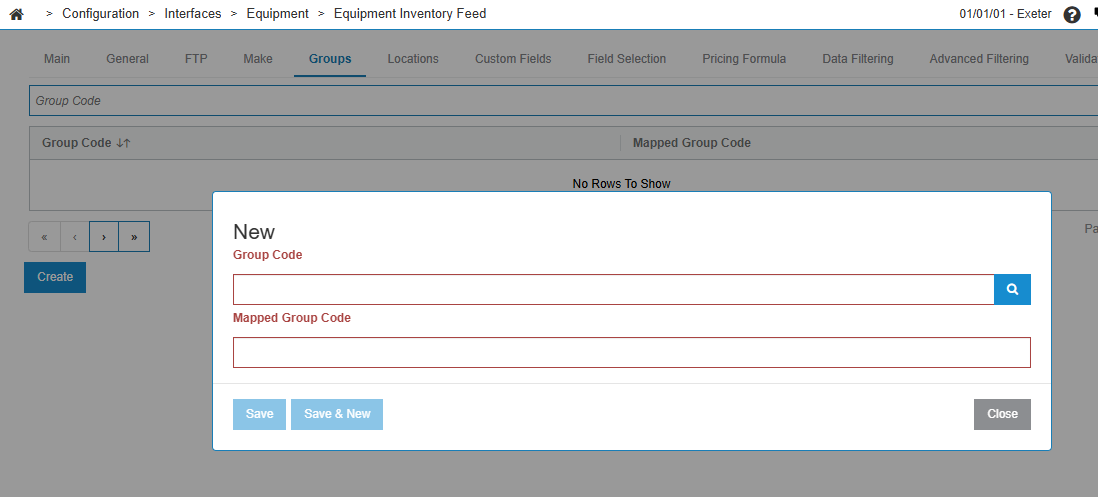
Locations Tab
Data Source: MAPDATA
The Locations tab allows you to map IntelliDealer locations to the location codes required by the third-party listing site.
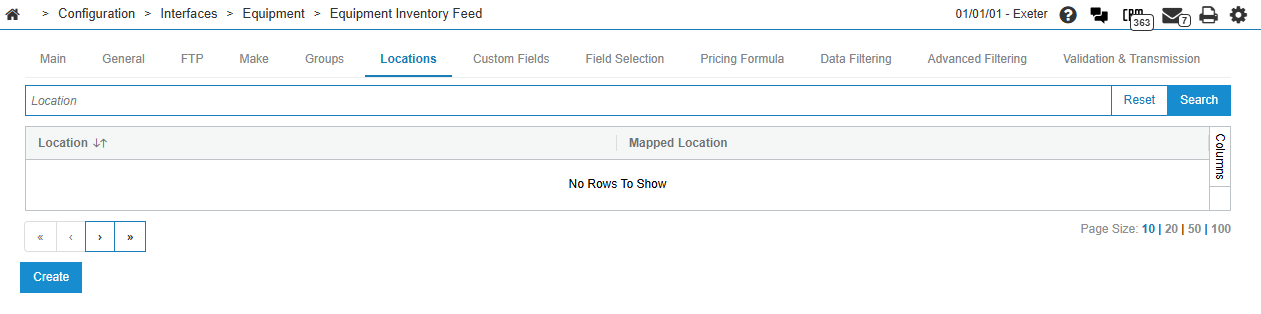
The fields on the Locations tab are:
| Field | Description |
|---|---|
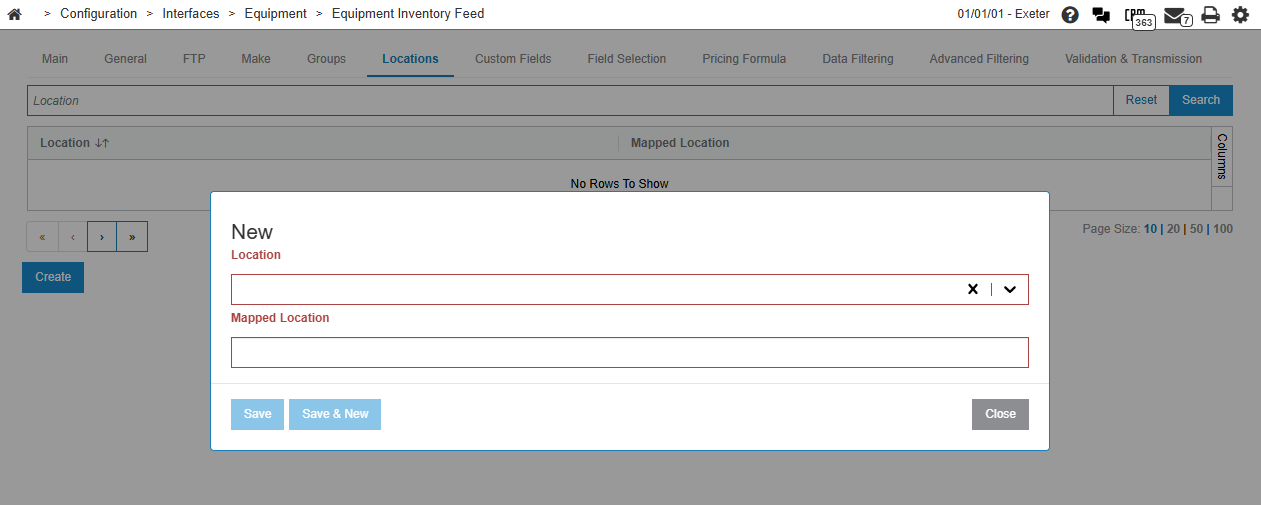
| Location | The location as it appears in IntelliDealer. |
| Mapped Location | The location code value required by the third-party listing site. |
Click Create to add a new location mapping.
Custom Fields Tab
Data Source: CMASCON
The Custom Fields tab lets you define calculated or combined values that can be included in the feed when you add them on the Field Selection tab. Custom fields are built from standard equipment fields, operators, and optional literal text.
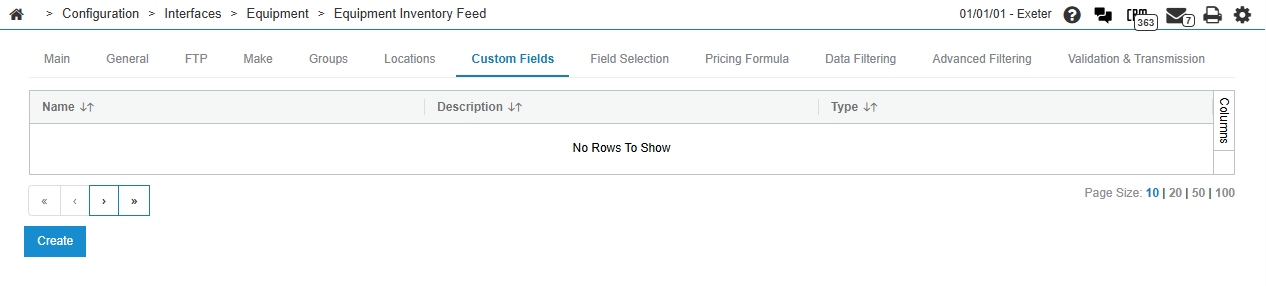
The columns on the custom fields list are:
| Field | Description |
|---|---|
| Name | The unique name for the custom field. This name is used when selecting the field on the Field Selection tab. |
| Description | Optional description of the custom field. |
| Type | The expression type: Calculated or String Join. |
Click Create to define a new custom field, or click a row to edit an existing one.
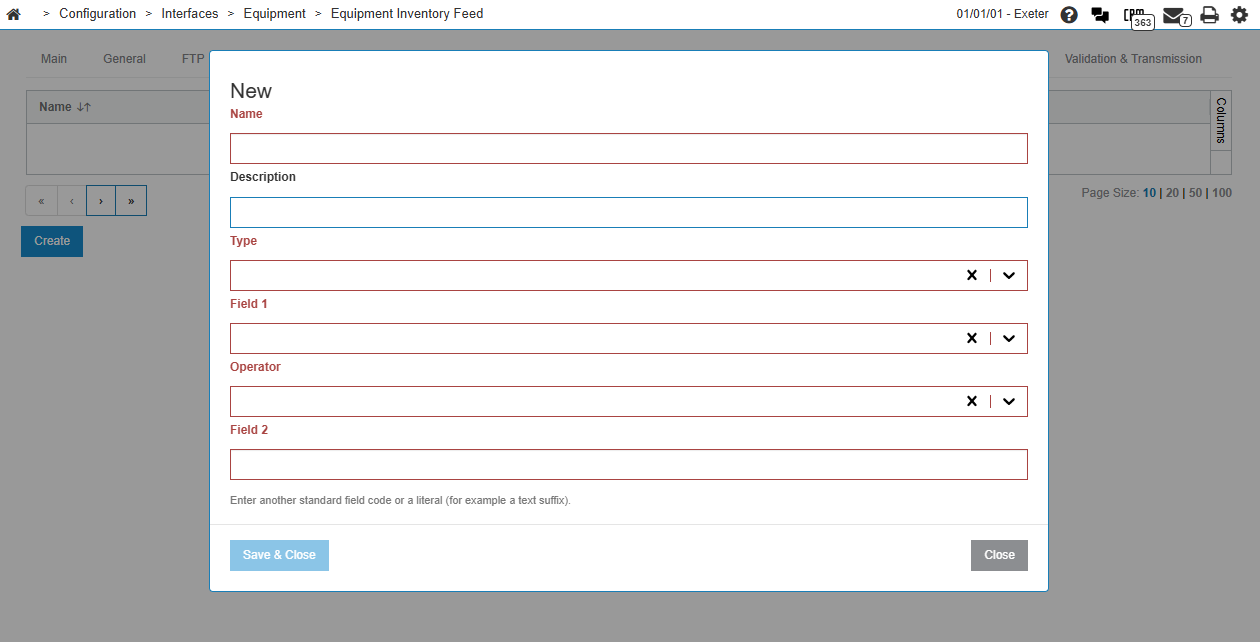
The fields in the create or edit custom field window are:
| Field | Description |
|---|---|
| Name | Required. Unique name for the custom field (cannot be changed after create). |
| Description | Optional description. |
| Type |
|
| Field 1 | A standard equipment field code used in the expression. |
| Operator | The operator applied between Field 1 and Field 2 (+, -, *, /, or join). |
| Field 2 | Another standard equipment field code, or a literal value (for example, a text suffix to append in a string join). |
Field Selection Tab
Data Source: CMASCON
The Field Selection tab defines which equipment data columns are included in the feed file and the order in which they appear. Each selected field is assigned a column number and a name used by the third-party listing site.
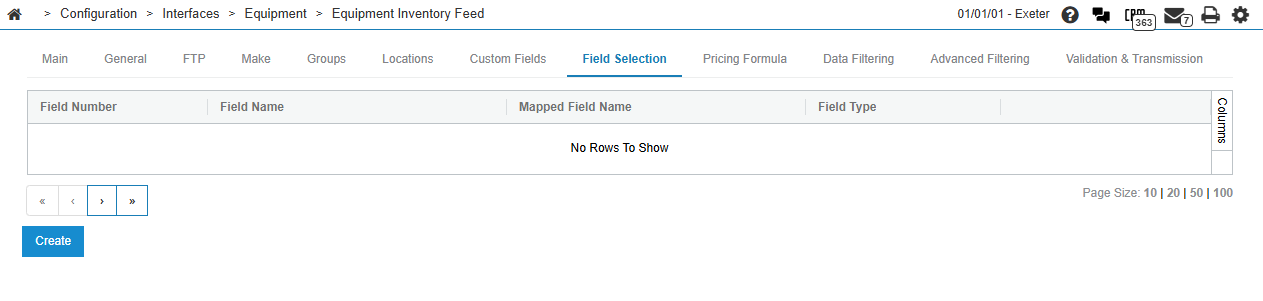
The columns on the field selection list are:
| Field | Description |
|---|---|
| Field Number | The position of the field in the output file. Use the move up and move down controls on each row to change order. |
| Field Name | The standard or custom field selected from IntelliDealer. |
| Mapped Field Name | The column header or field name required by the third-party listing site (maximum 50 characters). |
| Field Type | Indicates whether the field is Standard (built-in equipment data) or Custom (defined on the Custom Fields tab). |
Click Create to add a field to the feed. Each field name can only be selected once per connection.
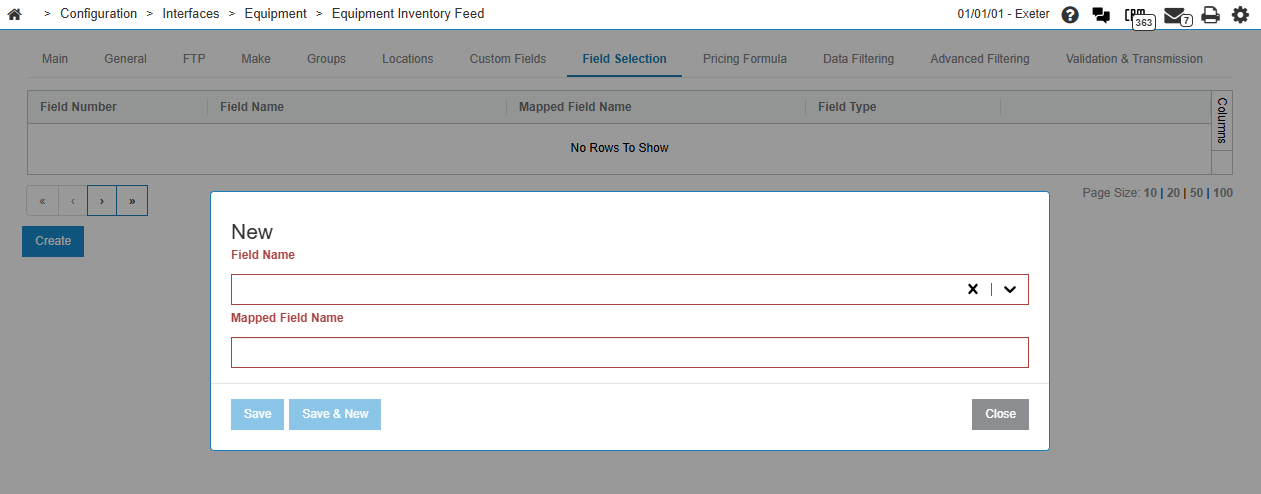
In the create or edit window, select the Field Name from the list of available standard and custom fields, then enter the Mapped Field Name required by the listing site.
Pricing Formula Tab
Data Source: CMASCON
The Pricing Formula tab selects which IntelliDealer price or cost value is used when price-related fields are included in the feed.
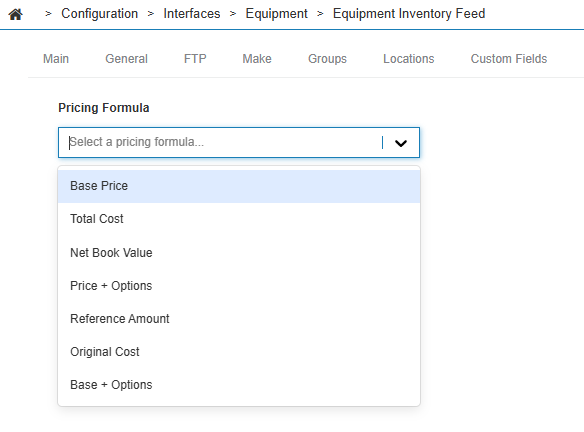
The field on this tab is:
| Field | Description |
|---|---|
| Pricing Formula |
Select the source amount used for pricing in the feed. Options are:
|
Click Save to save your settings.
Data Filtering Tab
Data Source: CMASCON
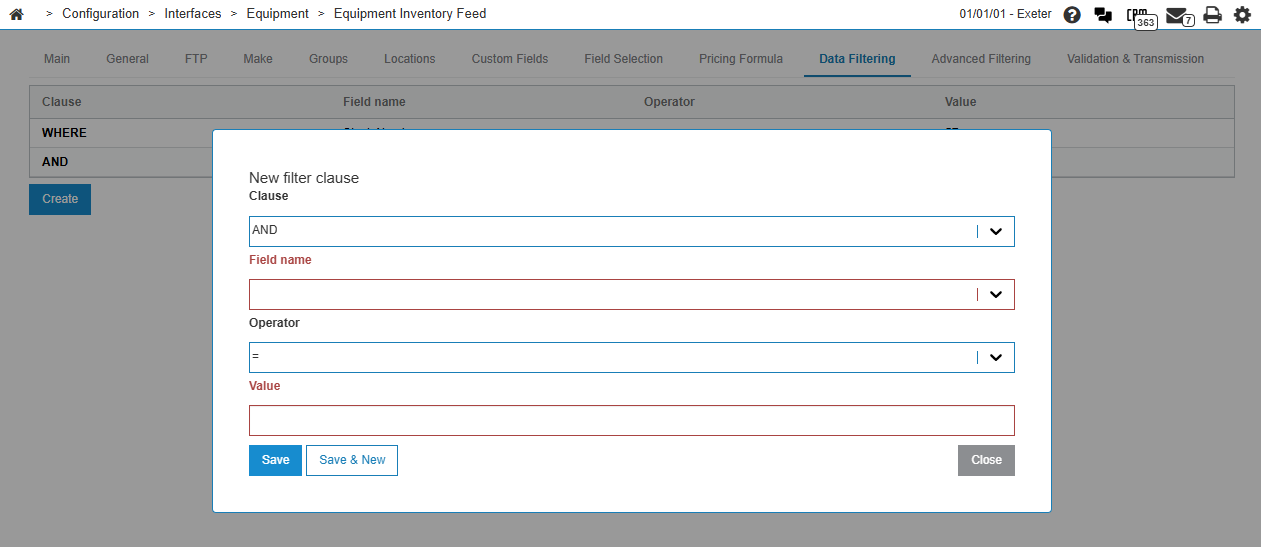
The Data Filtering tab defines which equipment records are included in the feed by building filter clauses. Clauses are combined to limit inventory to the units you want to transmit (for example, by status, make, or location).

The columns on the filter list are:
| Field | Description |
|---|---|
| Clause | How the clause connects to other clauses: WHERE (first condition), AND, or OR. |
| Field name | The equipment field to filter on. |
| Operator | The comparison operator: =, !=, >, <, >=, or <=. |
| Value | The value to compare against. |
Click Create to add a filter clause, or click a row to edit or delete an existing clause.
Note: If you enter custom SQL on the Advanced Filtering tab, it overrides all clauses defined on this tab.
Advanced Filtering Tab
Data Source: CMASCON
The Advanced Filtering tab allows you to enter a custom SQL SELECT statement to control which equipment records are included in the feed. Use this tab only when the filter clauses on the Data Filtering tab do not meet your requirements.
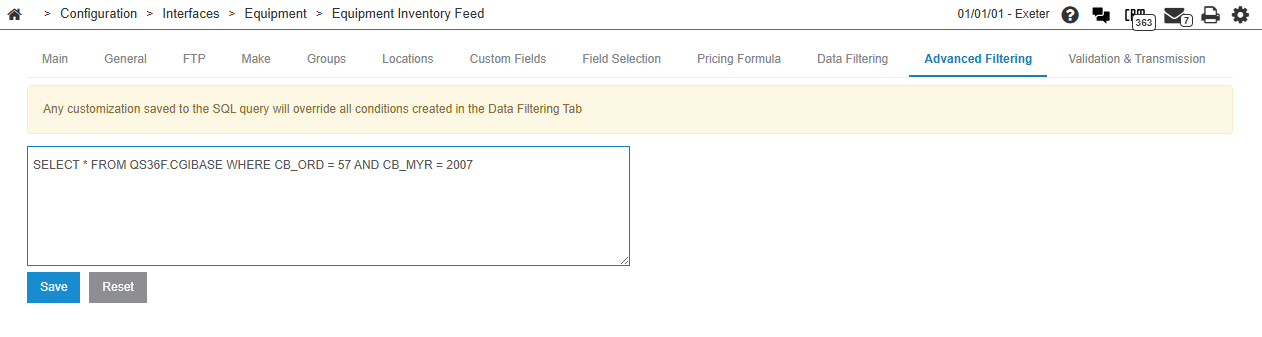
Note: Any customization saved to the SQL query overrides all conditions created on the Data Filtering tab.
Only SELECT statements are permitted. Statements that modify data (such as INSERT, UPDATE, DELETE, or CREATE) are not allowed.
Enter your query in the text area, then click Save. Click Reset to restore the query generated from your Data Filtering clauses.
Validation & Transmission Tab
Data Source: CMASCON
The Validation & Transmission tab lets you test the feed file and control scheduled nightly transmission for the loaded connection.
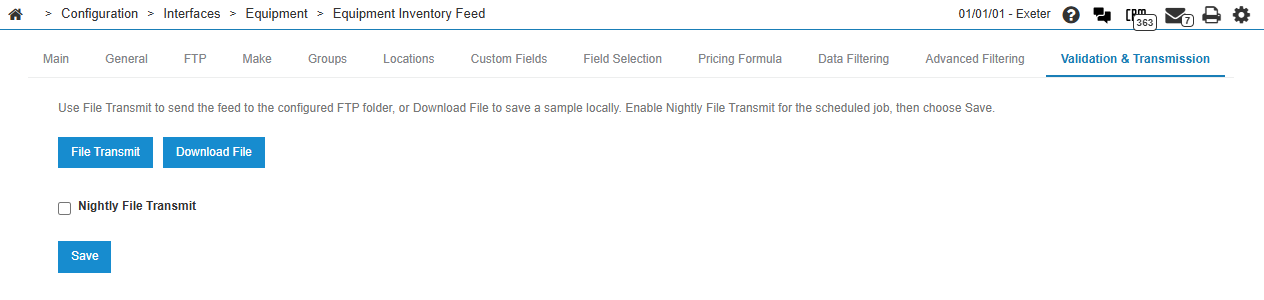
Use the following actions on this tab:
| Action | Description |
|---|---|
| File Transmit | Generates the feed file from the current connection settings and transmits it to the FTP folder configured on the FTP tab. |
| Download File | Generates the feed file and downloads it to your workstation so you can review the layout and data before enabling nightly transmission. The file extension matches the Output File Type selected on the FTP tab. |
| Nightly File Transmit |
When selected, the connection is included in the Equipment Inventory Transmit Nightly Transmit batch job. The Connection Status column on the Main tab shows a check mark when this option is enabled. After you change this setting, click Save on this tab. |
| Save | Saves the Nightly File Transmit setting for the connection. |
After you enable Nightly File Transmit, IntelliDealer transmits the feed automatically each night through the Equipment Inventory Transmit Nightly Transmit job. You can monitor the job on the Administration > Settings > Batch Jobs screen.
Feature: 6439 - Equipment Inventory Transmit
Data Source: CMASCON, MAPDATA
Security: 999 Configuration
Revision: 2026.08