
Price Update Step-by-step
Download the Price File via IntelliDealer
-
Click Product Support > Parts > Price Update.
-
Click Accept.
-
Under the Instructions column, click the .PDF document to get your instructions for the vendor price file.
-
To start the download of the price file, click Download.
IntelliDealer displays this message:

When the download is done, IntelliDealer displays this popup:

You can click into your messages to see details and the file names downloaded.

Tip: You should wait for a message after running the download to ensure it completes successfully. If you get an error directing you to job history details navigate to Administration > Settings > Batch Jobs (you need to have security in system 994 for Batch Jobs). There you can check the Job History tab for details.
Apply the Price File via Green Screen
-
Open the Green Screen application.
-
Select 7. Parts Management, then Select 23. Related Systems, and then Select 22. Price Update.

-
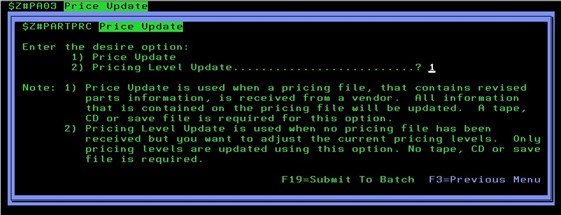
If you downloaded the price file from PFW.com select options 1, if you received the price file from the vendor directly select option 2. In this example, we are selecting 1. Price Update/Master Price File Received from PFW.
-
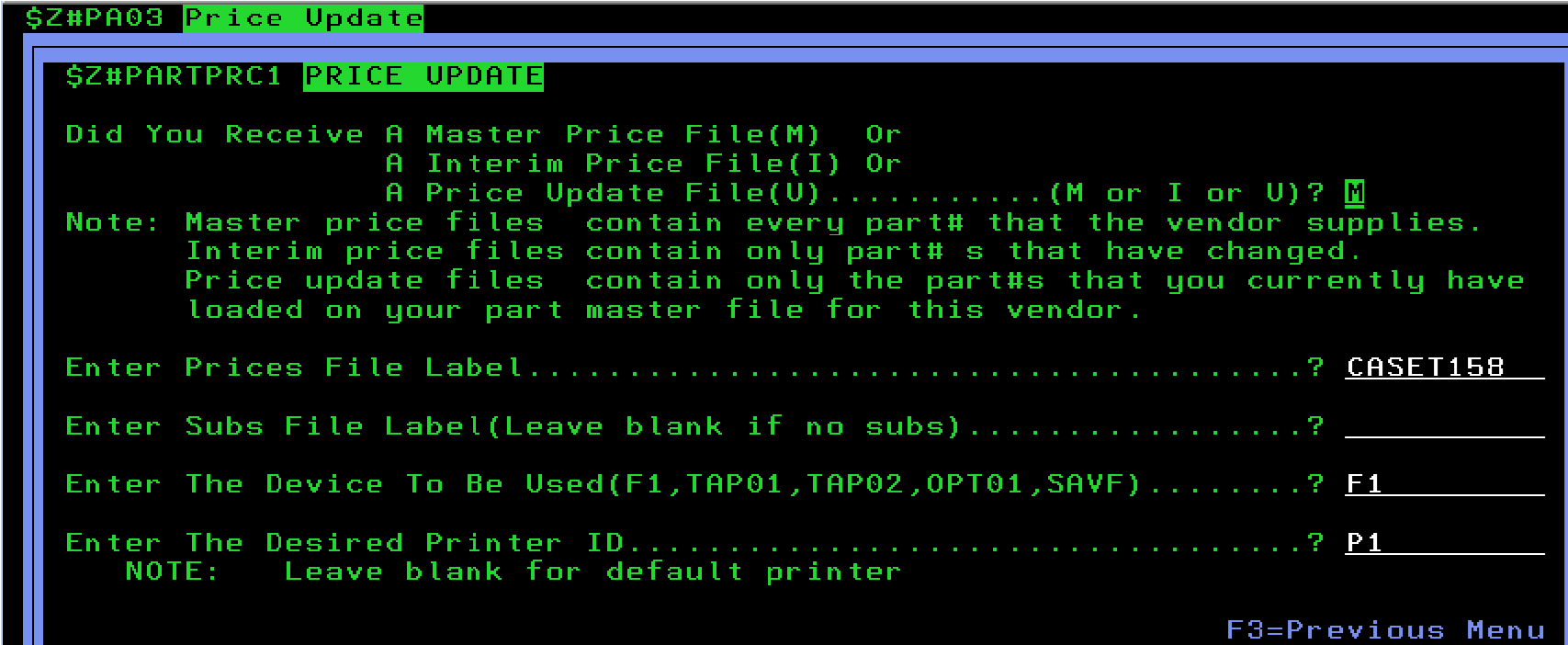
Enter in name for the price file, subs file and Device to use. This information will all be provided via a message in IntelliDealer. Enter in the Printer that you would like the reports to go to (Do not copy what you see in the screenshots).
-
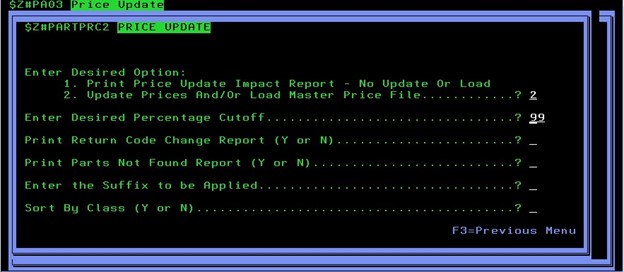
Now you will get the PARTPRC Report Screen. See PAR128 Price Update Reports.
-
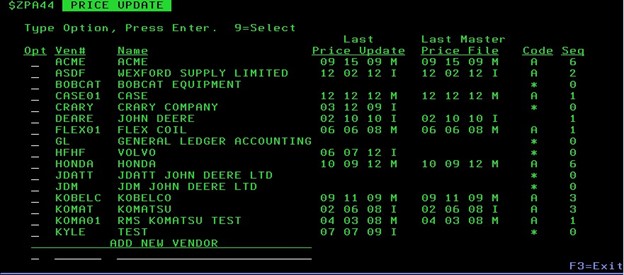
Select the Vendor you are running the Price Update for (this is just an example).
-
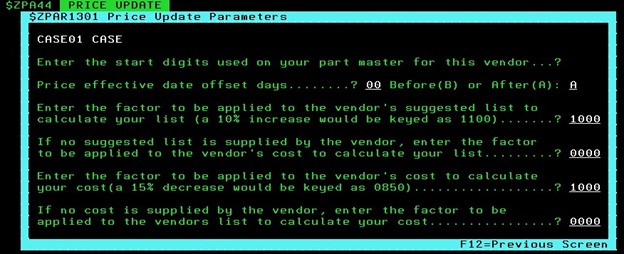
On the Price Update Parameters screen make the changes you need for your Dealership.
Note that the Price effective date offset days and Before/After values are only for John Deere price files.
-
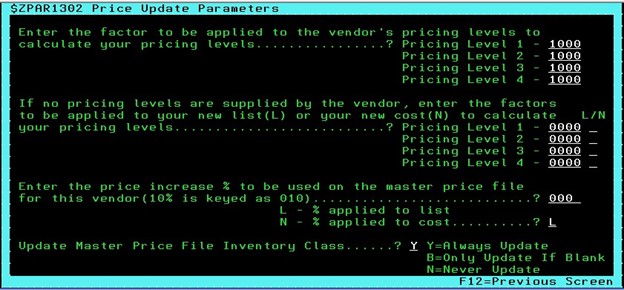
On Price Update Parameters – Level Pricing screen make the changes you need to for your Dealership.
-
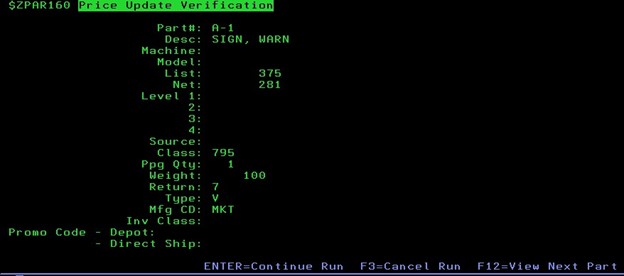
Now you will be taken to the Price Update Verification screen.
-
Press Enter to continue and your reports will be produced.