
Configuration: Printing
Use the Printing tab to set up rental printing options within the Rental Counter module.
The Rental Counter module has been designed to be as flexible as possible so that it can work in a way that makes the most sense for each dealership setting. In an effort to give the dealer control over most aspects of how the system works, a number of control settings have been created, which can be activated and deactivated depending on what parameters you wish to include in your Rental Counter module.
To open the Printing tab, from anywhere within IntelliDealer and navigate to Rental> Setup> Rental Control Setup.
Rental Control Setup - Printing
-
Navigate to Rental> Setup> Rental Control Setup.
Click the Previous The options on the Printing tab are completely customizable allowing the user to setup only the functions that they wish to apply to their rental system.
Cover Dates prints the start and end dates of an invoice on rental contracts and invoices.
Print Charge Card Information prints charge card information (expiry date and card holder name) on rental Requests, Reservations, and Contracts.
Print Tax Codes on Invoice prints tax codes on rental invoices.
Print A/R Agency Message on Contract prints A/R agency message on the rental contract.
Force Reprint When Contract Saved automatically reprint a rental contract every time the contract is saved.
Show Rate on Contract displays rental rates on the rental contract.
Print Category or Make on Invoice options:
- Category
- Make
- Neither
Equipment Value Factor calculates the machine's value using contract print programs and the value entered in the Equipment Value Factor field and prints the machine value on the rental contract.
Print Hours of Usage options:
- Invoice: Prints the hours of usage on invoices only
- No Print: Does not print the hours of usage
- Contract: Prints the hours of usage on rental contracts only
- Both: Prints the hours of usage on both invoices and rental contracts
Alternate Credit Verbiage allows you to change the verbiage that appears on the print out describing credit information.
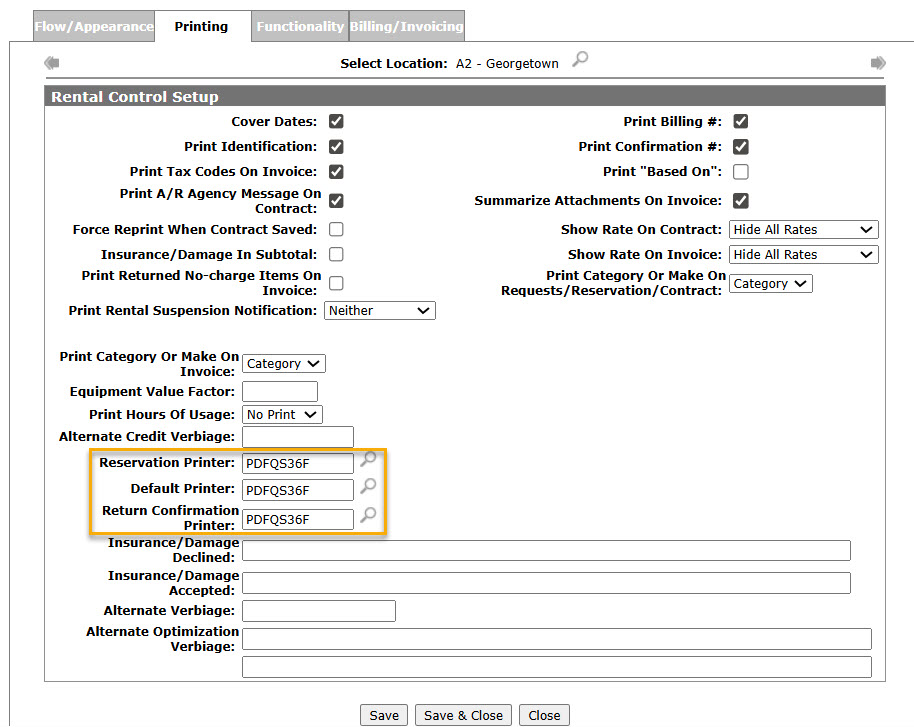
Enter a Reservation Printer.
- or -
Click on the Search icon.
icon.On the Printers screen, click on a Printer.
The Printing tab appears with the selected printer in the Reservation Printer field.On the Printing tab, enter a Default Printer.
- or -
Click on the Search icon and select a printer from the Printers screen.
The Printing tab appears with the selected printer in the Default Printer field.On the Printing tab, enter a Return Confirmation Printer.
- or -
Click on the Search icon and select a printer from the Printer screen.Insurance/Damage Message allows you to change the insure/damage message on rental contracts.
Alternate Verbiage prints the verbiage entered instead of the word "contract" on the contract/invoice printouts.
Alternate Optimization Verbiage is used with billing methods 4 or 5 and if a rental contract is optimized, this is the message that prints on the invoice.
Print Billing # generates a message on each invoice which states how many invoices have been generated by the contract.
Print Confirmation # prints the return confirmation number on the rental contract.
Print "Based on" prints a line on the invoice showing "RENTALS ARE BASED ON XXXX HOURS PER YYYY" where XXXX is the number of hours for the duration, and YYYY is the description of the duration.
Summarize Attachments on Invoice includes summarized attachments on the rental invoice.
Insurance/Damage in Subtotals includes insurance and damage in the subtotals on rental printouts.
Show Rate on Invoice includes rental rates on rental invoices.
Print Category or Make on Requests/Reservations/Contracts Prints the selected equipment information on rental requests, reservations, and contracts.
- Category: Prints the equipment category on rental requests, reservations, and contracts.
- Make: Prints the equipment make on rental requests, reservations, and contracts.
- Neither: Prints the equipment description on rental requests, reservations, and contracts.
Note:
If the Print Category or Make on Request/Reservation/Contract switch is set to Neither and extended equipment descriptions are being used, the entire description will be printed.
After selecting your settings on the Printing tab for the selected location, click the Save button to the apply changes to the rental system.
 The Printing tab appears.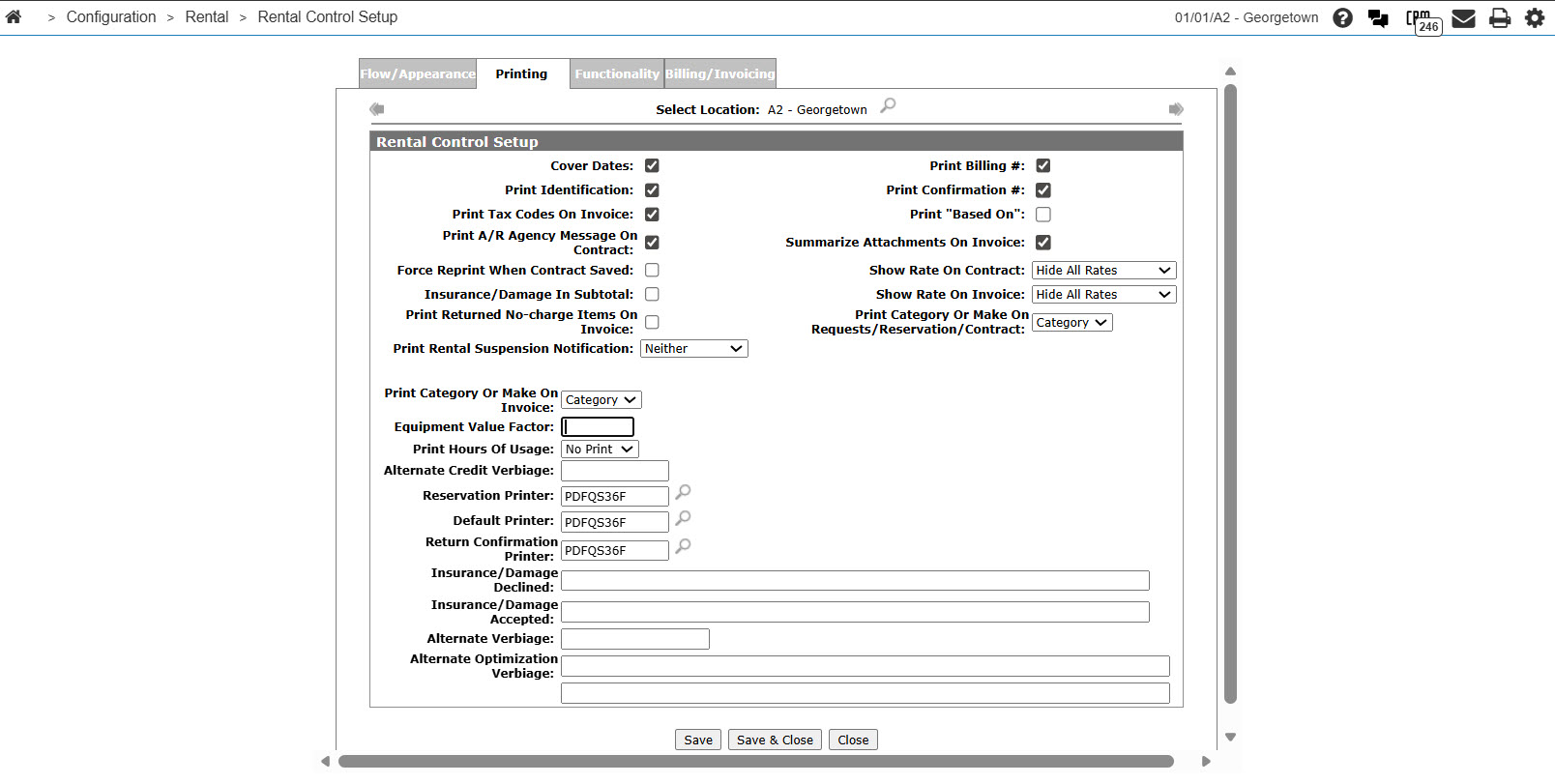
 or Next
 icon to scroll to the next option or back to a previous option.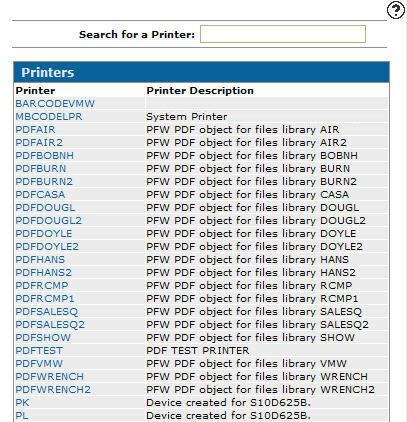
Screen Description
The search field appears on the Printing tab:
| Field | Description |
|---|---|
| Select Location | Allows you to select a branch location to setup rental control options on, that appear throughout the rental system. |
Note: Click on the Previous or Next icon to scroll to the next branch location or back to a previous branch location.
The fields appear on the Printing tab:
| Rental Control Setup | |
|---|---|
| Field | Description |
| Cover Dates | Cover Dates show your customers what period of time their invoice is for (the start and end dates) and can optionally be printed on the contract and invoice. Check the checkbox to indicate that they should be printed or do not check the checkbox to indicate that they should not be printed. |
| Print Identification | Controls whether charge card information is printed on rental Requests, Reservations, and Contracts. Charge card information includes the expiry date and the cardholder’s name. |
| Print Tax Codes on Invoice |
Print tax codes (ex. "Tax 02") on rental invoices. Note: This switch only controls the printing of the tax codes, not the tax amounts or descriptions. |
| Print A/R Agency Message on Contract | Prints an A/R agency message on the rental contract. |
| Force Reprint When Contract Saved | Automatically reprint a contract every time the contract is saved. |
| Insurance/ Damage In Subtotal | Includes insurance/damage in the subtotal lines on the rental printout. |
| Print Returned No-charge Items On Invoice | If selected, includes returned items with no charges (charge amount of 0) on the printed rental invoices. |
| Print Category or Make on Invoice | Prints the Category, Make, or Neither on rental invoices. |
| Equipment Value Factor |
The value of the equipment unit on the contract is multiplied by the factor entered in this field and printed on the contract (but not on invoices generated by the contract). Up to four digits may be entered in this field (two before the decimal point and two after). For example, if the unit on the contract has a value of 2000.00 and the value in this field is 2.0, “4000.00” appears on the contract. By default, this value is unlabeled on the contract; however, you can add a label by editing the rental contract overlay. Note: The exact calculation used to determine the equipment value that is printed on the contract is as follows: (CBSUB (Base and Option price) + CBOTH (Other Total Price)) x Equipment Value Factor. |
| Print Hours of Usage | Prints the hours of usage on the invoice, rental contract, both or none. |
| Alternate Credit Verbiage | Allows you to change the verbiage that appears on the print out describing the credit information. |
| Reservation Printer | Enter the printer ID to be used for printing Reservations, Contracts, and Invoices. Leaving these fields blank forces the system to use the printer IDs set up for each terminal in the Rental Counter system under Print Parameters. |
| Default Printer | Enter the printer ID used to print Reservations, Contracts, and Invoices. Leaving these fields blank forces the system to use the printer IDs set up for each terminal in the Rental Counter system under Print Parameters. |
| Return Confirmation Printer | Enter the printer ID used to print the Return Confirmation Document. If no return confirmation printer ID is specified, the document prints on your session’s default printer. |
| Insurance/Damage Message | Allows you to change the insurance/damage message on rental contracts. |
| Alternate Verbiage | Whatever is entered here prints instead of the word ‘contract’ on the contract and invoice printouts. |
| Alternate Optimization Verbiage | For use with billing methods 4 or 5 and if a rental contract is optimized in its lifetime, this is the message that prints on the invoice. Both available lines can be used, or just the first one. Text in this field is then printed on the invoice printout. |
| Print Billing # | Generates a message on each invoice which states how many invoices have been generated by the contract. |
| Print Confirmation # | Prints the return confirmation number on the rental contract. |
| Print "Based on" | A line prints on the invoice showing ‘RENTALS ARE BASED ON XXXX HOURS PER YYYY,’ where XXXX is the number of hours for the duration and YYYY is the description of the duration. If an item is invoiced for more than one duration (for example, after return and recalculation it splits into multiple durations), the line prints based on the last duration shown on the invoice for that rental unit. |
| Summarize Attachments on Invoice |
Includes summarized attachments on the rental invoice. Attachments must be configured on the Equipment Profile. Attachment Category/Class/Subclass must be linked as an Attachment in the parent unit's Category/Class/Subclass configuration. |
| Show Rate On Contract | Select whether to Show All Rates, Hide All Rates, or Show Regular Rates only (with no overtime rates) on the rental contract. |
| Show Rate on Invoice | Select whether to Show All Rates, Hide All Rates, or Show Regular Rates only (with no overtime rates) on the rental invoice. |
| Print Category or Make on Request/Reservation/Contract |
Prints the selected equipment information on rental requests, reservations, and contracts. Category: Prints the equipment category on rental requests, reservations, and contracts. Make: Prints the equipment make on rental requests, reservations, and contracts. Neither: Prints the equipment description on rental requests, reservations, and contracts. Note: If the Print Category or Make on Request/Reservation/Contract switch is set to Neither and extended equipment descriptions are used, the entire description prints. |
The buttons allow you to complete your work on the Printing tab:
| Button | Function |
|---|---|
| Save | Saves changes made on the Printing tab. |
| Save & Close | Saves changes made on the Printing tab and closes the screen. |
| Close | Closes the Printing tab without saving and returns to the Configuration Quick Links screen. |
Data Source: RMCTL
Revision: 2026.02