Expanded Cycle Counts Info
The parts Cycle Count system has been designed as an alternate method of creating count sheets in the Inventory Count system. It allows dealers to count inventory over a period of time (ie. a year, a quarter, or whatever the dealership determines is best). It is part of system # 827 Product Support - Parts Inventory Count and the user must be authorized in security. It was designed to be used with the wireless parts inventory system, but this is not mandatory.
In order for parts to be included they must be active with a non G/L vendor. Any part that is deactivated OR has vendor GL will not be included in counts created. The cycle count information is stored in the CYCCNT file.
CYCCNT Statuses:
P-Pending-Created but not activated
C-Current-Activated
H-Historical-Completed
D-Deleted
There is a switch in the CMBR4 table that should be evaluated when you are starting to use cycle counts - 'Include OFC 5 w/bin in Cycle Count': Y/N. This switch essentially toggles the option of including OFC5 parts that have a bin number on them but it has slightly more specific logic, see below. Also keep in mind this CMBR4 switch is evaluated at the time each count is created, including the final count. If you change the switch in the middle of a cycle the very next count created will use the current switch setting.
If the Allow OFC5 switch is turned off (N)
Grabs all parts that are status A, that don’t have GL vendor, and the on hand quantity (PMOH) is equal to or greater than 0 (no negative qty’s). It will skip over parts if the on hand quantity minus the quantity available minus quantity reserved is less than 1 (PMOH – PMQA – PMQR < 1) and the OFC code is 5.
If the Allow OFC5 switch is turned on…
Grabs all parts that are status A and don’t have GL vendor. It will skip over parts that have a blank bin (PMBIN = BLANKS) and an OFC code of 5 and the on hand quantity minus the quantity available minus quantity reserved is less than 1 (PMOH – PMQA – PMQR < 1)
NOTE: As of Insight 2.0 PPU 394 the system now checks the Date Last Counted on the part (PMDLC). If the date falls into the date range of the count, the part will be excluded from the cycle count.
Usage:
To use this system, go to Product Support and click on 'Inventory Count'. The following screen will appear listing any cycle counts that are in progress:
Cycle counts in other locations may be accessed using the 'Select Location' link. Historical or completed cycle counts can be accessed by checking the 'Include Historical' checkbox.
To create a new inventory cycle count, click on the link Click here to create a new inventory cycle count in the bottom left and the following window will appear.
This screen is used to define the parameters of a new inventory cycle count.
- Select the branch Location where the inventory count is being performed.
- Input the Start Date for the count
- Enter the Number of Months/Cycle to indicate how long the cycle will take.
Note: The system prevents you from creating periods that overlap and also ensures that only one cycle count can be active (current) per location.
When the Submit button is pressed, a window will appear displaying each of the months in the cycle count (as defined in the Number of Months/cycle field). The user can then indicate the amount of inventory to be counted each month. The month and year would appear above each field. The user keys in a percentage in each field representing the percentage of total bins to be counted each month.
In the event that you have an active historical count causing the overlap error on the system that is 100% complete you can select the count date and successfully delete it from system so that you can create the next count.
Enter a percentage in each field to indicate the percentage of total bins to be counted each month. This allows you to have higher percentages in slower months and smaller percentages in busier months. The total of all fields must equal 100% and no field can have a 0% value.
When finished, press the Save button. The system will then calculate the bin allocation by month. The on-hand quantity of all parts will be added and the monthly percentage to be counted will be applied to determine the start and stop bin locations by month.
Once this is done, the cycle count will be added to the list from the original screen. Click on the 'Cycle Start Date' and the following window will appear:
Once the monthly count percentages have been saved, the bin location start and stop values are displayed and the percentages are not changeable.
Press the Activate button to begin the inventory count and create daily bin counts. This will change the status of the Inventory count from pending to current. Once a cycle count has been activated, the Activate button will no longer appear.
Press the Delete button to delete the inventory count.
The Close button will close the screen and the inventory count will remain in status pending.
If the Activate button is selected and the cycle count is set to current status, the Cycle Start Date can be clicked to start the bin counts:
The current month being worked on will now be hyperlinked. Click it and the following screen appears:
Enter the Percent to Count Today to indicate the percentage of this month's bins will be counted today.
The Number of Counters indicates how many people will be doing the daily count. This will evenly split the daily count amongst the counters by creating separate count files. The default value is 1.
The system will display the Last Bin Counted to indicate where you left off in the counting process. When the Create Count button is pressed, the system will re-calculate the last bin counted according to the value entered in the Percent to Count Today field. The end bin for today's count is displayed and count sheets are printed. During this process, an entry is created in the PARTCNT file.
When creating the daily count sheet, the 'Percent to Count Today' represents the percentage of this month's bin range that will be counted today while the '% completed' on the main cycle count screen represents the overall percentage of parts that have been counted. For example, if the total number of bins is 10 , specifying 10% to count today would give you 1 bin to count but if there were 9 parts in that bin and 1 part in every other bin, then after counting the first bin you have completed 50% of the overall number of parts to count.
The remainder of the count process is the same as before, where counts values are entered, variance reports printed and on hands updated via the legacy system Inventory Count system. The counts can also be accessed using PFW's Wireless Inventory Control module.
Note: Note: When the last month in the cycle is complete, a Create Final Count button will appear.
Final Count Logic
The system will look at the parts file (PARTMAST) and build a list of all parts where the date added is greater or equal to the start date of the cycle count. It uses the same logic based on the CMBR4 switch to include or exclude OFC 5 parts with certain conditions - see the description section near the top of the document.
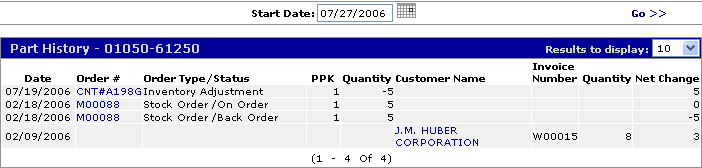
There is one final check where the system will pull the parts history (PARTHIST) for the part in question to see if there has been an inventory count line entry with the status (PHSTA) of R, a type (PHTYP) of IA, a PO field (PHPO) that contains *CNT#*. If a line is found this means the part has been counted through the count system elsewhere but the count was NOT posted to the g/l. These parts will be omitted from the final count since they have been counted already. If you post counts to the G/L these IA type lines are not done in history so parts counted and posted to the g/l through another count will still show up in the final count.
Dealers should consider adding a manual count after the final count is created using the last count date to build a list of parts to count separately. Because the cycle count system is currently designed to evaluate the IntelliDealer on hand ('net' on hand), parts on reserve could be missed during cycle counts. Also parts that move from one bin range to another could also be missed. There may be a future project to create the final count using the last count date field but it has not been scheduled at this time.
Moving part bins
If a part is in a bin that has already been counted, and you move it to a bin that is about to be counted, it will appear on the new count. (essentially you will have 2 counts for it, the original one, and then the one after it is moved)
If a part is on a count further down the list and hasn't been counted, and you move it to a count you are about to do, it will move it.. only one count will appear.
Note: NOTE: If the option to post to the G/L is used, the counts will show as invoices in part history, rather than IA receipt adjustments. In addition, no entry will be made if the part count was equal to the on hand.