
Cycle Counts
Use the Cycle Counts screen to search for and view cycle counts. The Parts Cycle Count system includes an alternate method of creating count sheets in the Inventory Count system.
To open the Cycle Counts screen, navigate to Product Support > Parts > Inventory Count, then click the Cycle Counts tab.
Topics in this section are:
See also: Expanded Cycle Counts Info.
Performing a Parts Cycle Count
-
Navigate to Product Support > Parts > Inventory Count, then click the Cycle Counts tab.
-
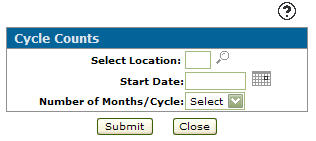
Select the Click here to create a new cycle count link.
-
Select a Location.
-
Enter a Start Date or click the Calendar icon to select a date.
-
Select a Number of Months/Cycle.
The system prevents you from creating cycle counts that overlap and only allows one cycle count to be active per location.
-
Once all the appropriate fields are filled out, click Submit.
-
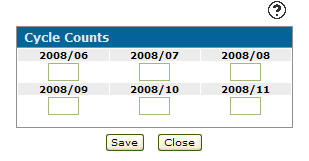
Enter a percentage in each of the fields that indicates the percentage of total bins to be counted for that month. This allows you to have higher percentages in slower months and smaller percentages in busier months. All fields must equal 100% and no field can have a value of 0%.
Tip: If an active historical count causes an overlap error on the system, and the historical count is 100% complete, you can select the count date and successfully delete it from system so that you can create the next count.
-
Click Save.
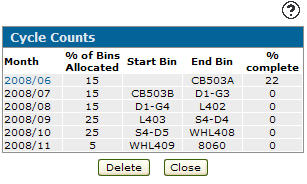
The system calculates the bin allocation by month. The on-hand quantity of all parts will be added and the monthly percentage to be counted will be applied to determine the start and stop bin locations by month. The cycle count is added to the list on the Cycle Counts screen and you cannot change the percentages.
-
On the Cycle Counts tab, click the Cycle Start Date.
-
Once you have finished Inventory cycle count you can complete your work:
To: Do This: Begin the inventory count and create daily bin counts. The status of the inventory count changes from pending to current. Click Activate. Delete the inventory count. Click Delete. Close the screen and have the inventory count remain in status pending. Click Close. -
If you selected Activate, and the cycle count is set to current status, click the Cycle Start Date in the Month field to start the bin counts.
-
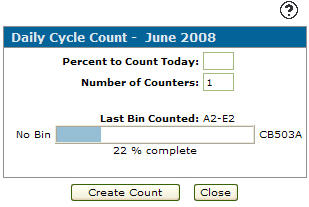
On the Daily Cycle Count screen, enter the appropriate number of bins to count in the Percent to Count Today field.
When creating the daily count sheet, the Percent to Count Today represents the percentage of this month's bin range that will be counted today while the % completed on the main cycle count screen represents the overall percentage of parts that have been counted. For example, if the total number of bins is 10 , specifying 10% to count today would give you 1 bin to count but if there were 9 parts in that bin and 1 part in every other bin, then after counting the first bin you have completed 50% of the overall number of parts to count.
-
Enter the Number of Counters to indicate the number of count sheets to print. This number should correspond to the number of people doing the count.
Tip: The counts can also be accessed using Wireless Inventory Control.
-
Click Create Count.
The system displays the Last Bin Counted to indicate where you left off, based on the value entered in the Percent to Count Today field. Count sheets are printed and an entry is created in the PARTCNT file.
 The Cycle Counts tab appears.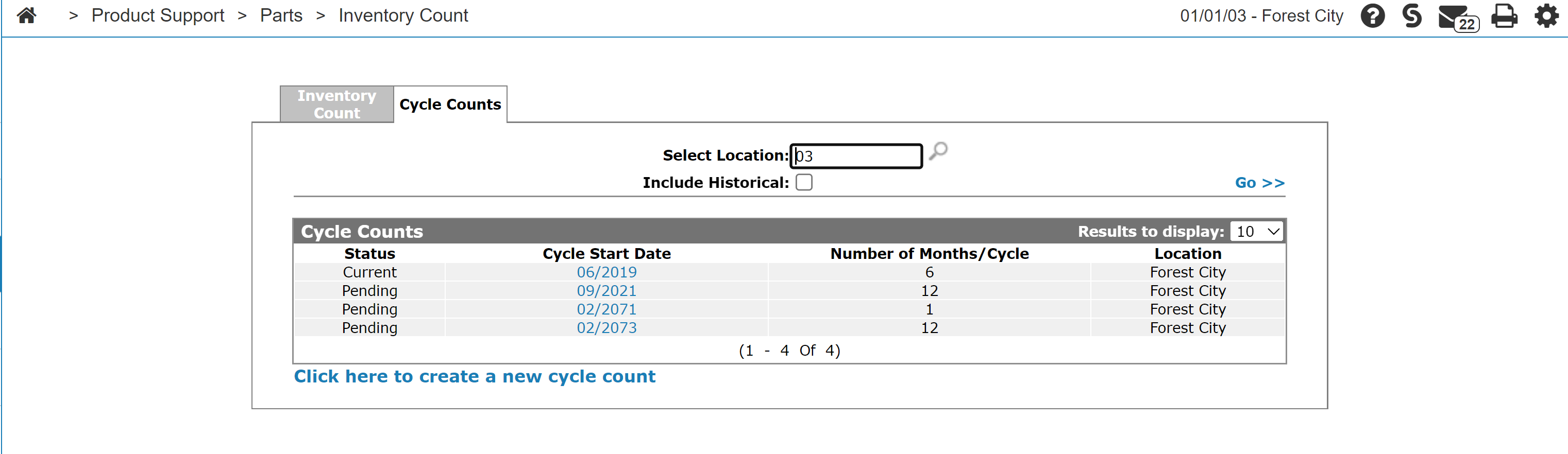
Post-Requisite: When the last month in the cycle is complete, a Create Final Count button appears.
Screen Description
Search fields on the Cycle Counts screen are:
| Field | Description |
|---|---|
| Select Location | Search for a cycle count by entering a location. |
| Include Historical | If selected, includes historical cycle counts in the search results. |
Fields on the Cycle Counts screen are:
| Field | Description |
|---|---|
| Status |
The current status of the selected cycle count. Possible values are:
|
| Cycle Start Date | The cycle count's start date. |
| Number of Months/Cycle | The number of months needed to complete the cycle count. |
| Location | The location where the cycle count takes place. |
Click a Cycle Start Date to open the Cycle Counts screen.