
Revenue & Costs
The Revenue & Costs tab displays the top ten (or bottom ten) revenue and maintenance costs by customer, salesperson, groups, and units.
To open the Revenue & Costs tab, navigate to Product Support > Rental > Supervisor.
 Revenues & Costs tab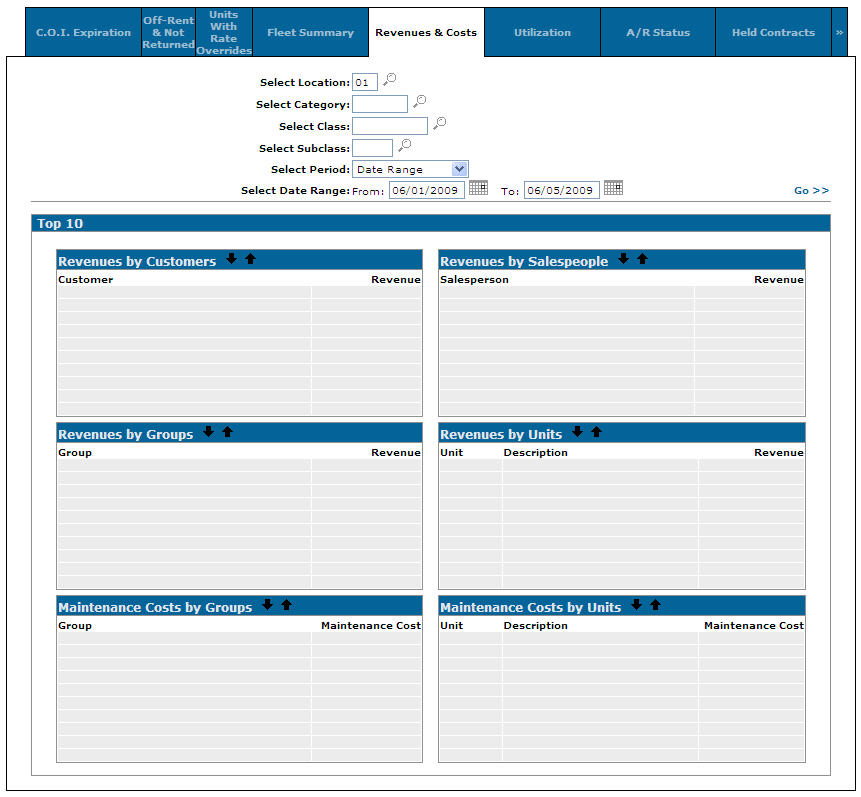
Search fields on the Revenue & Costs tab are:
| Field | Description |
|---|---|
| Select Location | Search for revenue and cost by entering a location or multiple locations. |
| Select Category | Search for revenue and cost by entering a category. |
| Select Class | Search for revenue and cost by entering a class. |
| Select Subclass | Search for revenue and cost by entering a subclass. |
| Select Period | Search for revenue and cost by selecting a period from the drop down list. |
| Select Date Range | Narrow down the revenue and cost search results by selecting a date range (this only applies to the "Date Range" period). |
| Comparison Date Range |
Enter a comparison date range which compares the results to the results from the date range entered in the Select Date Range field. A Comparison column appears in each view allowing you to see comparison values. |
Click the Arrow  icons to either view the top ten revenue or bottom ten revenue for the corresponding category.
Fields in the Revenues by Customers section of the Revenue & Costs tab are:
| Revenues by Customers | |
|---|---|
| Field | Description |
| Customer |
The name of the customer. The top ten or bottom ten customers are listed depending on which arrow icon has been selected. |
| Revenue | The customer's total revenue. |
| Comparison |
The comparison customer revenue value. This field only appears if a Comparison Date Range is entered. |
Click a Customer to open the Customer Profile screen.
Click the Revenue to open the Revenues by Customers screen.
Fields in the Revenues by Salespeople section of the Revenue & Costs tab are:
| Revenues by Salespeople | |
|---|---|
| Field | Description |
| Salesperson |
The name of the salesperson. The top ten or bottom ten salespeople are listed depending on which arrow icon has been selected. |
| Revenue | The salesperson's total revenue. |
| Comparison |
The comparison salesperson revenue value. This field only appears if a Comparison Date Range is entered. |
Click the Revenue to open the Revenues by Salesperson screen.
Fields in the Revenues by Group section of the Revenue & Costs tab are:
| Revenues by Group | |
|---|---|
| Field | Description |
| Group |
The name of the equipment group. The top ten or bottom ten equipment groups are listed depending on which arrow icon has been selected. |
| Revenue | The equipment group's total revenue. |
| Comparison |
The comparison equipment group revenue value. This field only appears if a Comparison Date Range is entered. |
Click the Revenue to open the Revenues by Group screen.
Fields in the Revenues by Units section of the Revenue & Costs tab are:
| Revenues by Units | |
|---|---|
| Field | Description |
| Unit |
The name of the rental unit. The top ten or bottom ten rental units are listed depending on which arrow icon has been selected. |
| Description | A brief description of the unit. |
| Revenue | The rental unit's total revenue. |
| Comparison |
The comparison rental unit revenue value. This field only appears if a Comparison Date Range is entered. |
Click a Unit to open the Equipment Profile screen.
Click the Revenue to open the Revenues by Unit screen.
Fields in the Maintenance Cost by Groups section of the Revenue & Costs tab are:
| Maintenance Cost by Groups | |
|---|---|
| Field | Description |
| Group |
The name of the equipment group. The top ten or bottom ten equipment groups are listed depending on which arrow icon has been selected. |
| Maintenance Cost | The equipment group's total maintenance cost. |
| Comparison |
The comparison equipment group total maintenance cost value. This field only appears if a Comparison Date Range is entered. |
Fields in the Maintenance Cost by Units section of the Revenue & Costs tab are:
| Maintenance Cost by Units | |
|---|---|
| Field | Description |
| Unit |
The name of the rental unit. The top ten or bottom ten rental units are listed depending on which arrow icon has been selected. |
| Description | A brief description of the rental unit. |
| Maintenance Cost | The rental unit's total maintenance cost. |
| Comparison |
The comparison rental unit's maintenance cost value. This field only appears if a Comparison Date Range is entered. |
Data Source: CGIHIST, MNBDD, MNBDH
Revision: 2026.01