ARI PartStream
The ARI PartStream interface allows MyDealer users to shop for OEM parts through the ARI PartStream catalog. Users can add parts from the catalog directly into the MyDealer shopping cart and checkout through MyDealer.
Setup Requirements
This procedure describes how to setup MyDealer to use the ARI PartStream interface.
Prerequisites: The dealership must be licensed to use feature 6421 - ARI PartStream.
-
Within IntelliDealer, navigate to Configuration > Interfaces > Other > ARI PartStream.
-
Click the API Key Configuration tab.
API keys must be configured for each location to enable the ARI parts catalog for the given location in MyDealer. ARI provides these keys when the dealer goes through the setup process with ARI.
-
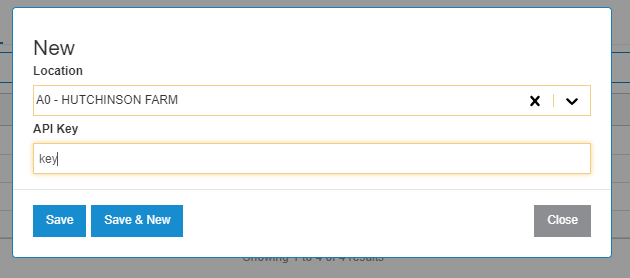
To add a new API key, click Create.
-
Select the appropriate location (branch) from the list, and add the key to the API Key field.
-
-
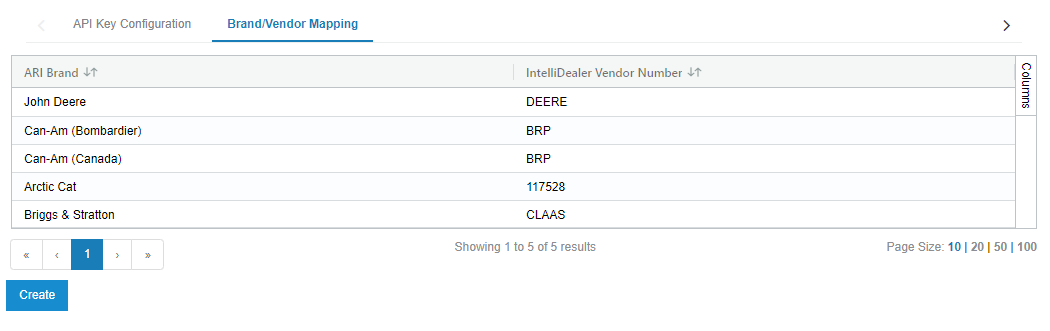
Click the Brand/Vendor Mapping tab. Here you must configure the part vendors with part prefixes to be used with ARI PartStream.
Part vendors with prefixes must be configured on this screen or parts associated with this vendor are added to the MyDealer shopping cart without the relevant prefixes. Part vendors that do not use prefixes can optionally be configured for tracking purposes, but it is not mandatory and does not change how the interface functions.
-
To create a new brand mapping, click Create.
-
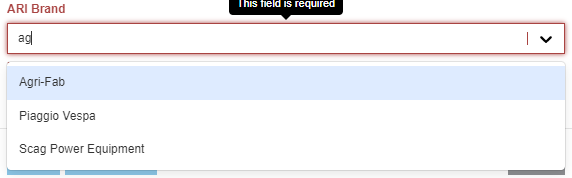
Select the ARI Brand from the list.
The brand field supports a search feature as the list of brands is quite extensive. The list of brands is provided by ARI and cannot be changed. Brands in the list are periodically updated as ARI adds support for additional brands.
-
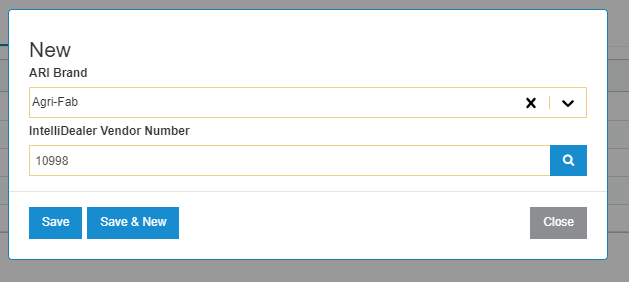
Select the IntelliDealer vendor to associate with this brand using the magnifying glass to search, or by typing the vendor number directly.
Each ARI brand can be mapped to only one IntelliDealer vendor. In the screenshot above, this means Agri-Fab can only be mapped to vendor 10998.
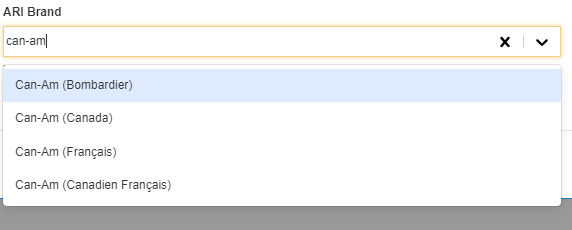
The same IntelliDealer vendor can be mapped to multiple ARI Brands. This can be helpful when multiple catalog variations exist for the same vendor. For example, Can-Am:
-
 API Key Configuration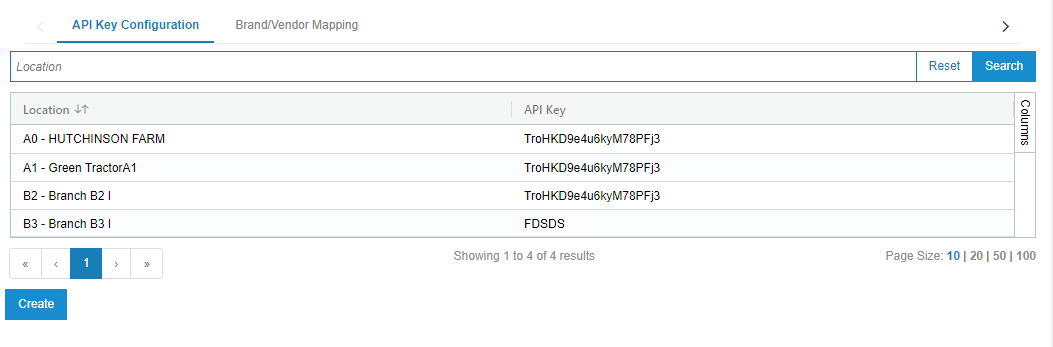

Walkthrough
The ARI PartStream integration can be accessed from several locations.
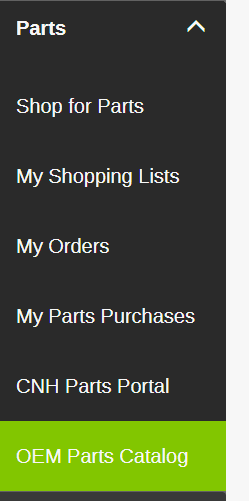
The most prominent location is on the Parts menu on the navigation sidebar in MyDealer. It is the OEM Parts Catalog option in the list:
Another location is through the OEM Parts Catalog button on the Shop for Parts page:

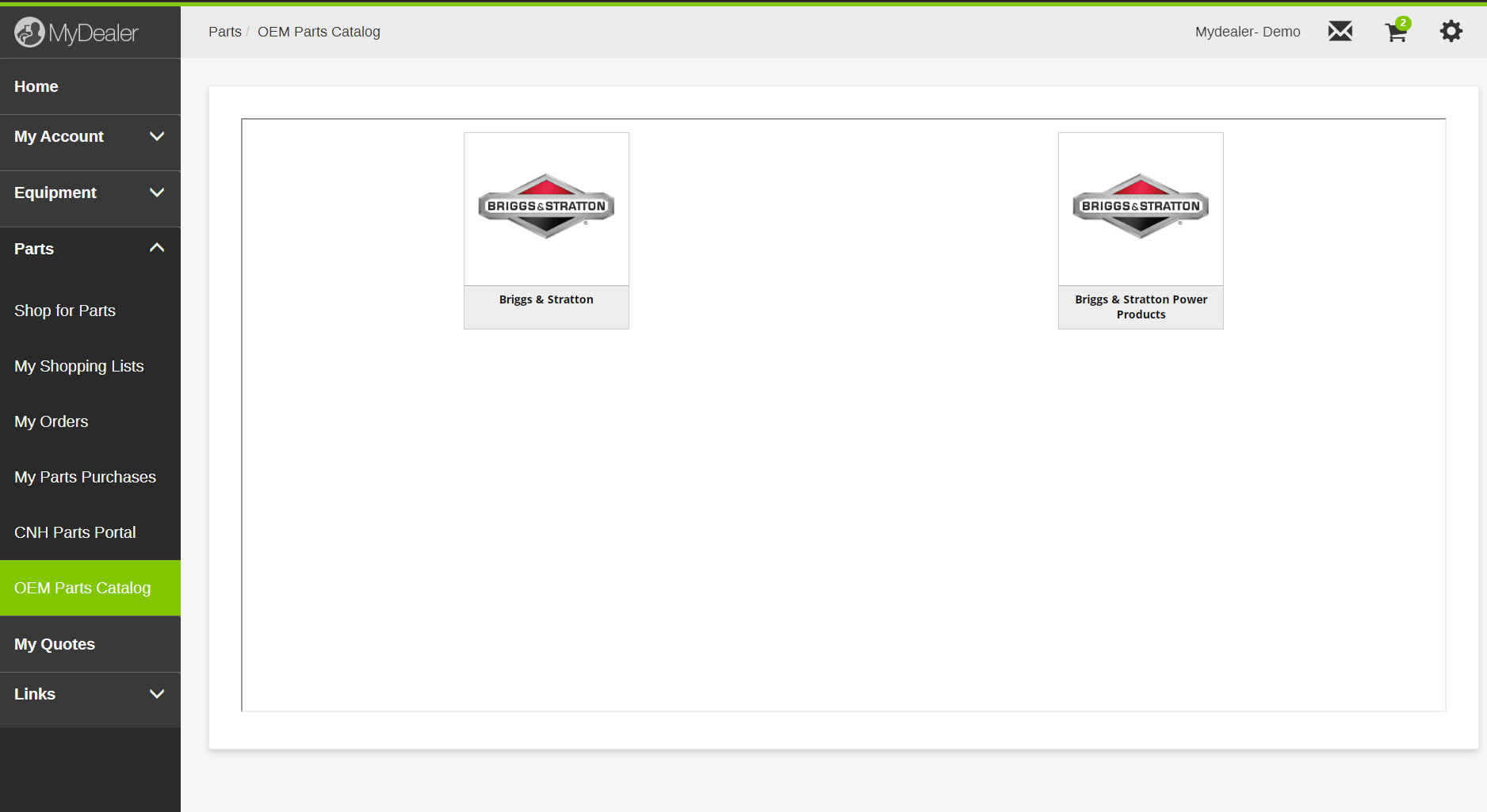
Clicking either link opens the ARI PartStream integration. A number of boxes for different brands is shown, depending on what the dealer has selected during the setup process with ARI.
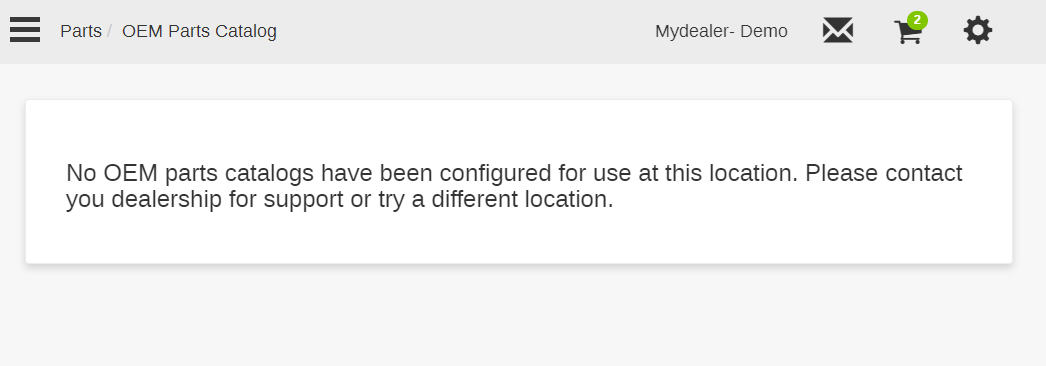
If an API key has not been configured for the user's current location, this message is displayed instead:
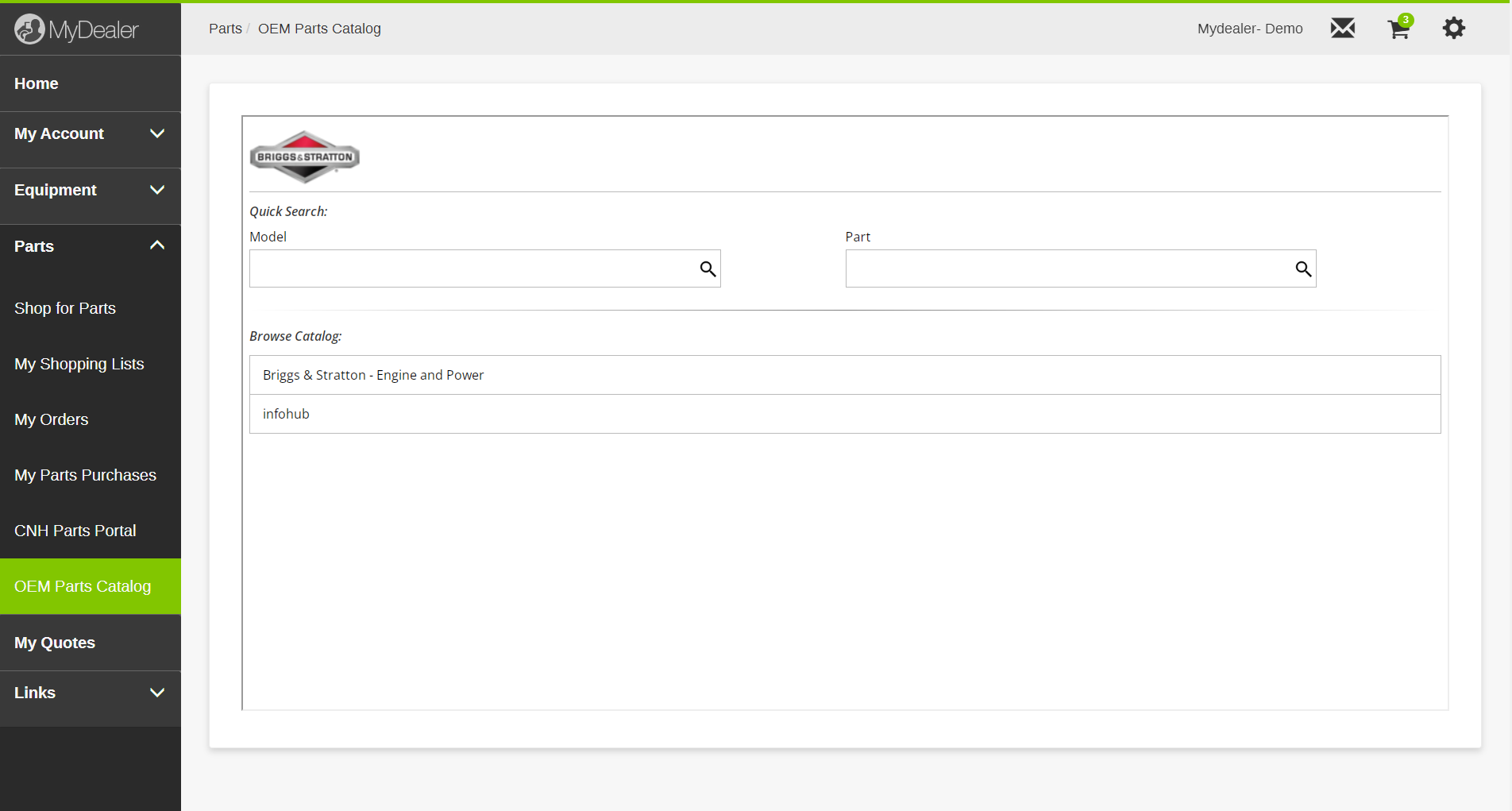
Clicking a brand allows for a quick search on Model or Part, and an option to browse the full catalog:
After selecting a specific parts book, the parts are shown with an option to add to cart:
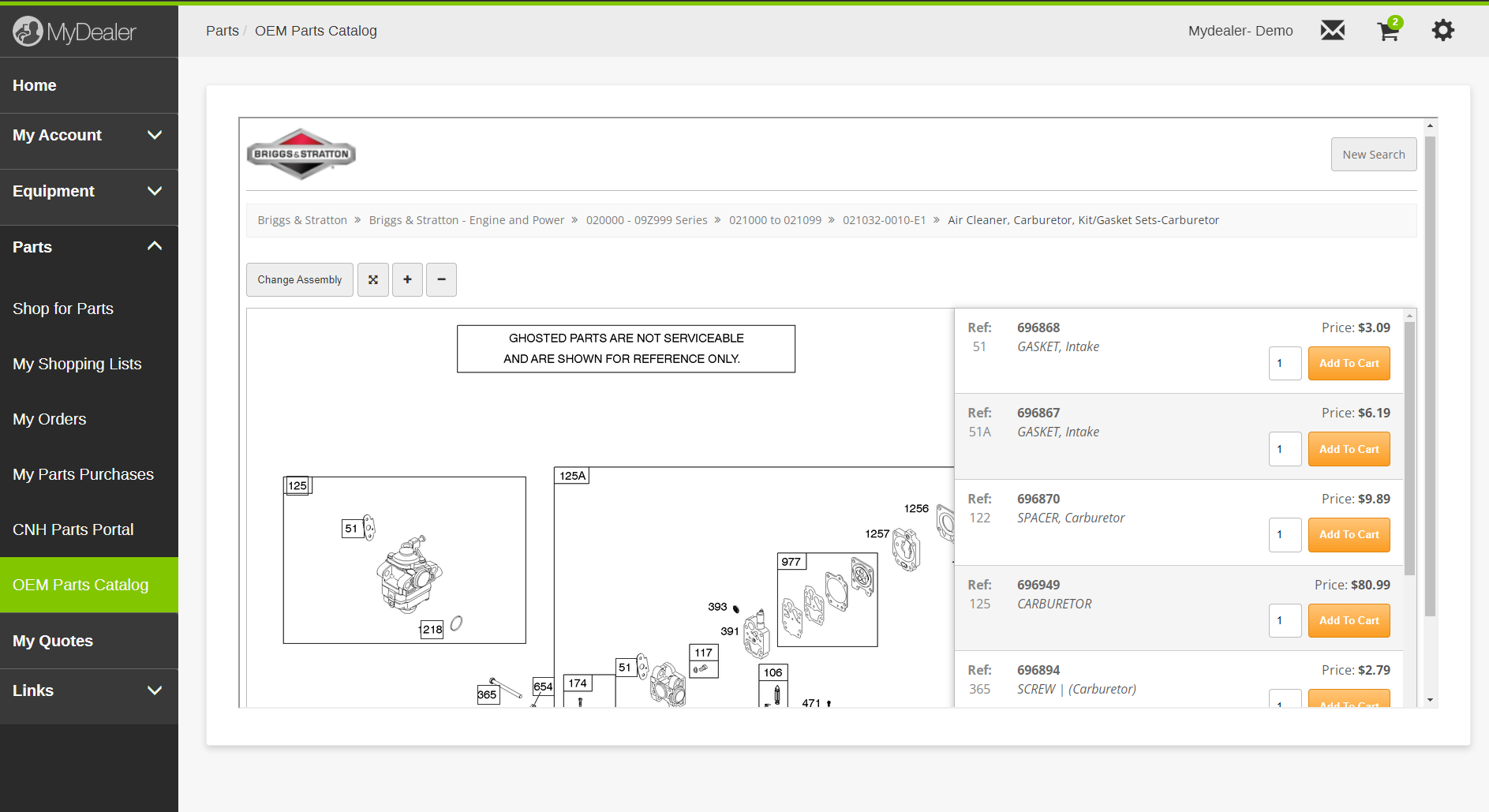
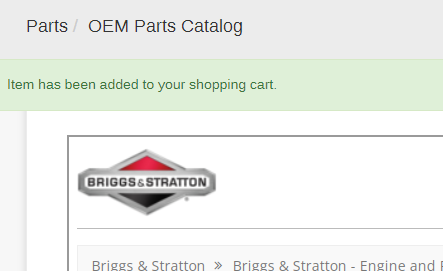
Clicking Add to Cart adds the part in the desired quantity to the MyDealer shopping cart:
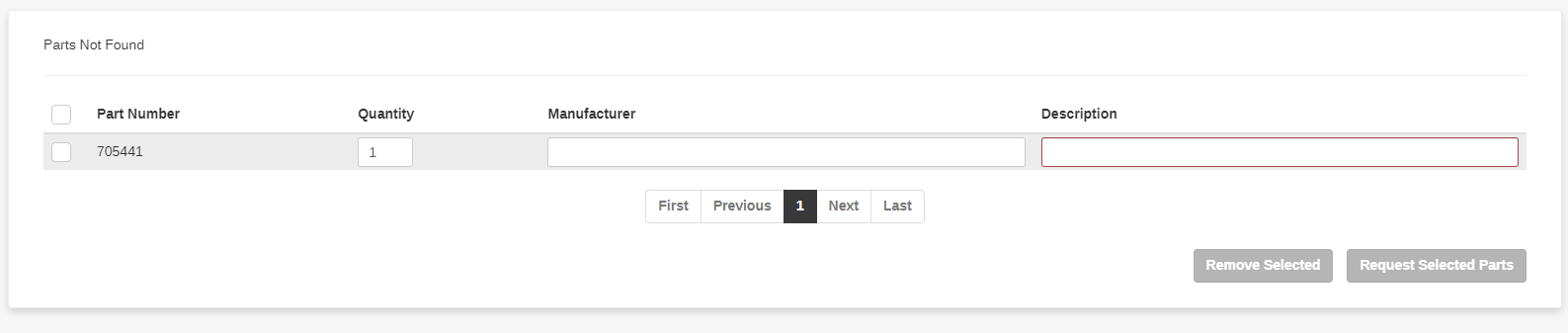
If a part is selected that is not available in MyDealer, the part is added to the Parts Not Found section of the Shopping Cart: