
Adjustment
You can use the Adjustment screen to enter an adjustment to correct the amount of a claim, if the wrong credit amount has been entered. An adjustment can not be made in closed G/L months.
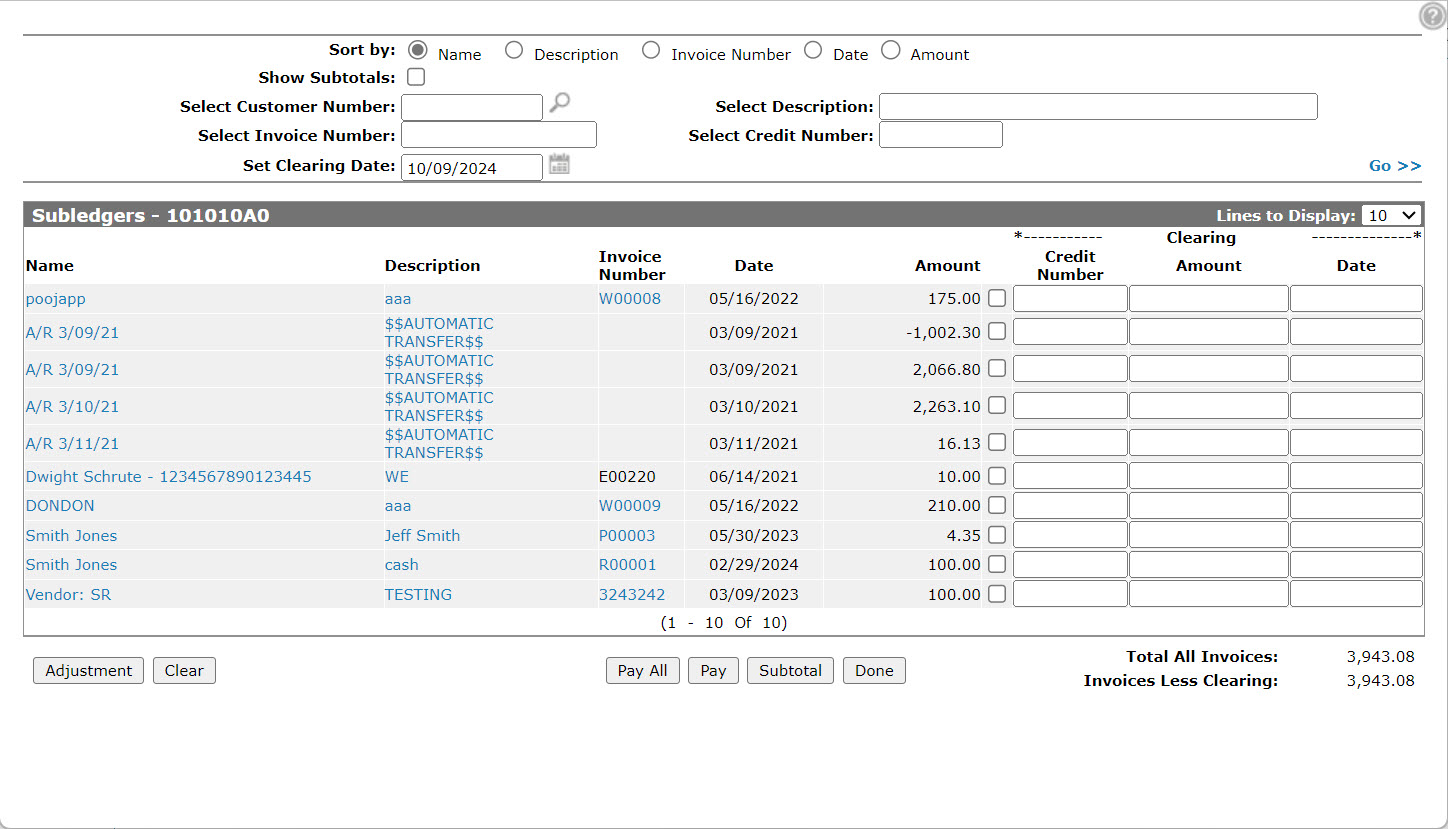
To open the Adjustment screen, click the Adjustment button on the Subledgers screen.
Topics in this section are:
Adjusting a Subledger Account
Note: No G/L account is impacted when adjusting a subledger account.
-
From anywhere within IntelliDealer navigate to Financial Management > General Ledger > Subledgers.
-
Enter your search criteria in the appropriate fields, then click Go >> to begin the search.
-
Move the cursor over an Account Number and select Edit from the pop-up menu.
-
On the Subledgers screen, click on the Adjustment button.
-
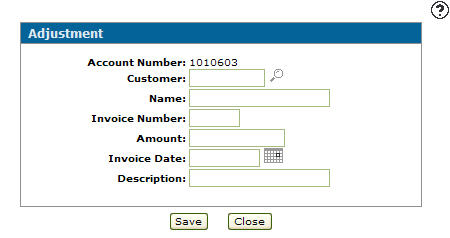
Fill in the fields, referring to the table below.
-
Click on the Save button.
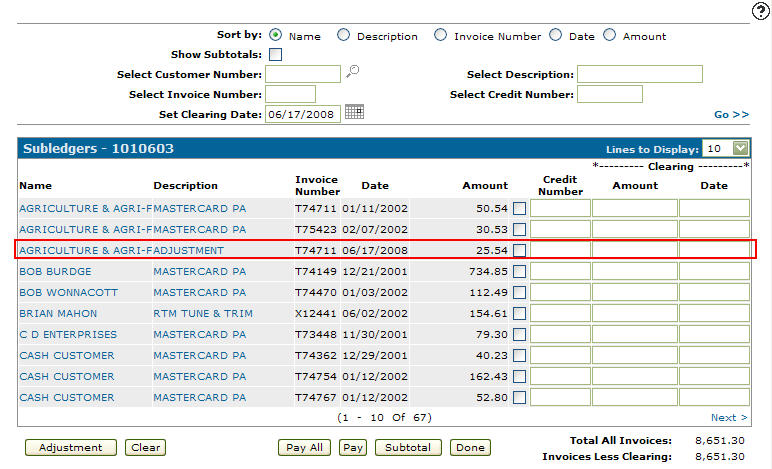
The Subledgers screen appears with the adjustment listed under the original invoice.
 Subledger Account Selection returns your search results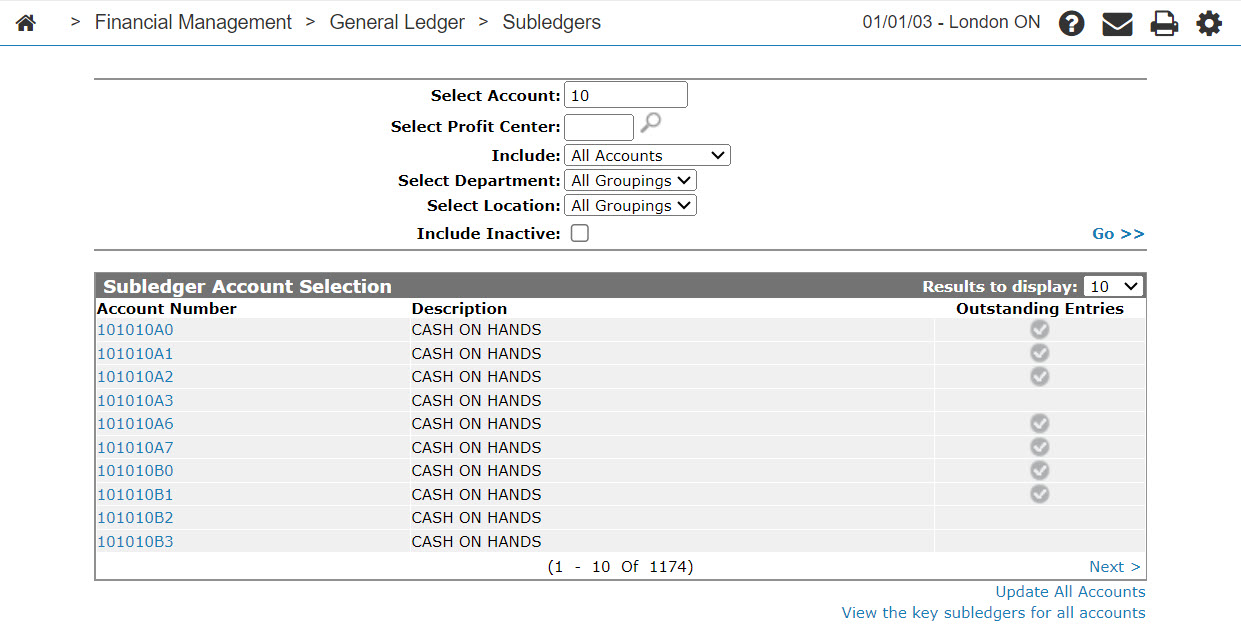
Screen Description
The fields appear on the Adjustment screen are:
| Field | Description |
|---|---|
| Account Number | The subledger account number. |
| Customer | The customer number on the original claim. |
| Name | The customer name on the original claim. The customer Name field is automatically populated once you select a customer number. |
| Invoice Number | The invoice number on the original claim. |
| Amount | Enter the dollar amount of the adjustment. |
| Invoice Date | The date the adjustment is applied to the invoice. |
| Description | A description of the claim. |
Use these buttons to complete your work on the Adjustment screen:
| Button | Function |
|---|---|
| Save | Saves changes made to the Adjustment screen and returns to the Subledgers screen. |
| Close | Closes the Adjustment screen and without saving and returns to the Subledgers screen. |
Security: 602 -Financial Management - General Ledger
Revision: 2024.11