
E-mail A/R Statements
The E-mail Statements screen allows you to email A/R statements to eligible customers. Click on a statement date to open the E-mail Statements screen, which allows you to fill the email parameters.
Customers that have the A/R Statement checkbox on the Profile tab selected (indicating that you allow both a printer and e-mail ready copy of the statement) are eligible to receive an emailed A/R statement.
If the A/R Statement checkbox is unchecked, an email statement is still generated if the user is set to receive A/R statements from A/R Statement checkbox on the Contact profile screen.
Topics in this section are:
E-mailing Accounts Receivable Statements
-
Navigate to Financial Management > Accounts Receivable > Statements > Email A/R Statements.
-
Click a Statement Date you wish to e-mail to eligible customers.
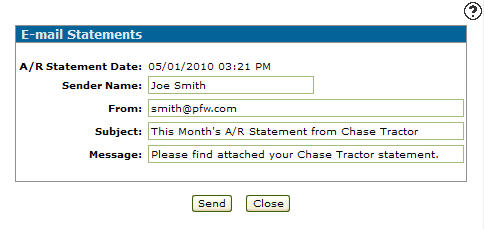
The E-mail Statements screen appears. -
Fill out all the appropriate e-mail parameters.
-
Click Send.
A Confirmation screen appears.
-
Click Continue to e-mail the selected statements to all eligible customers.
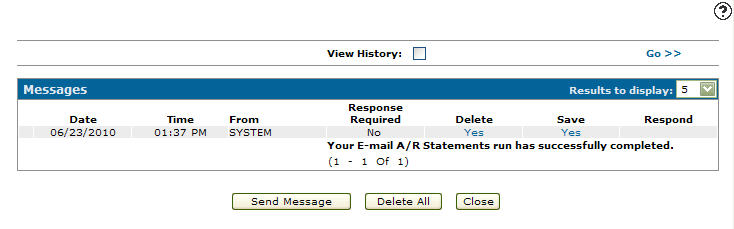
A system generated message appears on the Messages screen and on the Home screen when the A/R statements have been successfully e-mailed to all eligible customers.
 E-mail Statements screen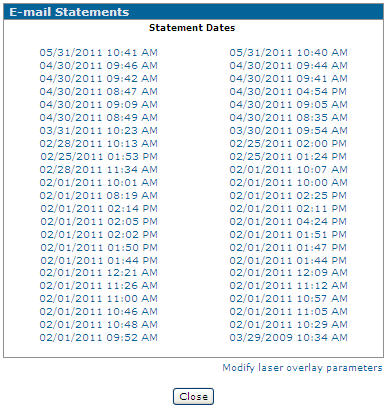

Screen Description
The field on the E-mail Statements screen is:
| Field | Description |
|---|---|
| Statement Dates |
Click on the date of the A/R statement you wish to email to all eligible customers. A statement date will appear for statements that have previously been generated. To e-mail statements to authorized customers, you must first run the print statements option. |
Select the Modify laser overlay parameters link to modify the statement overlay before emailing the statements.
To complete your work on the E-mail Statements screen without emailing any customers, click Close.
Revision: 2025.11