
Reprint A/R Statements
The Reprint A/R Statements screen allows you to print out your Accounts Receivable Statements a second time. This may be handy if you decided to change the message that prints on all statements, or if you had deleted the Statements out of the spool file by accident.
Topics in this section are:
Reports Generated
The report produced when Reprinting A/R Statements is:
| Customer Statements |
Reprinting an Account Receivable Statement
-
Navigate to to Financial Management > Accounts Receivable > Statements > Reprint A/R Statements.
-
Enter an A/R Statement Date, indicating the date the statement was originally created.
- or -
Click on the Calendar icon to select a date. -
On the Print Statement screen, enter the Printer you wish to reprint the selected statement.
- or -
Click on the Search icon and select a printer from the Printer screen.
 -
Click on the Print button to reprint the selected A/R statement (ARI112).
 Reprint A/R Statement screen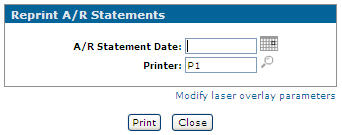
Screen Description
The fields on the Reprint A/R Statements screen are:
| Field | Description |
|---|---|
| A/R Statement Date | The date the selected A/R statement was created. |
| Printer | The printer selected to print the A/R statement. |
Select the Modify laser overlay parameters link to modify the statement overlay before reprinting the statements. See Laser Overlay.
Use these buttons to complete your work on the Reprint A/R Statements screen:
| Button | Function |
|---|---|
| Reprints the A/R statements for the A/R Statement Date selected above. | |
| Close | Closes the Reprint A/R Statements screen without printing any A/R statements and returns to the Statements screen. |