
Accounts Receivable: A/R Outstanding
The Account Receivable - Outstanding A/R screen allows you to view accounts receivable outstanding in a graph or pie chart. To run reports on A/R Outstanding, see Running Accounts Receivable Outstanding.
Note: This screen requires access to one or both of these external URLs: https://www.google.com/jsapi and https://www.gstatic.com/charts/loader.js. If the screen is not displaying correctly, it may be because the system has been denied access to the URL. Ensure that these URLs are unblocked or unfiltered in your organization’s firewall and web filtering devices.
The Accounts Receivable - A/R Outstanding screen is available at these locations:
-
Financial Management > Accounts Receivable > A/R Outstanding
-
Management Central > Financial > Accounts Receivable
-
On the Sales Support Portal screen, click the View Detail icon next to Outstanding A/R.
-
In the Product Support > Rental > Supervisor, click the A/R Status tab.
When viewing this screen from the Rental Supervisor A/R Status tab, it only displays information about rental invoices that are still outstanding in the A/R system.
Topics in this section are:
Running Accounts Receivable Outstanding
-
Navigate to the Accounts Receivable - A/R Outstanding screen.
-
Enter your search criteria in the appropriate fields and click Go >> to begin the search.
The A/R outstanding data matching your search criteria is returned and the chart updated accordingly. -
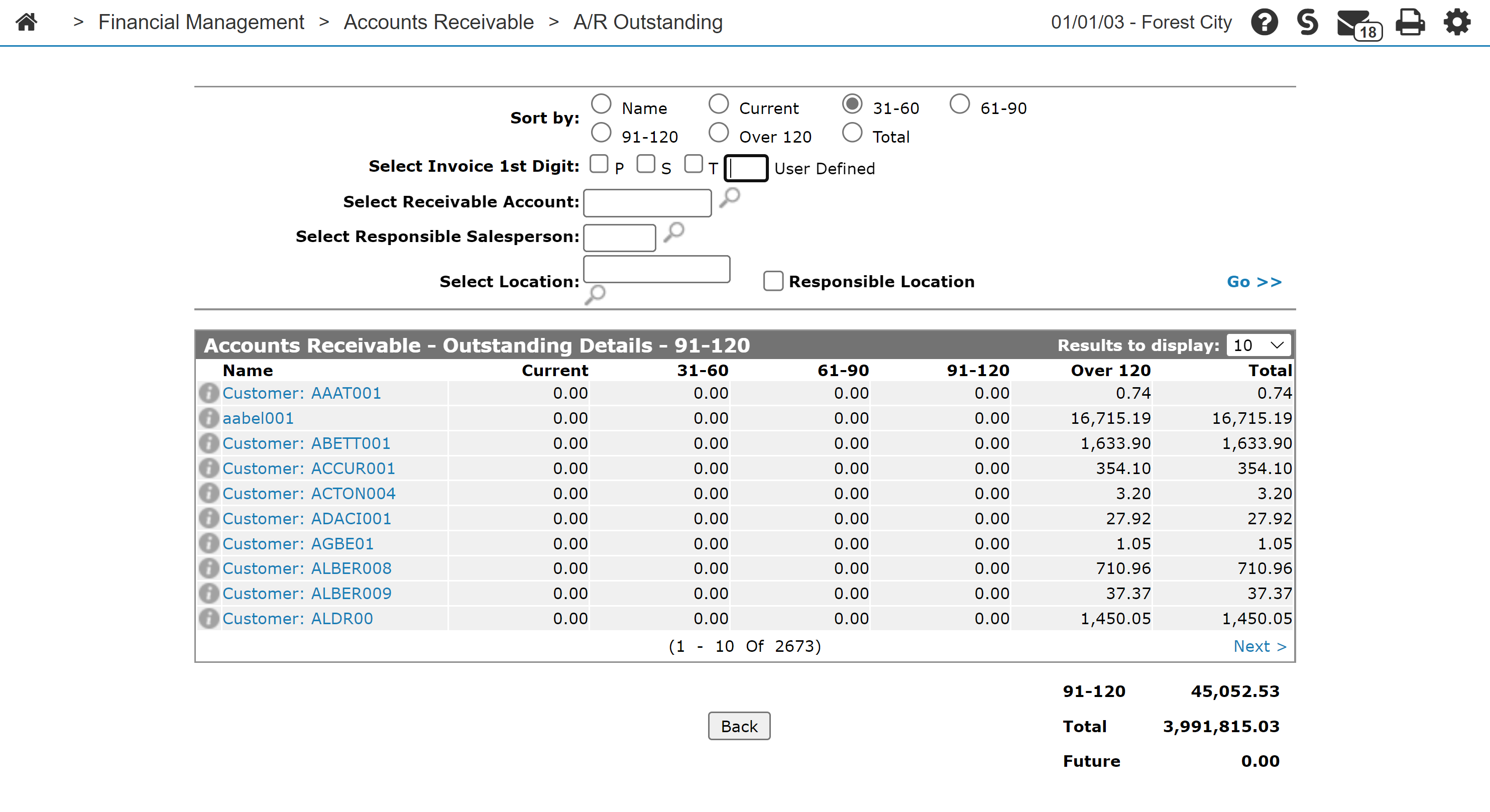
Click the desired Total link to view the details of that aging period.
The Accounts Receivable - Outstanding Details screen for the period appears and displays a customer listing from highest to lowest dollars outstanding. -
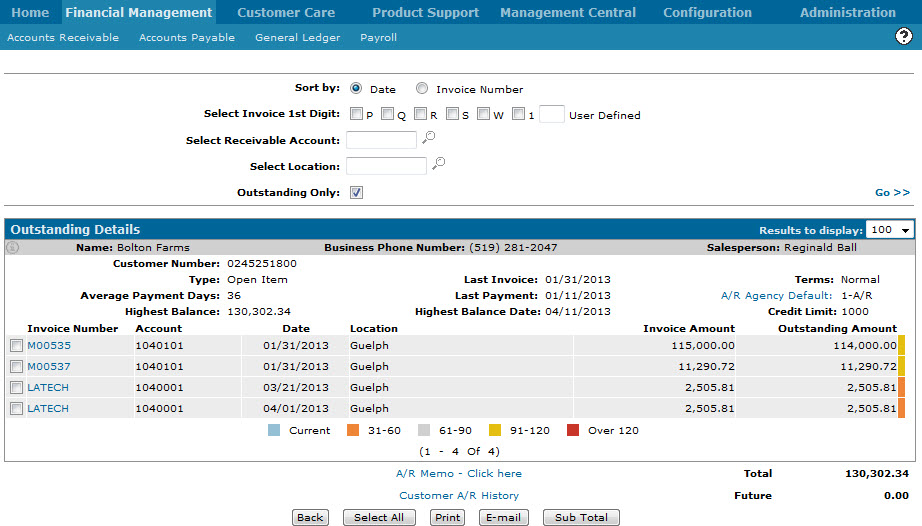
Click the customer Name to view a list of A/R invoices from this customer.
The Outstanding Details screen appears with a list of vendor invoices. -
Click on the checkbox next to the invoice(s) you wish to print. or click Select All to select all the available invoices.
-
Click the Print button.
The Print Invoice screen appears. -
Enter a Printer or click the Search
 icon to search for and select a printer from the list.
 -
Click Print. Depending on the invoice number selected the following reports can be produced:
SOINV Parts Invoice WORKORD Work Order RENTINV Rental Invoice EQINV Equipment Invoice
 Accounts Receivable - Outstanding A/R screen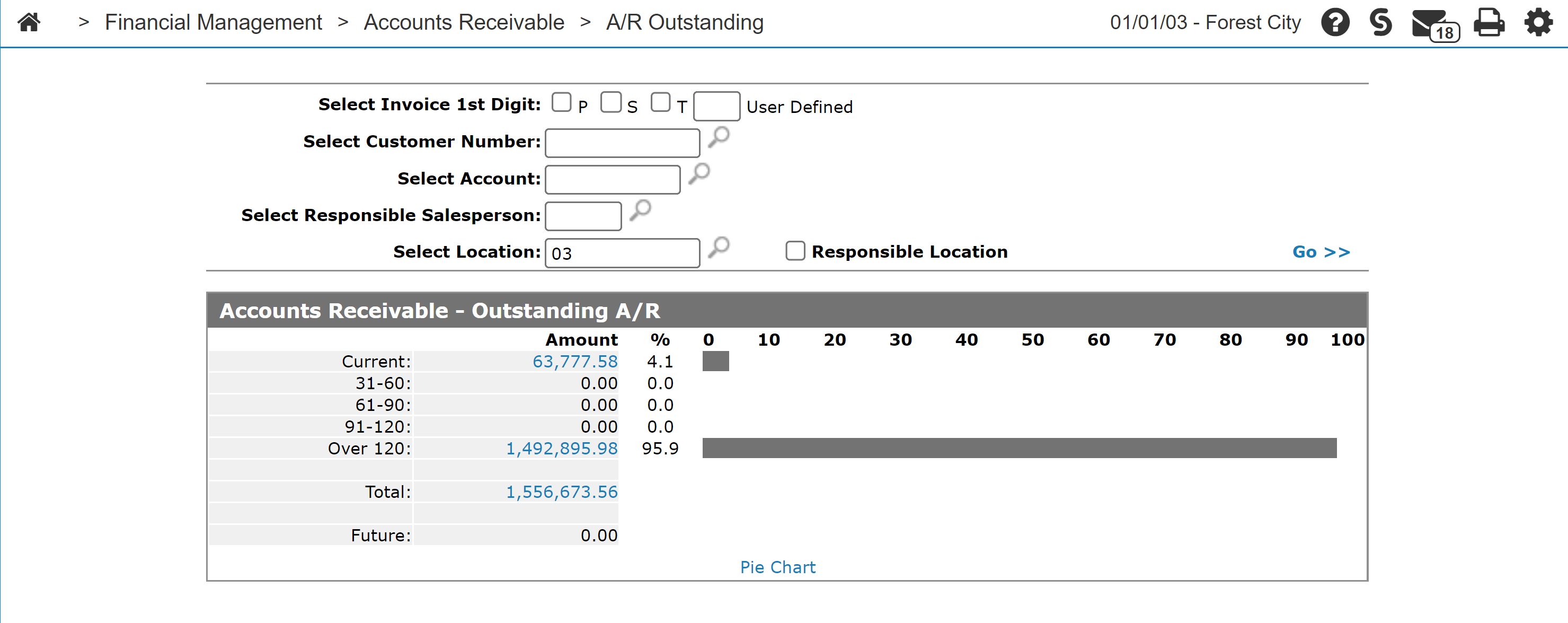
Screen Description
The search fields on the Accounts Receivable - Outstanding A/R screen are:
| Field | Description |
|---|---|
| Select Invoice 1st Digit |
Search by the first digit of the invoice. First digits configured for your location are displayed. (See System Settings-Location.) Use the user-defined field to search for custom digits. |
| Select Customer Number | Search by customer number. |
| Select Account | Search by account number. |
| Select Responsible Salesperson | Search by the salesperson responsible for the customer's account. |
| Select Location | Search by the branch location of the invoice. |
| Responsible Location | Select the responsible location checkbox to search for outstanding A/R by the responsible location, which is the default location in the Customer's Profile. |
Click on the Go >> link to initiate aging.
Click on a Total to open the Account Receivable - Outstanding Details and view the details of that aging period. By clicking on one of the Amount links you can drill down for more detailed information.