Increasing Job Code Hours by Percentage
-
From any IntelliDealer screen, click the Product Support tab.
The Product Support Quick Links screen will appear.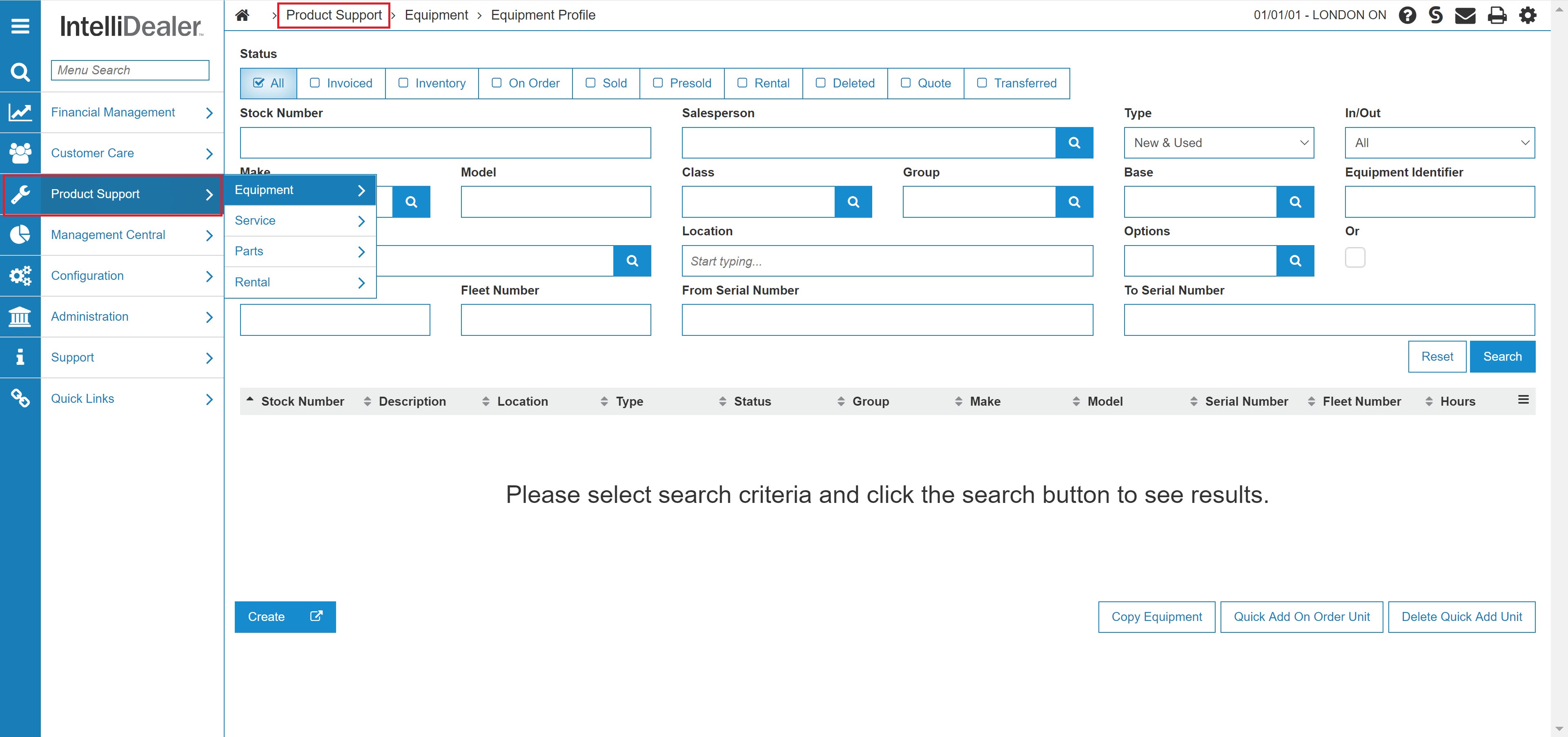
Product Support Quick Links screen
-
From the Service List, click the Job Codes link.
The Job Codes screen will appear.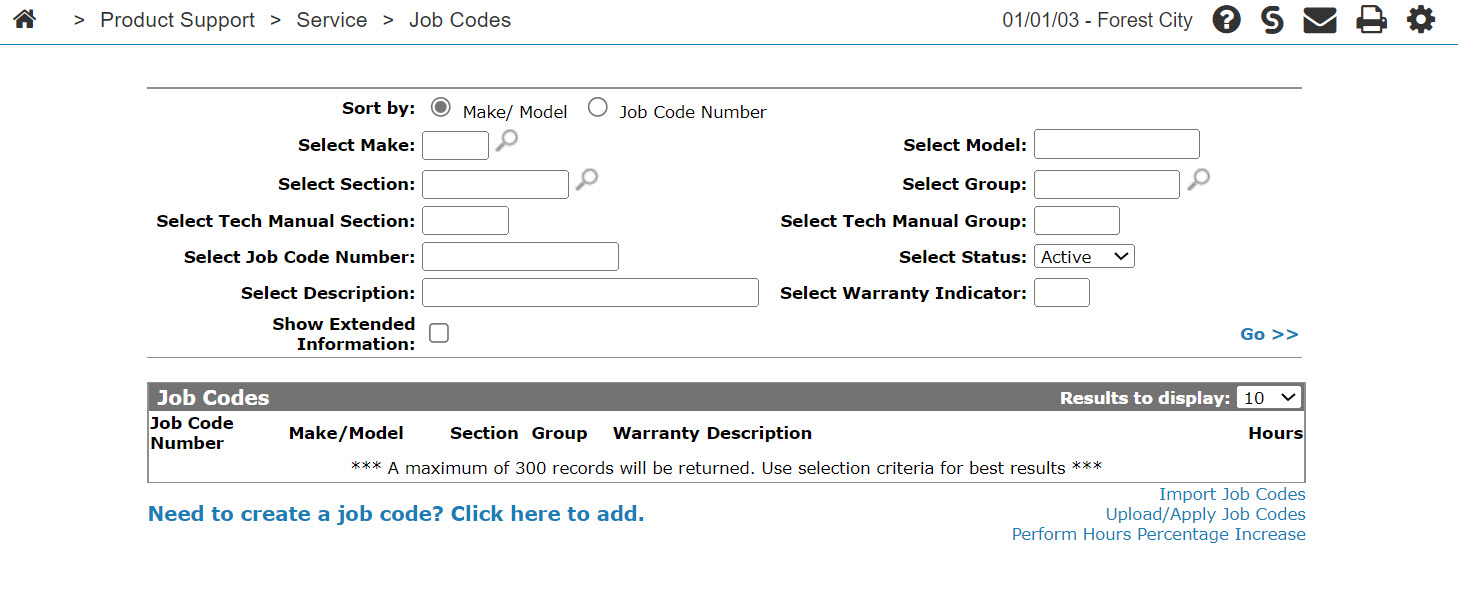
Job Codes screen
-
On the Job Codes screen, click the Perform Hours Percentage Increase link.
The Perform Hours Percentage Increase window will appear.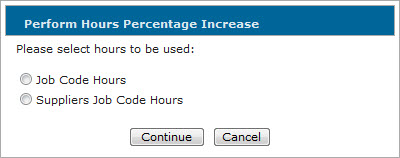
Perform Hours Percentage Increase window
-
On the Perform Hours Percentage Increase window, select whether to increase job code hours using a percentage of the existing Job Code Hours or the Supplier Job Code Hours and click Continue.
The Perform Hours Percentage Increase screen will appear.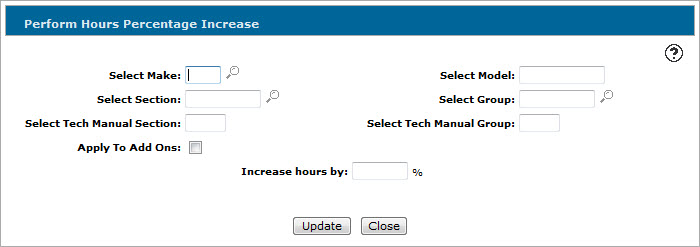
Perform Hours Percentage Increase screen
-
On the Perform Hours Percentage Increase screen, enter the criteria for the job code(s) you want to increase the hours for using any of the available fields.
-
In the Increase hours by field, enter the percentage you want to increase the job code hours by.
Note: Based on what you selected earlier in the Perform Hours Percentage Increase window, the new job code hours will be calculated by multiplying the existing job code hours or supplier job code hours by the percentage entered in this field.
-
Click Update.
The system will verify the number of job codes you will be updating the hours for.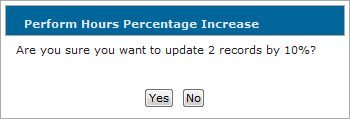
-
Click Yes to update the hours.
The Job Codes screen will appear displaying a message that the job code hours increase job was submitted.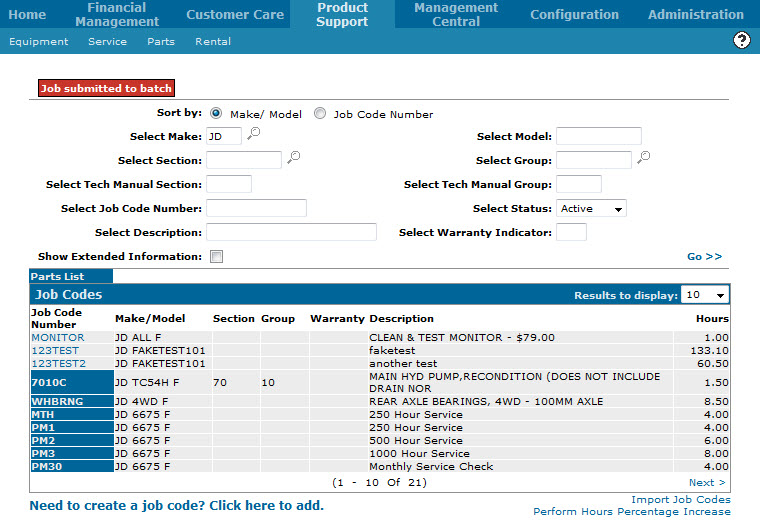
Job Codes screen
Note: An IntelliDealer message will be sent when the system has completed the update.
-
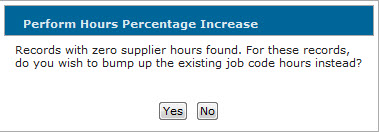
(OPTIONAL) If you selected to update the hours using the Supplier Job Code Hours but none exist for the selected job codes, you will be prompted to increase the hours using the existing job code hours instead. Click Yes to update the hours using existing job code hours in lieu of the supplier job code hours.