
Job Codes
Use the Job Codes screen to edit, view, copy or add job codes for use throughout the system. Job codes consist of the job code number, the equipment make and model. Job code numbers can be reused for different makes and models. It is the combination of these three fields that make a unique job code.
Tip: Search for job codes by using either the Select make, Select Model, or Select Description fields. Searches using the Select Description field return any part of the segment description for the value entered in the Select Description field.
To open the Job Codes screen, navigate to Product Support > Service > Job Codes.
 Job Codes screen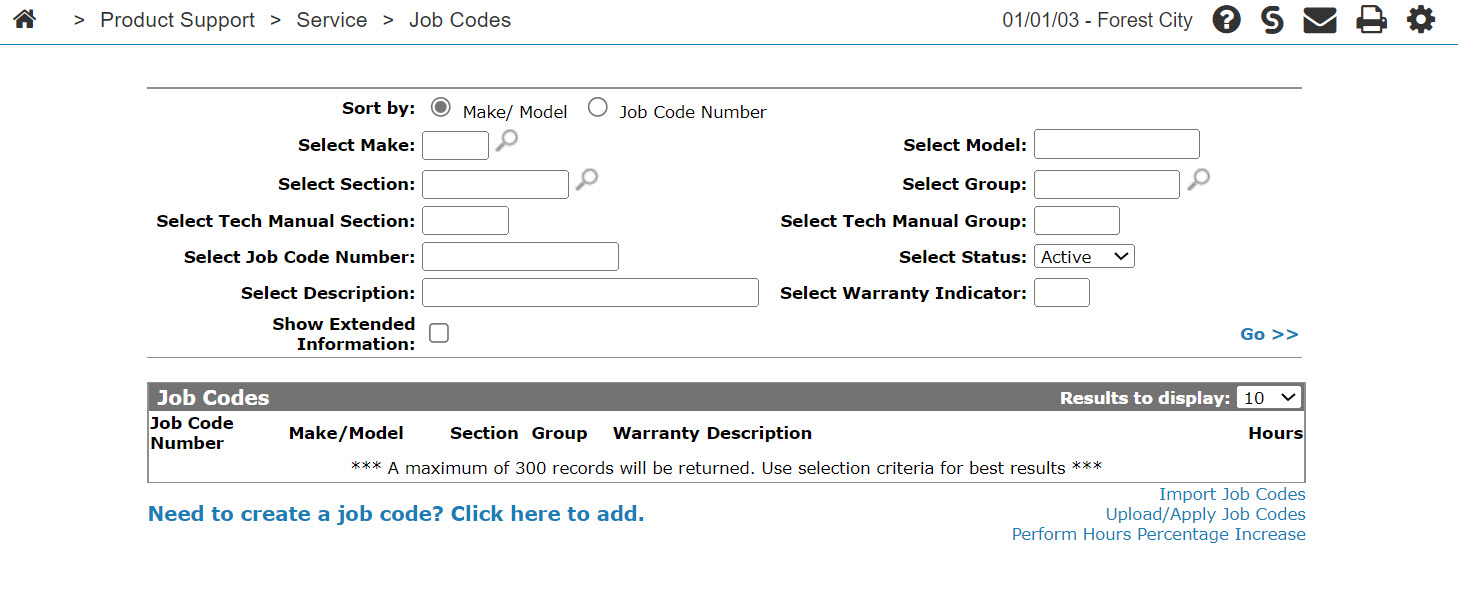
Topics in this section are:
For section and group configuration and maintenance, see the Job Code Sections configuration screen.
John Deere Machine ID
John Deere models use a Machine ID to indicate a serial number break for a variation of a make and model. IntelliDealer stores the Machine ID as a character in position eight of the model number. You can also see the Machine ID in use on a Service Agreement. Depending on the John Deere data in the system, you may be asked to choose a Machine ID when creating a new job code.
However, if there is no serial number break data from John Deere, IntelliDealer defaults the serial break to F. If you copy this type of job code, IntelliDealer automatically cycles to the next character for the serial break. For example, a Machine ID of F becomes G in the copy.
Note on Machine ID 'X'
Machine ID ‘X’ is a John Deere Expert Services Job Code Variant
In John Deere’s IntelliDealer integration, a Machine ID of X marks a specific model/serial break variation of a job code that is automatically assigned to job codes imported from John Deere’s Expert Services system. This letter helps dealers identify that the job code is an Expert Services-sourced job/inspection for a certain serial number range which ensures that the proper version of the job code is used for that piece of equipment.
Screen Description
You can sort the resulting Job Codes by these fields:
| Sort by | |
|---|---|
| Field | Description |
| Make/Model | The machine make and model. |
| Job Code Number | The job code number. |
Use the search fields on the Job Codes screen to search for job codes by:
| Field | Description |
|---|---|
| Select Make | The manufacturer of the applicable unit. |
| Select Section | The section of the machine that the job code applies to. Section is a subset of model. Section codes may be defined in your vendor's technical manual. |
| Select Tech Manual Section | The section as defined by the tech manual. |
| Select Job Code Number | A job code number. |
| Select Description | A brief job code description. |
| Show Extended Information | If selected, includes job code extended information within the search for a job code. If you select this checkbox the Quantity or Options fields are also displayed within the search results. |
| Select Model | The model of the applicable unit. |
| Select Group | In the job code classification hierarchy, group is subset of section. Group codes may be defined in your vendor's technical manual. |
| Select Tech Manual Group | The group as defined by the tech manual. |
| Select Status | A job code status you can select from a drop-down list. |
| Select Warranty Indicator |
The extended warranty code. |
These fields appear on the Job Codes screen:
| Field | Description |
|---|---|
| Job Code Number |
The number of the job code. A highlighted Job Code Number indicates that the job code has a parts list attached. |
| Make/Model |
The manufacturer of the applicable unit. The model number on the applicable unit. |
| Section | The section of the machine that the job code applies to. Section is a subset of model. Section codes may be defined in your vendor's technical manual. |
| Group | In the job code classification hierarchy, group is subset of section. Group codes may be defined in your vendor's technical manual. |
| Warranty |
The extended warranty code. For example, if your dealership offers extended warranty on transmissions, a warranty code T could be loaded, indicating that this flat rate applies to transmissions with extended warranties. |
| Description | A brief description of the job code. |
| Hours |
The total number of labor hours that should be spent performing this repair. A highlighted Hours value indicates that the job code has add ons attached. |
Additional actions you can perform include:
-
Move the cursor over a Job Code Number and select one of these from the pop-up:
-
View—to view the job code. See Job Code Details.
-
Copy—to copy a job code. See Copy Job Code.
-
-
Click the Need to create a job code? Click here to add link to add a job code.
-
Click the Import Job Codes link to import job code files.
-
Click the Perform Hours Percentage Increase link to increase job code hours by a percentage of the existing job code hours, or by the supplier job code hours.