
Running an AP Distribution Report
Use the Distribution report to print G/L distribution that was keyed on accounts payable vouchers. Use this report to review current-month distribution, year-to-date distribution (excluding the current month), or previous-years distribution by account or by vendor.
When you run the report, IntelliDealer creates a PDF on the View PDF tab of the Printer Output/PDF Viewer screen. Print the PDF when you are ready. Running the report does not update any files. You can run this report at any time.
The reports produced are:
| WFMDS02A | Accounts Payable Distribution- Current Month Allocations - Summary By Account |
| Accounts Payable Distribution - Current Month - Summary By Month By Account | |
| Accounts Payable Distribution - Current Month - Detail | |
| Accounts Payable Distribution - Year To Date Allocations - Summary By Account | |
| Accounts Payable Distribution - Year To Date - Summary By Month By Account | |
| Accounts Payable Distribution - Year To Date - Detail | |
| AP7001-0100 | Vendor Analysis - Current month - Summary By Vendor |
| AP7001-0101 | Vendor Analysis - Current month - Summary By Month By Vendor |
| AP7001-0111 | Vendor Analysis - Current month - Detail |
| AP7001-1000 | Vendor Analysis - Year To Date Allocations - Summary By Vendor |
| AP7001-1001 | Vendor Analysis - Year To Date - Summary By Month By Vendor |
| AP7001-1011 | Vendor Analysis - Year To Date - Detail |
| WFMDS02B | Accounts Payable Distribution - by vendor |
Topics in this section are:
Recommended Criteria
Use these settings to limit the distribution included and control how the report prints:
-
On the Run Parameters - Distribution screen, set Sort by to Account or Vendor, depending on how you want to review the distribution.
-
Select a specific account, or select All Accounts when you need every account on the report.
-
Select a specific profit center, or select All Profit Centers when you need every profit center on the report.
-
Set the Select Date Range From and To dates to the period you want to review (for example, the current month, year to date, or a prior year).
Considerations
-
Sort by Account or Vendor—Sorting by Account produces Accounts Payable Distribution by Account (WFMDS02A). Sorting by Vendor produces Accounts Payable Distribution by Vendor (WFMDS02B) on the View PDF tab.
-
Account and profit center filters—If you enter an account or profit center, clear All Accounts or All Profit Centers as needed so the report uses your selection.
-
Date range—The date range controls whether the run covers current-month, year-to-date, or prior-period distribution. Confirm the From and To dates before you run the report.
-
Report output—The report is created as a PDF on the View PDF tab. Open the report name there to view or print it.
Procedure
-
Navigate to Financial Management > Accounts Payable > A/P Reports > Distribution.
-
Select a Sort by option: Account or Vendor.
-
Enter a Select Account value, or select All Accounts.
-
Enter a Select Profit Center value, or select All Profit Centers.
-
Enter the Select Date Range From and To dates for the distribution period you want to include.
-
Click Run Report.
-
Open the Printer Output/PDF Viewer screen and select the View PDF tab. Click Accounts Payable Distribution by Account or Accounts Payable Distribution by Vendor to open the PDF, then print it from the viewer if needed.
 The
The 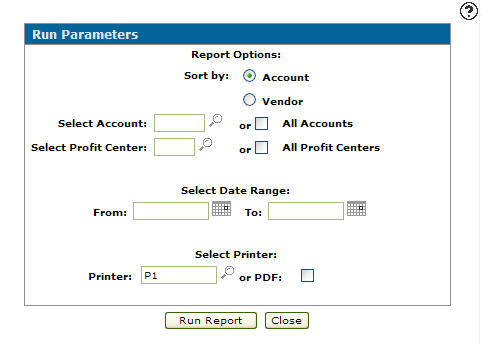
Screen Description
The fields on the Run Parameters - Distribution screen are:
| Distribution | |
|---|---|
| Field | Description |
| Sort by | Select a sort option to sort the distribution report by either account or vendor. |
| Select Account | Enter the account you wish to include on the distribution report. |
| or All Accounts | Includes all accounts on the distribution report. |
| Select Profit Center | Enter the profit center you wish to include on the distribution report. |
| or All Profit Centers | Includes all profit centers on the distribution report. |
| Select Date Range | Select the date range that the distribution report will cover. |
| Printer | The printer to be used for printing the distribution report produced by the run. |
| or PDF | Creates a PDF file of the selected report which can be viewed via the PDF Viewer. |