Running a Parts Vendor Listing Report
Use the Parts Vendor Listing report to list selected information for parts suppliers in the vendor master file. Use this report to review parts vendor master data, verify parts supplier setup, or produce a reference listing for your files. The report produced is:
| WFMAP02C | Vendor Parts Listing |
When you run the report, IntelliDealer creates a PDF on the View PDF tab of the Printer Output/PDF Viewer screen. Print the PDF when you are ready. Running the report does not update any files. You can run this report at any time.
To list accounts payable vendor master data instead of parts supplier information, use the Vendor Listing report.
Topics in this section are:
Recommended Criteria
Use these settings to limit the parts vendors included and control how the listing prints:
-
On the Run Parameters - Parts Vendor Listing screen, set Vendor Status to Active to list active parts vendors only. Select Deactivated or All only when you need inactive parts vendors on the report.
-
On the Selection Criteria tab, add criteria for VMASTR fields such as company, division, vendor number, or vendor name to limit the parts vendors included in the run.
-
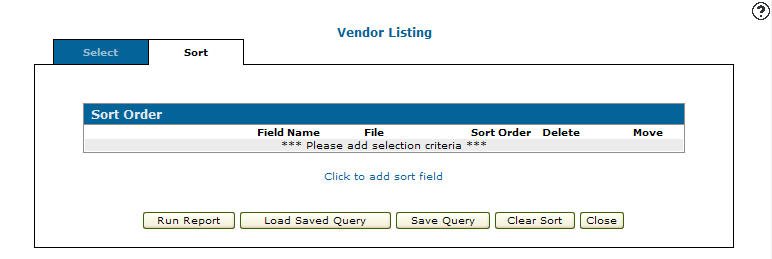
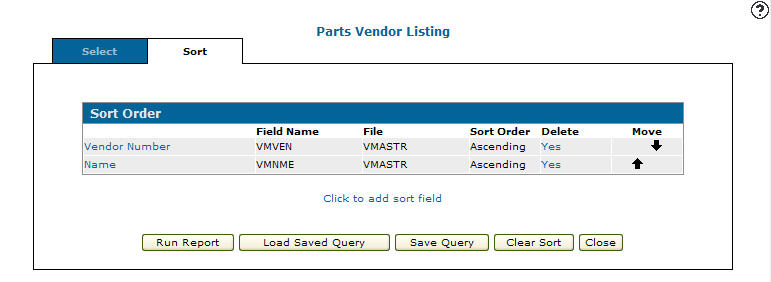
On the Sort Order tab, set the sequence for the listing. For example, sort by vendor name or vendor number.
Considerations
-
Saved queries—On the Selection Criteria and Sort Order tabs, use Save Query to store criteria you use often and Load Saved Query to recall a saved query. See Selection Criteria and Select Query. Confirm the loaded query still matches the parts vendors you want before you run the report.
-
No selection criteria—If you run the report without selection criteria, IntelliDealer includes all parts vendors that match the Vendor Status you select on the Run Parameters - Parts Vendor Listing screen.
-
Report output—The report is created as a PDF named Vendor Parts Listing (WFMAP02C) on the View PDF tab.
Procedure
-
Navigate to Financial Management > Accounts Payable > A/P Reports > Parts Vendor Listing.
-
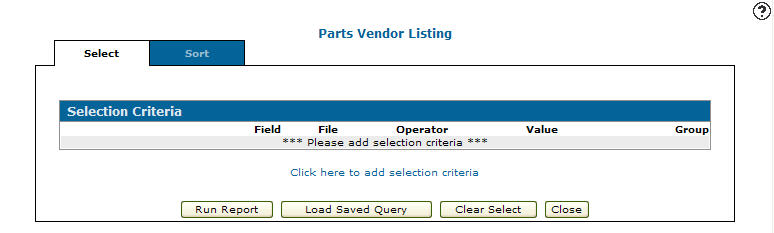
Click the Click here to add selection criteria link.
-
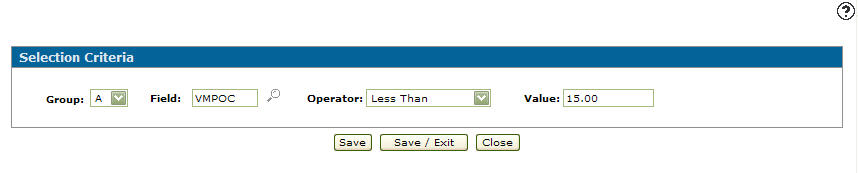
Select a field Group code.
-
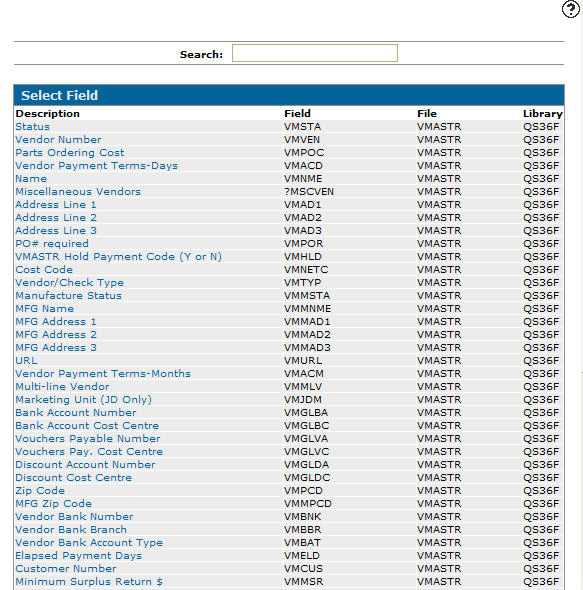
Enter a Field, or click the Search
 icon to search for and select a field from the Select Field screen.
 -
Select an Operator value from the drop down list.
-
Enter a Value. Depending on the field selected, you may also click on the Search
icon or Calendar icon to select a value. -
(OPTIONAL) Click the More
 icon to add more values.
 -
Click Save to save your selection criteria and remain on the Selection Criteria screen.
-OR-
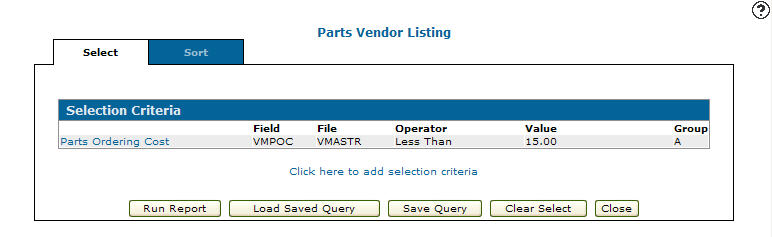
Click the Save/Exit button to save your selection criteria and return to the Selection Criteria tab.
-
Click the Sort tab.
-
On the Sort Order tab, select the Click to add sort field link.
-
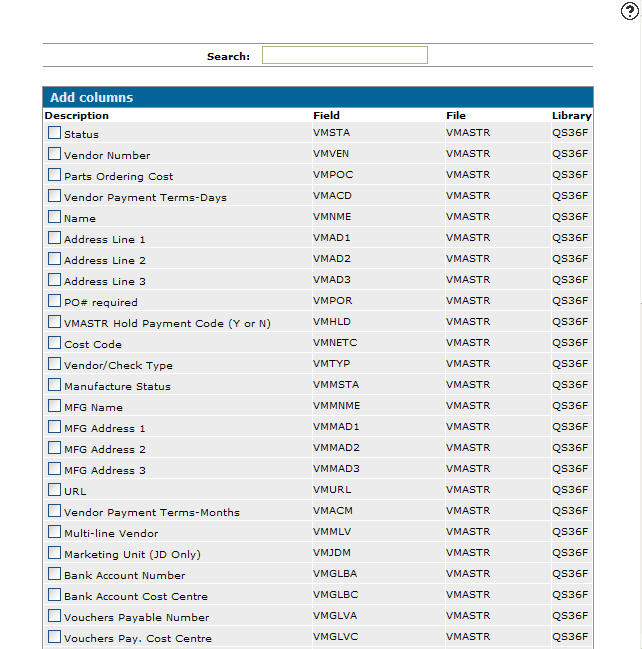
Select the columns you wish to use for the sort order on the report.
-
When done, click Save.
-
If you are ready, click Run Report.
-
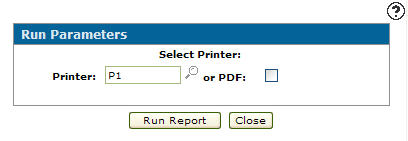
Select a Vendor Status indicating the parts vendors you wish to include in the run.
-
Click Run Report.
-
Open the Printer Output/PDF Viewer screen and select the View PDF tab. Click Vendor Parts Listing to open the PDF, then print it from the viewer if needed.
 The
The