
Updating Bobcat/Ditch Witch Pricing Information
Note: The steps contained in this procedure must be completed in the green screen application.
Prerequisites: Before completing this procedure, you must upload a Bobcat or Ditch Witch price file to IntelliDealer. To open the import screens, navigate to Product Support > Parts > Price Update and click Import Bobcat Price File or Import Ditch Witch Price File. See Import Bobcat Price File and Import Ditch Witch Price File. The required price file is only available from the Bobcat or Ditch Witch portal and cannot be supplied by VitalEdge.
Dealers who use Ditch Witch Price Configuration to download price files automatically follow a different process. See Ditch Witch: Price Configuration.
For more information on Ditch Witch or Subsite parts price upload, see Ditch Witch or Subsite Parts Price upload - How to download file from Ditch Witch website.
-
Open the green screen application and type #PARTPRC on the command line, then press Enter.
-
Type 1 in the Enter the desired option field and press Enter.
-
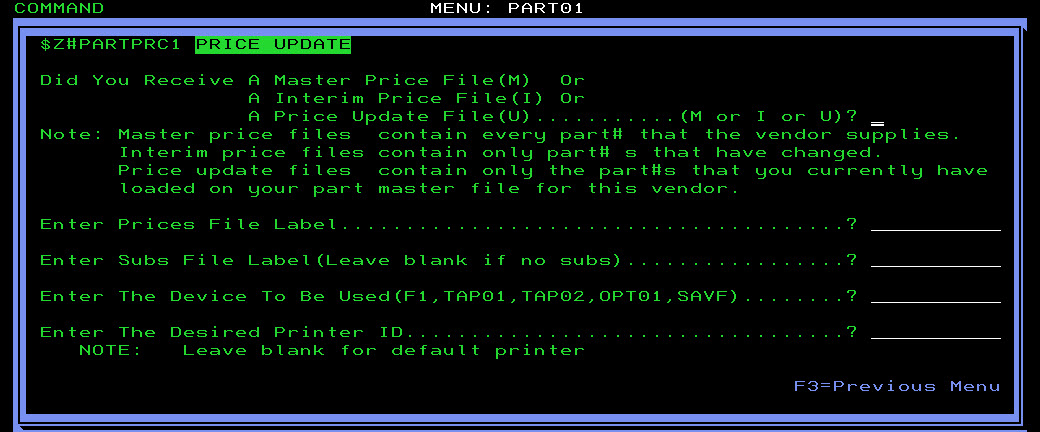
Enter these values in the specified fields, then press Enter:
Field Bobcat Ditch Witch Did You Receive M U Enter Prices File Label BCUS158 for American Prices, BCCAN158 for Canadian Prices DWPU158 Enter Subs File Label BCSUBS (if applicable) -
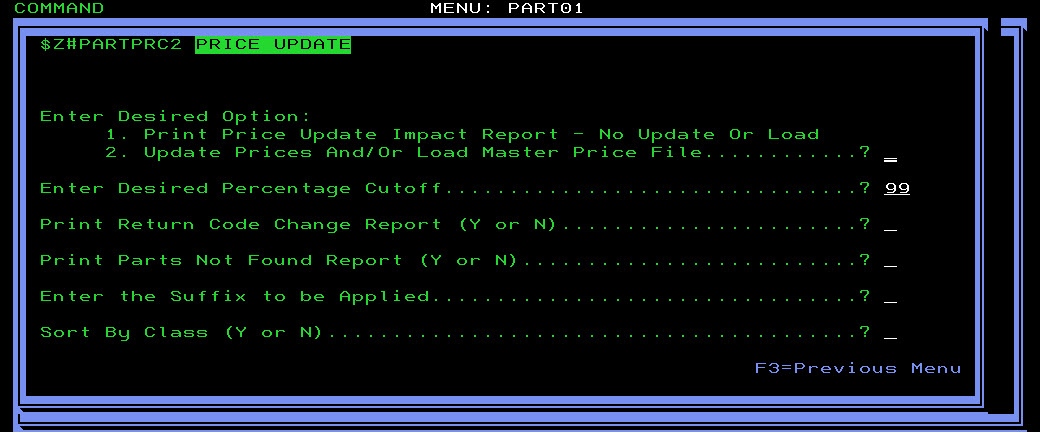
Type 2 in the Enter the desired option field, then press Enter.
-
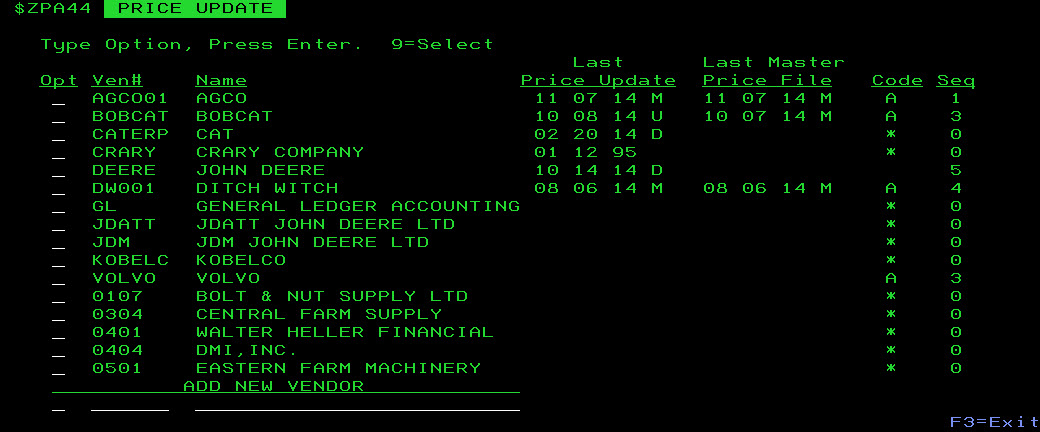
Locate the vendor whose part prices you are updating and type 9 in the Opt field, then press Enter.
-
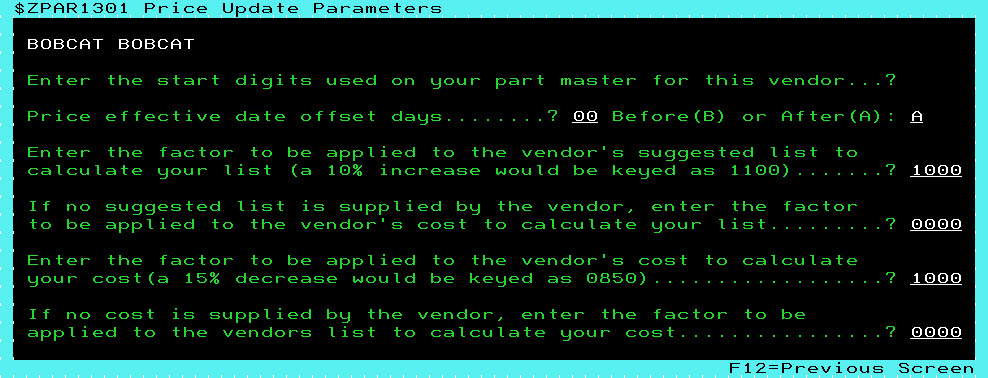
Use the available fields to select the factors you want to apply to the part prices and press Enter.
The window refreshes displaying a new set of price update parameters.If the Bobcat or Ditch Witch parts at your dealership all start with a specific character, enter that character in the Enter the start digits used on your part master for this vendor field. For example, if the Bobcat part number "12345" would appear as "Q12345" in your system, type "Q" in this field.
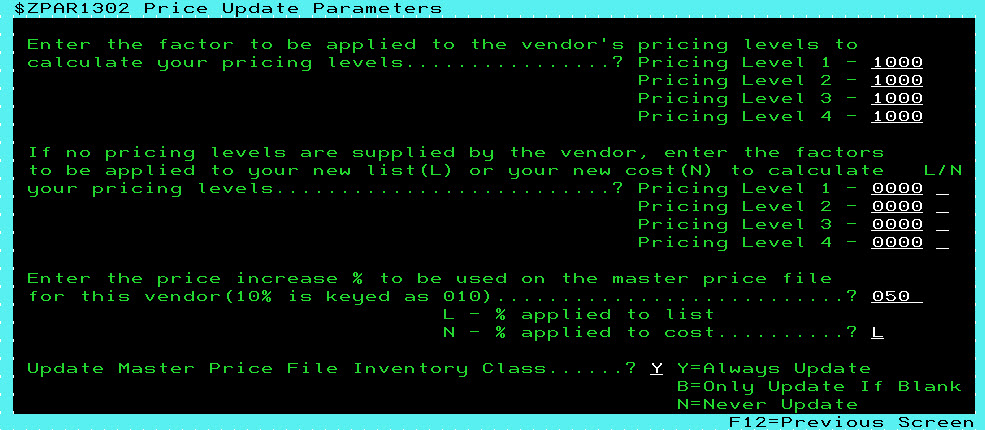
To properly apply an increase or decrease to the part prices, use this format: to apply a 15% increase, enter 1150 in the desired field; to apply a 15% decrease, enter 0850 in the desired field, etc.
-
Use the available fields to again select the factors that you want to apply to the part prices and press Enter.
-
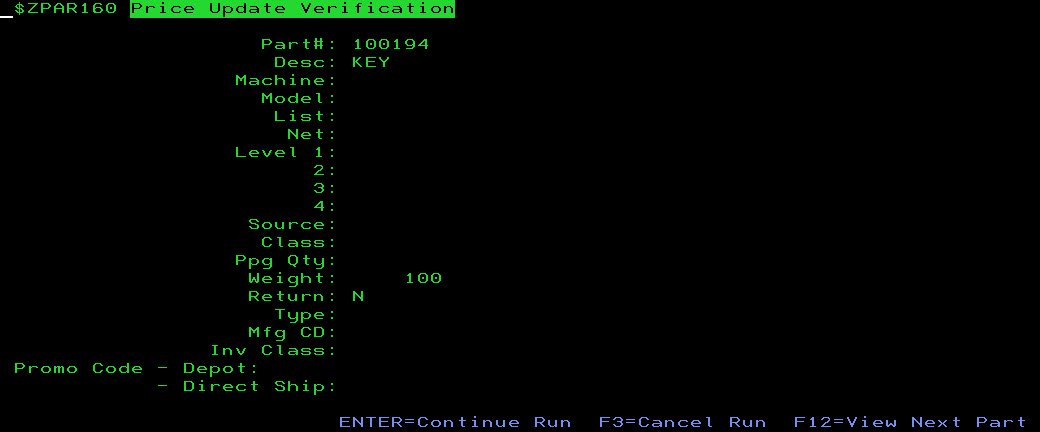
Press F12 to scroll through the part records that are updated. If you are confident that the prices are correct, press Enter to continue.
The price update is applied.
 The Price Update window appears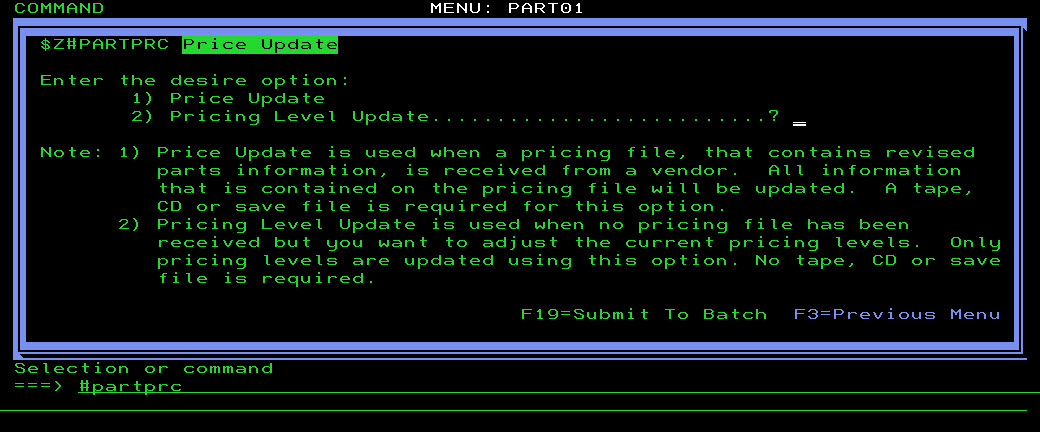
Revision: 2026.08