
Category Class Profile: Master Rates Tab
Use the Master Rates tab to maintain default rental rates for the selected category, class, and subclass across branches. Master rates let you define consistent pricing once and apply those values to location-specific rates on the Rental Rates screen.
When you update a master rate, IntelliDealer can propagate the change to matching rates at the selected location or locations. A location rate is updated only when its current value still matches the master rate value before the change. Rates that were customized at a branch are not overwritten. For more information, see Updating Rental Rates Using the Master Rates Option.
To open the Master Rates tab, navigate to Configuration > Rental > Category Class Subclass Setup, open a category, class, and subclass record from the list, and select Master Rates.
Topics in this section are:
Screen Description
 Master Rates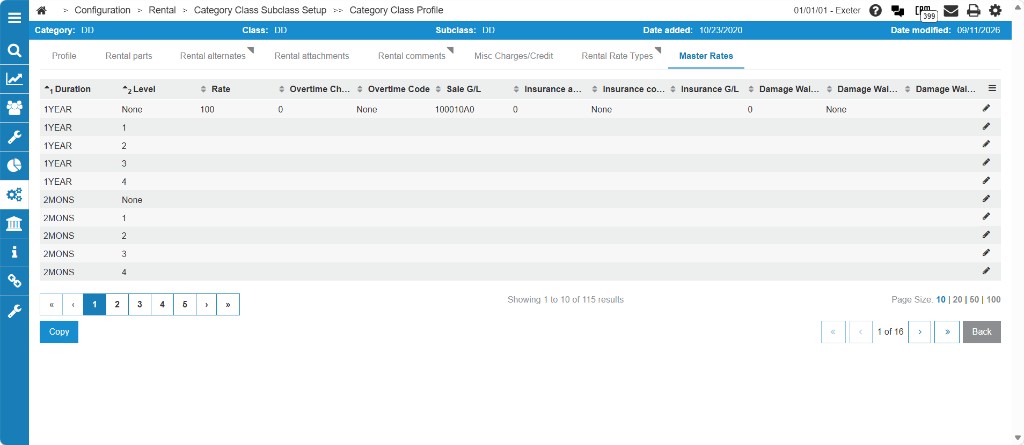
The listing shows one row for each rental duration and pricing level combination configured for the division. Rows are grouped by Duration and sorted by Level, with None listed first.
The fields on the Master Rates tab are:
| Field | Description |
|---|---|
| Duration | The rental duration for the master rate. |
| Level | The rental pricing level for the master rate. Available values are None and 1 through 4. For information about how levels are used on rental contracts, see New and Edit Rate Fields. |
| Rate | The rental charge for the selected duration and level. Decimal values from 0 to 99999.9999. |
| Overtime Charge | The overtime charge for the selected duration and level. Decimal values from 0 to 99999.99. |
| Overtime Code | Indicates whether the overtime charge is a dollar amount ($) or a percentage (%). |
| Sale G/L | The sale G/L account for rental revenue on this master rate. |
| Insurance Amount/% | The insurance charge for the selected duration and level. Decimal values from 0 to 99999.99. |
| Insurance Code | Indicates whether the insurance amount is a dollar amount ($) or a percentage (%). |
| Insurance G/L | The G/L account for insurance revenue on this master rate. |
| Damage Waiver | The damage waiver charge for the selected duration and level. Decimal values from 0 to 99999.99. |
| Damage Waiver Code | Indicates whether the damage waiver amount is a dollar amount ($) or a percentage (%). |
| Damage Waiver G/L | The G/L account for damage waiver revenue on this master rate. |
Click a row or the edit  icon to open the Edit Master Rate Modal modal for that duration and level.
Edit Master Rate Modal
The fields on the edit master rate modal are:
| Field | Description |
|---|---|
| Level | The rental pricing level for the selected row. This field is displayed but cannot be changed. |
| Rate | The rental charge for the selected duration and level. Enter a decimal value from 0 to 99999.9999. |
| Overtime Charge | The overtime charge for the selected duration and level. Enter a decimal value from 0 to 99999.99. |
| Overtime Code | Indicates whether the overtime charge is a dollar amount ($) or a percentage (%). Required when Overtime Charge is entered. |
| Sale G/L | The sale G/L account for rental revenue on this master rate. Sale G/L is required when any rate, overtime, insurance, or damage waiver value is entered on the form. |
| Insurance Amount/% | The insurance charge for the selected duration and level. Enter a decimal value from 0 to 99999.99. |
| Insurance Code | Indicates whether the insurance amount is a dollar amount ($) or a percentage (%). Required when Insurance Amount/% is entered. |
| Insurance G/L | The G/L account for insurance revenue on this master rate. Required when Insurance Amount/% is entered. |
| Damage Waiver | The damage waiver charge for the selected duration and level. Enter a decimal value from 0 to 99999.99. |
| Damage Waiver Code | Indicates whether the damage waiver amount is a dollar amount ($) or a percentage (%). Required when Damage Waiver is entered. |
| Damage Waiver G/L | The G/L account for damage waiver revenue on this master rate. Required when Damage Waiver is entered. |
Master rates do not use Effective Date or Deposit. Location-specific effective dates and deposits are maintained on the Rental Rates screen.
Click Save & Close to save the master rate and open the Select Location Modal modal.
When a master rate has been saved, click Delete on the edit modal to remove the master rate record.
Click Close to close the modal without saving.
Select Location Modal
After you save a master rate, the Select Location modal opens so you can choose which location rates to update.
Enter a specific location to update rates at that location only. Leave the field blank or enter AA to update rates at all location in the division.
IntelliDealer updates a location rate only when its current value still matches the master rate value before your customization. If a location rate was customized and no longer matches the master rate, that location rate is not changed.
Click Save to apply the master rate and propagate changes to the selected location or locations. Click Cancel to close the modal without propagating changes to location rates.
Copy Master Rates
Click Copy to copy all master rates for the selected category, class, and subclass to a branch. The Copy Master Rates modal prompts you to enter the destination location.
IntelliDealer copies master rates to the selected location only when a matching duration and level rate does not already exist at that location. If the duration is not yet configured for the category, class, and subclass at the destination location, the system creates the rental rate type and adds the rate from the master rate.
Use Copy during initial setup to populate branch rates from master rates. Use the edit workflow and Select Location Modal modal to update existing location rates that still match the master rate values.
Click Back to return to the Category Class Subclass Setup list.