
Category Class Profile: Rental Rate Types Tab
Use the Rental Rate Types tab to maintain rental durations, list prices, costing information, and rental rates for the selected category, class, and subclass.
To open the Rental Rate Types tab, navigate to Configuration > Rental > Category Class Subclass Setup, open a category, class, and subclass record from the list, and select Rental Rate Types.
Topics in this section are:
Screen Description
 Rental Rate Types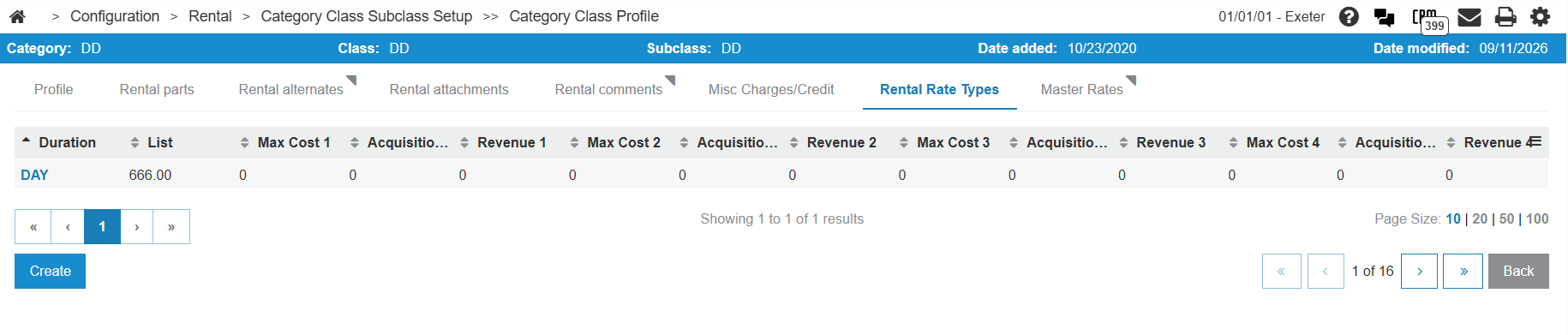
The listing fields on the Rental Rate Types tab are:
| Field | Description |
|---|---|
| Duration | The rental duration code. Click a duration link to open the Rental Rates modal for that duration. |
| List | The list price displayed for the selected duration. This value is based on the Rate from the rental rate record with the latest Effective Date for Level None. |
| Max Cost 1 through Max Cost 4 | The maximum cost percentage for pricing levels 1 through 4. Decimal values from 0 to 100. |
| Acquisition Cost 1 through Acquisition Cost 4 | The acquisition cost for pricing levels 1 through 4. Decimal values from 0 to 999.99. |
| Revenue 1 through Revenue 4 | The revenue for pricing levels 1 through 4. Decimal values from 0 to 999.99. |
Click Create to add a rental duration and costing information for the selected category, class, and subclass. See New Rate Modal.
Click a duration link to open the Rental Rates Modal modal for that duration.
New Rate Modal
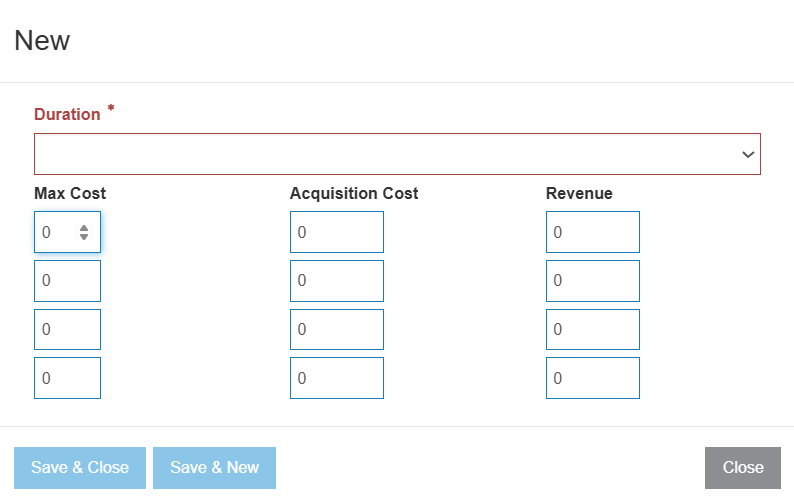
The fields on the Create rate type modal are:
| Field | Description |
|---|---|
| Duration | The rental duration code to add to the profile. Select a value from the list. |
| Max Cost 1 through Max Cost 4 | The maximum cost percentage for pricing levels 1 through 4. Enter a decimal value from 0 to 100. The form contains one row each for pricing levels 1 through 4. |
| Acquisition Cost 1 through Acquisition Cost 4 | The acquisition cost for pricing levels 1 through 4. Enter a decimal value from 0 to 999.99. The form contains one row each for pricing levels 1 through 4. |
| Revenue 1 through Revenue 4 | The revenue for pricing levels 1 through 4. Enter a decimal value from 0 to 999.99. The form contains one row each for pricing levels 1 through 4. |
Rental Rates Modal
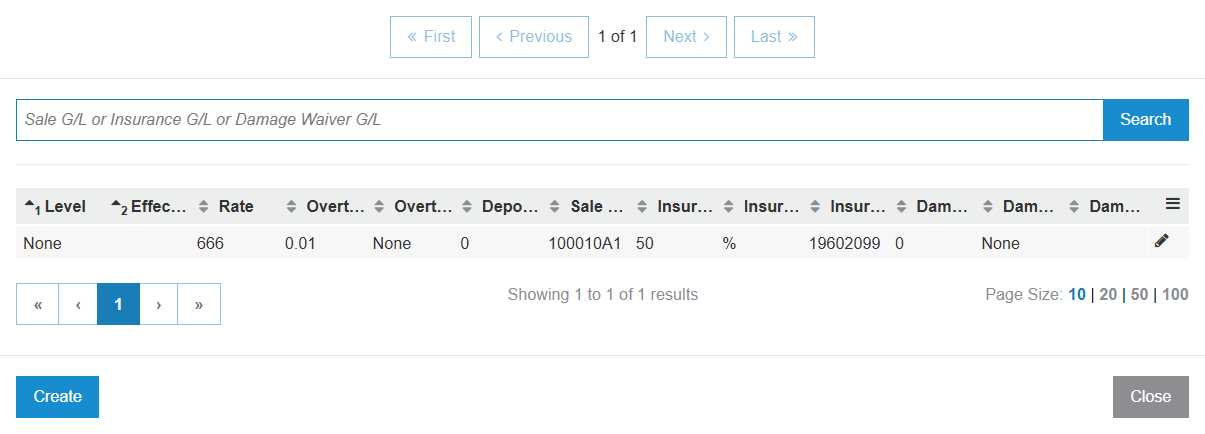
The columns on the Rental Rates screen are:
| Field | Description |
|---|---|
| Level |
The rental pricing level for the rate record. When a customer is on a rental contract, IntelliDealer uses the customer's Rental Price Level for the contract location to select the matching rate. If no rate exists for that level, or the level rate is zero or has no sale account, the system uses the rate configured for None. |
| Effective Date | The date from which the rate is effective at the selected location. |
| Rate | The rental charge for the selected duration and level. Decimal values from 0 to 99999.9999. |
| Overtime Charge | The overtime charge for the selected duration and level. Decimal values from 0 to 99999.99. |
| Deposit | The suggested deposit for the selected duration and level. Decimal values from 0 to 99999.99. |
| Sale G/L | The sale G/L account for rental revenue on this rate. |
| Insurance Amount/% | The insurance charge for the selected duration and level. Decimal values from 0 to 99999.99. |
| Damage Waiver | The damage waiver charge for the selected duration and level. Decimal values from 0 to 99999.99. |
Click Create to add a rate, or click the edit  icon on a row to open an existing rate. Both actions open the same rate form with the fields described in New and Edit Rate Fields.
New and Edit Rate Fields
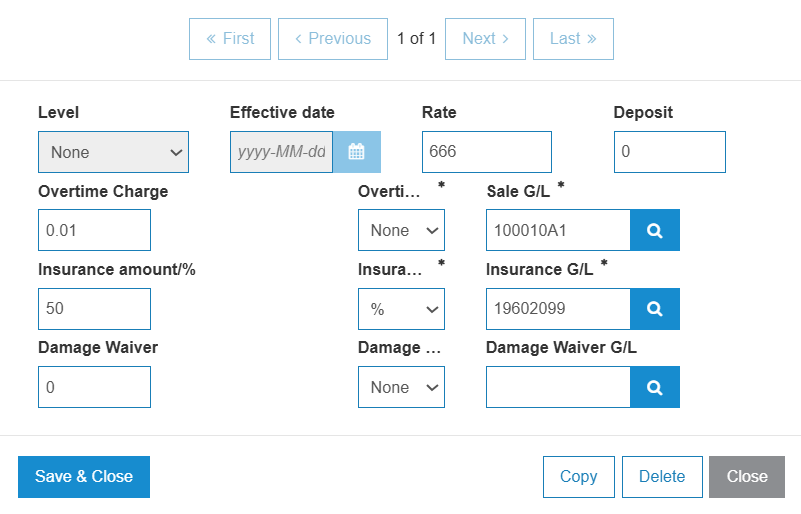
The fields on the New and edit rate modal are:
| Field | Description |
|---|---|
| Level |
The rental pricing level this rate applies to. Available options are:
Select Level when you create the rate. When you edit an existing rate, Level is displayed but cannot be changed. For each duration, you can maintain separate rate records for None and for each level 1 through 4. Pricing levels usually refer to alternate customer pricing tiers, such as fleet price or preferred-account price. |
| Effective Date | The date from which the rate is effective at the selected location. IntelliDealer uses the rate with the latest effective date that is on or before the rental out date. Select Effective Date when you create the rate. When you edit an existing rate, Effective Date is displayed but cannot be changed. |
| Rate | The rental charge for the selected duration and level. Enter a decimal value from 0 to 99999.9999. |
| Deposit | The suggested deposit for the selected duration and level. Enter a decimal value from 0 to 99999.99. |
| Overtime Charge | The overtime charge for the selected duration and level. Enter a decimal value from 0 to 99999.99. |
| Overtime Code | Indicates whether the overtime charge is a dollar amount ($) or a percentage (%). Required when Overtime Charge is entered. |
| Sale G/L |
The sale G/L account for rental revenue on this rate. Sale G/L is required when Level is None. For levels 1 through 4, Sale G/L is required only when a rental revenue account is not configured elsewhere for the unit. |
| Insurance Amount/% | The insurance charge for the selected duration and level. Enter a decimal value from 0 to 99999.99. |
| Insurance Code | Indicates whether the insurance amount is a dollar amount ($) or a percentage (%). Required when Insurance Amount/% is entered. |
| Insurance G/L | The G/L account for insurance revenue on this rate. Required when Insurance Amount/% is entered. |
| Damage Waiver | The damage waiver charge for the selected duration and level. Enter a decimal value from 0 to 99999.99. |
| Damage Waiver Code | Indicates whether the damage waiver amount is a dollar amount ($) or a percentage (%). Required when Damage Waiver is entered. |
| Damage Waiver G/L | The G/L account for damage waiver revenue on this rate. Required when Damage Waiver is entered. |
Click Save & Close to save the rate.
On the New screen, click Save & New to save the rate and open another blank rate form.
When editing a rate, click Copy or Delete to copy or remove the selected rate.
Click Close to close the screen without saving.