
Accounts Payable Vouchers - Kubota Invoices (Legacy)
The Kubota Invoice Download interface automates the creating A/P vouchers for Kubota invoices downloaded from the KOARS system. Once the invoices are downloaded, you can select the invoices to convert to an A/P voucher in the IntelliDealer Accounts Payable system. When selected, the voucher is populated with the information provided by the downloaded invoice and with default G/L accounts configured by the dealer or pulled from the IntelliDealer Equipment and Parts modules.
To use this interface , dealers should be using or ready to use the PO receipts logic in parts and equipment. There must be receipts ready and available for the interface to match them and bring the amounts into a voucher. For parts in particular (called parts accrual) the configuration to get receipts into the system is not simple, and must be done carefully so the dealer understands accrual and has entries moving through the G/L correctly. See Parts Accrual Feature.
To use this screen you must have configured your Kubota key. See Kubota - Interface Configuration.
To access the Kubota Invoices screen, navigate to Financial Management > Accounts Payable > Vouchers then click the Access Kubota Invoices link on the lower right.
 The Access Kubota Invoices link on the Vouchers - Outstanding Batches screen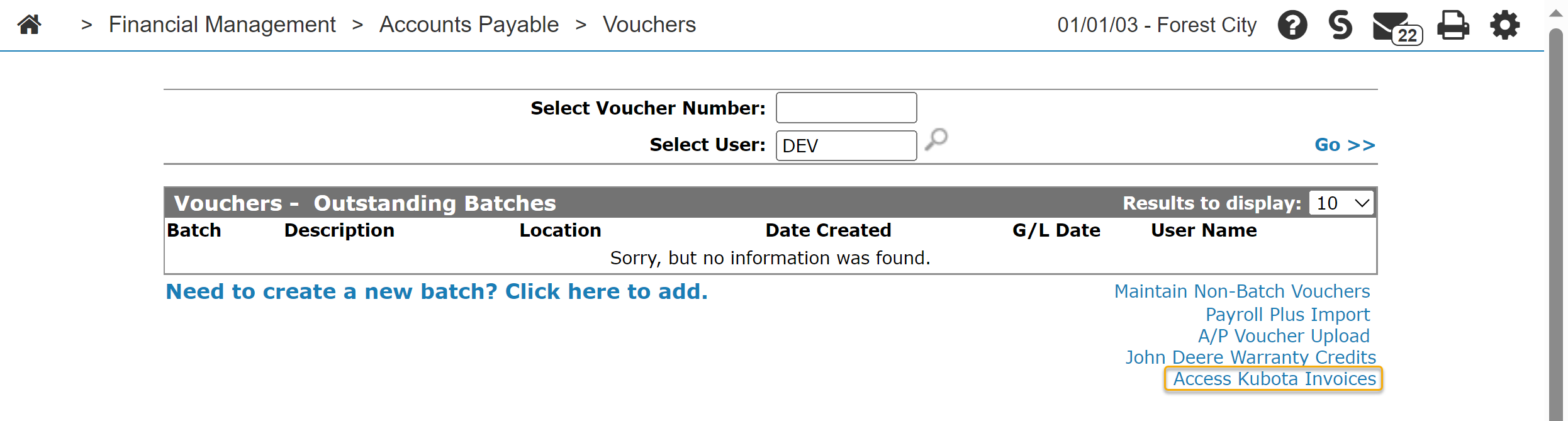
Topics in this section include:
Creating a Voucher
-
On the Kubota Invoices screen, select an invoice, then click Create Voucher, -OR- on the Invoice Details screen click Create Voucher.
-
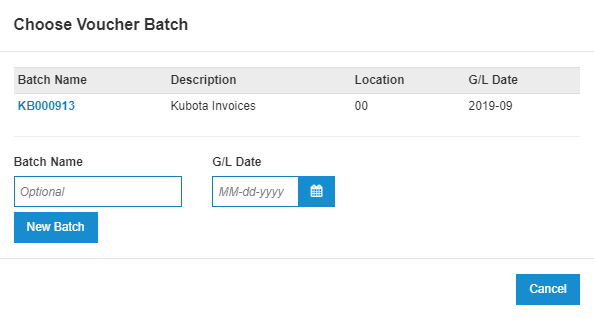
Either choose an existing batch from the list.
OR
To create a new batch enter a G/L Date and an optional Batch Name, then click New Batch.
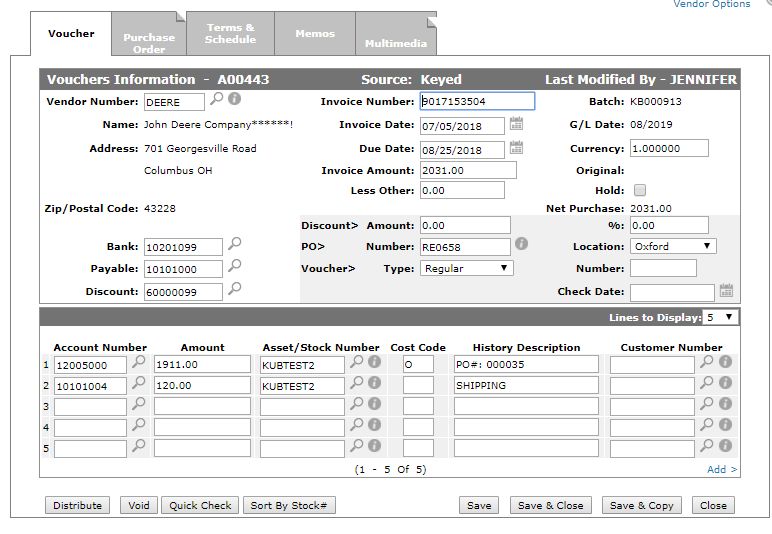
IntelliDealer attempts to create a voucher for the invoice. If voucher creation was successful, IntelliDealer posts a success message and you can view your voucher inside the batch.
Process for Equipment Invoice Vouchers
The main flow for equipment invoice vouchers depends on whether there is a serial number on the Kubota invoice, and whether IntelliDealer can identify a unit in the system that matches the serial number.
If a serial number is found and these conditions are met:
-
A unit exists in the system that matches the one on the Kubota invoice. Leading zeros are ignored and only the base serial number is used (so the base for 000001235 is 1235).
-
The unit has not already been invoiced.
-
The original cost of the unit is valid for voucher creation (it does not have a cost).
-
You have enabled the option to create individual purchase order receipts for each unit on an equipment purchase order. Ensure that the One Receipt Record Per Unit checkbox is enabled at Configuration > General Ledger > Purchase Orders > Location Settings. If this functionality is not enabled an error is generated.
-
A purchase order and a receipt must exist for the unit you are trying to create a voucher for.
Then the Kubota interface creates a voucher and updates the purchase order accordingly.
If there is no unit that meets the above conditions, then the interface processes the invoice according to the invoice type configuration. To create the voucher the interface uses the configuration options for Whole Goods Build to Order Invoice, Whole Goods Invoice, or Whole Goods M7 Invoice. A PO is not required to process an invoice that does not contain serial numbers found in the system.
If an invoice has a unit and options on it, the prices of the option lines are rolled up into the total price of the unit. The interface does not write a voucher distribution line for each option on the invoice.
If lines with a serial number exist on the invoice, the interface processes the invoice using the invoice type configuration settings.
Process for Parts Invoice Vouchers
To create a parts invoice voucher, a purchase order receipt must exist for the dealer PO number on the Kubota invoice. If none is found, an error is thrown.
Process for Other Types of Invoice Vouchers
Other invoice type vouchers (not parts or equipment) use the default account configured on the Default G/L Accounts tab on the configuration screen, as detailed above. If no account is found for the dealer number on the invoice, an error is thrown.
Kubota Invoices Screen
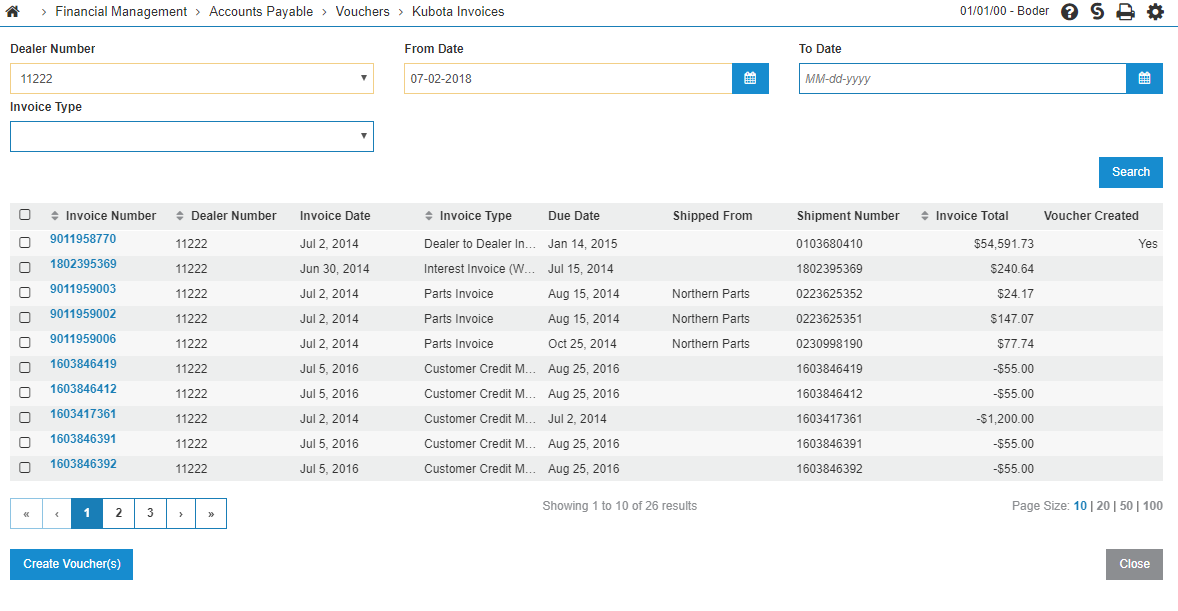
The search fields on the Kubota Invoices screen are:
| Field | Description |
|---|---|
| Dealer Number | The dealer's number with Kubota. |
| From Date | Search for invoices starting from the selected date. |
| To Date | Search for invoices up to the selected date. |
| Invoice Type | The type of invoice. |
The fields on the Kubota Invoices screen are:
| Field | Description |
|---|---|
| Invoice Number |
The invoice number. Click this link to show the invoice details. |
| Dealer Number | The Kubota dealer number. |
| Invoice Date | The date of the invoice. |
| Invoice Type | The type of invoice. |
| Due Date | The date the invoice is due. |
| Shipped From | Where the merchandise was shipped from. |
| Shipment Number | The shipment number. |
| Invoice Total | The total for the invoice. |
| Voucher Created | Whether an IntelliDealer voucher has been created for the invoice. |
Use these buttons to complete your work on the Kubota Invoices screen are:
| Field | Description |
|---|---|
| Create Voucher | Select a voucher from the list by clicking the checkbox next to the voucher. Then click Create Voucher to create an IntelliDealer voucher for that invoice. |
| Close | Closes the Kubota Invoices screen and returns to the Vouchers - Outstanding Batches screen. |
Invoice Details Screen
The Invoice Details screen opens when you click an invoice link from the Kubota Invoices screen.
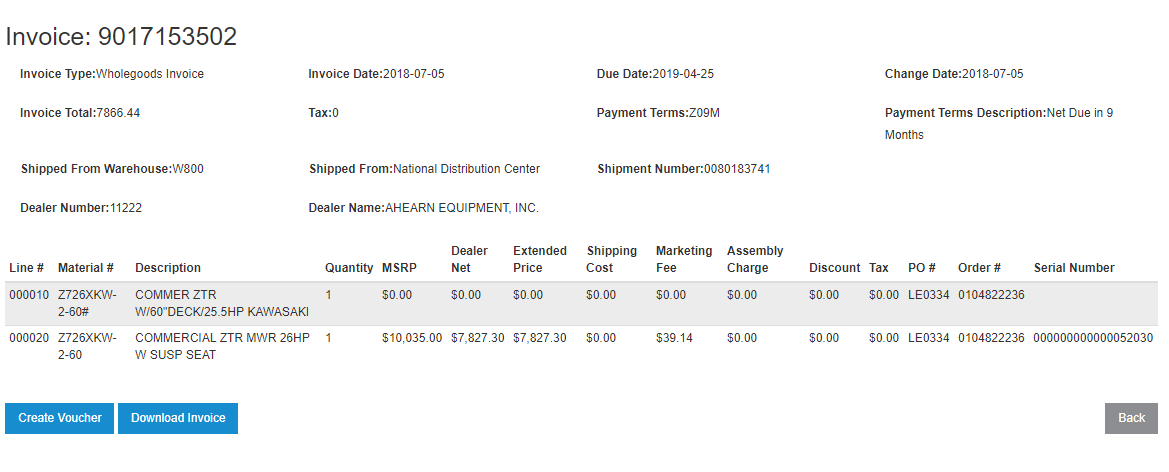
Click Create Voucher to create an IntelliDealer voucher from the invoice.
Click Download Invoice to download the original Kubota invoice in PDF format.