Reversing a Rental Invoice Through Rental Counter

  1. From any IntelliDealer screen, click the Product Support tab.
    The Product Support Quick Links screen will appear.


    Product Support Quick Links screen

  2. From the Rental list, click on the Rental Counter link.
    The Rental Counter screen will appear.


    Rental Counter screen

  3. On the Rental Counter screen, fill out the appropriate fields and click the Go >> link.
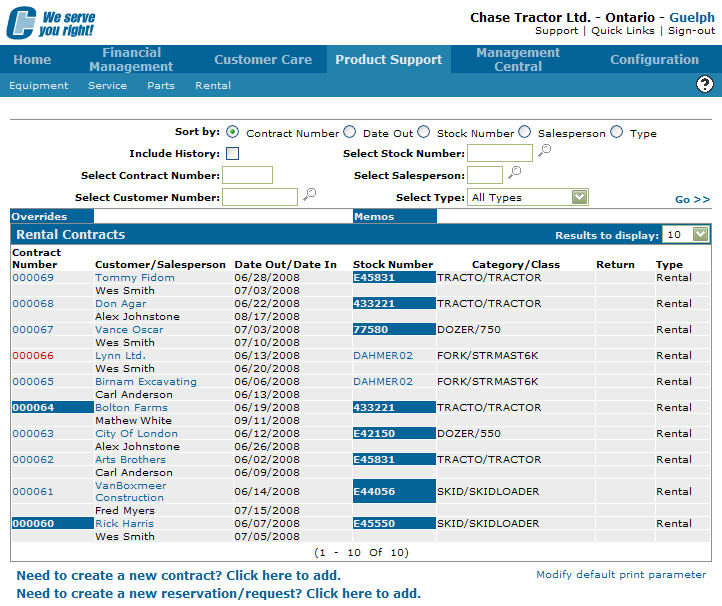
    The Rental Counter screen will refresh listing the generated search results.


    Rental Counter screen

  4. Move the cursor over a Contract Number and select Edit from the pop-up menu.


    Rental Counter screen

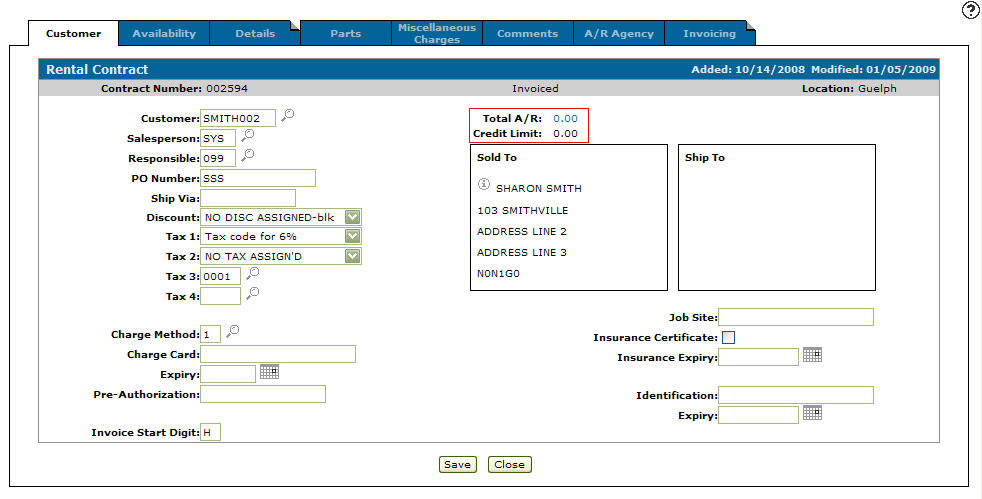
  5. The Customer - Rental Contract tab will appear.


    Customer - Rental Contract tab

  6. On the Customer - Rental Contract tab, click on the Details tab.
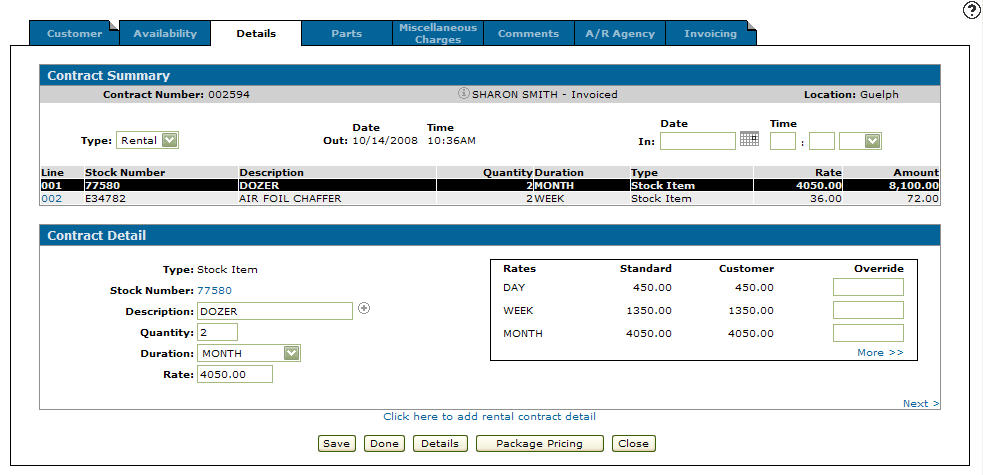
    The Details tab will appear.


    Details tab

  7. On the Details tab, select the Click here to add rental contract details link.
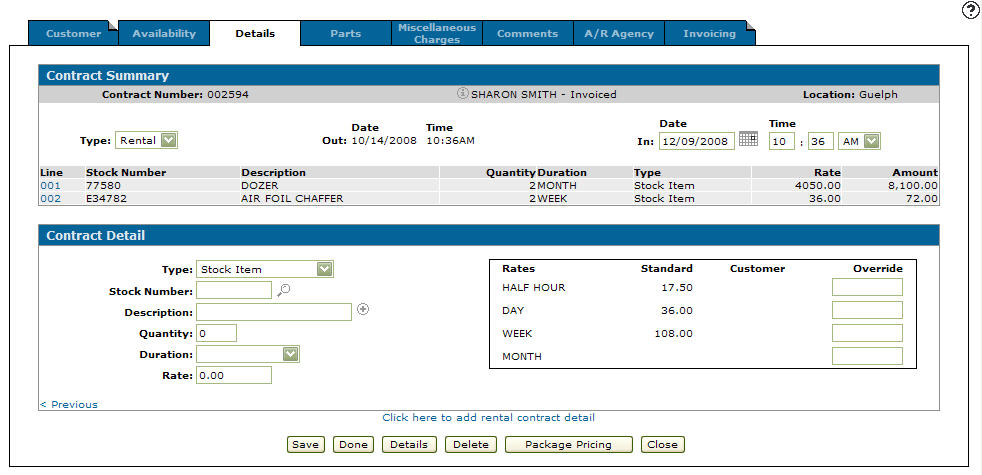
    The fields on the Contract Detail section on the Details tab will reset, allowing you to enter new rental contract detail information.


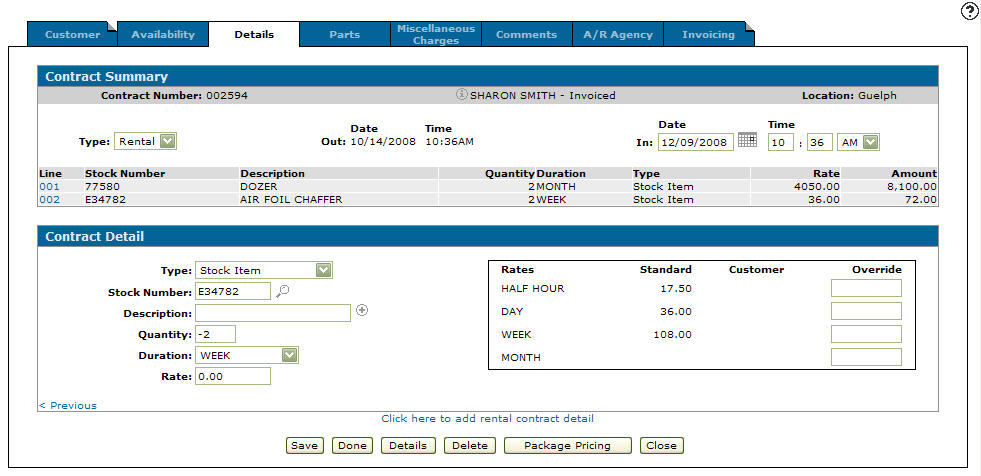
    Details tab

    Note:  
    The Type, Stock Number, and Duration selected must be the same as the line you wish to reverse on the rental contract. The Quantity must be the negative value of the quantity on the line.

  8. On the Contract Detail section on the Details tab, select a Type from the drop down list.

  9. Enter the Stock Number.

  10. Enter the Quantity, the quantity enter must be a negative amount (e.g. - 2).

  11. Enter the Duration.


    Details tab

  12. Note:  
    If the Select Item to be Credited screen appears, enter a Downcost Amount. The system will automatically insert a negative in front of the amount entered.

  13. Click the Save button.
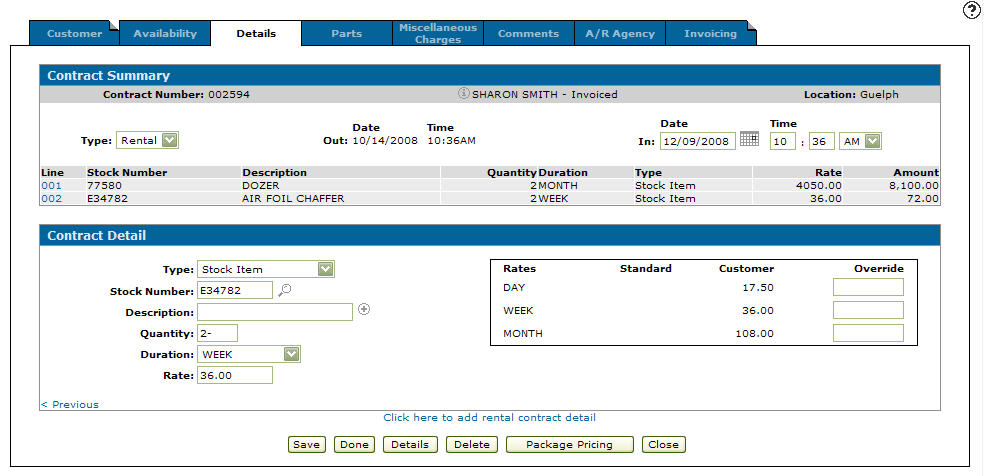
    The Details tab will appear.


    Details tab

  14. On the Details tab, click the Save button.
    The Credit Reason screen will appear.


    Credit Reason screen

  15. On the Credit Reason screen click on a Code.
    The Details tab will appear listing the reversed rental invoice.


    Details tab

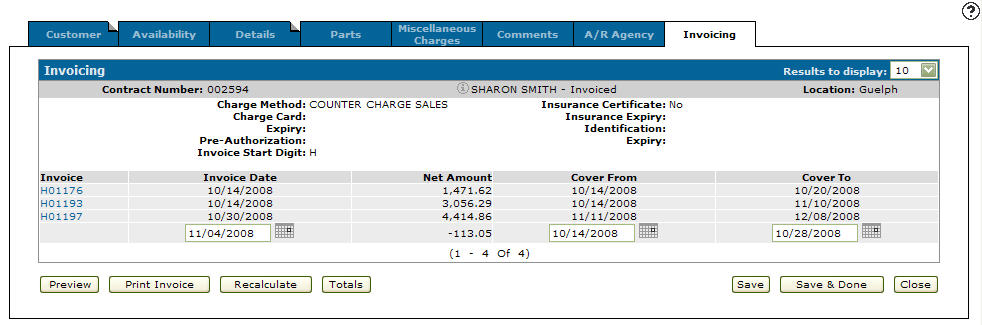
  16. The reversed rental invoice will also appear listed on the Invoicing tab.


    Invoicing tab