
CNH: eQuipment
The CNH eQuipment Order interface allows you to create Wholesale Quotes and Sales Orders in real time. This interface runs as an automated nightly task that creates new and updates existing Equipment Profile stock numbers in IntelliDealer with on-order and invoicing information provided by CNH.
Note: This is an interface developed by VitalEdge for the IntelliDealer dealer business system. VitalEdge is provided credential information and relevant data from the OEM to create and support this interface between IntelliDealer and applications/systems provided by the OEM. Technical details within this document pertain ONLY to the IntelliDealer side of this integration. If you need information relating to the specific OEM's application/system associated with this interface, contact the OEM.
Ensure valid credentials for this interface are added on the Credentials screen before proceeding.
To open this screen, navigate to Configuration > Interfaces > CNH > eQuipment.
See also CNH eQuipment Interface Expanded Setup Document.
Topics in this section are:
Note: Credentials for this interface are entered on the Credentials screen at Configuration > Interfaces > CNH > Credentials. Check with CNH to make sure the user ID used for the CNH eQuipment interface has been added to their table.
Main tab
Use the Main tab to configure the default values that the interface applies when it creates or updates Equipment Profile stock numbers from CNH data.
 Main tab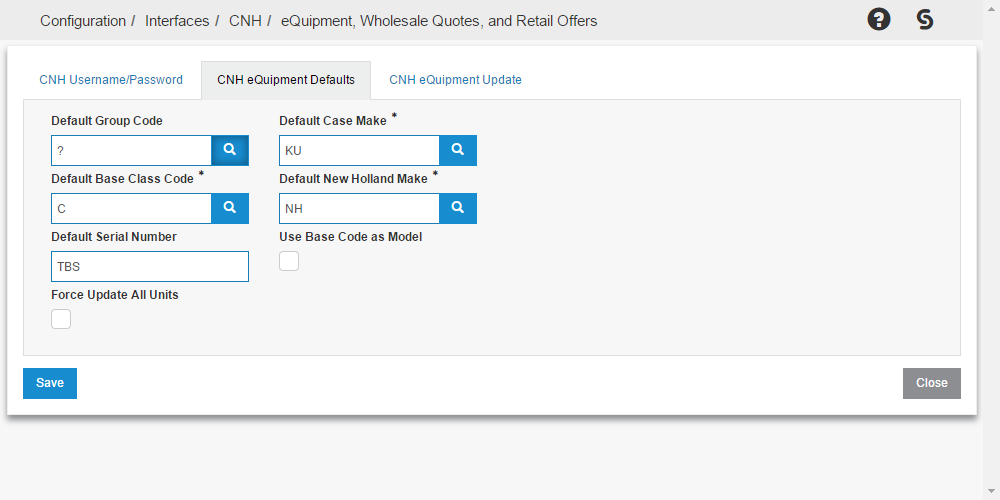
The fields on the Main tab are:
| Field | Description |
|---|---|
| Default Group Code | The group code applied to units created by the interface when no group code can be derived from the CNH BASE file. Group codes are maintained on the Group Codes screen. |
| Default Base Class Code | Required. The class code applied to units created by the interface when no class can be derived from the CNH BASE file. Class codes are maintained on the Classes screen. |
| Default Serial Number | Required. Placeholder text used when CNH does not return a serial number for a unit. Use the longer serial number value, not the shorter PIN number. |
| Use Base Code as Model | If selected, the interface uses the first 12 characters of the Base Code as the Model number on units it creates. |
| Default Case Make | Required. The make code used for new Case units created by the interface when no make can be derived from the CNH BASE file. The selected make code must also exist as a CNH manufacturer-mapped make on the Vendor Profile for the Case vendor. |
| Default New Holland Make | Required. The make code used for new New Holland units created by the interface when no make can be derived from the CNH BASE file. |
| PDF User ID | Required. The IntelliDealer user ID that receives the PDF run report produced by the nightly and manual CNH eQuipment processes. The report lists the units that were created or updated and any errors that occurred so the recipient can follow up. The user must already exist in IntelliDealer. |
| Update Sold Units | If selected, the CNH eQuipment interface updates equipment units that are in Sold status when CNH sends updated order or invoicing data. This applies to the nightly task, Update CNH eQuipment, and Update On-Order/Pre-Sold CNH Units on the Update tab. Use this option when dealers attach on-order or pre-sold units to an unbilled equipment invoice, which changes the unit to Sold before the sale is finalized. If unselected, the interface only updates units in On Order and Pre-Sold status. |
| Create POs as Status | Controls the initial status of purchase orders created by the interface. Select On Order to create POs in an open, on-order state, or Closed to create them in a closed state. Most dealers select On Order so the units appear in standard equipment-on-order reports until the invoice is processed. |
Click Save to store the values on the Main tab.
Note: If data is present in the CNH BASE file, the interface uses it to derive the Base Code, Model, Make, Class, and Group for each unit. If no BASE data is available, the interface falls back to the values configured on this tab and on the Equipment Defaults screen. To support this fall-back, configure an Equipment Default with Type set to New, Status set to On Order, Group Code set to All, and a Make code that matches one of the make codes configured on this tab.
Vendors tab
The Vendors tab opens the Vendor Profile listing filtered to vendors that are mapped to a CNH manufacturer code. Use this tab to confirm that your Case and CNH vendors are configured correctly for the interface without leaving the CNH eQuipment screen.
Open the vendor used by the interface and review the Profile tab. The vendor must have the correct Manufacturer Code selected for CNH or Case so it is included in the dealer number setup on the next tab.
You can also use this tab to add a missing vendor. Use the standard Vendor Profile create action and then return to the Dealer Numbers tab to associate dealer numbers with the new vendor.
Dealer Numbers tab
The Dealer Numbers tab opens the Dealer Numbers listing filtered to the Case manufacturer. The CNH eQuipment interface uses the SAP dealer codes configured here (these are the same codes used by eQuipment and eWarranty) and are not the parts dealer codes (for example, CCNWEB).
To add a dealer number for the interface:
-
On the Dealer Numbers tab, click Is there a dealer missing from the list? Click here to add.
-
Select the Case or CNH vendor that was confirmed on the Vendors tab and fill in the dealer information.
-
Save the record.
Note: The Description field must be set to CNHEQUIP or the interface does not run for that dealer code. The Dealer Number must also be 10 characters long; pad shorter numbers with leading zeros (for example, enter 12345 as 0000012345).
Update tab
Use the Update tab to manually trigger a CNH eQuipment update outside of the scheduled nightly run. This is useful after the first-time setup, after changes on the Main, Vendors, or Dealer Numbers tabs, or when CNH has resent data that you want reflected in IntelliDealer immediately.
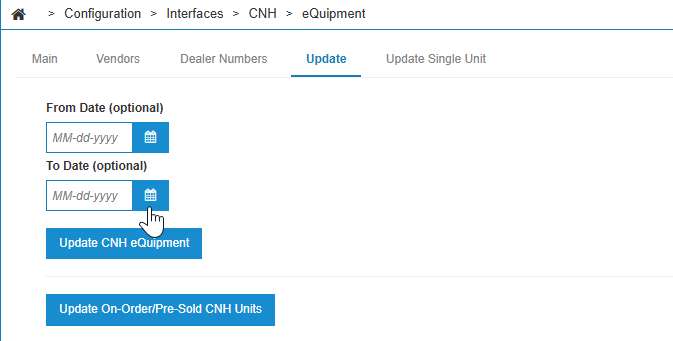
The tab contains two independent actions:
| Action | Description |
|---|---|
| Update CNH eQuipment | Submits a manual run that downloads CNH eQuipment data for the date range specified by From Date and To Date. Both dates are optional; if both are left blank, the run uses the same defaults as the nightly job. After the first-time setup, run this action with both dates set to the current date to make sure old data is not pulled in. |
| Update On-Order/Pre-Sold CNH Units | Submits a manual run that refreshes units that are currently in On Order or Pre-Sold status. If Update Sold Units is selected on the Main tab, this action also refreshes units in Sold status. Use this action to pull the latest CNH data for units that are already in the Equipment Profile without re-processing closed or fully invoiced units. |
When either button is clicked, the request is submitted to the batch scheduler and a confirmation message appears. Review the PDF run report sent to the user configured in PDF User ID on the Main tab, or open Administration > Settings > Batch Jobs to monitor the run.
Update Single Unit tab
Use the Update Single Unit tab to refresh a single CNH unit on demand. This is the fastest way to bring a specific stock number in line with the latest CNH data—for example, after CNH has corrected the invoice for one unit—without re-running the full update.
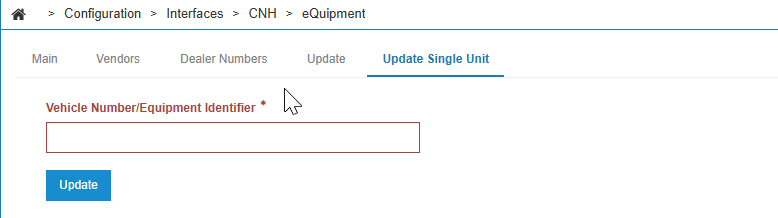
Fill in this field:
| Field | Description |
|---|---|
| Vehicle Number/Equipment Identifier | Required. The CNH vehicle number or equipment identifier that links the unit to CNH. This is the same identifier the interface uses on the nightly job to match CNH data to the Equipment Profile stock number. |
Click Update. The request is submitted to the batch scheduler and a confirmation message appears. When the job completes, the matching unit in the Equipment Profile is updated with the latest data returned by CNH.
Security: 999 - Configuration
Revision: 2026.10