
Surplus Returns - Create Communication Records
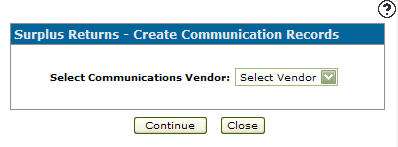
Use the Surplus Returns - Create Communication Records screen to select a communications vendor.
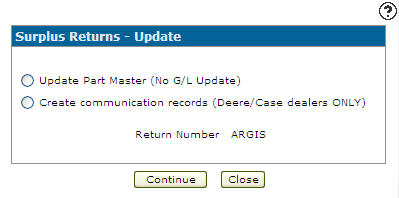
To open the Surplus Returns - Create Communication Records screen, select the Create Communication Records (Deere/Case dealers only) radio button on the Surplus Returns - Update screen and click Continue.
Note: The Create Communication Records option on the Surplus Returns - Update screen appears only when Feature 6111 (John Deere interfaces) or Feature 6240 (CNH CSPS) is licensed. If neither feature is licensed, the system opens the update confirmation screen directly.
Topics in this section are:
Creating Communication Records for a Surplus Return
-
Navigate to Product Support > Parts > Surplus Returns.
-
On the Surplus Returns screen, fill out the appropriate fields and click the Go >> link.
The Surplus Returns screen refreshes listing the generated search results.
-
Hover over a Return Number and select Update from the pop-up menu.
-
Select the Create communication records (Deere/Case dealers only) radio button then click Continue.
-
Select a communication vendor from the Select Communication Vendor drop down.
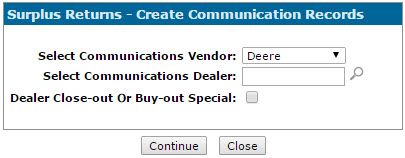
If you select Deere as the Communication Vendor, these fields appear:
-
Select the dealer number you want to create the surplus return record for in the Select Communications Dealer field.
-
Select the Dealer Close-out or Buy-out special checkbox to indicate if the surplus return is either a Dealer parts close out return or a Dealer parts buy out special return.
If you select Case as the Communication Vendor, these fields appear:
-
Select the dealer number you want to create the surplus return record for in the Select Communications Dealer field.
-
Enter a CNH parts Return Type code.
-
Enter a CNH parts Return Type ID description.
The Return Types Codes are:
CNH Return Type Codes Return Type Return Type Description 1 New Dealer Initial 2 Special or New Model 3 Monthly Surplus 4 Special 8 Dealer Termination
-
-
Click the Continue button to create the communication record.
 The
The 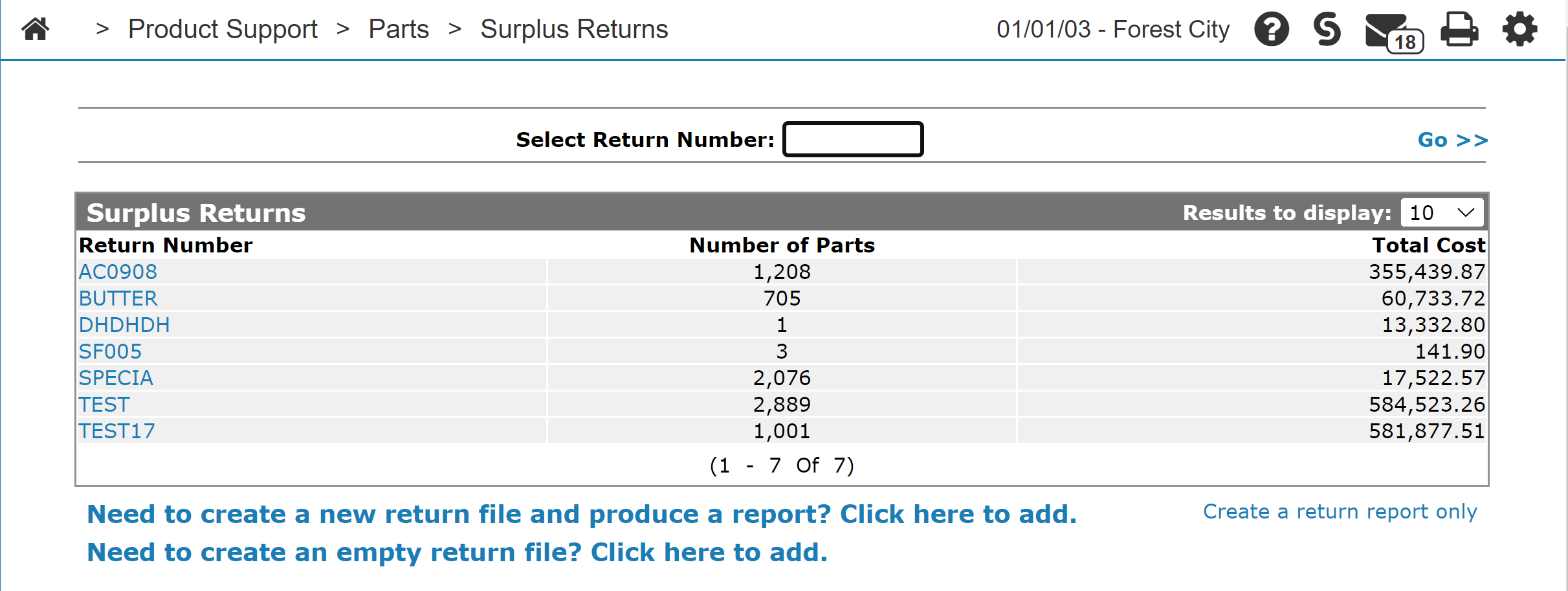
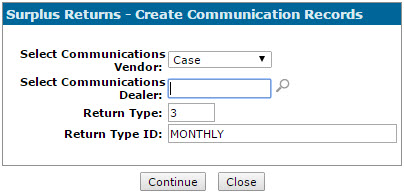
Screen Description
Field on the Surplus Returns - Create Communication Records screen is:
| Field | Description |
|---|---|
| Select Communications Vendor |
Select the communications vendor receiving the surplus return from the drop down list. John Deere parts should have a vendor number of DEERE, JDM, or JD1234 where 1234 is your dealer number. For John Deere surplus part returns the program automatically uses the last four digits of the IntelliDealer vendor number starting with JD to provide Deere with your Dealer Number. For example, if the IntelliDealer vendor number for the returned part is JD1234, then the dealer number transmitted to Deere, or rendered on the report, is 1234. |
These fields appear when selecting Deere as the communication vendor:
| Field | Description |
|---|---|
| Select Communications Dealer | The dealer selected is used with the John Deere Surplus Return Transmission program. |
| Deere Close Out or Buy Out Special | Indicates if the surplus return is either a Dealer parts close out return or a Dealer parts buy out special return. |
These fields appear when selecting Case as the communication vendor:
Note: When only one record exists for the return type and return type ID in the CNHRETYP table, those options are automatically populated in these fields.
| Field | Description |
|---|---|
| Select Communications Dealer | The dealer selected is used with the Case surplus return transmission program. |
| Return Type | The CNH parts return type code. |
| Return Type ID | The CNH parts return type code description. |
Various Return Types Codes are:
| CNH Return Type Codes | |
|---|---|
| Return Type | Return Type Description |
| 1 | New Dealer Initial |
| 2 | Special or New Model |
| 3 | Monthly Surplus |
| 4 | Special |
| 8 | Dealer Termination |
Use these buttons to complete your work on the Surplus Returns - Create Communication Records screen:
-
Click Continue to transmit the surplus return to the communication vendor selected above.
-
Click Close to close the Surplus Returns - Create Communication Records screen without transmitting the surplus return and return to the Surplus Returns screen.
Security: 828 - Product Support - Parts Surplus Return
Revision: 2026.09