
John Deere ELIPS
The John Deere ELIPS (Equipment Lifecycle Integration of Parts and Service) interface transmits selected parts and service information to John Deere. Files are generated each night from the previous day's billing history information.
There is no direct user interaction with the John Deere ELIPS interface. The nightly job runs automatically, and no scheduled job needs to be set up.
To configure the John Deere ELIPS interface, navigate to Configuration > Interfaces > John Deere > ELIPS.
Topics in this section include:
Initial Setup
When setting up the interface for the first time, John Deere requires a historical load of data to be sent, consisting of five years of parts data and five years of work order data. It is recommended to send one year at a time.
Data Sent
The data elements transmitted to John Deere are:
Work Orders
Work Order Number, Machine Serial Number (PIN), Model, Reported Hours, Job Name, Segment, Warranty, Event Timestamp, Created Date, Repair Date, Invoice Date, Labor Hours, Complaint, Cause, Correction, Part Number, Quantity, Description, Is Deere Part (Yes/No), Parts Per Package, First Pass Fill Success (Yes/No)
Parts Invoices
Invoice Number, Creation Date, Invoice Date, Part Number, Quantity, Description, Is Deere Part (Yes/No), Is Miscellaneous Part (Yes/No), Parts Per Package, Stocking Logic Code, First Pass Fill Success (Yes/No)
Configuration Tab
Use the Configuration tab to configure a user to receive a PDF report of the data sent each night.
 The Configuration tab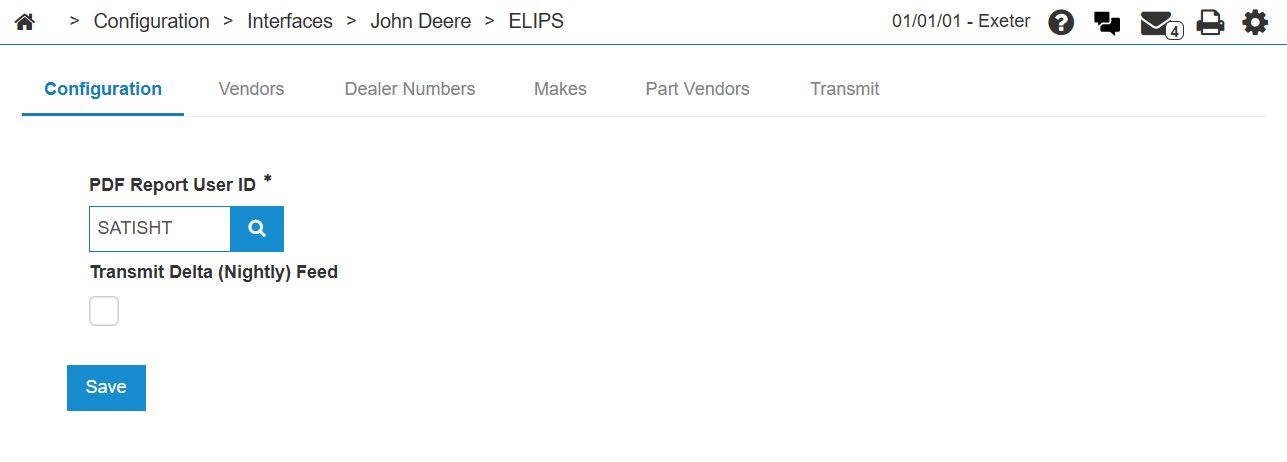
The fields on the Configuration tab are:
| Field | Description |
|---|---|
| PDF Report User ID | The ID of the user to receive a PDF of the results of the nightly processing. |
| Transmit Delta (Nightly) Feed |
Click this check box to transmit a delta feed each night. This option is helpful during initial configuration of the interface when John Deere requires historical files to be sent and processed before the delta/nightly feed is turned on. The dealer can leave this unchecked until all historical files are sent and then check it when they are ready for nightly data to be transmitted automatically. |
Vendors Tab
The Vendors tab shows a list of vendors with the John Deere manufacturer code. If no vendors appear in the list, use the Assign Manufacturer button to set the manufacturer code on at least one Vendor.

The fields on the Vendors tab are:
| Field | Description |
|---|---|
| Vendor Number | The vendor's registered vendor number. Click the link to open the Vendor Profile for edit. |
| Name | The vendor's company name. Click the link to open the Vendor Profile Info screen. |
| Address | The vendor's address. |
| Phone Number | The vendor's business phone number. |
Dealer Numbers Tab
Each location you wish to transmit ELIPS data for must have a dealer number. You should assign a single dealer number for each location as the Location Primary Dealer, as ELIPS requires a dealer number for the file name for each location. If no Location Primary Dealer is set, the first dealer number in the database is chosen for the location being transmitted.
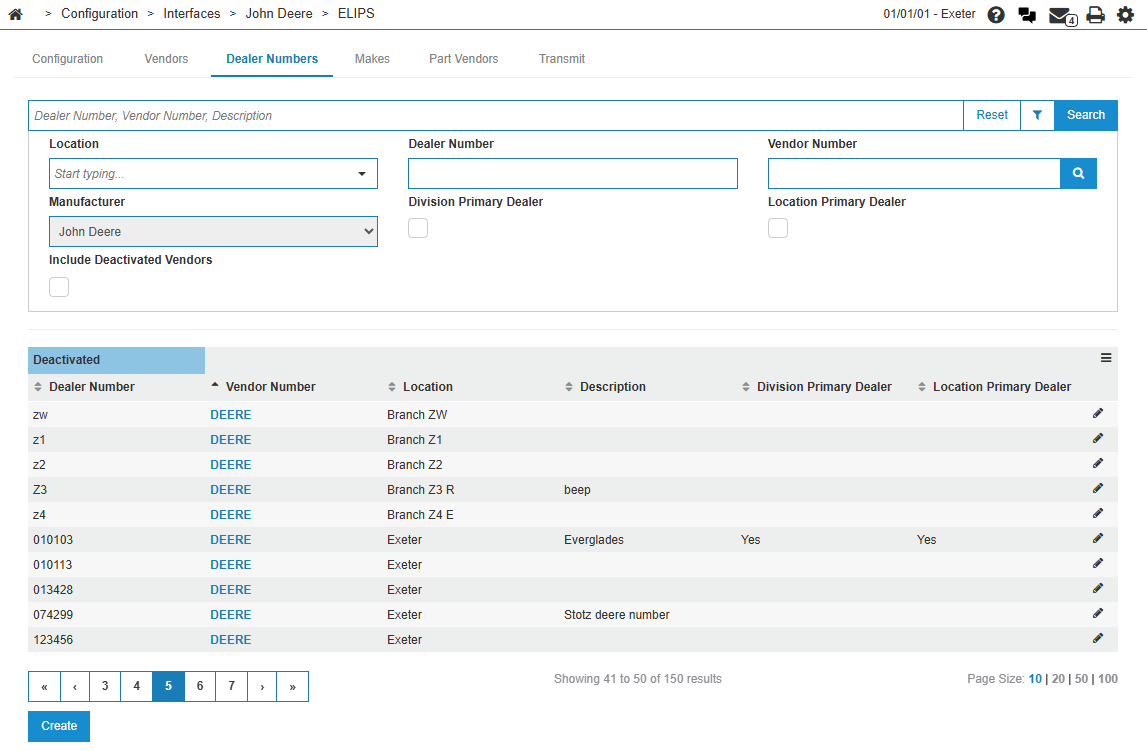
The search fields on the Dealer Numbers tab are:
| Field | Description |
|---|---|
| Location | Search for dealer numbers by location. |
| Dealer Number | Search for a specific dealer number |
| Vendor Number | Search for dealers by Vendor number. |
| Manufacturer | Defaults to John Deere. |
|
Division Primary Dealer Location Primary Dealer |
Click the checkbox to search for only primary dealers for divisions or locations. |
| Include Deactivated Vendors | Click the checkbox to include deactivated vendors in the search. Deactivated vendors are indicated in the search results by a blue highlight. |
The fields on the Dealer Numbers tab are:
| Field | Description |
|---|---|
| Dealer Number | The dealer's identification number. |
| Vendor Number | The vendor's number. |
| Location | The dealer's location. |
| Description | An optional description for the dealer. |
|
Division Primary Dealer Location Primary Dealer |
If this is a primary division or location, Yes appears in this column. |
Makes Tab
Use the Makes tab to refine the data for makes that are transmitted to John Deere. Options are:
-
Transmit All—transmit all makes data to John Deere.
-
Transmit All Excluding Configured Options—if you chose this option, specify the makes you do not want to send data for to John Deere.
-
Transmit Only Configured Options—if you chose this option, specify only the makes you want to send data for to John Deere.
Part Vendors Tab
Use the Part Vendors tab to refine the data for part vendors that are transmitted to John Deere. Options are:
-
Transmit All—transmit all parts data to John Deere.
-
Transmit All Excluding Configured Options—if you chose this option, specify the vendors you do not want to send parts data for to John Deere.
-
Transmit Only Configured Options—if you chose this option, specify only the vendors you want to send parts data for to John Deere.
Transmit Tab
Use the Transmit tab to manually generate files and transmit them to John Deere.
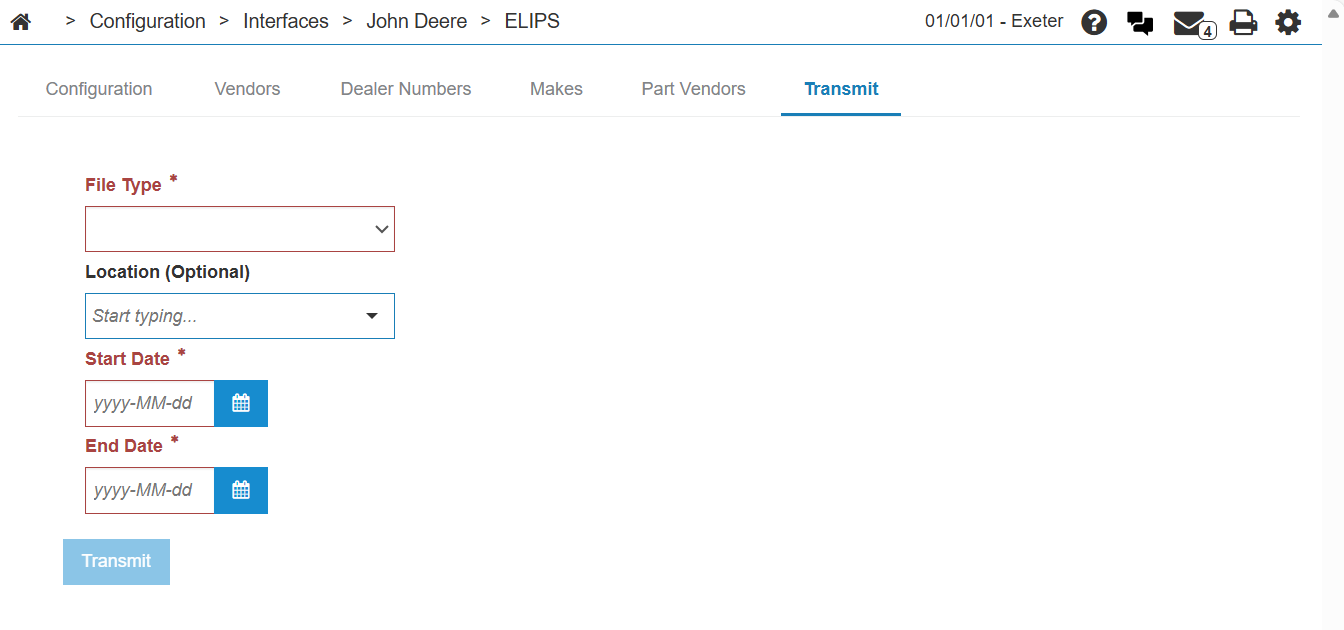
From the File Type drop-down, choose the files to generate. Can be one of: All, Parts, or Work Order.
If no locations are selected, all locations are sent by default.
Select a start and end date. It is recommended to send data in increments of one year.
Security: 999 - Configuration
Revision: 2025.12