
Configuration: CNH CRA Grow
Use the CNH CRA Grow tab to enable or disable CNH CRA Grow at a dealership level. This interface integrates the FreedomPay gateway into IntelliDealer to automate calculating and applying manufacturer promotions and rewards.
CNH CRA Grow is only available in Parts Invoicing and Work Orders. In addition, usage of CNH CRA Grow is restricted to these Cash Codes:
-
2—Cash sales
-
CNHFR—CNH Productivity Plus
-
FREEDOMPAY—FreedomPay
If you use the A/R Agency type for FreedomPay you can transmit public credit cards such as Visa and Mastercard to FreedomPay. FreedomPay forwards the transaction to the dealer credit card processor of choice, such as Worldpay.
To access CNH CRA Grow, navigate to Configuration > Interfaces > CNH > CRA, then click the Grow tab. To enable the feature, select the Enable Grow checkbox. Once enabled, these additional tabs are available for configuration:
Pre-Requisites
To use CNH CRA Grow requires:
-
Feature 6290 CNH Grow licensed
-
Feature 6305 Case Credit Card/FreedomPay licensed
-
FCC client/server software
-
A/R Agency - CNH Productivity Plus payment methods are set up on the Accounts Receivable - Cash Codes configuration screen
-
CNH Reward Card set up
To use the loyalty/Grow functionality with public credit cards like Visa, Mastercard requires:
-
FreedomPay devices installed and working at the dealership
-
FreedomPay A/R Agency type configured
Main Tab
The field available on the Main tab is:
| Field | Description |
|---|---|
| ES Token |
A unique key provided by CNH that allows the dealership to retrieve the CNH purse data for each customer during invoicing. If this token is not configured, then the CNH loyalty windows will be unavailable during invoicing. |
Default Incentive Parts Tab
During invoicing for instant discounts or purse redeems, IntelliDealer requires a mapping to a GL-based part number. You must create an entry for every company/division/location.
The fields available on the Default Incentive Parts tab are:
| Field | Description |
|---|---|
| Company | The Company number. |
| Division | The Division number. |
| Location | The Location number. |
| Instant Discount Part | The part number for the discount for this company/division/location instance. See Creating an Instant Discount Part Number. |
| Redeem Incentive Part | The part number for the incentive for this company/division/location instance. See Creating a Redeem Incentive Part Number. |
Click Create to open the New pop up and add a new listing to the screen.
Creating an Instant Discount Part Number
To create an instant discount part number, follow the procedure outlined in Adding a Part Profile. Use a valid GL part number. Discount parts should affect taxes, therefore they should be setup with tax 1 and 2 no tax assigned and tax 3/4 checked.
 Example of the tax section for an instant discount part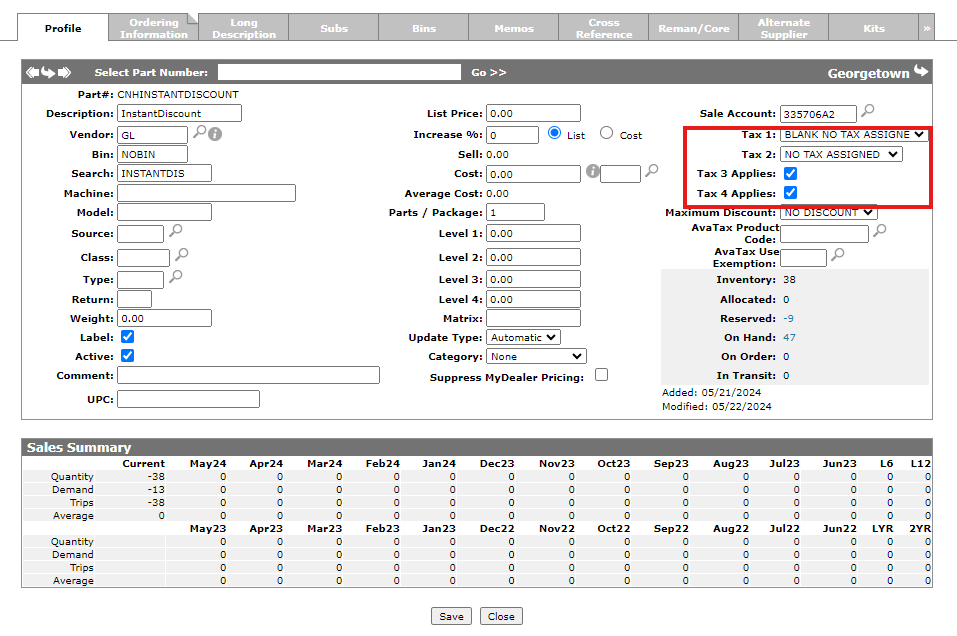
Creating a Redeem Incentive Part Number
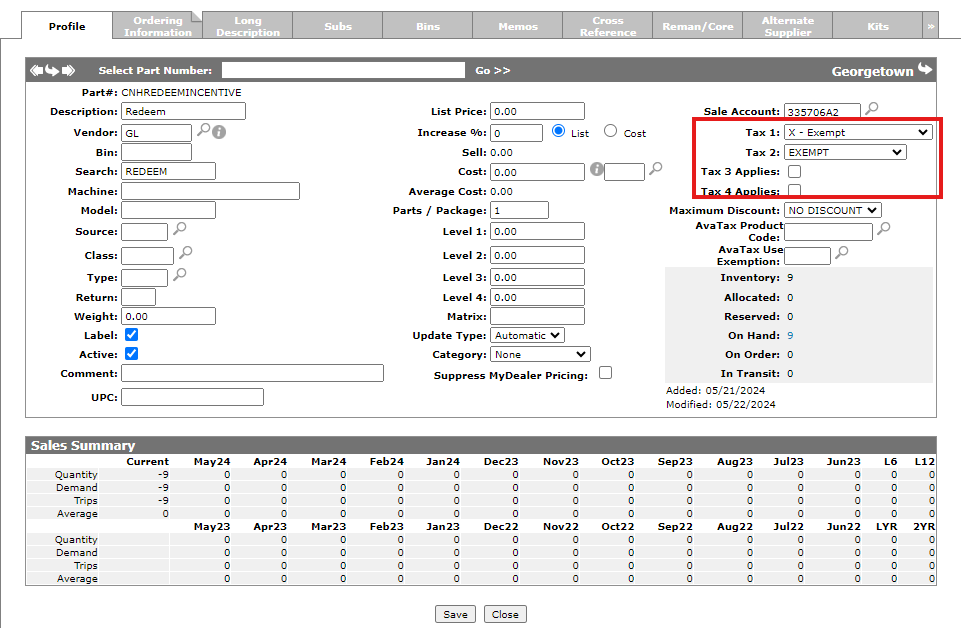
To create a redeem incentive part number, follow the procedure outlined in Adding a Part Profile. Enter a valid GL part number. Redeem incentive parts should not affect taxes, therefore they should be setup with tax 1 and 2 as exempt and tax 3/4 unchecked.
Custom Incentive Parts Tab
Custom Incentive Parts provides a finer control to what parts are used for a specific incentive.
The fields available on the Custom Incentive Parts tab are:
| Field | Description |
|---|---|
| Company | The Company number. |
| Division | The Division number. |
| Location | The Location number. |
| Incentive Name | The name of the incentive. |
| Part Number |
The part number defined for the incentive. The part numbers used on the Custom Incentive Parts tab must follow the same rules described in Creating an Instant Discount Part Number and Creating a Redeem Incentive Part Number. However, since IntelliDealer cannot know if an incentive name or code is for an instant discount or incentive redeem, it does not validate. |
Click Create to open the New pop up and add a new listing to the screen.
Security: 999-Configuration
Feature: 6290 CNH Grow, 6305 Case Credit Card/Freedom Pay
Revision: 2026.03