
Auto Applying a Payment Amount to Multiple Invoices
-
Navigate to Financial Management > Accounts Receivable > Cash Receipts screen.
-
Move the cursor over a Batch and select View from the pop-up list.
-
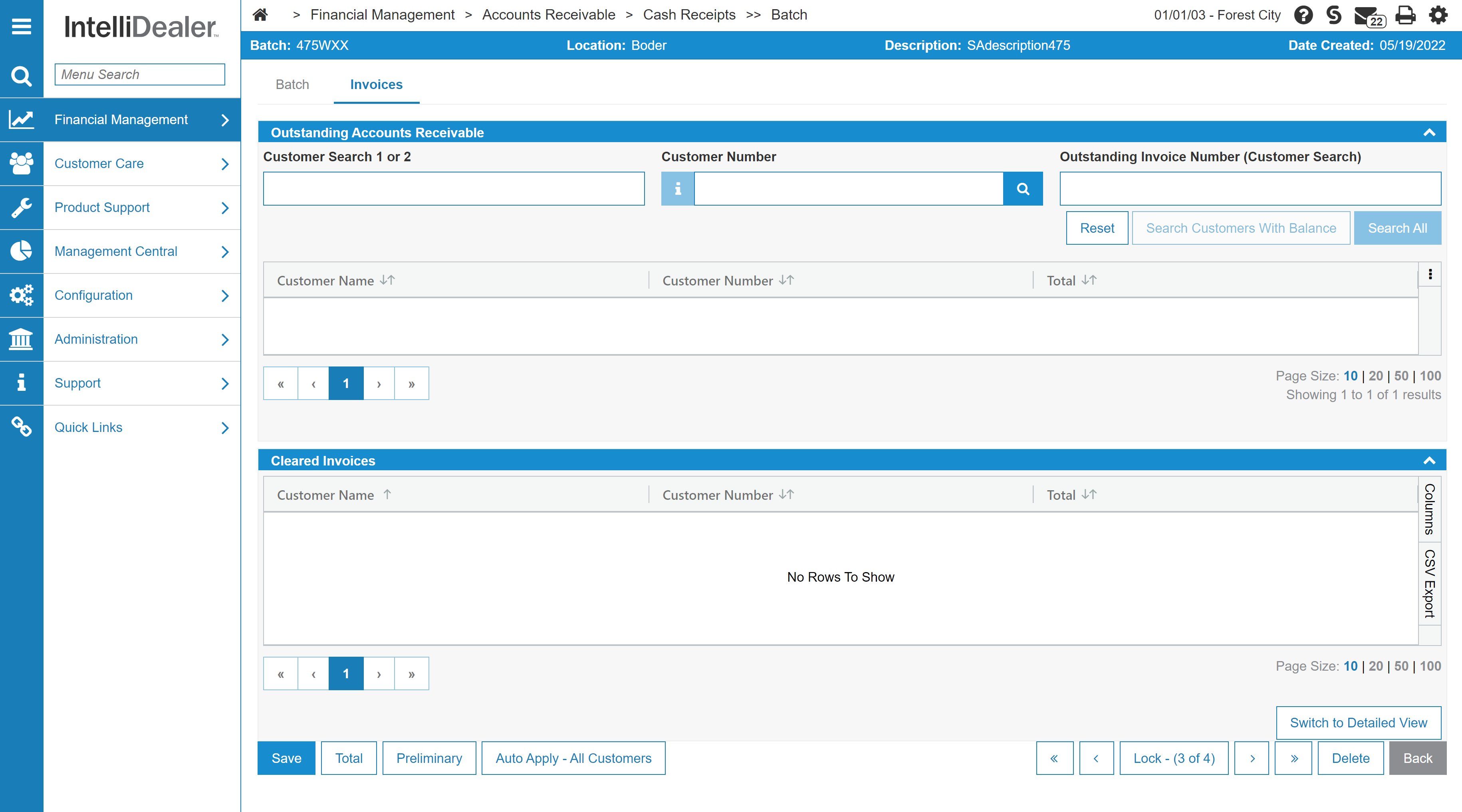
Click a Name.
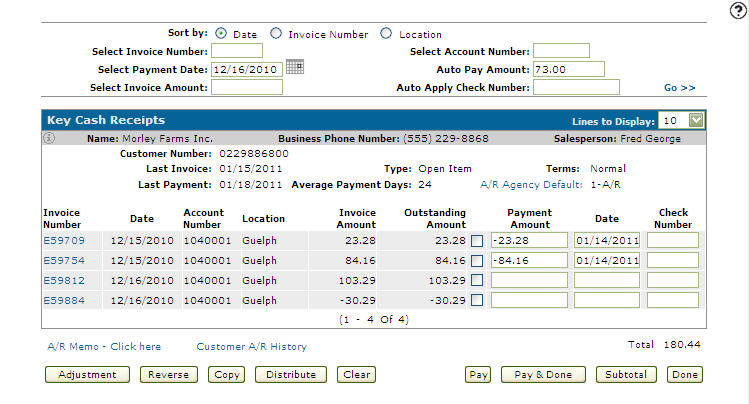
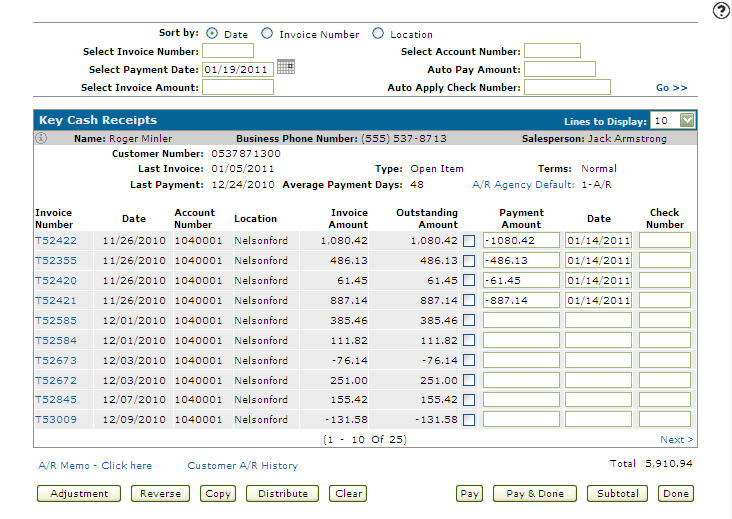
The Key Cash Receipts screen appears.
-
Enter a Payment Date that corresponds with the invoices you want to pay.
-
Enter the Auto Pay Amount you wish to automatically distribute for the payment of outstanding invoice amounts.
To auto apply a check number to the outstanding invoices, enter a check number in the Auto Apply Check Number field .
-
Click Go >>.
If there are credits on the customer's account, the system will scan all the outstanding invoices to see if there is an outstanding invoice whose amount matches the amount of the credit (e.g. the amounts offset each other). If there is a match, both the invoice and the credit will be updated to paid, using the default payment date.
 Cash Receipts screen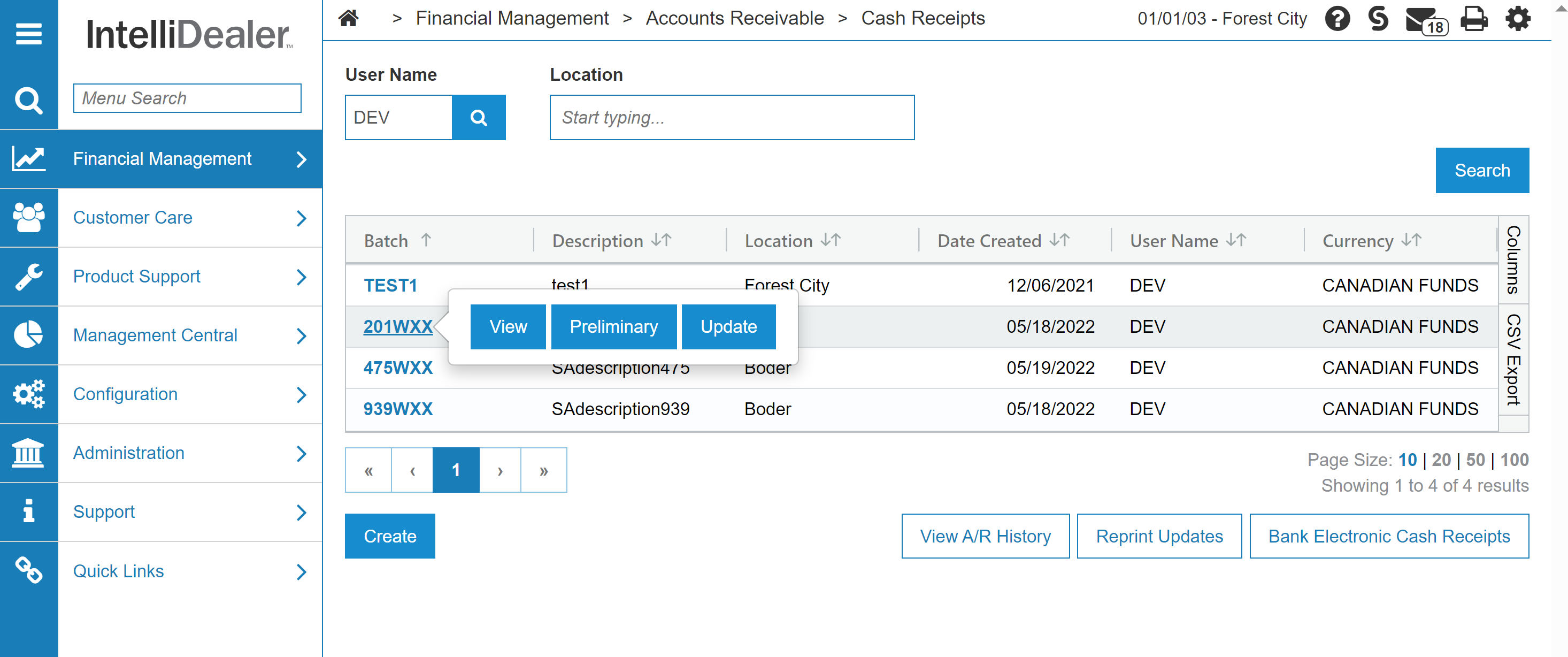
Revision: 2026.08