Performing a Bank Deposit
This procedure records a bank deposit through cash receipts using the BANK01 customer. This accomplished by an entry to debit the bank account under the BANK01 customer which is automatically offset by the SPECACCT CASH account.
VitalEdge recommends completing the bank deposit before the regular cash receipts, so there is a credit balance in the cash account that needs to be cleared by any Cash Receipt batch.
Warning:
All cash receipt batches must be updated before doing a statement run or else the information in the batch will be cleared.
Prerequisites: The BANK01 customer profile must be built into your customer database at the time of system setup.
-
Navigate to Financial Management > Accounts Receivable > Cash Receipts.
The Cash Receipts screen appears. -
Click Create.
The Batch screen opens in a new browser window.
-
Enter a Batch Number for the cash receipt.
Batch numbers may be any combination of alpha-numeric characters. VitalEdge recommends a combination of date and user initials (e.g. 1031JP) to facilitate simpler record keeping.
-
Enter a Description of the cash receipt.
-
Select the Location where the cash receipt is being entered.
-
Click the Save button to create a batch and continue.
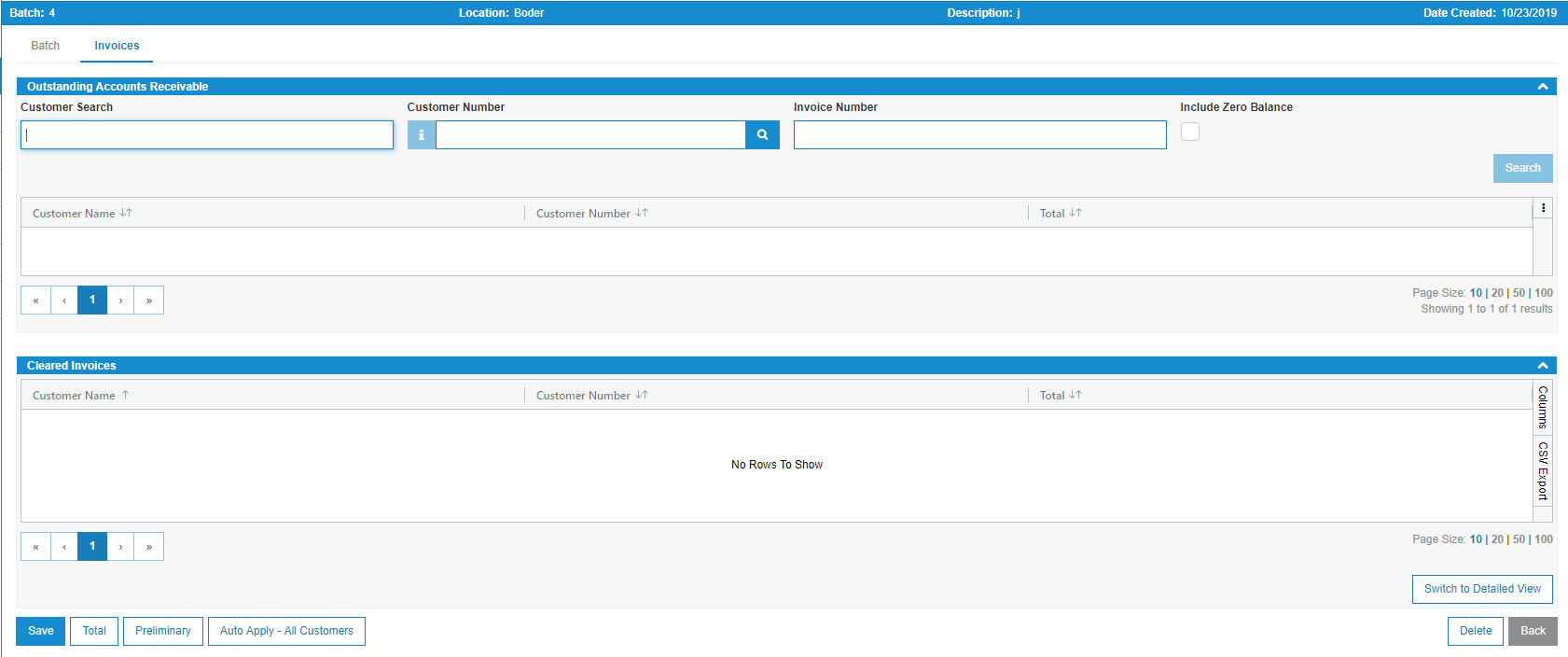
The Cash Receipts – Invoices screen appears in a new browser window displaying a list of customers who have an outstanding accounts receivable balance with your dealership.
 Cash Receipts screen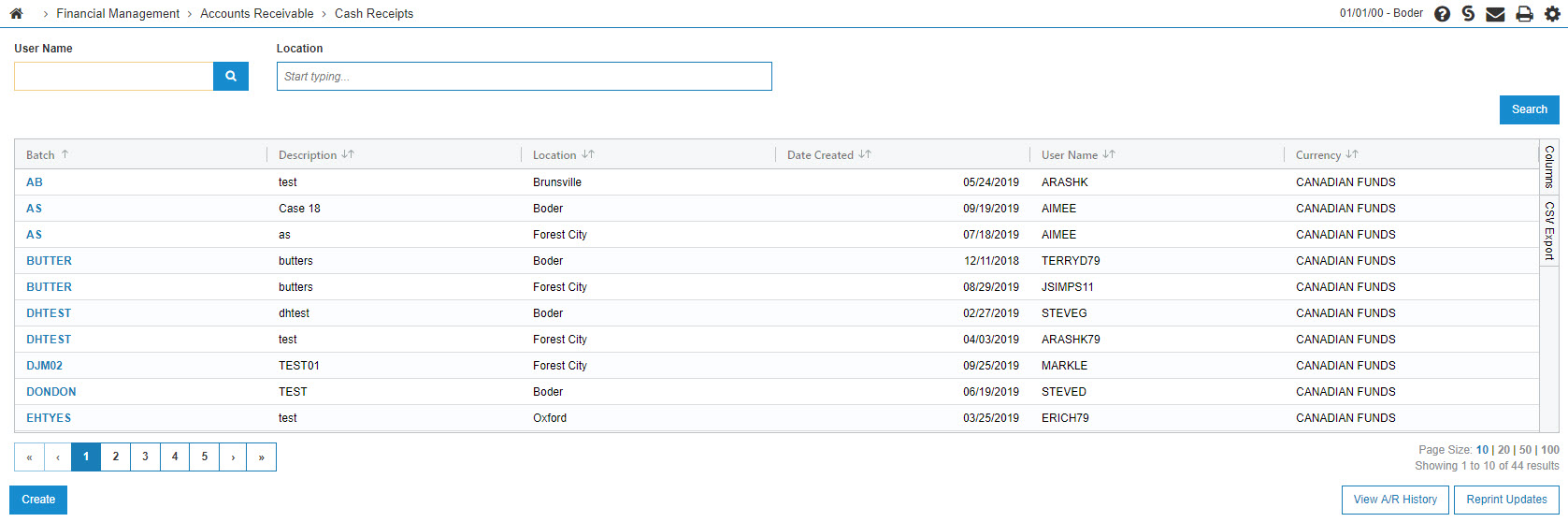

-
In the Customer Number field enter the BANK01 customer.
- or -
Click the Search icon to open the Your Customers screen in a new browser window and locate the BANK01 customer.
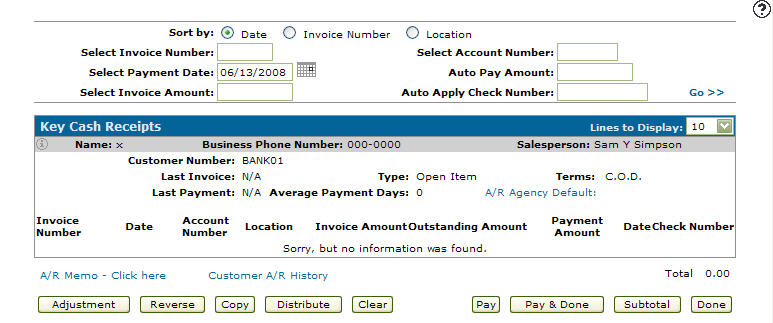
The Key Cash Receipts refreshes and add customer information and a list of invoices found in the BANK01 customer profile.
-
To enter your deposit information, click Adjustment .
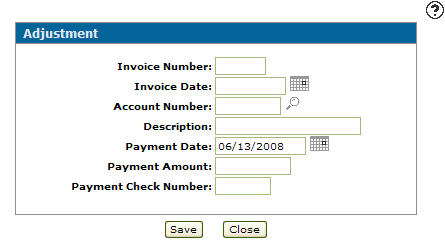
The Adjustment screen appears.
-
On the Adjustment screen, enter an Invoice Number.
In this case your bank deposit is not referencing a specific invoice, so VitalEdge recommends a combination of date and user initials (e.g. 1031JP) be used as the invoice number to facilitate simpler record keeping.
-
Fill in these fields:
-
Invoice Date—to note the date of your deposit.
-
Description—of the bank deposit.
-
Payment Amount—to indicate the amount being deposited.
-
-
To record this adjustment as your bank deposit, click Save .
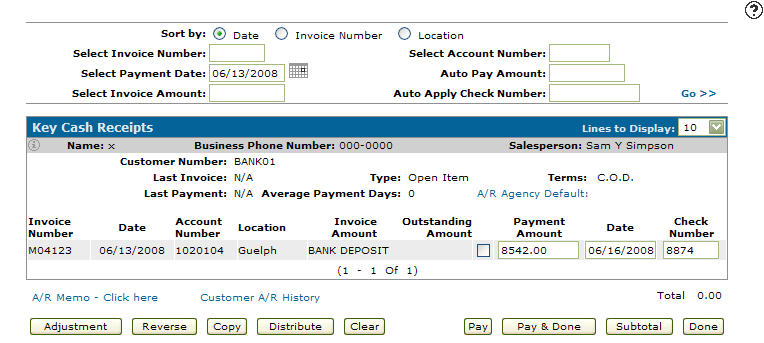
The Key Cash Receipts screen appears and displays the updated adjustment information you just entered.
-
To record the deposit, click Pay & Done.
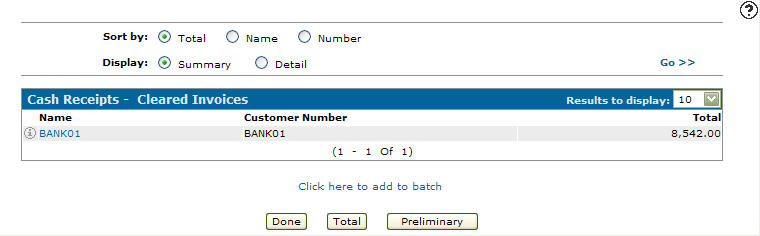
If you have successfully added your deposit to the new batch, the Cash Receipts -Cleared Invoices screen appears.
-
To close the batch, click Done.
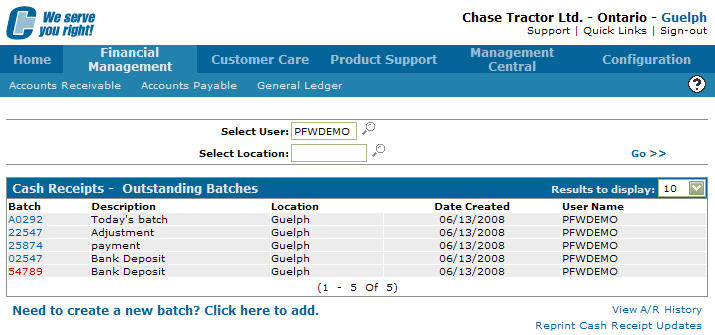
The Cash Receipts -Outstanding Batches screen appears and displays your newly created bank deposit batch.
-
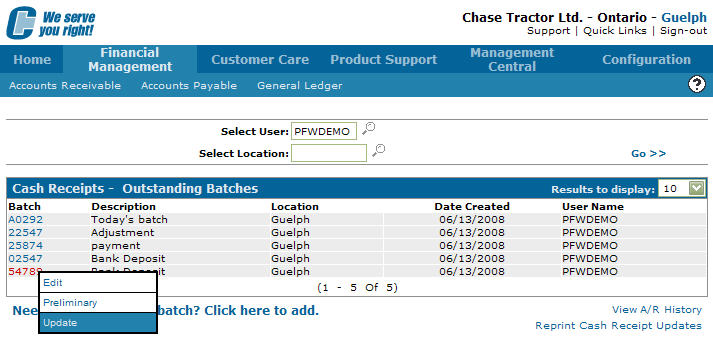
To update the batch with the new receipt (the bank deposit) you have added, move the cursor over the Batch Number and a pop-up menu appears.
-
It is recommended that you check your work by selecting Preliminary.
-
When you are satisfied with your changes, select Update.
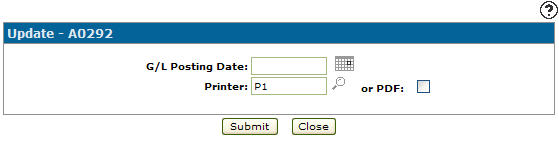
The Update screen appears in a new browser window.
-
On the Update screen, click the Calendar icon and select a day to post this batch to the G/L.
The Calendar screen will close and you will be returned to the Update screen.
-
Review or type the Printer you want the reports sent to.
-
To update the batch to the G/L and create the necessary report, click Submit.
You are returned to the Cash Receipts – Outstanding Batches screen. Your batch has been successfully updated with the deposit and is ready to be picked up by the G/L.