
Making Multiple Copies of an Equipment Profile (Non-Invoiced Unit)
You can create new equipment profiles by copying the information from a non-invoiced piece of equipment.
-
Navigate to Product Support > Equipment > Equipment Profile.
-
Click Copy Equipment.
-
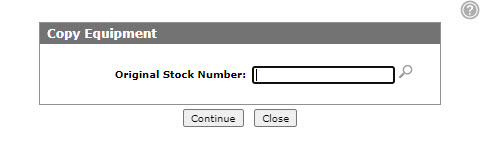
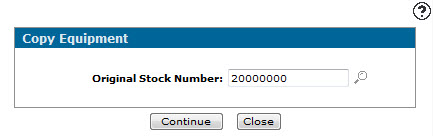
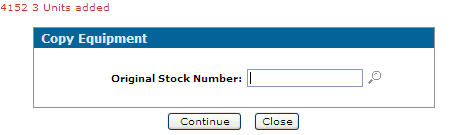
Enter the Original Stock Number of a non-invoiced piece of equipment - or - click the Search
 icon to search for and select an equipment profile.
 -
Click Continue to begin creating copies of the selected stock number.
-
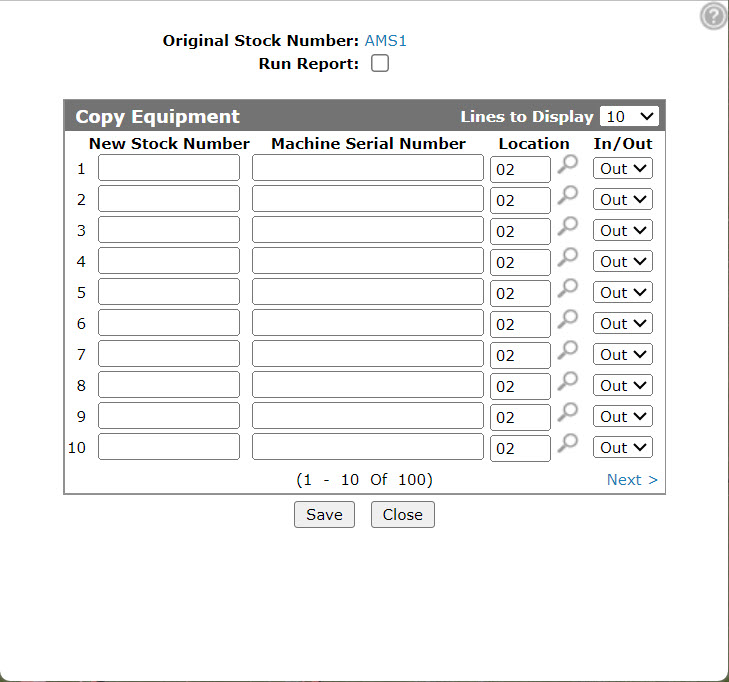
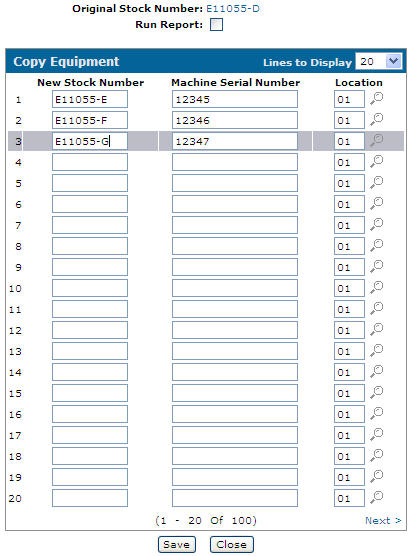
Select the Run Report checkbox to generate the WPSEQCPY report.
-
Enter the New Stock Numbers to represent the newly add equipment profiles.
If left blank, the system automatically generates the New Stock Number.
-
Enter the Machine Serial Number for each new profile.
-
Enter the location where the equipment is currently stocked in the Select Location field - or - click the Search
icon to search for and select a location. -
Click Save.
The report is generated.
 The
The 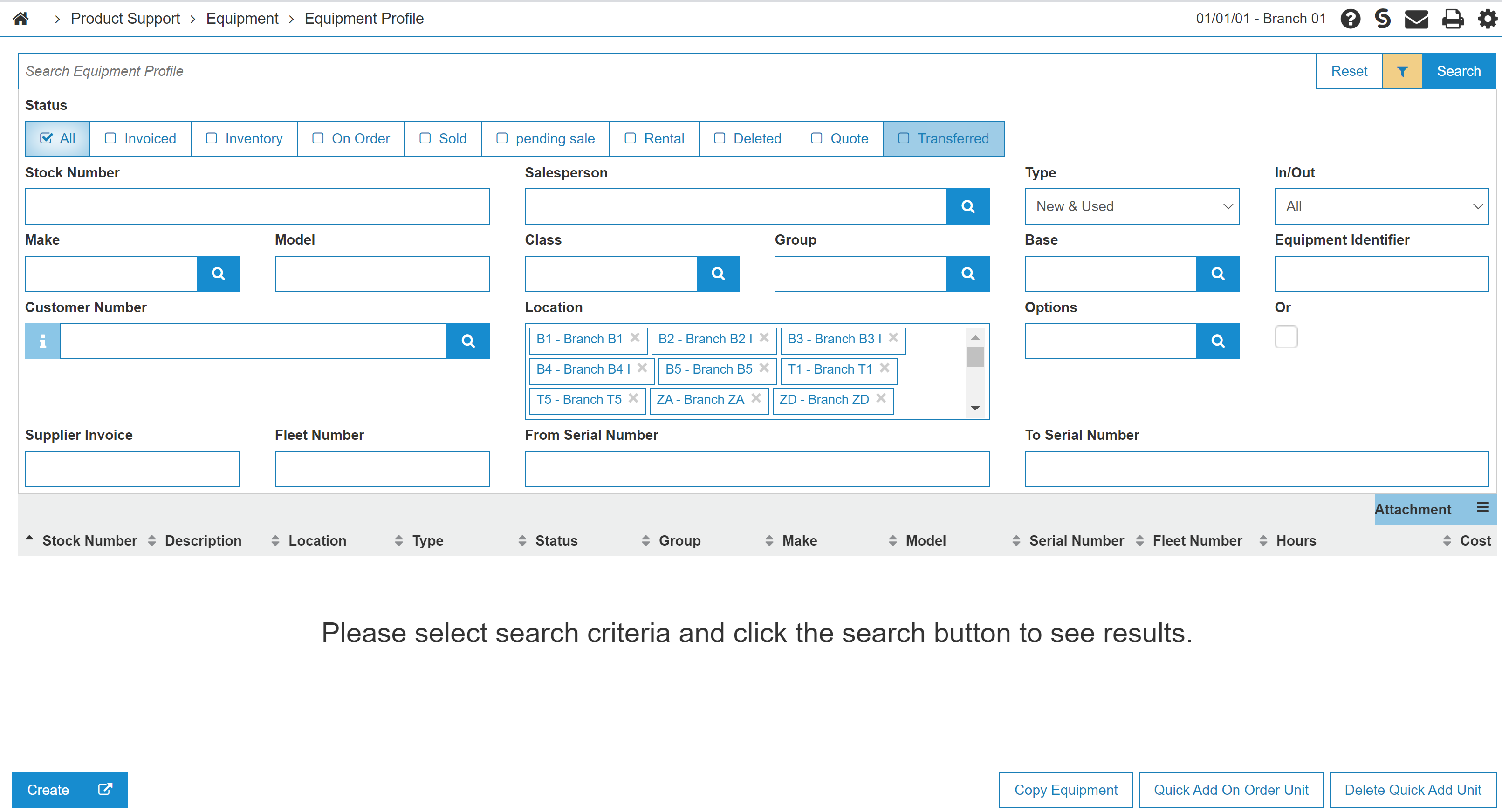
Revision: 2026.03