
Upload Parts Cross Reference File
Use the Upload Parts Cross Reference File screen to add or replace part cross reference records in the PARTXREF file using a CSV file from your workstation.
To open the Upload Parts Cross Reference File screen, navigate to Product Support > Parts > Utilities and click Upload Parts Cross Reference File.
 The Upload Parts Cross Reference File screen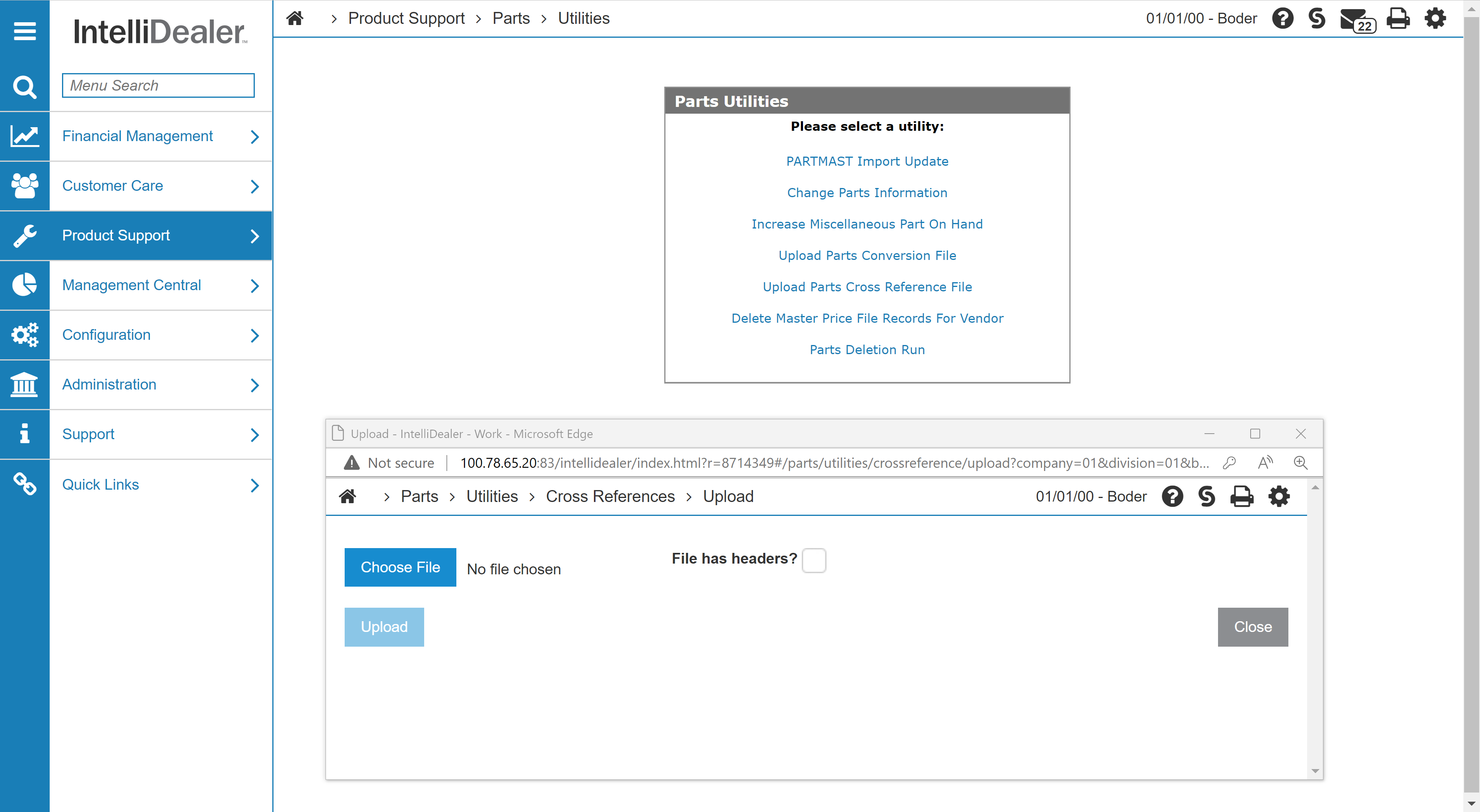
Topics in this section are:
Screen Description
The fields on the Upload Parts Cross Reference File screen are:
| Field | Description |
|---|---|
| Choose File | Click to select the CSV file to upload from your workstation. |
| File has headers? | Select this checkbox when the first row of the CSV file contains column headings. When selected, the utility skips the first row during import. |
| Upload | Click to upload the selected CSV file and update the PARTXREF file. This button is available after you select a file. |
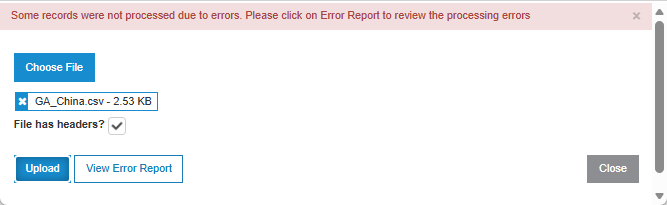
| View Error Report | Opens an error report when one or more records in the file could not be processed. This button appears after an upload completes with errors. |
| Close | Closes the Upload Parts Cross Reference File screen. |
Format of the CSV File
Each row in the CSV file must contain three values in this order:
partNumber,crossReferencePartNumber,comment
The comment field is optional. When no comment is provided, leave the comment blank and include the trailing comma at the end of the row. For example:
AF55747,AF55747SUB,
AH148880,AH148880SUB,
Note: When the comment is blank, each line must end with a trailing comma. If the trailing comma is missing, the upload fails for that row.
If the CSV file includes a header row, select the File has headers? checkbox before you upload the file. For example, this file contains a header row followed by two data rows:
"Part Number","Cross","Description"
"AA46612","2965-211","YETTER"
"AR31790","TY24446",""
Uploading the CSV File
-
On the Upload Parts Cross Reference File screen, click Choose File.
-
Locate and select the CSV file on your workstation, then click Open.
-
(Optional) If the first row of the file contains column headings, select the File has headers? checkbox.
-
Click Upload.
When the upload completes successfully, a success message appears at the top of the screen.
-
If one or more records could not be processed, an error message appears and the View Error Report button becomes available. Click View Error Report to review the processing errors, correct the CSV file, and upload the file again.