
Segments to Copy
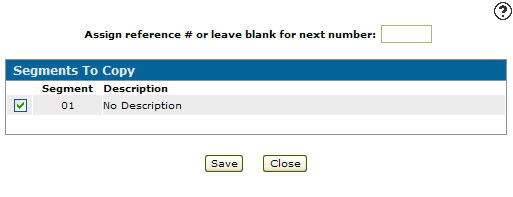
Use the Segments to Copy screen to copy a selected segment to create a new quote.
Topics in this section are:
Copying a Parts Quote
-
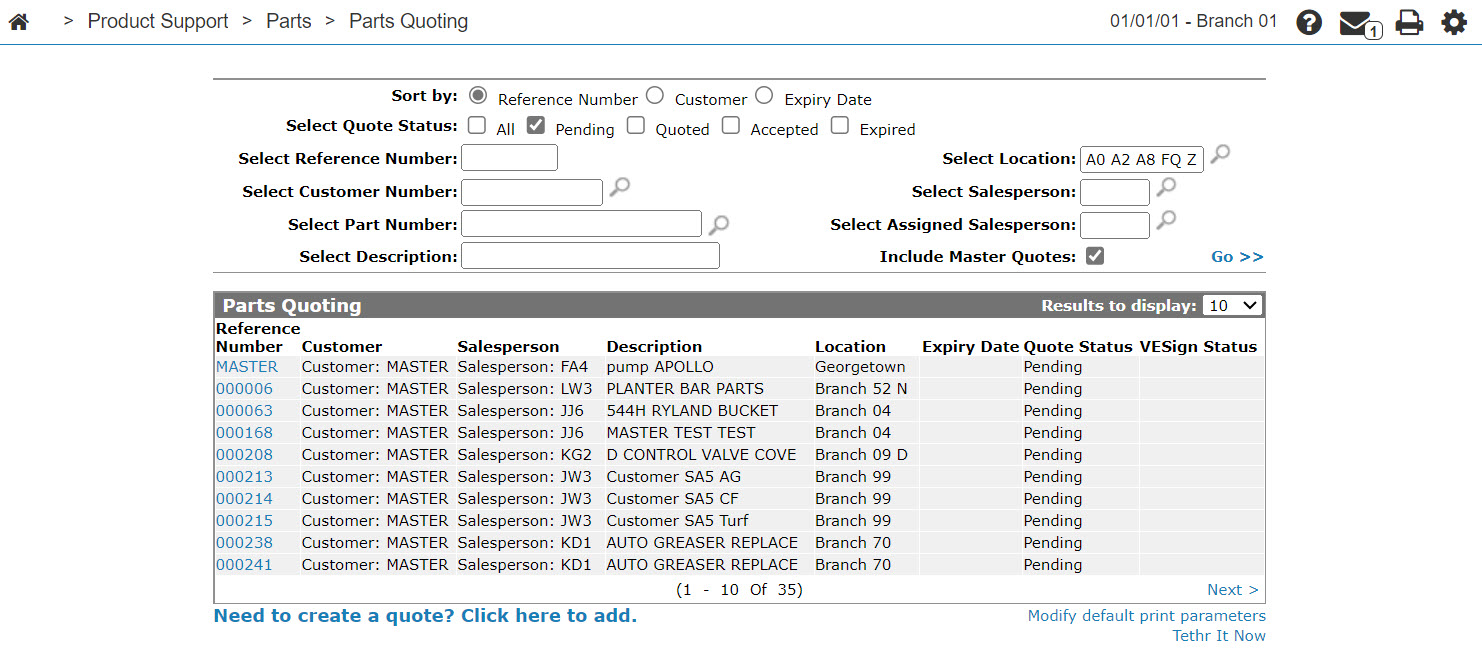
Navigate to Product Support > Parts > Parts Quoting .
-
Search for the part to copy by filling out the appropriate fields and clicking the Go >> link.
-
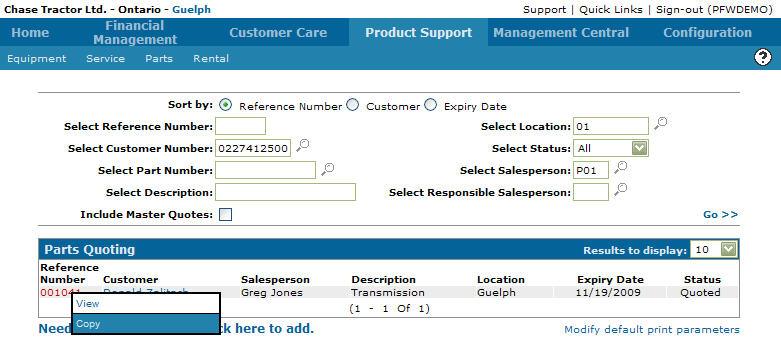
Move the cursor over a Reference Number and select Copy from the drop down menu.
-
If desired, enter a reference number in the Assign a reference # or leave blank for next number field.
-
Select a Segment of the parts quote to copy by placing a checkmark in the corresponding checkbox.
-
Click Save.
 The
The 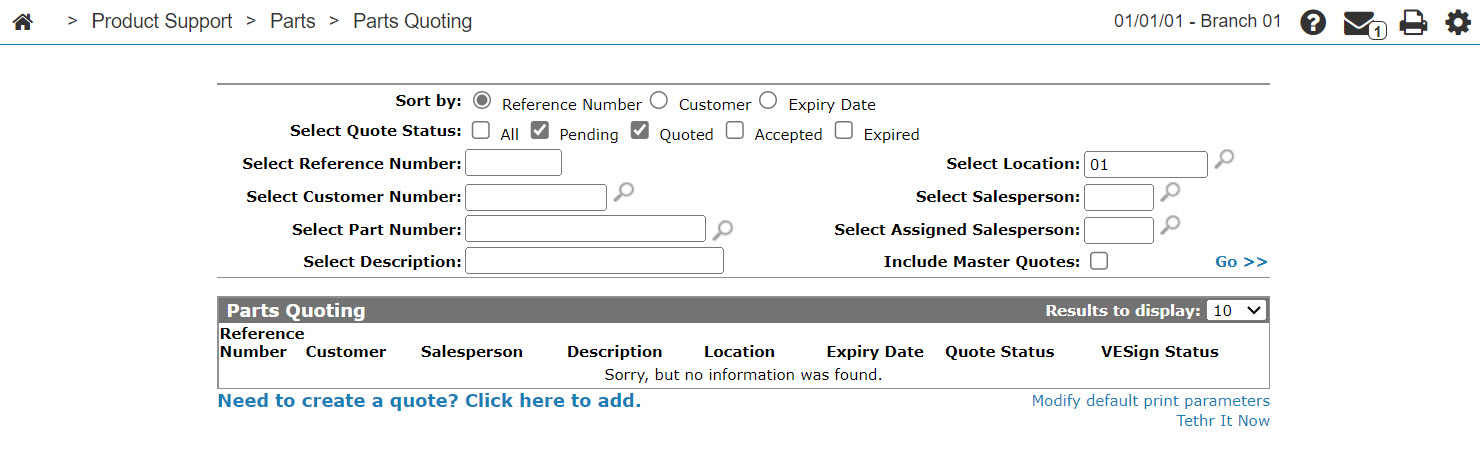
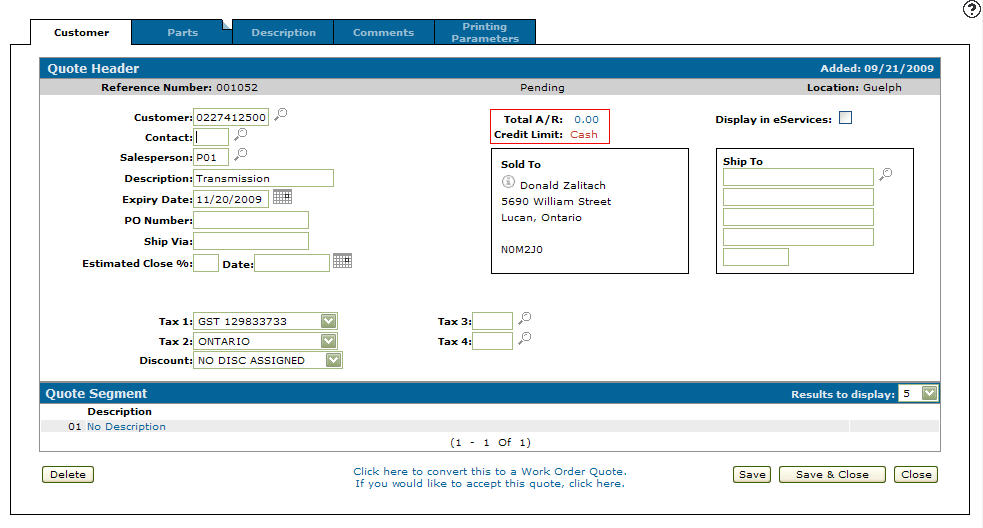
Screen Description
The fields on the Segments to Copy screen are:
| Field | Description |
|---|---|
| Assign reference # or Leave blank for next number | Allows you to assign your own reference number to the new quote or, if left blank, the system generates a new reference number. |
| Copy Units |
If selected, and the quote you are copying from is a master quote, equipment unit information from the source quote header is carried into the new quote. Otherwise, the copy clears all unit/equipment fields on the new quote (the default behavior). This checkbox is only visible to users who have Prompt For Units security. |
| Segment | The segment number. |
| Description | A brief description of the segment. |
| Checkbox | Allows you to choose which segment you wish to copy. |
Use these buttons to complete your work on the Segments to Copy screen:
| Button | Function |
|---|---|
| Save | Saves changes made on the Segments to Copy screen and opens copied quote or work order. |
| Close | Closes the Segments to Copy screen without saving and returns to the previous screen. |
Security: 822 Product Support - Parts Quoting
Revision: 2026.06