
Accepting a Parts Quote
-
Navigate to Product Support > Parts > Parts Quoting.
-
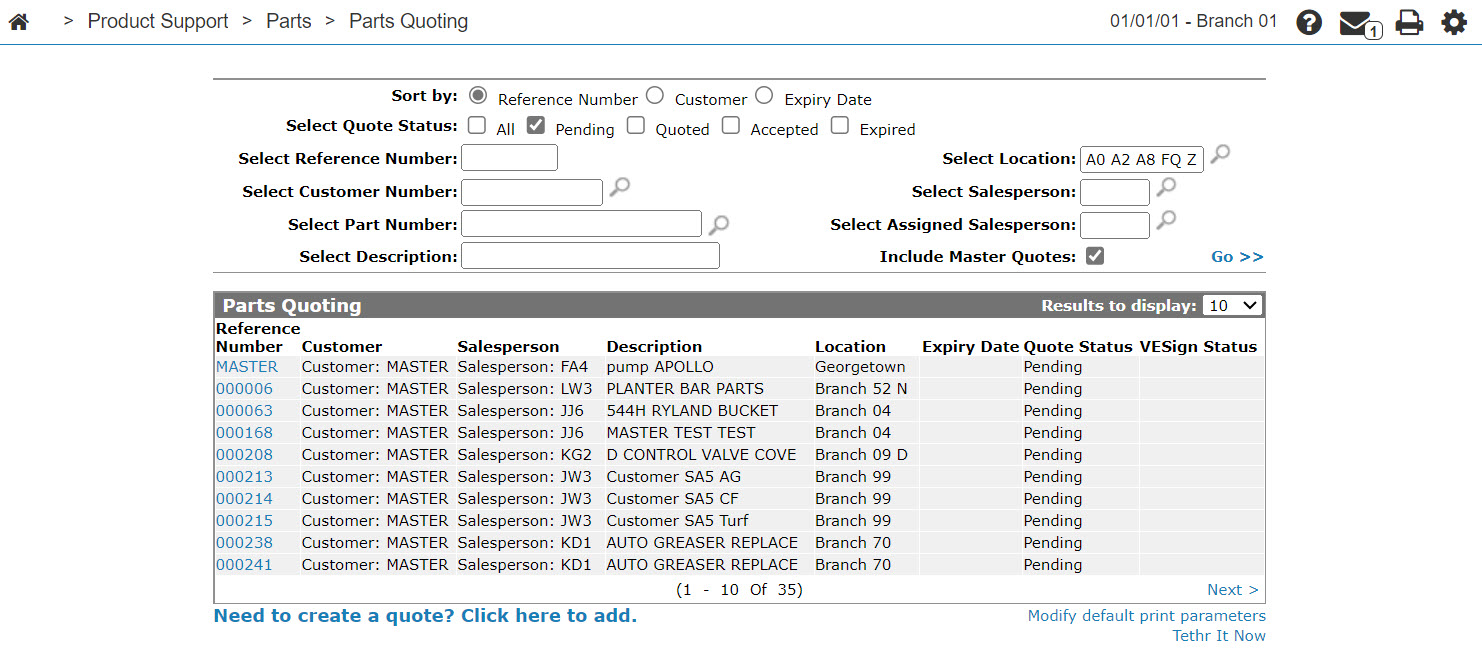
Search for a quote by filling out the appropriate fields and clicking the Go >> link.
-
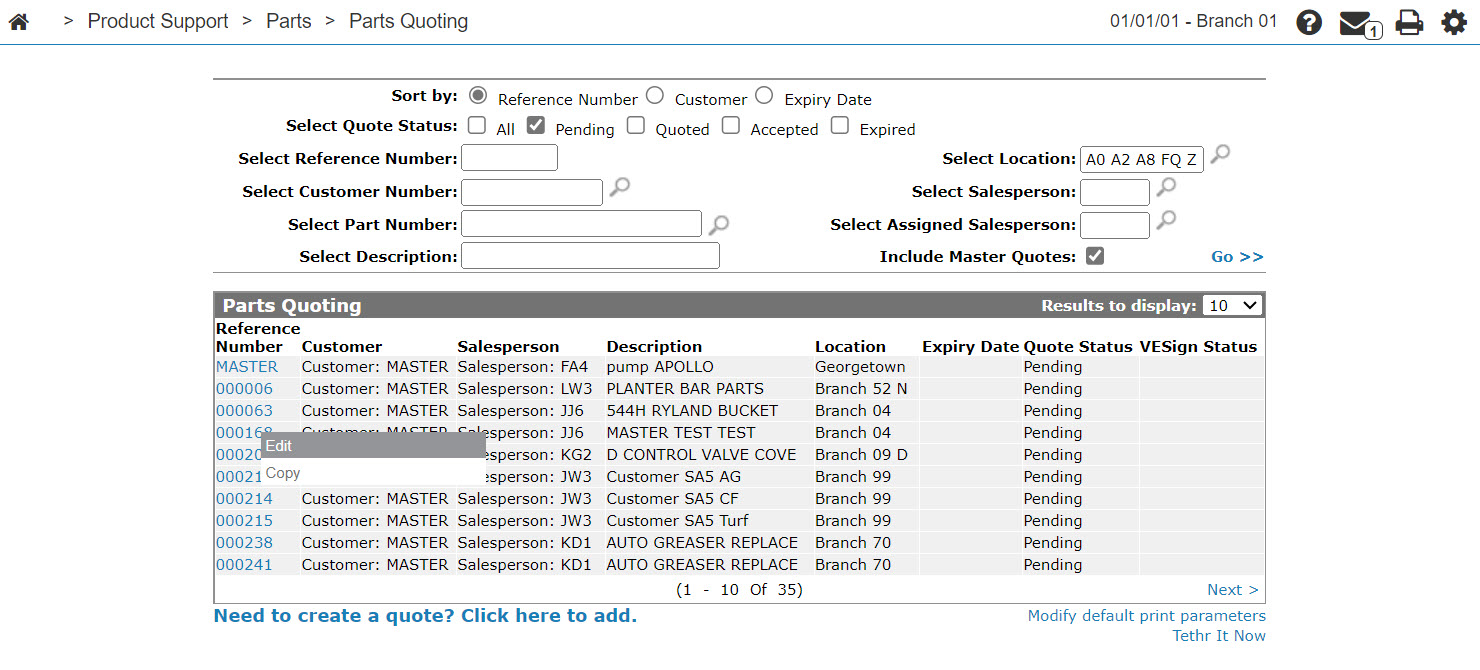
Move the cursor over the desired Reference Number and select Edit from the drop down list.
Only Pending quotes can be edited. -
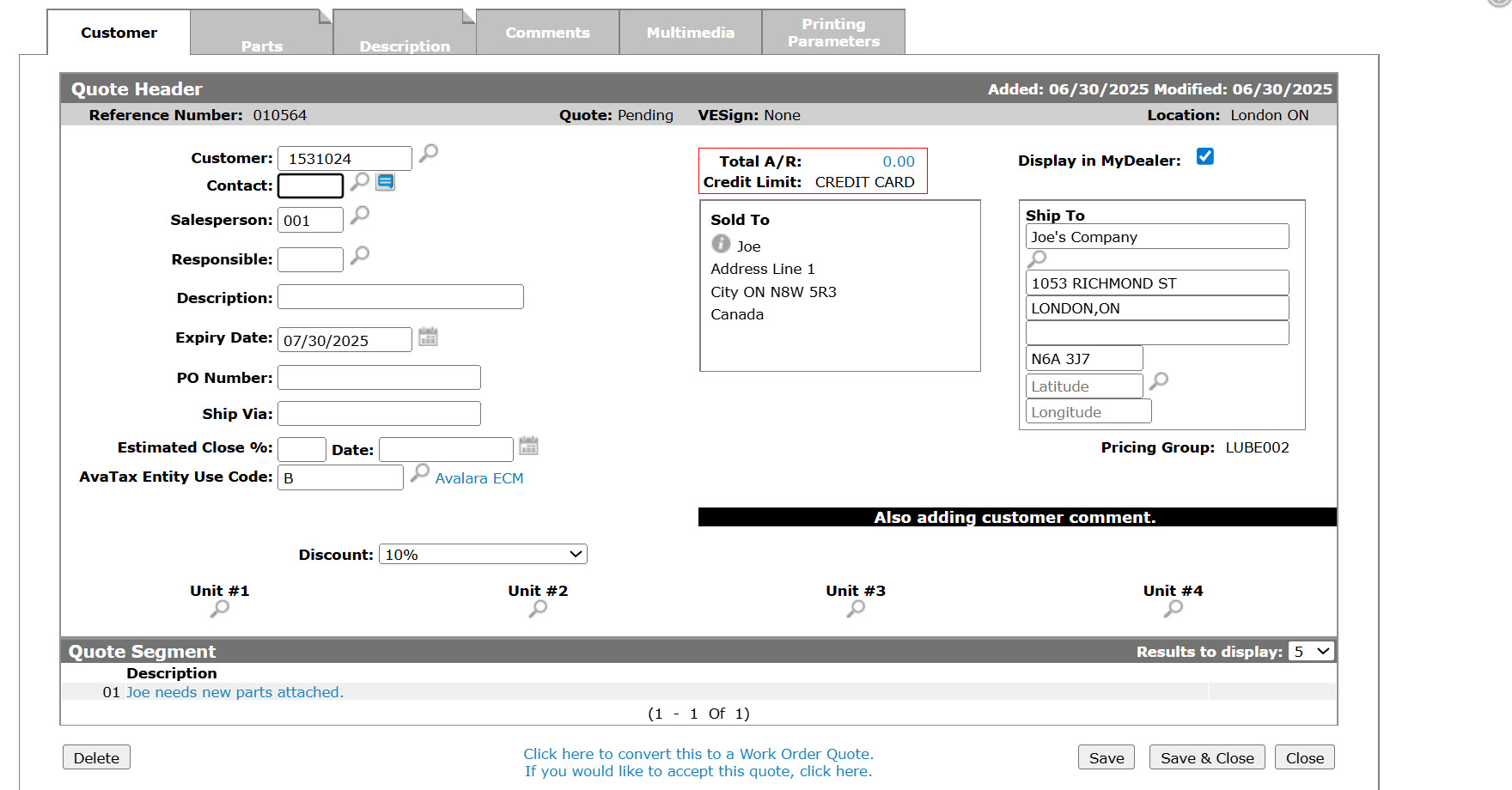
Click the If you would like to accept this quote, click here link.
A message may appear indicating that some of the parts on this quote are not currently in stock and may need to be back ordered.
-
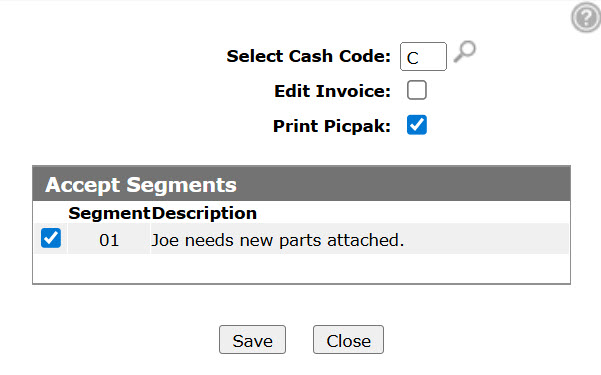
Enter a cash code in the Select Cash Code field if you wish to use another cash code besides the default cash code.
-
Select the Print Picpak checkbox to print a picpak.
-
Select the checkbox for each Segment that you wish to accept.
-
Click Save.
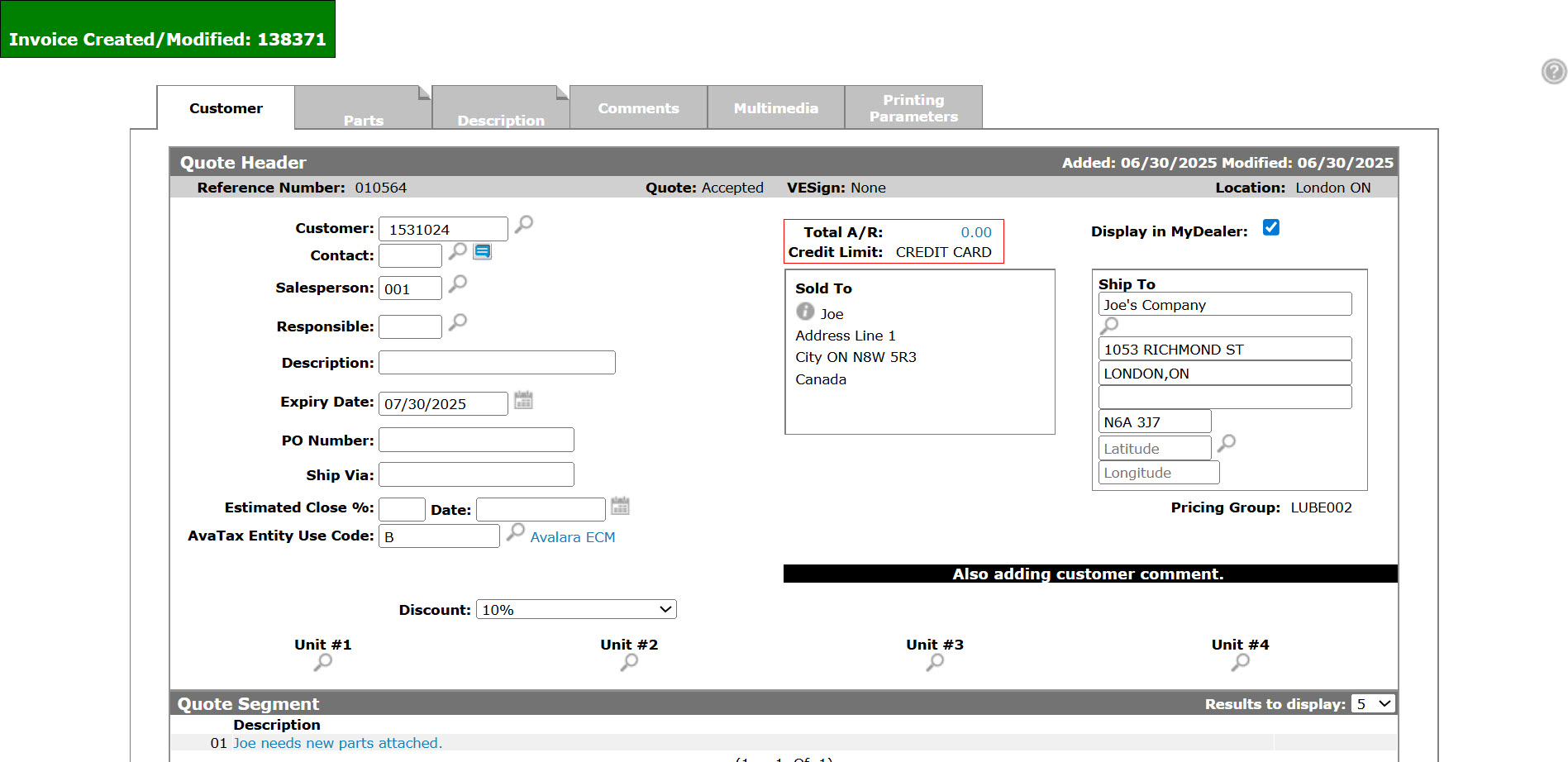
The number for the new Parts Invoice is displayed in the top left corner of the screen.
 The
The 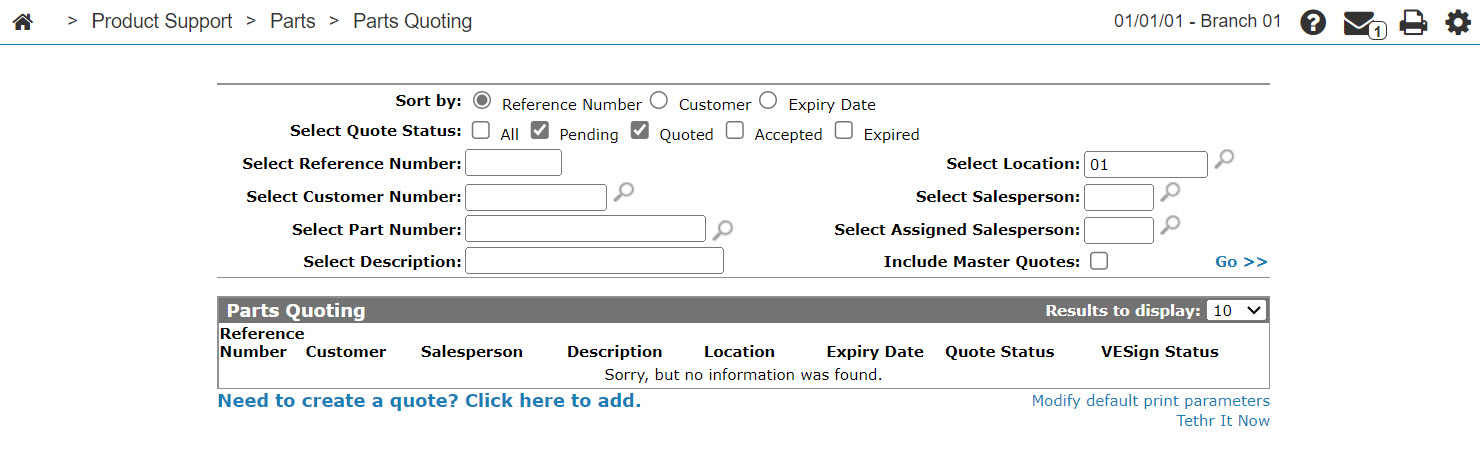
Security: 822 Product Support - Parts Quoting
Revision: 2025.07