
-
Navigate to Product Support > Service > IntelliTech.
The Scheduled Work Orders screen will appear.
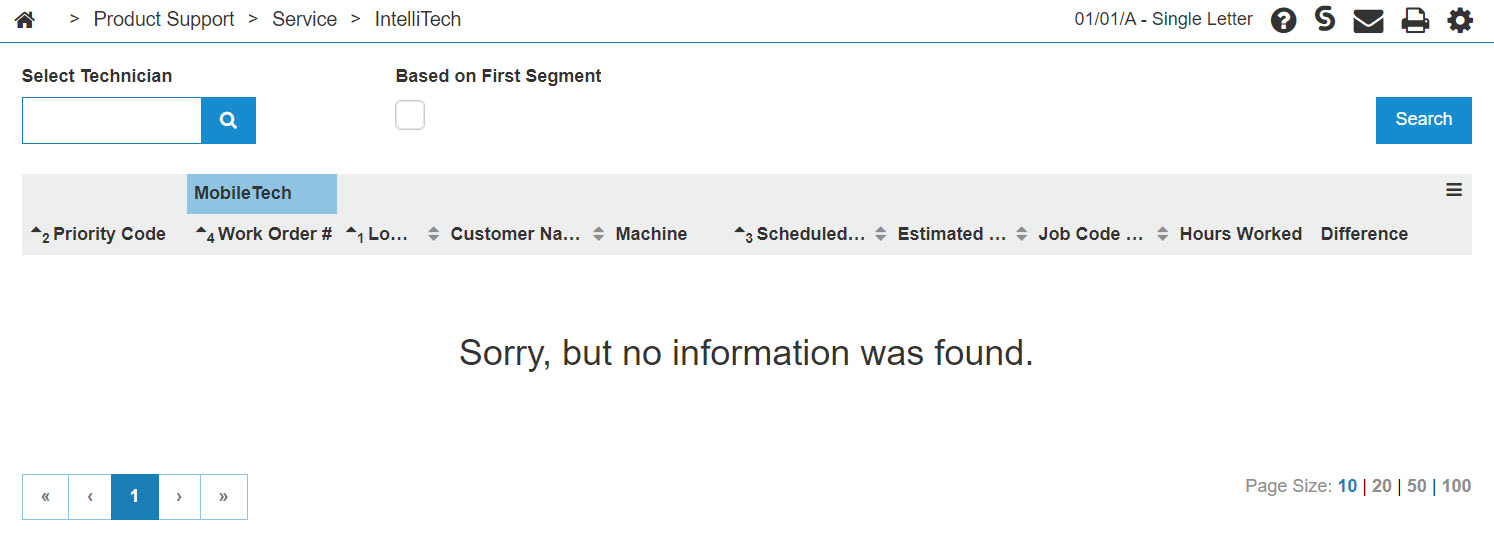
Scheduled Work Orders screen
-
On the Scheduled Work Orders screen, check the select technician field to make sure the technician number is correct.
Click the GO>> link to generate the work order search.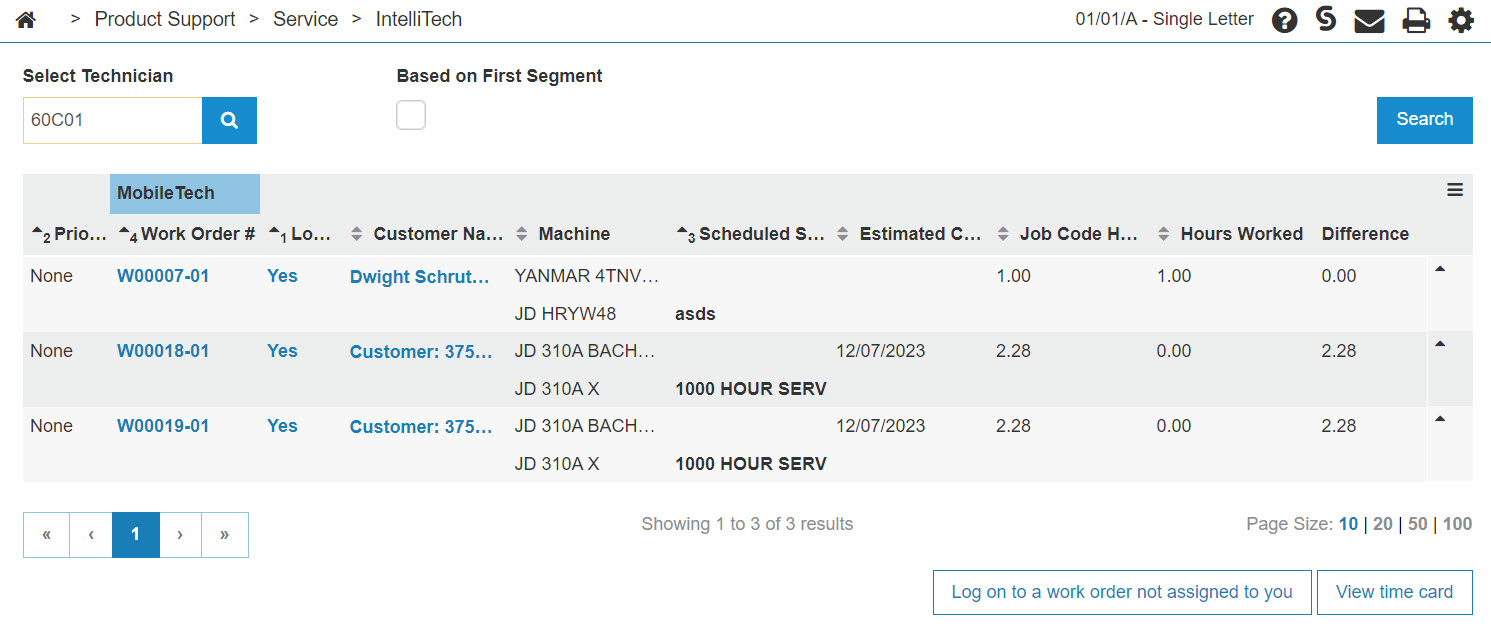
Updated Scheduled Work Orders screen
-
On the selected work order, click on the Yes link on the Log On field.
The Logged on screen will appear.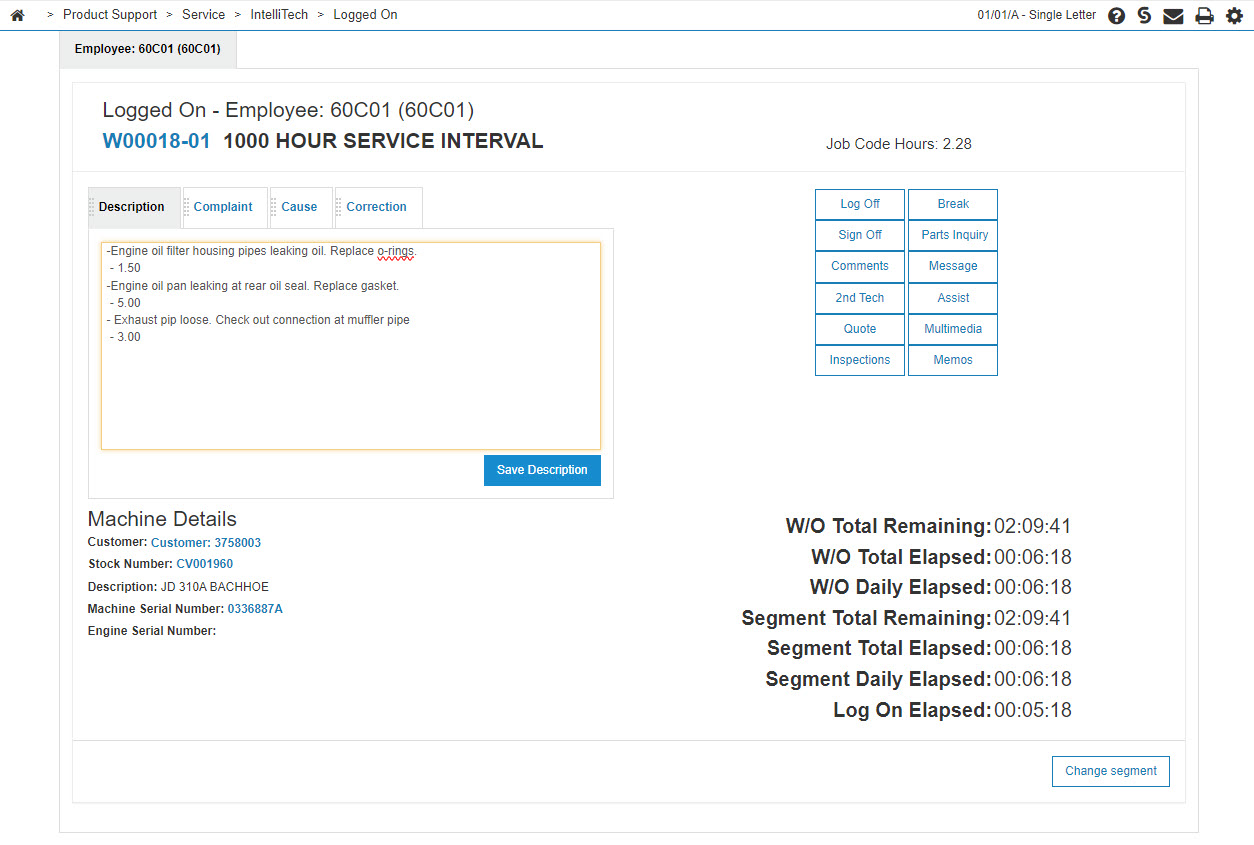
Logged On screen
-
On the Logged On screen, you can enter comments in the Description, Complaint, Cause, or Correction section by simple clicking within the text box provided.
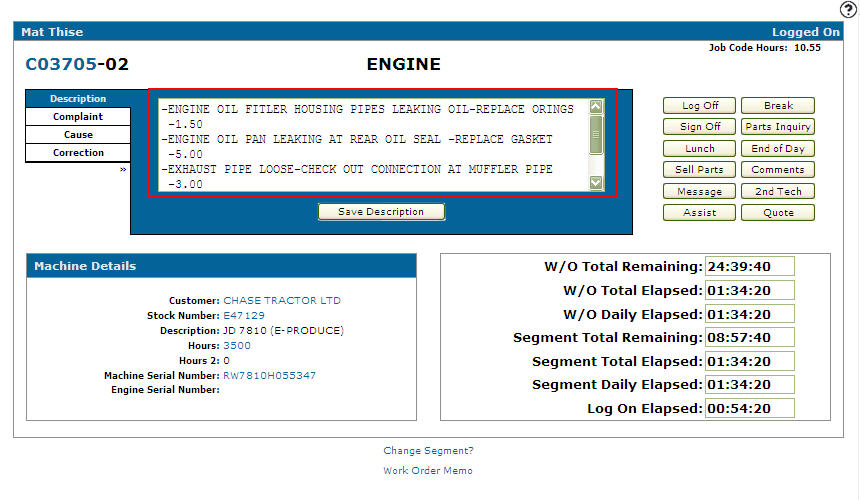
Logged On screen
-
To access the Complaint, Cause, or Correction text boxes click on the tabs next to the text box that list the comment sections.
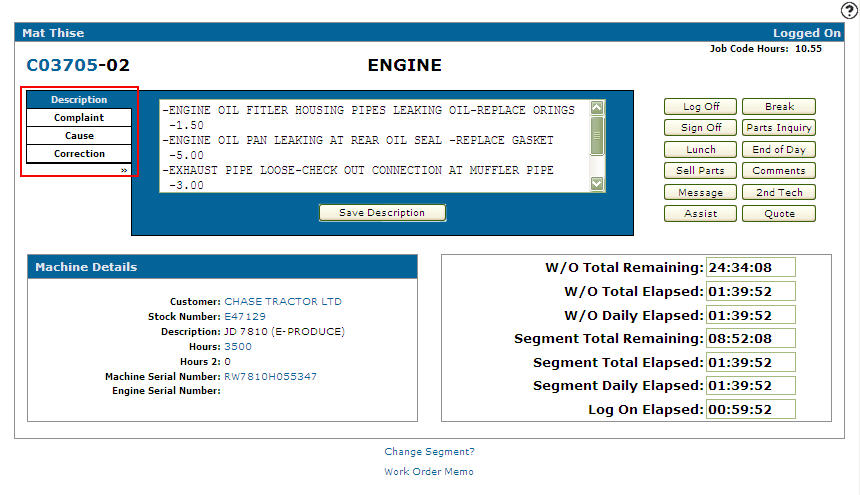
Logged On screen
-
Once you have entered a comment in one of the supplied comment sections click the Save Description, Save Complaint, Save Cause, or Save Correction button, depending on which comment section you previously selected, to save your changes.