John Deere eCommerce: Deposit Cash Codes
The Deposit Cash Codes tab requires default cash codes to be set up for the parts invoice deposit payment events that are created in the system. One default must be provided for each location that receives eCommerce orders.
To open the Deposit Cash Codes screen, navigate to Configuration > Parts > General > Deposit and select the Deposit Cash Codes tab.
You can configure cash codes individually, or as a group. See:
Setting Deposit Cash Codes for one Location
To properly configure the Deposit table for each location individually:
-
Navigate to Configuration > Parts > General > Deposit and select the Deposit Cash Codes tab.
-
To create a new deposit cash code configuration entry, click Create.
A modal is launched listing the available cash codes, which is driven by both the Default Customer configured on the previous tab and the Location selected from the drop down.
-
Select a location from the drop down, then enter a cash code, or click the search icon
 to bring up a list of available cash codes.
 -
When you are done, click Save to close the window, or Save & New to create a new entry.
 Deposit Cash Codes modal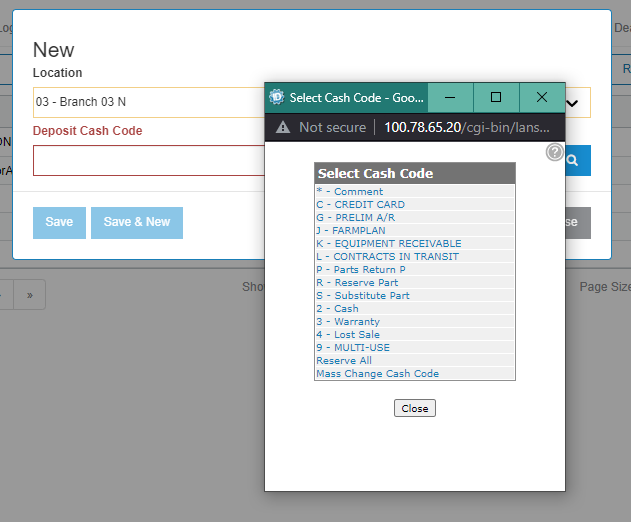
Setting Deposit Cash Codes for all Unset Locations
This option attempts to set the deposit cash code for all locations that do not already have a cash code configured. Any locations that already have a cash code configured are left as-is.
If the cash code you select does not exist in a given location, error messages are shown at the top of the screen. The cash code is still added for all locations where the cash code does exist, regardless of whether error messages appear.
To set a default cash code for all unconfigured locations:
-
Navigate to Configuration > Parts > General > Deposit and select the Deposit Cash Codes tab.
-
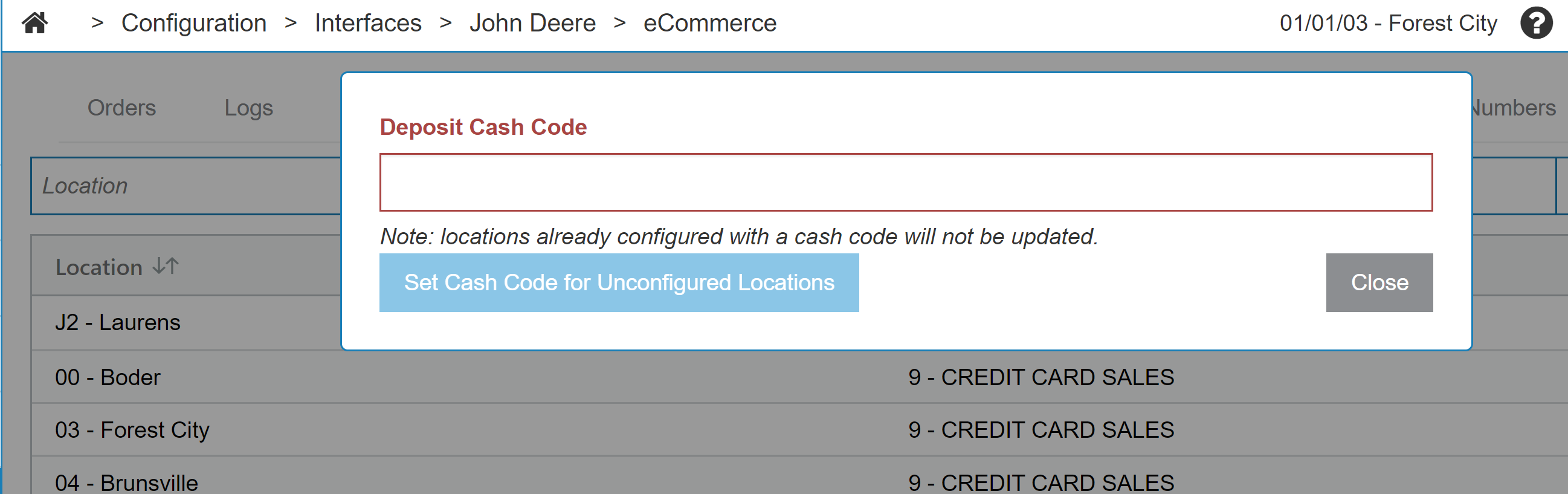
Click the Set Cash Code for Unconfigured Locations button.
-
Enter a cash code in the Deposit Cash Code box and click Set Cash Code for Unconfigured Locations.