
Creating a System-Suggested Stock Order
-
Navigate to Product Support > Parts > Parts Ordering.
-
Click the Ordering Options link and select Create Stock order from the drop-down.
-
Click the Click here to add selection criteria link.
-
Select a field Group code from the drop down list.
-
Enter a Field or click the Search
 icon to search for a field on the Select Field screen.
 -
Select an Operator value from the drop down list.
-
Enter a Value or click the Search
icon or Calendar icon next to the Value field and select a value (depending on the field selected). -
(OPTIONAL) click on the More
 icon to add more values.
 -
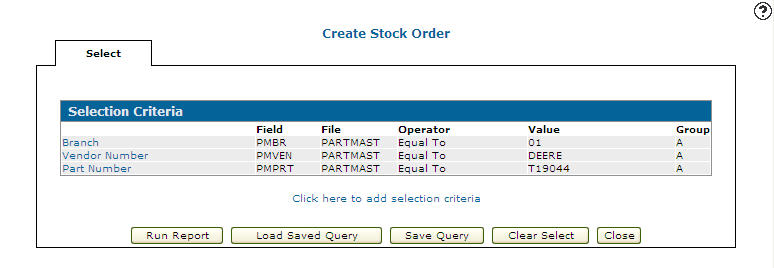
Click Save to save your selection criteria and remain on the Selection Criteria screen to add more field elements and define the order.
-
Click the Save/Exit button to save your selection criteria and return to the Selection Criteria tab.
-
Click Run Report
-
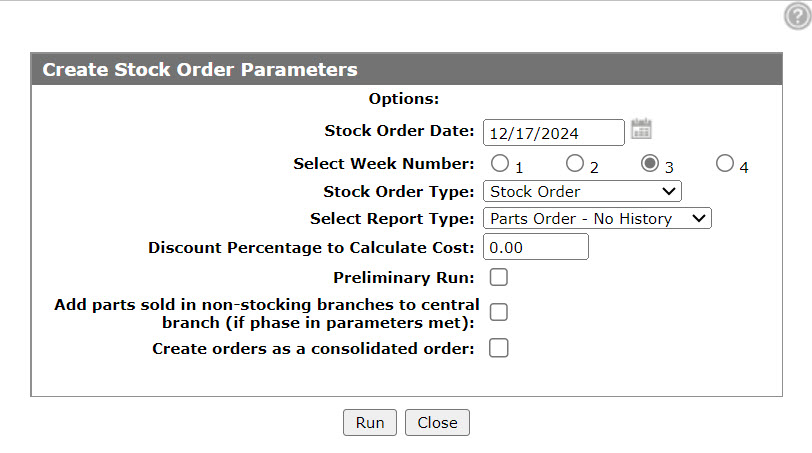
Select the parameters to include when creating the system generated stock order.
-
Click Run to generate the stock order.
-
Review the system suggested stock order through the Parts Ordering screen and make any necessary changes, then click Release.
-
Submit the stock order to the vendor via email, online order entry, or electronically transmitted through the Parts Order screen.
 The
The 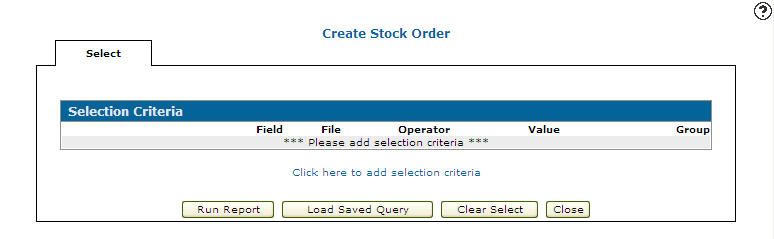

Security: 821 - Product Support - Parts Ordering
Revision: 2026.04