
Parts Profile: Related Part
Use the Related Part screen to edit a related part or add a related part to the Related Parts tab. A related part is a part that is related, or attached to, another part or parent part. The related part can be imported with the parent part when the parent part number is entered onto a parts invoice or requisition.
The Related Part screen is accessed from the Related Parts tab by clicking a Part Number or by clicking the Click here to add a related part link.
Note: The Related Part screen uses the PARTLIST file which helps assist parts personnel in knowing what parts are related to each other and in some cases parts that should be sold together.
-
From the Parts list, click the Parts Profile link.
The Parts Profile: Listing screen appears.
-
Search for the required part and open it.
The Parts Profile: Detail screen opens.
-
Click Updated/View Profile.
The Parts Profile tab appears.
-
Click the Related Parts tab.
-
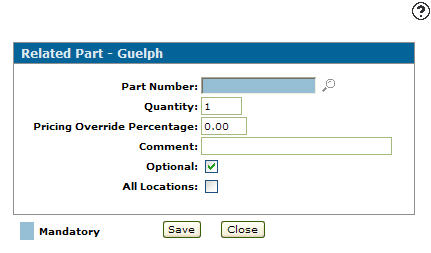
Select the Click here to add a related part link.
-
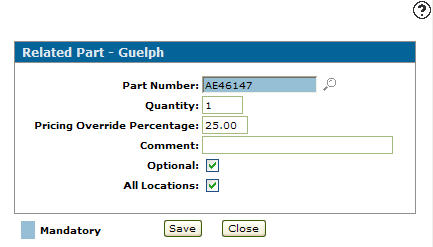
Enter a Part Number or click the Search
 icon to search for a part.
 -
Fill in the remaining fields, referring to the table below.
-
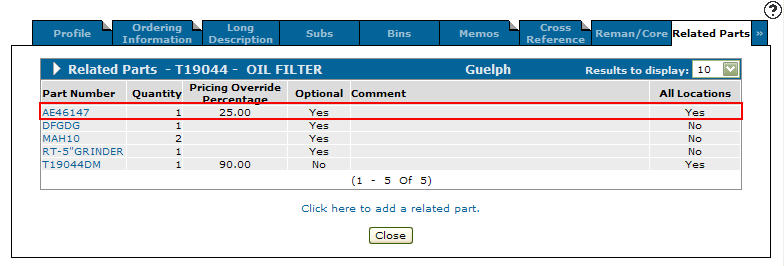
Click Save.
The related part number is loaded onto the selected parts profile.
 The
The 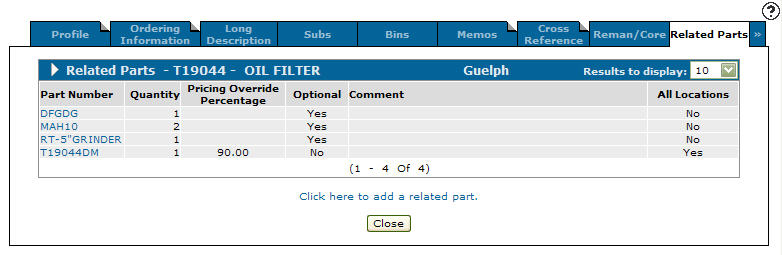
Screen Description
Fields on the Related Part screen are:
| Field | Description |
|---|---|
| Part Number | The related part number. |
| Quantity | The number of related parts you wish to sell. |
| Pricing Override Percentage | The percentage you wish to override the current pricing of the related part. |
| Comment | Attach a brief comment regarding the related part. |
| Optional |
Indicates whether the related part is optional or mandatory when selling the parent part to a sales order. Options are:
|
| All Locations |
Indicates whether the part is sold with the same parameters, at all locations, when the parent part is sold. Options are:
Related parts that are selected for a single location have order priority over parts selected for all locations. |
Click Save to save changes made on the Related Part screen and return to the Related Parts tab.
Click Delete to delete the selected related part.
Click Close to close the screen without saving and return to the Related Parts tab.