
Breaks
Use the Breaks tab to add or edit a special terms program.
To open the Breaks tab, go to the Programs tab and select Need to create a new program? Click here to add.
Topics in this section are:
Creating a Special Terms Program
-
Navigate to Product Support > Parts > Parts Ordering.
-
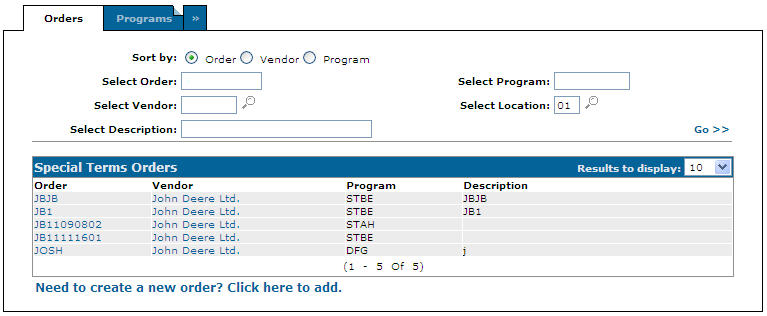
Click the Ordering Options menu and select Special Terms.
-
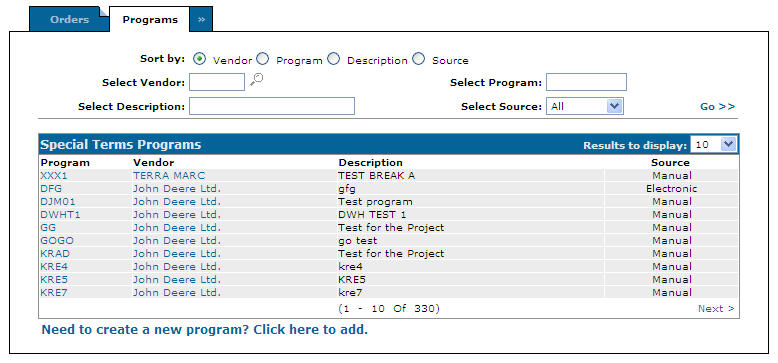
Click the Programs tab.
-
Click the Need to create a new program? Click here to add link.
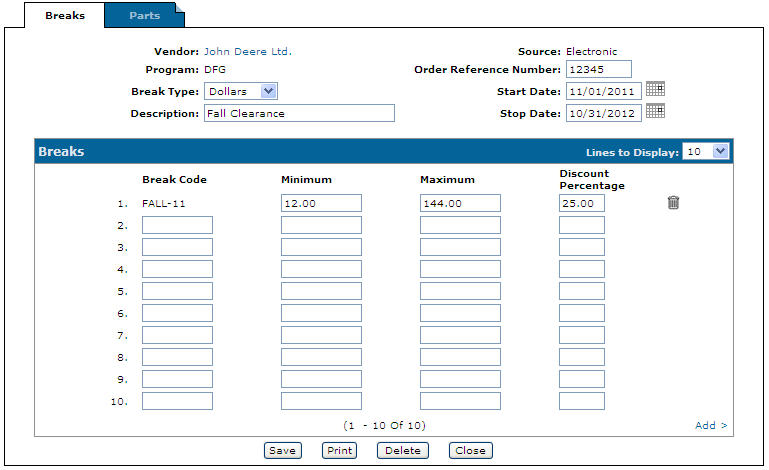
The Breaks tab appears.
-
To create a special terms program, define and name the program. Refer to the table below.
-
If applicable, add a list of specific parts on the Parts tab.
-
Once you have finished entering information, you can complete your work:
To: Do This: Save changes to the parts list and continue working and refresh the fields on the screen. Click the Save button. Print the list of parts specified in the named Program. Click the Print button. Delete the entire list. Click the Delete button. Import a list of parts for this Special Terms Program. Click the Import button. Close the order without saving changes. Click the Close button.
 The
The 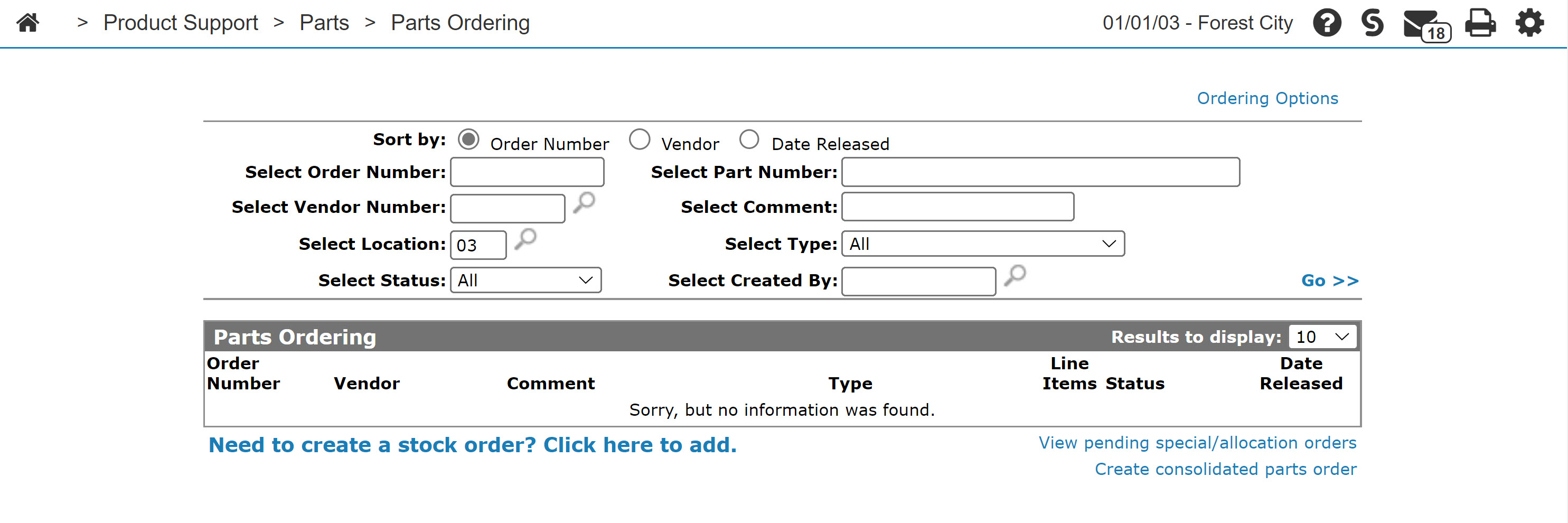
Screen Description
Fields on the Breaks tab are:
| Field | Description |
|---|---|
| Vendor | Enter or edit the vendor number associated with this program. |
| Program | Enter or edit a name for the special terms program. |
| Break Type | Select the break type: Dollars, Quantity, or Weight. |
| Description | Enter or edit a description of the special terms program. |
| Source | The point of origin for this special terms program. |
| Order Reference Number | Enter a reference number for the orders being created. |
| Start Date | The start date for this program. |
| Stop Date | The stop date for this program. |
Fields in the Breaks section of the Breaks tab are:
| Field | Description |
|---|---|
| Break Code | Enter the break code appropriate to the vendor. |
| Minimum | The minimum value for the program. This depends on the type specified. |
| Maximum | The maximum value for the program. This depends on the type specified. |
| Discount Percentage | The discount percentage for the special terms program. |
Use these buttons to complete your work:
-
Click Save to save any changes you have made to this special terms program.
-
Click Print to print the details of this special terms program.
-
Click Delete to delete this special terms program. This button does not appear if the special terms program was created and sent electronically by the vendor.
-
Click Close to close the screen without saving any changes.
Security: 821 - Product Support - Parts Ordering
Revision: 2026.04