
Quick Closing a Work Order From the Segments Tab
Before closing a work order you must first ensure that all outstanding parts purchase orders are closed. This prevents a user from closing the work before all parts are charged to the work order.
-
From on the Customer - Work Order Header tab.
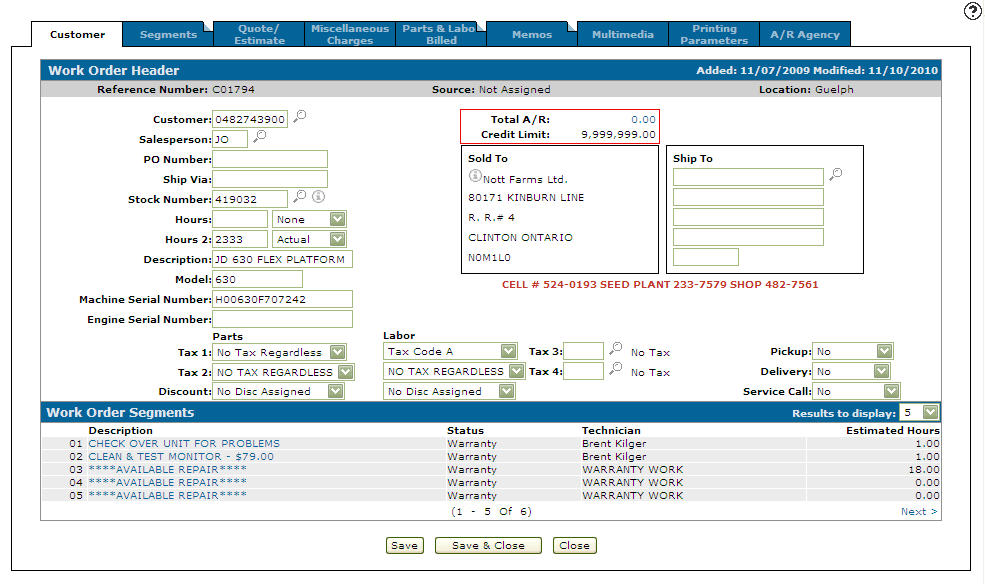
Customer - Work Order Header tab
-
Click on the Segments tab.
The Segments tab will appear.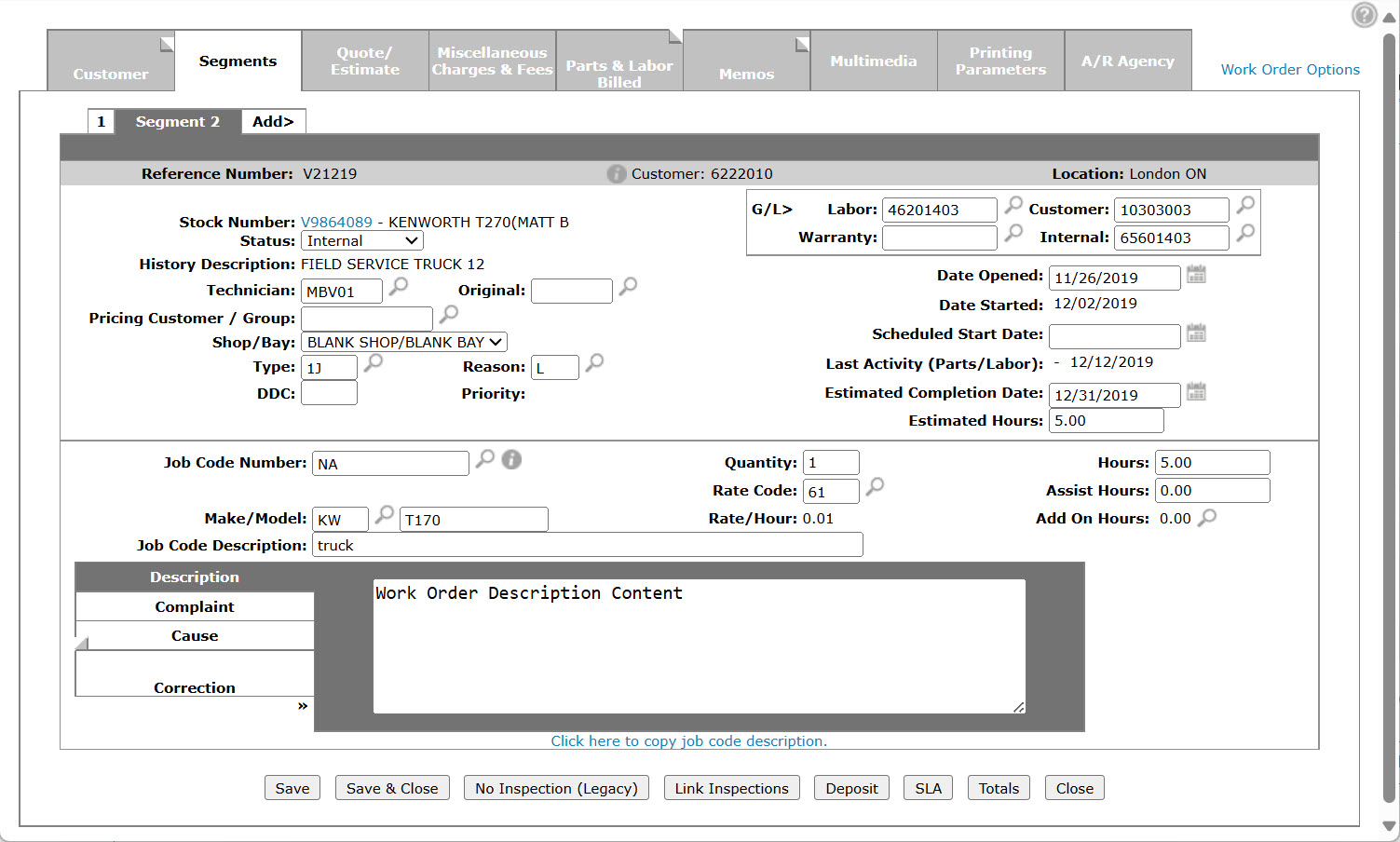
Segments tab
-
Move the cursor over the Work Order Options link and select Quick Close from the drop down list.
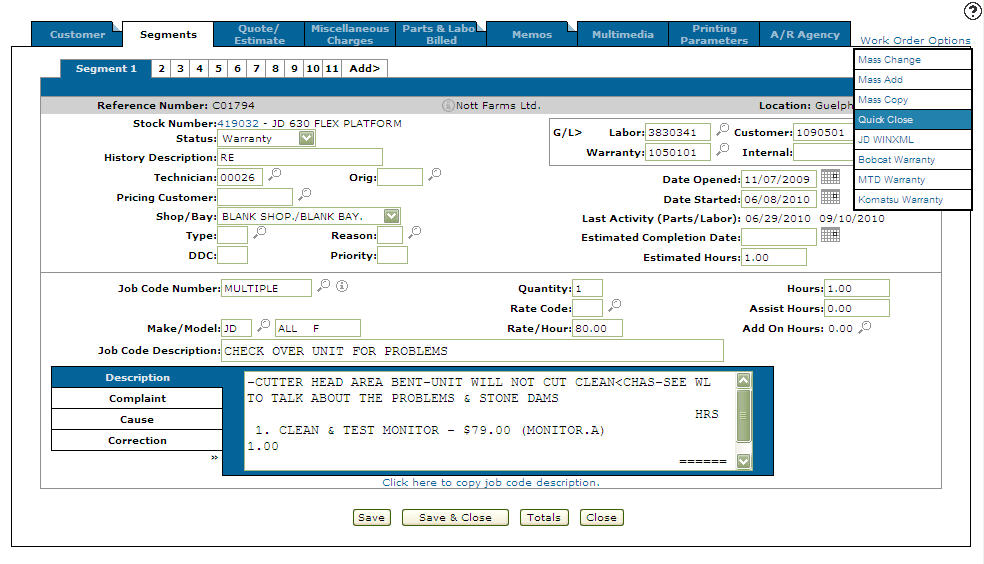
Segments tab
-
The Printing Parameters tab will appear allowing you to fill out the printing criteria.
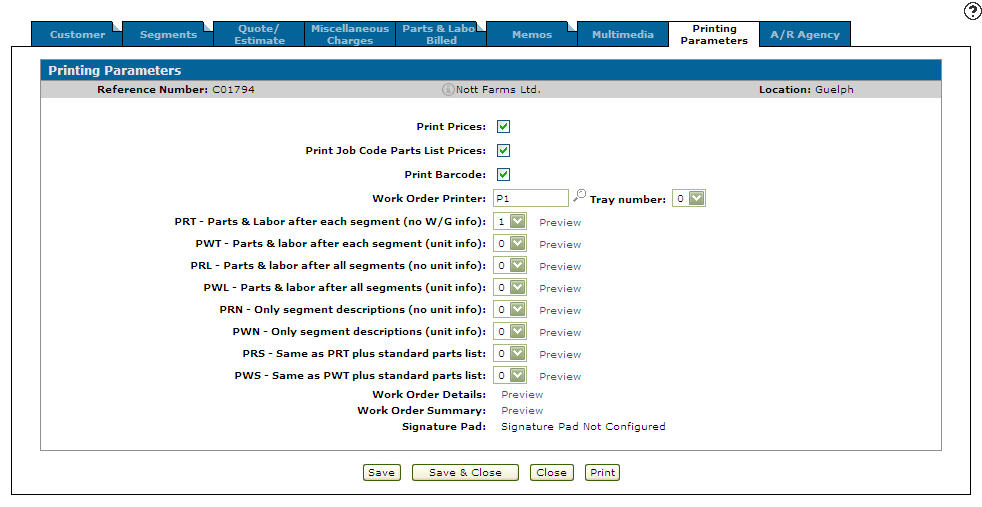
Printing Parameters tab
-
Click the Print button to print a copy of the work order.
-
Click the Save button to confirm your changes, then click the Close button to close out of the work order.