Signed Off Work Order Segments
A technician can sign off a work order segment once the repair associated with that segment is complete. Parts or labor transactions can no longer be posted to a signed off segment.
Topics in this section are:
Signing Off a Work Order Segment
-
Navigate to Product Support > Service > Work Orders then search for the desired work order.
-
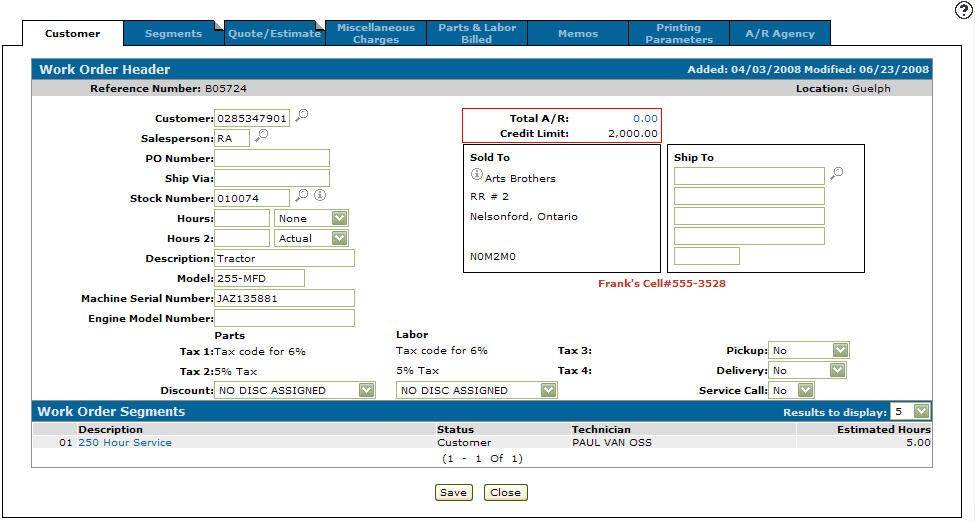
Move the cursor over the Order Number and select Edit from the pop-up menu.
-
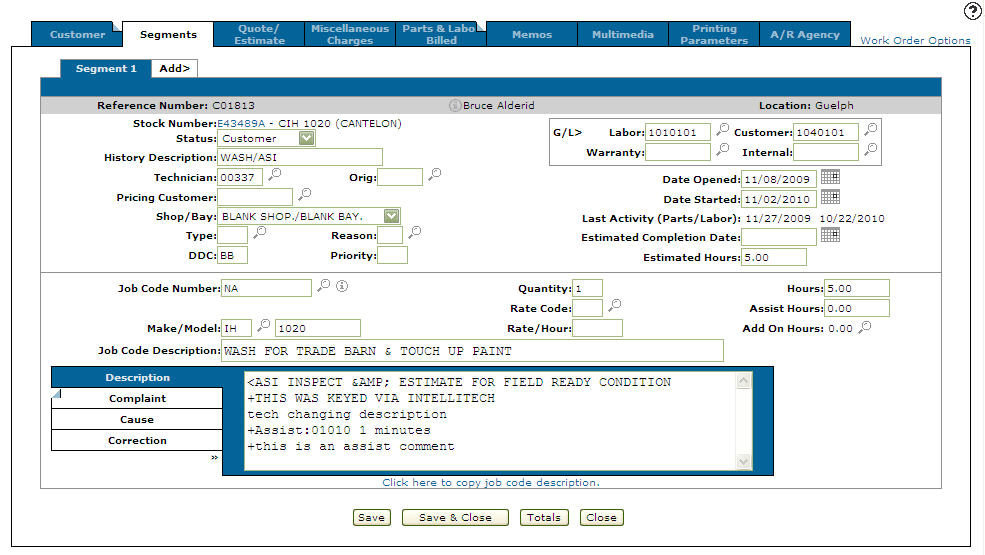
Click the Segments tab.
-
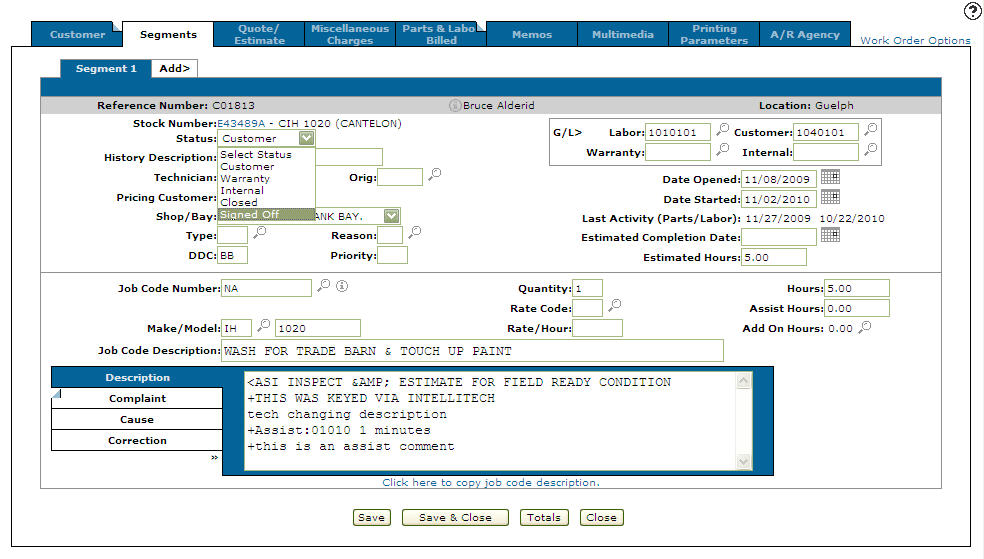
From the Status drop down list select Signed Off.
-
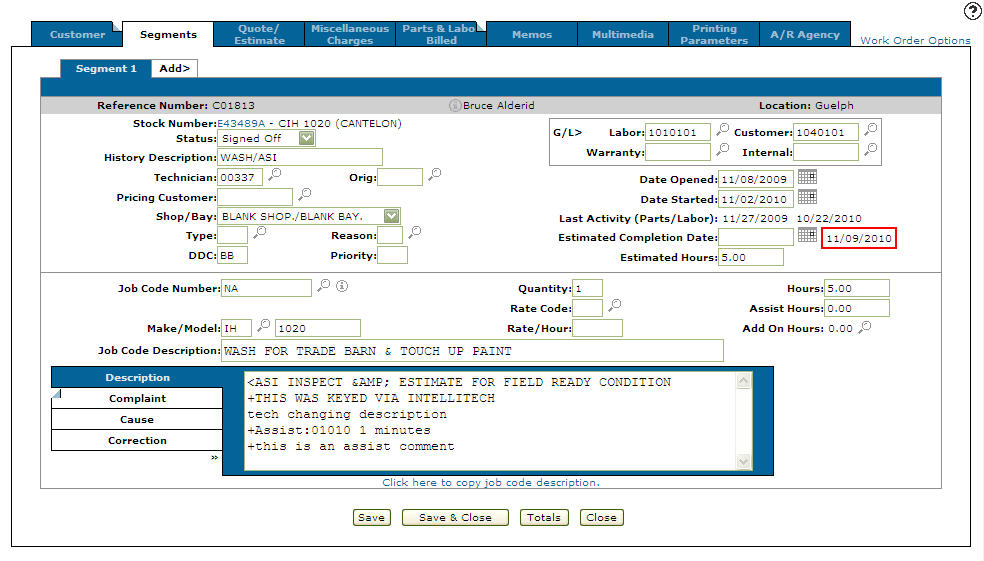
Click Save.
The system changes the status of the work order to signed off and records the completion date next to the Estimated Completion Date field.
 Opening a Work Order for edit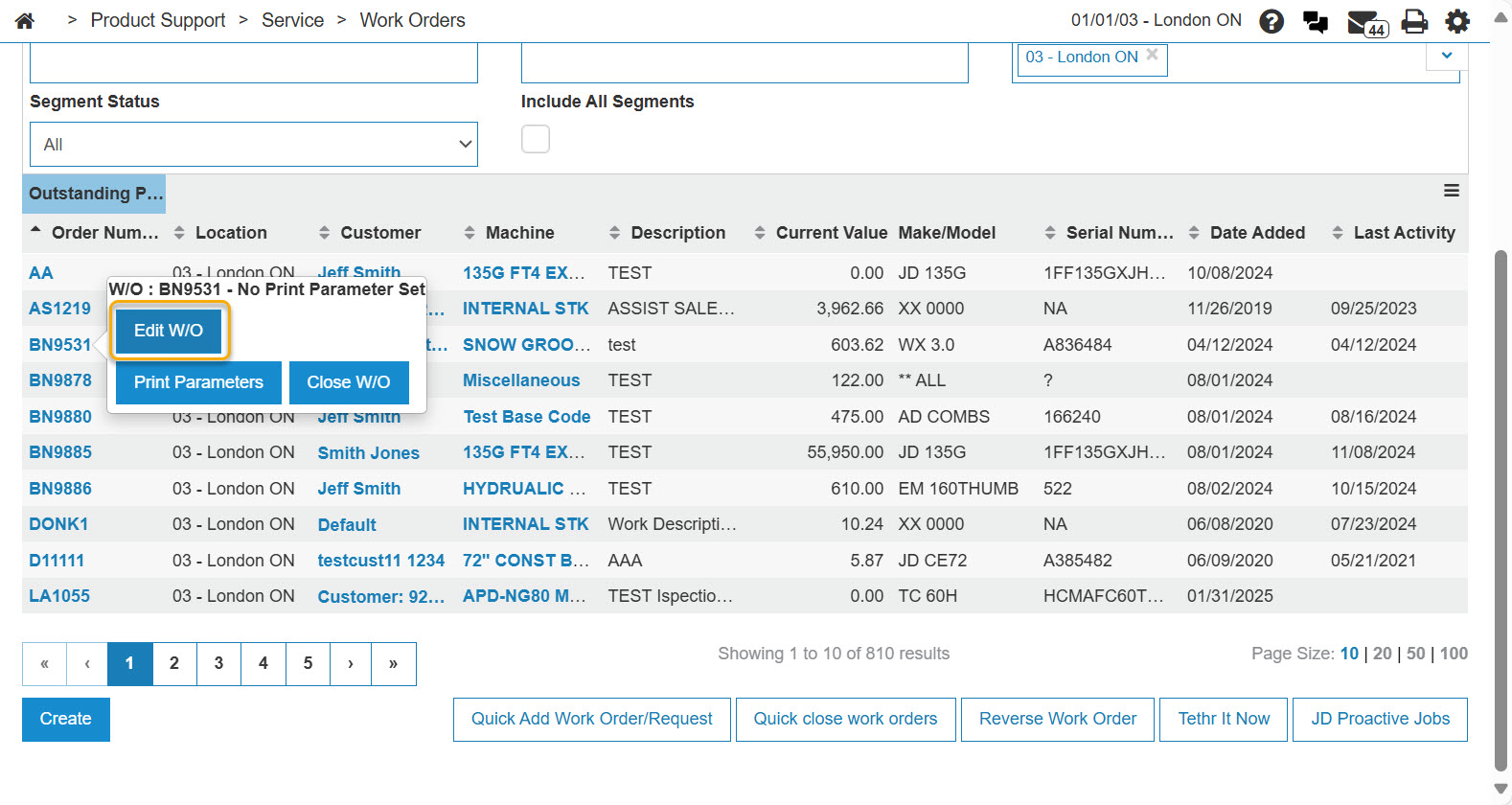
Searching for Signed Off Segments
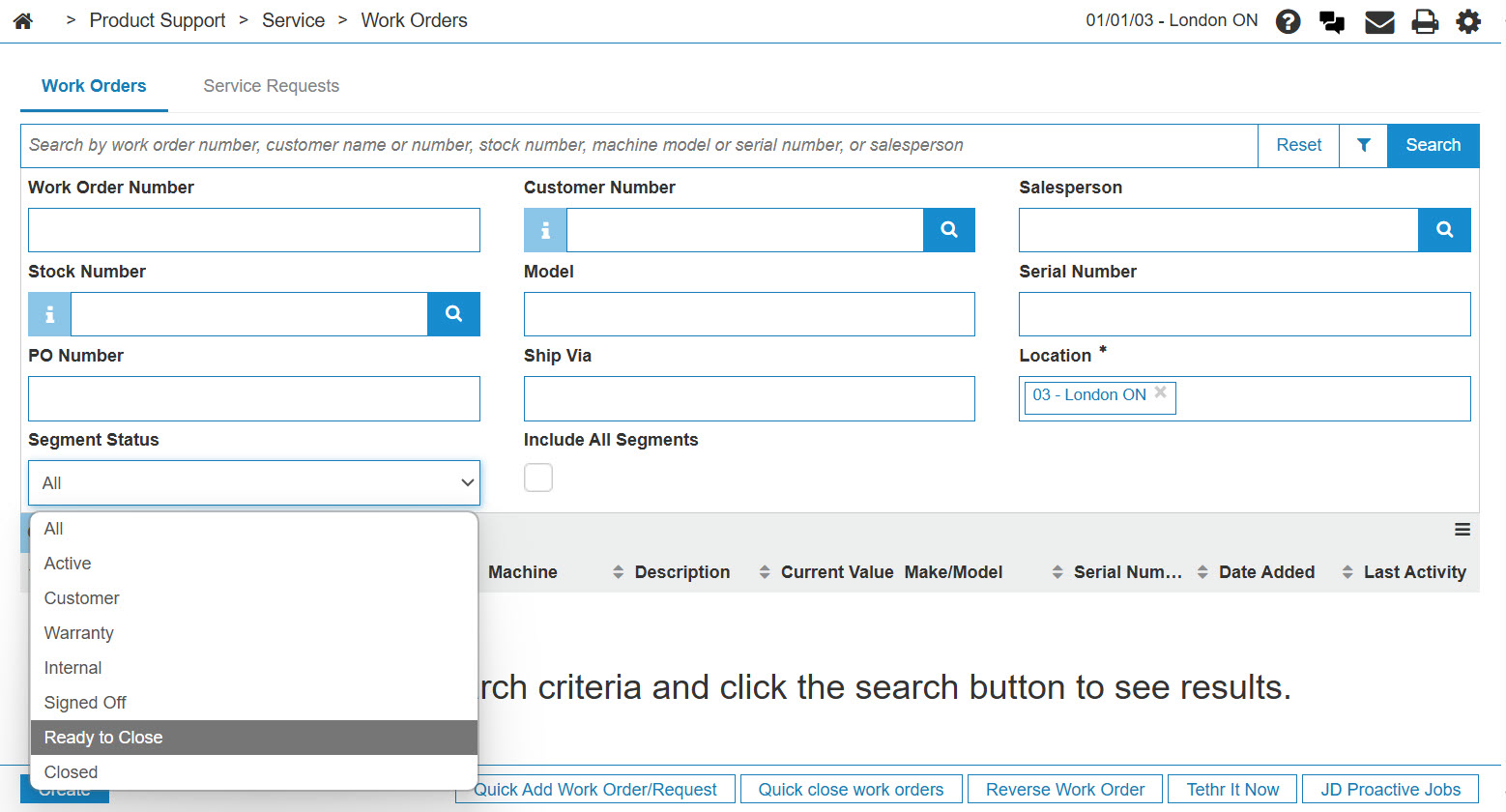
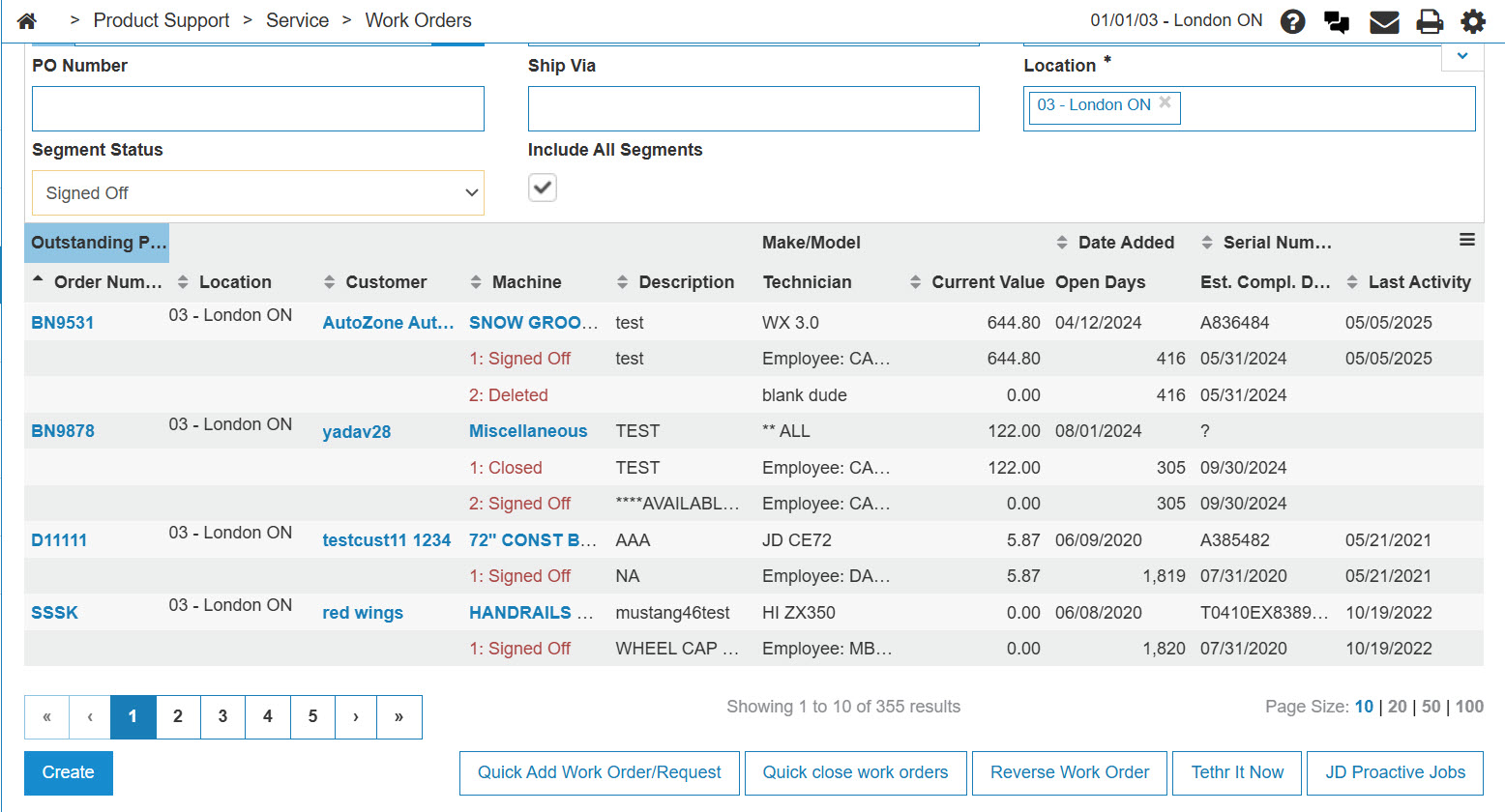
On the Open Work Orders screen, you can search for work orders with segments that have a status of Signed Off so you can find work orders that are ready to be closed.
-
Select Ready to Close from the Status drop down list.
-
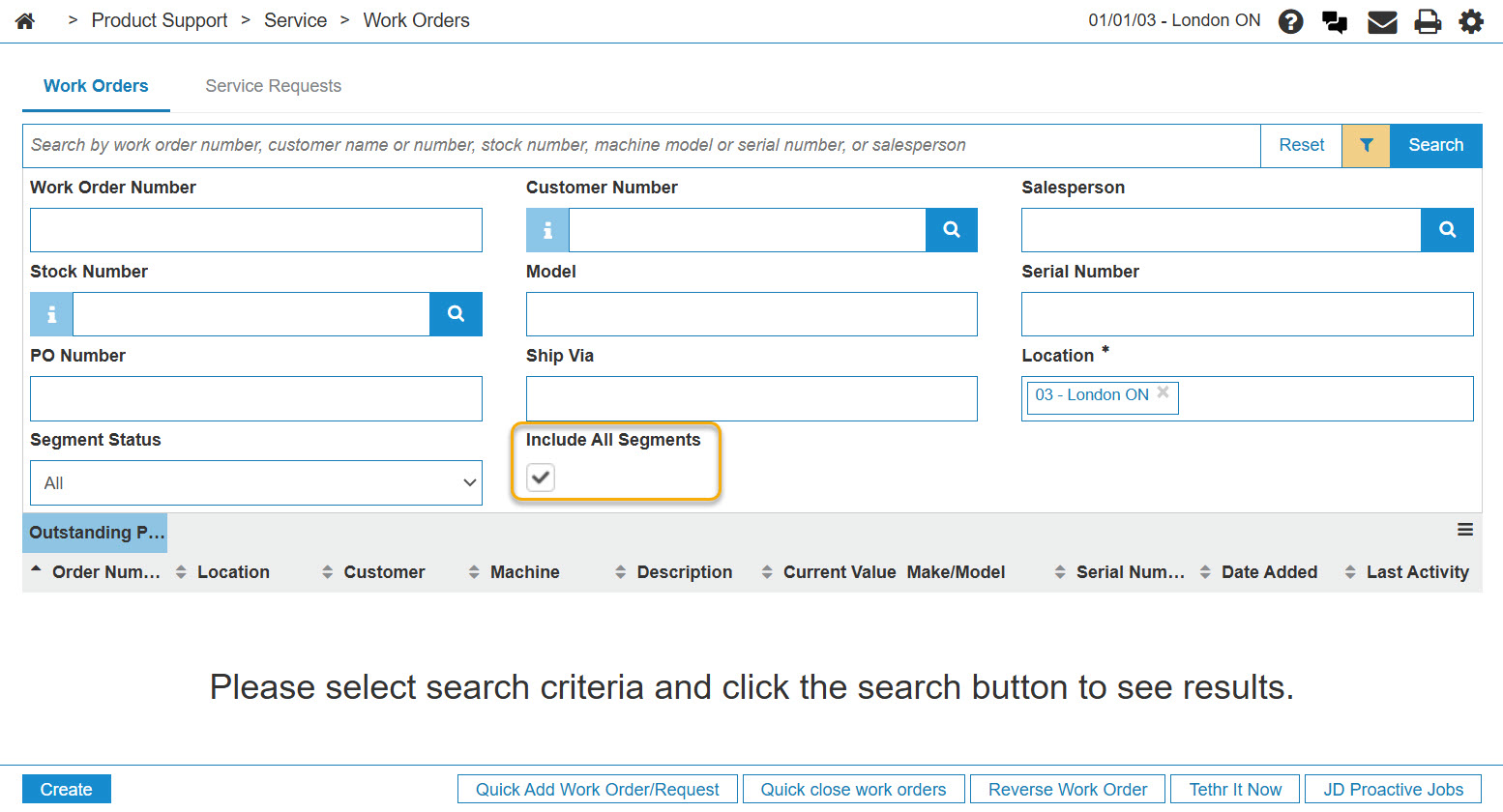
Select the Include All Segments field to include all segments within the search results.
-
To generate a list of work orders that are Ready to Close, click Search.