
Adding Customer Owned Equipment From Within a Work Order
-
From on the Customer - Work Order Header tab.
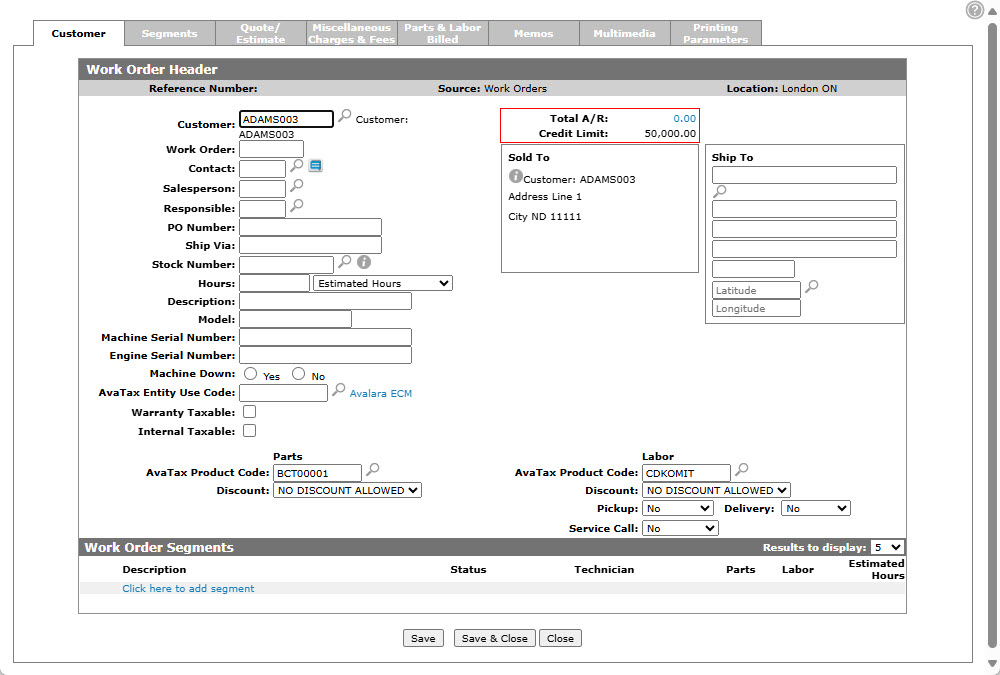
Updated Customer - Work Order Header tab
-
Click the Search
 icon to open the Equipment Search screen in a new browser window.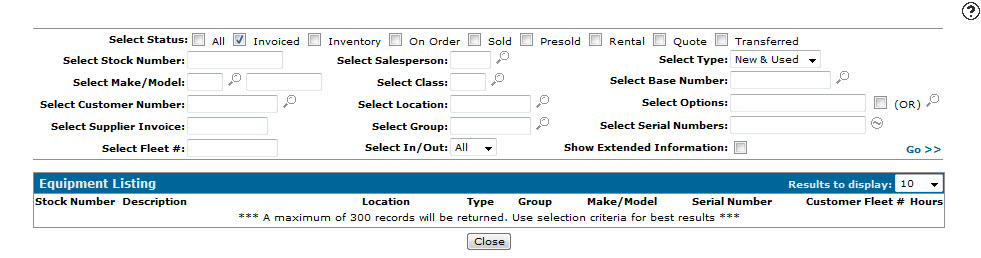
Equipment Listing screen
Note: If you have previously entered a Customer Number on the Customer - Work Order Header tab, the Equipment Listing screen will open listing the corresponding customer's equipment.
-
Enter a customer in the Customer Number field and click the Go >> link to generate the customer's owned equipment.
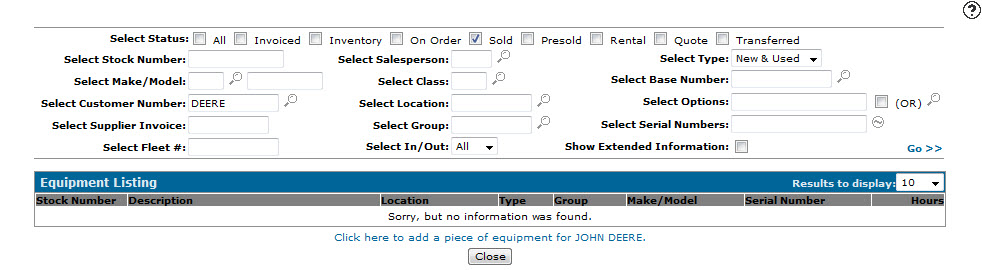
Equipment Listing screen
-
Click on the Click here to add a piece of equipment for Ron Smith link that will appear at the bottom of the screen.
Note: The wording of the link will use the name of the customer loaded in the Customer Number field.
-
The Add a Unit screen will appear.
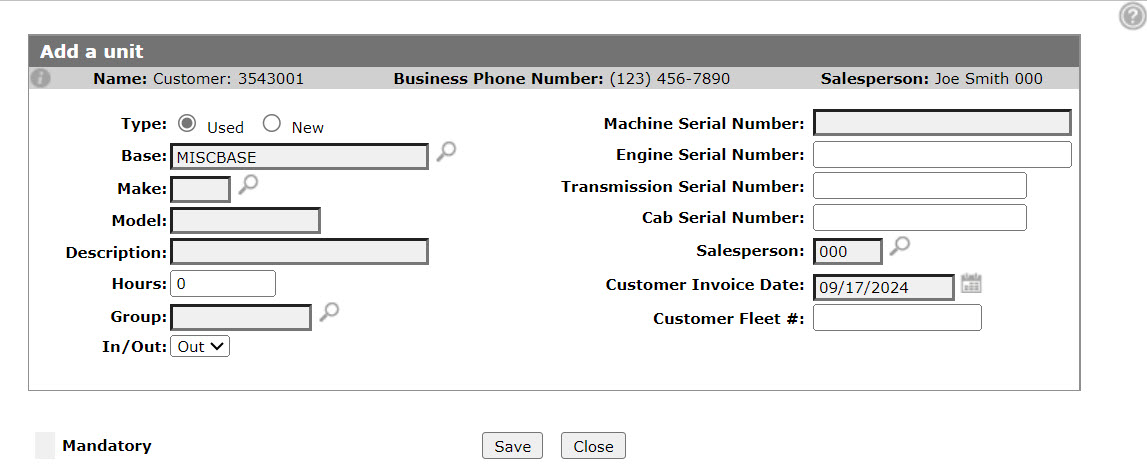
Add A Unit screen
-
On the Add a Unit screen, select a unit Type indicating whether the unit is New or Used.
-
The system will automatically default the Base code field to the miscellaneous base code loaded on the ADDWGU table.
Note: When quick adding a unit, it is recommended that you use the default miscellaneous base code
-
Enter a Make code.
- or -
Click on the Search icon next to the Make field and select a make code from the Select Make screen.
 -
Enter a unit's Model.
-
Enter a brief Description of the unit.
-
(OPTIONAL) Enter any Hours on the units hour meter.
-
Enter the unit's Group code.
- or -
Click on the Search icon next to the Group field and select a group code from the Group Selection screen. -
Enter the Machine Serial Number.
-
(OPTIONAL) Enter the Engine Serial Number.
-
(OPTIONAL) Enter the Transmission Serial Number.
-
(OPTIONAL) Enter the Cab Serial Number.
-
Enter a Salesperson.
Note: It is recommended that you use the salesman number “SYS”, so all quick added customer equipment records can be reported on and changed.
-
Enter a Customer Invoice Date, indicating date the unit was purchased by the customer.
-
Enter a Customer Fleet Number, if your customer uses fleet/tag numbers.
-
Click the Save button.
The Equipment Profile tab will appear allowing you to fill out any additional information.