
Add, Edit or Copy Field Security
Field level security can either prevent a user from changing information or seeing the information contained in a field. Applying field level security to a mandatory field prevents users from accessing add functionality. For example, applying security to the Inventory Account field in the Equipment Profile prevents a user from adding a new piece of equipment.
Note: Field level security set up for a single user overrides group field level security.
Topics in this section include:
Add Field Security
You can use the Add Field Security screen to add field level security to a field in the Equipment Profile, Customer Extended Information, Customer Profile, Parts Profile or Vendor Profile files.
Adding Security to a Field
-
Navigate to Administration > Settings > Security and select the Field tab.
The Field - Work With Field Level Security tab appears. -
Click the Click here to add field level security link.
-
Fill in the fields referring to the table in Add Field Security Screen Description.
If you are applying field level security to a user group, you may need to add a user to a user group first.
-
Click the Save button to save the new field level security and return to the Field - Work With Field Level Security tab.
- or -
Click the Save & New button to save the new field level security.The Add Field Security screen refreshes, allowing you to add another field level security without closing the screen.
Add Field Security Screen Description
The fields on the Add Field Security screen are:
| Field | Description |
|---|---|
| User | The name of the user or group whose profile is affected by the field level security. |
| All Users | Select the All Users radio button to apply field level security changes to all available users. |
| File | The file where the field is located within IntelliDealer. |
| Field | The name of the field within IntelliDealer that is affected by the field level security. |
| Description | A brief description of the field name. The system automatically generates a field Description once a Field is entered. |
| No Protection |
If selected, gives a user or group the authority to the selected field. Granting a user authority to a field circumvents protection authority that has been assigned at a lower level. For example, you might protect a cost field using All Users (because the majority of the users are not allowed to change the field). For the handful of users who can change the field, you would set them up with No Protection. If the All Users field is selected the No Protection field does not appear. |
| Field Protection |
Allows you to select the type of protection applied to the selected field.
Hidden and Hidden Changeable will only appear for a limited number of fields such as part cost, equipment net book value, etc. |
| Display Label | Allows you to determine if the field label should be shown (displayed) when the field has hidden protection. |
Use these buttons to complete your work on the Add Field Security screen:
| Button | Function |
|---|---|
| Save | Saves changes made to the Add Field Security screen. |
| Save & New |
Saves a newly added field security and refreshes the Add Field Security screen, allowing you to apply field level security to another field without closing the screen. |
| Close | Closes the Add Field Security screen without saving and returns to the Work With Field Level Security tab. |
Edit Field Security
The Edit Field Security screen allows you to edit existing field level security.
Editing Field Level Security
-
Navigate to Administration > Settings > Security and select the Field tab.
The Field - Work With Field Level Security tab appears. -
Search for the user or group you want to edit.
-
Click on a Field.
-
Edit any of the available fields. See Edit Field Security.
-
Click Save to save any changes made to the field security.
- or -
Click the Save & Next button to save any changes made to the field security and continue to the next field security on the list.
 The Edit Field Security screen appears.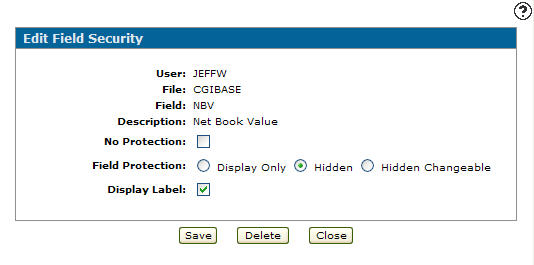
Edit Field Security Screen Description
The fields on the Edit Field Security screen are:
| Field | Description |
|---|---|
| User | The name of the user or group whose profile is affected by the field level security. |
| File | The file where the field is located within IntelliDealer. |
| Field | The name of the field within IntelliDealer that is affected by the field level security. |
| Description | A brief description of the field name. |
Use these buttons to complete your work on the Field Level Security screen:
| Button | Function |
|---|---|
| Save | Saves changes made to the Edit Field Security screen. |
| Save & Next | Allows you to save any edits/changes made to the selected field security and scroll through to the next field security on the list to apply any edits/changes. |
| Delete | Deletes the field level security applied to the selected field. |
| Close | Closes the Edit Field Security screen without saving and returns to the Work With Field Level Security tab. |
Copy Field Security
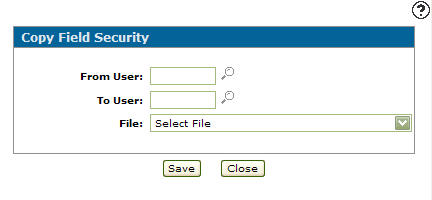
The Copy Field Security screen allows you to copy existing field level security from one user to another.
Copying Field Level Security
-
Navigate to Administration > Settings > Security and select the Field tab.
The Field - Work With Field Level Security tab appears. -
Click the Copy Field Security link.
-
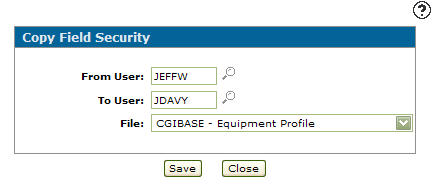
In the From User field, enter the id of the user you are copying the field level security from. And in the To User field, enter the id of the user who is receiving the copied version of the field level security.
- or -
Click on the Search icon to select a user from the User Selection screen.
 -
Select the File you wish to copy from the user entered in the From User field from the drop down list.
-
Click the Save button to copy the selected file's field level security to the user entered in the To User field.
Copy Field Security Screen Description
The fields on the Copy Field Security screen:
| Field | Description |
|---|---|
| From User | The id of the user or group you are copying the field level security from. |
| To User | The id of the user or group who are receiving the copied version of the field level security. |
| File | The file being copied. |
Use these buttons to complete your work on the Copy Field Security screen:
| Button | Function |
|---|---|
| Save | Copies the field level security from the user id entered in the From User field to the user id entered in the To User field. |
| Close | Closes the Copy Field Security screen without copying and returns to the Work With Field Level Security tab. |